
The rise of voice assistants has revolutionized how we interact with technology, and at the forefront of this revolution is Amazon’s Alexa. More than just a smart speaker, Alexa is a powerful AI assistant capable of controlling smart home devices, playing music, answering questions, and even managing your daily schedule. But for many, the initial step – getting Alexa up and running – can feel a little daunting. This guide aims to demystify the process, breaking down “how do you install Alexa” into simple, actionable steps, whether you’re setting up a brand-new Echo device or integrating Alexa into your existing setup. We’ll also touch upon the broader implications of this technology, exploring how it fits into the tech landscape, its impact on branding and marketing, and even its potential financial implications.

Getting Started with Your First Alexa Device: The Core Setup
The journey of installing Alexa typically begins with a dedicated Amazon Echo device, such as an Echo Dot, Echo Show, or a full-sized Echo. These devices are the primary gateway to the Alexa ecosystem. The installation process is designed to be user-friendly, leveraging the Alexa app on your smartphone or tablet to guide you through each stage.
Unboxing and Powering On Your Echo Device
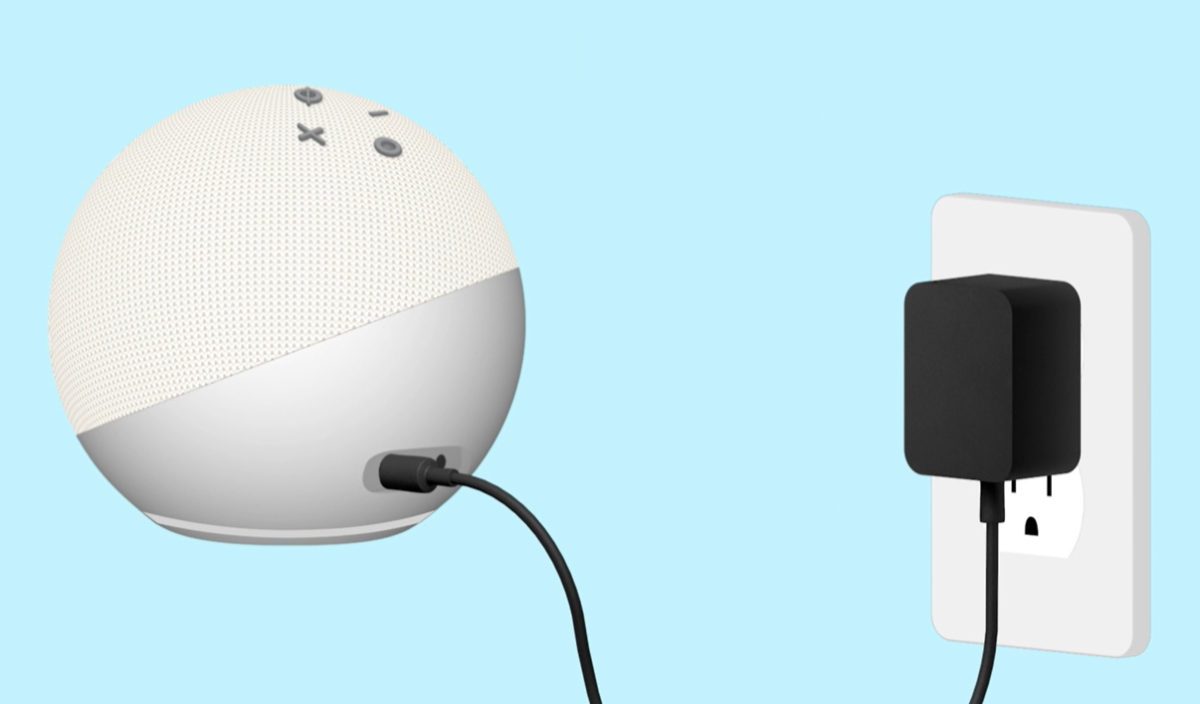
The very first step is, of course, to unbox your new Echo device. Inside, you’ll find the device itself, a power adapter, and often a quick start guide. Locate a suitable spot for your Echo – ideally in a central location within your home, with good Wi-Fi coverage, and away from excessive background noise. Once positioned, plug in the power adapter and connect it to your Echo device. Within moments, the device will power on, often indicated by a ring of light that illuminates and a spoken welcome message from Alexa.
Downloading and Installing the Alexa App
To control and configure your Echo device, you’ll need the Amazon Alexa app. This app is available for free on both iOS and Android devices.
For iOS Users:
- Open the App Store on your iPhone or iPad.
- Search for “Amazon Alexa.”
- Tap Get and then Install. You may need to authenticate with your Apple ID.
For Android Users:
- Open the Google Play Store on your Android smartphone or tablet.
- Search for “Amazon Alexa.”
- Tap Install.
Once the app is downloaded, open it. You will be prompted to sign in with your Amazon account credentials. If you don’t have an Amazon account, you’ll need to create one, which is a straightforward process.
Connecting Your Echo to Wi-Fi: The Crucial Link
This is arguably the most critical step in the installation process, as Alexa relies on a stable internet connection to function. The Alexa app will guide you through this.
- Open the Alexa App and Select Your Device: After signing in, the app will typically detect that a new Echo device is ready for setup. If not, navigate to the “Devices” tab, tap the “+” icon, and select “Add Device.” Choose “Amazon Echo” and then the specific Echo model you have.
- Put Your Echo in Setup Mode: The app will instruct you on how to put your Echo device into setup mode. This usually involves pressing and holding a specific button on the device (often the action button) until Alexa announces it’s in setup mode and the light ring turns orange.
- Select Your Wi-Fi Network: The Alexa app will then scan for available Wi-Fi networks. Select your home Wi-Fi network from the list.
- Enter Your Wi-Fi Password: Carefully enter your Wi-Fi password. Double-check for typos, as this is a common point of failure.
- Confirmation: Once the password is correct, your Echo device will connect to your Wi-Fi network. Alexa will confirm the connection with a spoken message.
Basic Configuration and Personalization
With your Echo device successfully connected to Wi-Fi, the app will guide you through some basic personalization steps. This might include:
- Language Selection: Confirming the desired language for Alexa.
- Location Services: Granting permission for Alexa to access your location, which helps with local weather updates, traffic information, and search results.
- Voice Training (Optional but Recommended): For a more personalized experience, you can train Alexa to recognize your voice more accurately. This allows Alexa to distinguish between different users in a household and provide tailored responses. The app will guide you through repeating specific phrases.
Expanding Your Alexa Ecosystem: Integrating with Other Devices and Services
Once your primary Echo device is set up, the real power of Alexa unfolds as you begin to integrate it with other devices and services. This is where Alexa transcends being just a smart speaker and becomes a central hub for your digital life.
Connecting Smart Home Devices
Alexa’s ability to control smart home gadgets is one of its most popular features. This includes smart lights, thermostats, locks, cameras, and more, from various manufacturers.
The Skill-Based Integration Approach:
For many third-party smart home devices, you’ll need to enable “Skills” within the Alexa app. Skills are like apps for Alexa, adding new functionalities.
- Find Your Device’s Skill: In the Alexa app, navigate to the “More” tab, then “Skills & Games.” Search for the brand or name of your smart home device (e.g., “Philips Hue,” “Nest,” “Ring”).
- Enable the Skill: Once you find the relevant skill, tap “Enable to Use.”
- Link Your Account: You’ll typically be prompted to link your account for that smart home service with your Amazon account. This authorizes Alexa to control your devices through that service. Follow the on-screen instructions, which usually involve logging into your account with the smart home provider.
- Discover Devices: After linking the account, Alexa can discover the devices connected to that service. Tap “Discover Devices” in the Alexa app. Alexa will scan your network for compatible devices and add them to your “Devices” list.
Direct Integration (for Amazon-branded Devices):
Amazon’s own smart home devices, such as Amazon Smart Plugs or Amazon Smart Bulbs, often integrate more seamlessly and may not require explicit skill enabling, as they are designed to work natively with Alexa.
Linking Music and Audio Services
Alexa is a fantastic music player, and it can connect to a wide array of streaming services.
- Navigate to Music & Audio: In the Alexa app, go to “More” -> “Settings” -> “Music & Podcasts.”
- Link Your Preferred Services: You’ll see a list of popular music streaming services like Spotify, Apple Music, Amazon Music, Pandora, and more. Tap on the service you wish to link.
- Sign In and Authorize: Similar to smart home devices, you’ll need to sign in to your account for that music service and authorize Alexa to access it.
- Set as Default (Optional): You can choose a default music service. This means when you say “Alexa, play [song name],” it will automatically play from your chosen default service without you having to specify it each time.
Setting Up Routines: Automating Your Life
Routines are a powerful feature that allows you to automate a series of actions with a single voice command or at a scheduled time. This is where Alexa truly shines in terms of productivity and convenience.
Creating a Simple Routine:

- Access Routines: In the Alexa app, go to “More” -> “Routines.”
- Tap the “+” Icon: This will start the creation of a new routine.
- Choose a Trigger (When This Happens): You can trigger a routine in several ways:
- Voice Command: Specify a phrase like “Alexa, good morning.”
- Schedule: Set a specific time and day (e.g., “Every weekday at 7:00 AM”).
- Smart Home Device: Trigger a routine when a specific smart home device changes its state (e.g., “When the front door unlocks”).
- Add Actions (Add Action): Define what you want Alexa to do when the trigger occurs. You can add multiple actions:
- Smart Home Control: Turn on lights, adjust the thermostat.
- Music/News: Play your favorite playlist, give you a news briefing.
- Announcements: Make an announcement to other Echo devices in your home.
- Skills: Trigger a specific skill.
- Custom Commands: Alexa can perform custom spoken commands.
- Save Your Routine: Once configured, save your routine. Now, when you say “Alexa, good morning,” it can turn on your lights, tell you the weather, and play your morning news.
Beyond the Echo: Installing Alexa on Other Devices
While dedicated Echo devices are the most common way to use Alexa, the voice assistant is increasingly integrated into other platforms and devices, offering flexibility in how you access its capabilities.
Alexa on Smartphones and Tablets
Amazon offers the Alexa app for iOS and Android devices, allowing you to use Alexa’s core functionalities without a separate Echo device.
- Download the Alexa App: As described earlier, download and install the app from your respective app store.
- Sign In: Log in with your Amazon account.
- Activate Alexa: You can often activate Alexa by tapping a microphone icon within the app. Some devices may allow for hands-free activation with a wake word like “Alexa” (though this feature’s availability and performance can vary depending on the device’s hardware and software).
- Use Alexa Features: From your phone, you can ask questions, control smart home devices, set timers, and more, directly through the app.
Alexa on Computers (Windows and macOS)
Amazon has developed desktop applications for Windows and macOS that bring Alexa to your computer.
- Download the Alexa App for Desktop: Visit the Amazon Alexa website and find the download link for your operating system.
- Install the Application: Follow the on-screen installation prompts.
- Sign In and Authorize: Log in with your Amazon account.
- Use Alexa: The desktop app typically features a dedicated button or a wake word to activate Alexa. You can then use it for various tasks, such as playing music, setting reminders, or controlling smart home devices. This can be particularly useful for multitasking without needing to reach for your phone or a separate smart speaker.
Alexa Built-in Devices
Many third-party manufacturers are now integrating Alexa directly into their products, ranging from smart TVs and soundbars to cars and even refrigerators.
The Installation Process:
The installation and setup for “Alexa Built-in” devices vary significantly by manufacturer. However, the general process usually involves:
- Initial Device Setup: Follow the manufacturer’s instructions for setting up the device itself.
- Alexa Account Linking: During the device’s setup, you will likely be prompted to link your Amazon Alexa account. This typically involves signing into your Amazon account through the device’s interface or a companion app.
- Enable Required Skills: Similar to standalone Echo devices, you might need to enable specific Alexa skills for certain functionalities of the built-in Alexa.
- Voice Commands: Once set up, you can use the wake word (usually “Alexa”) followed by your command to interact with the device’s Alexa features.
The increasing ubiquity of Alexa across various platforms highlights its evolution from a novel gadget to an integral part of our connected lives. Understanding “how do you install Alexa” is the first step towards unlocking its full potential, whether you’re looking to streamline your smart home, enhance your entertainment, or boost your daily productivity.
The Broader Impact: Alexa in the Context of Tech, Brand, and Money
The widespread adoption and installation of Alexa are not just about convenience; they have significant implications across technology, branding, and even personal finance.
Tech Landscape: AI, IoT, and the Future of Interaction
Alexa is a prime example of the rapid advancements in Artificial Intelligence (AI) and the Internet of Things (IoT). Its ability to understand natural language and execute commands signifies a major leap in human-computer interaction. The seamless installation process, particularly through user-friendly apps, is crucial for onboarding the masses into the burgeoning IoT ecosystem. As more devices become “smart” and capable of communicating with each other through platforms like Alexa, we are moving towards a more integrated and automated living and working environment. The continuous development of AI tools and software behind Alexa drives innovation in natural language processing, machine learning, and cloud computing, shaping the future of how we interact with technology – moving from screens and keyboards to voice and intuition. The ease of installing Alexa on various devices also contributes to the growing trend of digital ecosystems, where brands aim to keep users within their branded environment.
Brand Strategy and Marketing: A New Frontier
For brands, Alexa represents a significant new channel for engagement and marketing. The ability to have a brand’s product or service accessible via a voice command changes how consumers discover and interact with offerings.
Voice Commerce and Brand Discovery:
When users ask Alexa to “order more coffee” or “play music from [artist],” brands that have integrated their services through Alexa Skills or are featured in voice search results gain direct access to consumers. This necessitates a strong brand strategy focused on discoverability in a voice-first world. Personal branding also benefits; individuals can use Alexa to manage their schedules, listen to podcasts, or even control their home office environment, subtly reinforcing their digital presence.
Reputation and Case Studies:
Companies that successfully integrate with Alexa often showcase these integrations as case studies in effective customer experience and innovation. The ease with which users can “install” or link these services to Alexa directly impacts customer satisfaction and, by extension, brand reputation. A clunky setup process for a brand’s skill or integration can lead to frustration and negative perceptions, underscoring the importance of user-friendly design in the installation phase.
Financial Implications: Online Income, Savings, and Smart Spending
The influence of Alexa extends into the realm of money, impacting how we manage our finances and potentially generate online income.
Personal Finance and Smart Spending:
With Alexa, users can track their spending by linking financial apps, set budget reminders, and even make purchases directly through voice commands. This can lead to more mindful personal finance management. For example, asking “Alexa, how much did I spend on groceries last month?” can provide quick insights. The integration with online retailers can also streamline shopping, but it also carries the risk of impulse purchases if not managed carefully.
Investing and Side Hustles:
While not as direct, Alexa can assist with financial research by providing quick stock quotes or market news. Furthermore, the creation of Alexa Skills can be a potential side hustle or even a full-fledged online income stream for developers. Building a popular and useful Alexa Skill can generate revenue through in-skill purchases or advertising, demonstrating the emerging economic opportunities within the voice assistant ecosystem. Businesses can also leverage Alexa for streamlined business finance operations, such as managing appointments or accessing sales data, and can explore financial tools that integrate with voice assistants. The ability to install and utilize these tools efficiently can directly impact a business’s bottom line.
In conclusion, the question “how do you install Alexa” is a gateway to understanding a much larger technological and societal shift. From the simple act of plugging in a device and connecting to Wi-Fi, to the complex integration of smart home ecosystems and the evolving landscape of commerce and information access, Alexa is at the center of it all. Its continued installation across diverse platforms signifies its growing importance in our daily lives, impacting how we consume technology, engage with brands, and manage our financial well-being.
aViewFromTheCave is a participant in the Amazon Services LLC Associates Program, an affiliate advertising program designed to provide a means for sites to earn advertising fees by advertising and linking to Amazon.com. Amazon, the Amazon logo, AmazonSupply, and the AmazonSupply logo are trademarks of Amazon.com, Inc. or its affiliates. As an Amazon Associate we earn affiliate commissions from qualifying purchases.