
The allure of an early version of Adobe Photoshop is undeniable for many. Whether driven by nostalgia, familiarity with a specific interface, a preference for perpetual licenses over subscriptions, or the need to work with legacy files and systems, attempting to install an older iteration of this iconic image editor can quickly turn into a frustrating endeavor. What once seemed straightforward—inserting a CD or running an old installer—is now frequently met with cryptic error messages, installation failures, or incompatibility warnings.
This guide delves into the common challenges users face when trying to revive vintage Photoshop versions, offering practical troubleshooting steps rooted in technical expertise. Furthermore, we’ll explore the broader implications for Tech users, Brands striving for professionalism, and individuals considering the Money aspects of software choices, ultimately helping you understand why these roadblocks exist and how to navigate them, or when it might be time to embrace the present.
Why the Past Can Be Problematic: Common Obstacles to Installing Vintage Photoshop
The digital landscape evolves at a relentless pace. Operating systems, hardware specifications, and software dependencies are constantly updated, creating a widening gap between contemporary computing environments and the requirements of older applications. When attempting to install an early version of Photoshop, you’re essentially trying to fit a square peg into a very different, modern round hole.
Operating System Incompatibility
Perhaps the most significant hurdle is the fundamental incompatibility between older Photoshop versions and modern operating systems like Windows 10, Windows 11, or recent macOS iterations.
- Architecture Differences: Many early versions of Photoshop (e.g., Photoshop 7, CS, CS2) were designed for 32-bit operating systems and might rely on libraries or components that are no longer present or supported in today’s 64-bit dominant environments. While 64-bit Windows versions can often run 32-bit applications, the underlying system architecture changes can still lead to issues.
- Driver and API Changes: Operating systems evolve their application programming interfaces (APIs) and driver models. An old Photoshop version might call for a specific graphics driver or system API function that has since been deprecated, removed, or fundamentally altered, leading to crashes or an inability to launch the installer or the application itself.
- Security Features: Modern OS versions incorporate robust security features, such as User Account Control (UAC) in Windows, Gatekeeper in macOS, and stricter permission sets. These features can sometimes interfere with older installers trying to write to system directories or modify critical files, flagging their behavior as suspicious.
System Requirements and Hardware Limitations
Beyond the operating system, the underlying hardware also plays a crucial role. While it might seem counterintuitive that older software would struggle on vastly more powerful modern hardware, the specifics matter.
- Processor Generations: Early Photoshop versions were often optimized for processors of their era. While modern CPUs are faster, they may lack specific instruction sets or exhibit behaviors that older software doesn’t anticipate, leading to instability or performance issues even if installation is successful.
- Graphics Cards and Drivers: Graphics acceleration has changed dramatically. Older Photoshop versions might require specific DirectX or OpenGL versions that are either too old to be efficiently supported by modern GPUs or have been superseded by newer, incompatible standards. Finding compatible drivers for a vintage GPU on a modern OS, or trying to make vintage software leverage a cutting-edge GPU, can be a headache.
- RAM and Storage Assumptions: While more RAM and faster storage seem like a boon, the way older software manages memory or interacts with large, fast SSDs might not be optimal, or it might encounter unexpected behavior.
Installer and File Corruption
The installation media itself, or the downloaded files, can be a source of frustration.
- Physical Media Degradation: If you’re using an original CD or DVD from years past, the disc surface might have degraded, leading to unreadable sectors and incomplete file copies during installation. Scratches, dust, or disc rot can make critical files inaccessible.
- Incomplete or Corrupt Downloads: For digital versions, a faulty internet connection, an interruption during download, or a corrupted file on the server can result in an incomplete or damaged installer package. This often manifests as “CRC error,” “file missing,” or “corrupted archive” messages.
- Missing Dependencies: Sometimes, an installer expects certain runtime libraries (like old versions of Visual C++ Redistributable or Java) to be present on the system. If these aren’t automatically included in the installer or aren’t available for download, the installation can fail.
Licensing Woes and Activation Hurdles
Adobe’s transition from perpetual licenses to the Creative Cloud subscription model means that activation servers for very old perpetual license versions might no longer be operational.
- Discontinued Activation Servers: For versions like CS1, CS2, or even some CS3/CS4 editions, Adobe may have retired the activation servers. This means even with a legitimate product key, the software cannot “phone home” to authenticate, rendering it unusable or stuck in trial mode. Adobe did provide special versions of CS2 with a generic serial number to address this, but this is a specific case.
- Product Key Issues: Illegitimate or incorrectly entered product keys, or keys that have reached their activation limit (if applicable), will prevent successful licensing.
Security Software Interference
Modern antivirus programs, firewalls, and anti-malware suites are highly vigilant. While beneficial for security, they can sometimes misinterpret the actions of an old installer.
- False Positives: An old installer might attempt to modify system files or register components in a way that modern security software flags as potentially malicious, leading to the installer being quarantined or blocked.
- Network Activity: If the installer attempts to connect to a now-defunct activation server, a strict firewall might block this outgoing connection, causing the installation or activation process to hang or fail without clear explanation.
Navigating the Installation Minefield: Practical Solutions for Older Photoshop Versions
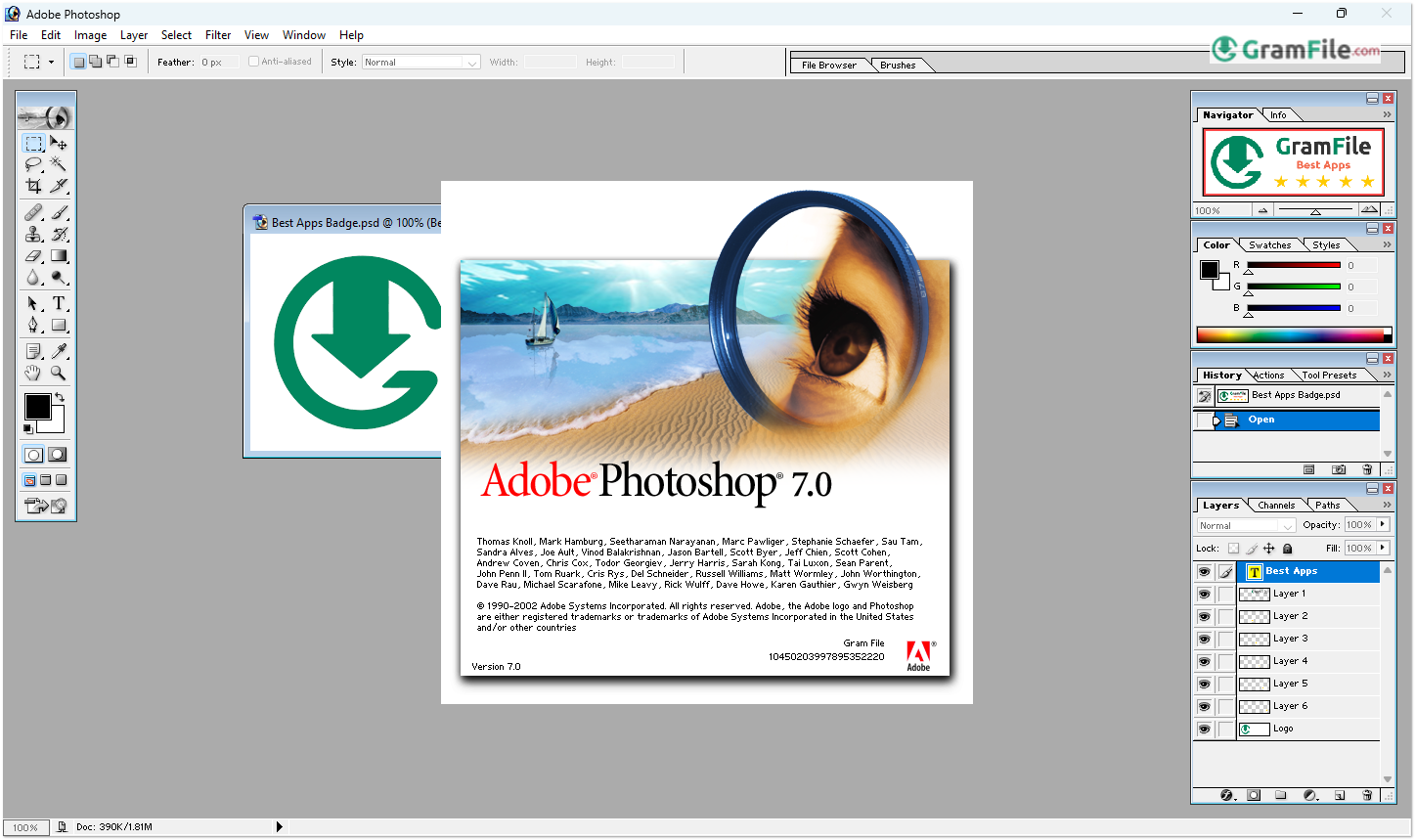
While installing an early version of Photoshop can be a battle against time and technology, there are several troubleshooting strategies you can employ to increase your chances of success. These methods range from basic system preparation to more advanced compatibility workarounds.
Preparing Your System: Pre-Installation Checklist
Before you even attempt to run the installer, a bit of preparation can save you a lot of headaches.
- Verify System Requirements: First and foremost, check the exact system requirements for your specific Photoshop version. This includes the supported operating systems (e.g., Windows XP, Vista, 7, specific macOS versions), minimum RAM, processor speed, and hard drive space. Compare these strictly against your current system’s specifications. If there’s a significant mismatch, especially with the OS, proceed with caution, as extensive workarounds might be needed.
- Back Up Your Data: Always good practice before any major software installation, especially when dealing with older, potentially unstable software. Create a system restore point on Windows or a Time Machine backup on macOS.
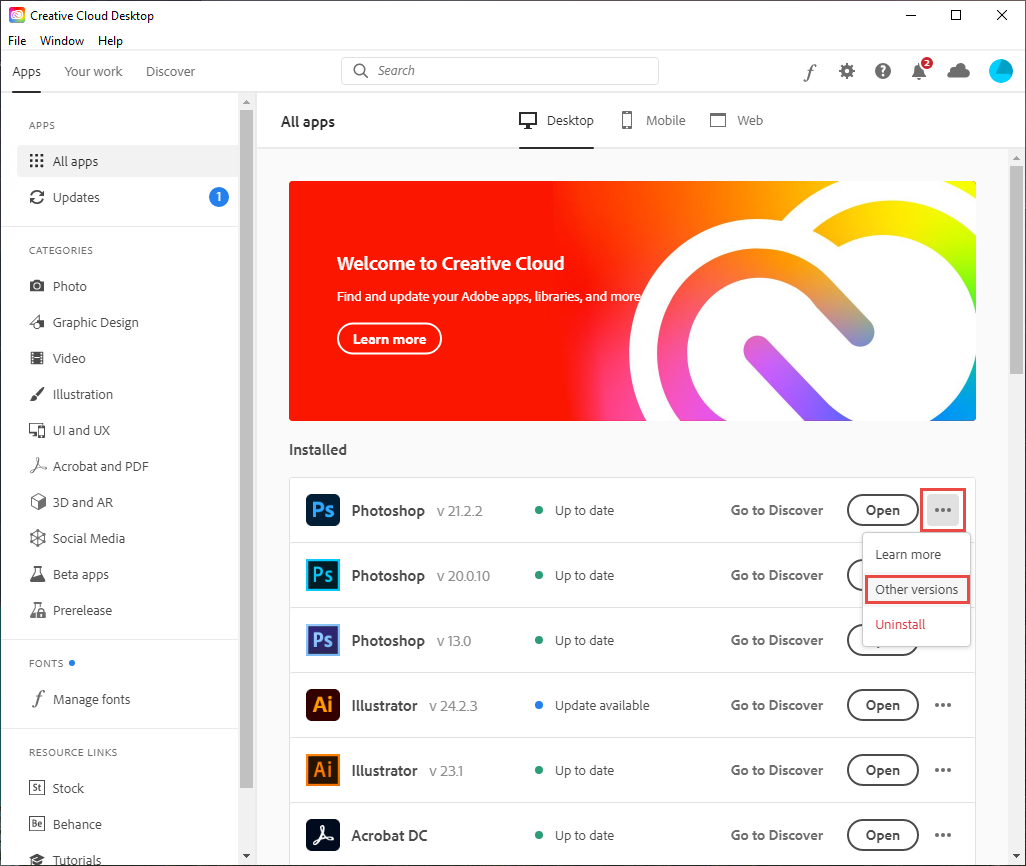
- Gather Product Keys and Installers: Ensure you have your legitimate product key readily available. If using physical media, clean the disc. If using a downloaded installer, verify its integrity. If you’re looking for an older Adobe product installer, check Adobe’s official archives (if available for your version) or reputable sources, but be extremely wary of unofficial downloads that could contain malware.
- Temporarily Disable Security Software: Before starting the installation, temporarily disable your antivirus, anti-malware, and firewall software. Remember to re-enable them immediately after the installation is complete. This helps prevent false positives and blocked network connections during the critical installation phase.
- Update Drivers (Selectively): While it sounds counterintuitive to update drivers for old software, ensuring your core system drivers (chipset, display, network) are up-to-date for your current OS can sometimes resolve underlying stability issues that might affect any software installation. However, avoid updating graphics drivers to beta versions unless specifically recommended.
Executing the Installation: Step-by-Step Troubleshooting
Once your system is prepared, you can proceed with the installation, employing specific techniques if you encounter problems.
- Run as Administrator: In Windows, right-click the installer executable and select “Run as administrator.” This grants the installer the necessary permissions to write files to protected system directories, a common requirement for older software. On macOS, ensure your user account has administrative privileges.
- Compatibility Mode (Windows): This is a crucial feature for running older Windows software.
- Right-click the installer executable (or the Photoshop.exe once installed).
- Select “Properties.”
- Go to the “Compatibility” tab.
- Check “Run this program in compatibility mode for:” and select an older Windows version that was officially supported by your Photoshop version (e.g., Windows XP Service Pack 3 or Windows 7).
- You might also want to check “Run this program as an administrator” here.
- Apply the changes and try running the installer again. This mode tells the operating system to mimic the environment of the older OS, often tricking the application into believing it’s running where it belongs.
- Perform a Clean Boot (Windows): A clean boot starts Windows with a minimal set of drivers and startup programs. This helps eliminate software conflicts that might be preventing the installation.
- Search for
msconfigand open “System Configuration.” - Go to the “Services” tab, check “Hide all Microsoft services,” and then click “Disable all.”
- Go to the “Startup” tab (or open Task Manager in Windows 10/11), and disable all startup items.
- Restart your computer.
- Attempt the Photoshop installation.
- After installation, remember to reverse these changes in
msconfigand restart again.
- Search for
- Check Event Viewer (Windows) / Console (macOS): If the installer fails without a clear error message, the system logs can provide clues.
- In Windows, search for
Event Viewerand navigate to “Windows Logs” -> “Application” or “System.” Look for error messages around the time of the installation attempt. - In macOS, open “Console” from Utilities and look for relevant entries.
- These logs can pinpoint specific modules that crashed, missing files, or permission issues.
- In Windows, search for
- Install to a Custom Directory: Sometimes, older installers have issues with default program file paths, especially on 64-bit systems (e.g., “Program Files (x86)”). Try installing Photoshop to a simpler, non-default directory like
C:Photoshop_OldorD:Adobe_PS. - Troubleshoot Specific Error Messages: If you get a specific error code or message (e.g., “Error 16,” “Error 1327,” “CRC error”), search for that exact message online. Adobe’s support forums, community discussions, or even general tech forums often have solutions or workarounds for common errors.
Deep Dive into Advanced Solutions
If basic troubleshooting fails, you might need to resort to more advanced, albeit often more complex, methods.
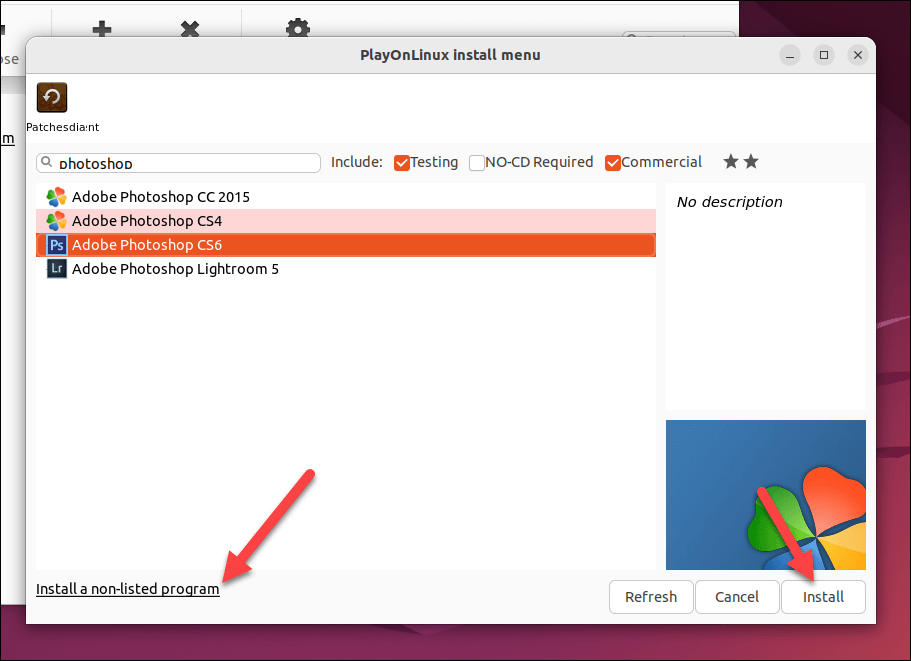
- Virtual Machines (VMs): This is often the most reliable solution for running truly ancient software on modern hardware. A virtual machine (using software like VirtualBox, VMware Workstation Player, or Parallels Desktop) allows you to install an entirely separate, older operating system (e.g., Windows XP, Windows 7, an older macOS) within your current OS. You then install Photoshop inside this virtual OS, which provides the precise environment it expects. This essentially creates a “time capsule” for your software.
- Tech Insight: VMs are incredibly powerful for maintaining compatibility with legacy applications without compromising the host system’s security or stability.
- Money Insight: Free VM software like VirtualBox exists, but you’ll need a legitimate license for the older operating system you wish to install.
- Unofficial Patches and Community Solutions: For extremely popular older software like Photoshop, dedicated online communities sometimes create unofficial patches, registry tweaks, or workarounds to force compatibility with newer systems. While these can be effective, they come with significant risks:
- Security Concerns: These patches are often unsigned and not vetted by Adobe. They could introduce malware, spyware, or system instability.
- Stability Issues: They might cause unexpected crashes or introduce bugs.
- Legal Gray Area: Depending on the nature of the patch, it could fall into a legal gray area regarding software modification.
- Proceed with extreme caution, and only if you fully understand the risks and trust the source.
- Check Adobe’s Knowledge Base (for CS2 special case): As mentioned, Adobe released a special version of CS2 with a universal serial number for legitimate owners after discontinuing its activation servers. If your version is CS2, search Adobe’s website for this specific download and serial number. This is an exception, not a rule.
The Broader Perspective: Why Embrace Modern Solutions?
While the desire to use an early version of Photoshop is understandable, it’s crucial to weigh the effort and risks against the substantial benefits of modern alternatives. This brings us squarely into the realms of Digital Security, Brand Strategy, and Financial Prudence.
The Risks of Relying on Outdated Software (Security & Brand Impact)
The technical challenges of installation are only the beginning. Running outdated software in today’s interconnected world carries significant, often unappreciated, risks.
- Digital Security Vulnerabilities:
- Unpatched Exploits: Old software is no longer updated or patched by the developer. This means any security vulnerabilities discovered after its end-of-life remain unaddressed, making your system a potential target for hackers.
- Malware Entry Points: These unpatched vulnerabilities can serve as easy entry points for viruses, ransomware, and other malicious software, compromising your data and potentially your entire network.
- Data Loss and Corruption: Running unstable or compromised software increases the risk of file corruption or irreversible data loss.
- Tech Perspective: Prioritizing digital security is paramount. Relying on software with known vulnerabilities is a fundamental breach of good cybersecurity practice.
- Brand and Professionalism Impact:
- File Compatibility Issues: Modern design workflows often involve sharing files across various software and versions. An old Photoshop version might struggle to open, properly render, or save files in formats expected by current clients or collaborators, leading to frustrating version conflicts and delays.
- Outdated Features: The design landscape evolves. Older Photoshop versions lack contemporary features crucial for modern aesthetics, workflows (e.g., artboards, advanced smart objects, robust cloud integration), and efficiency. This can limit your creative output and make your work appear dated.
- Perceived Professionalism: Using visibly outdated tools, or constantly facing compatibility issues, can reflect poorly on your brand. It might signal a lack of investment in current tools and practices, potentially impacting client perception and opportunities.
- Brand Perspective: A strong brand relies on efficiency, reliability, and staying current. Software choices are an extension of a brand’s commitment to quality and professionalism.
Exploring Contemporary Alternatives (Tech & Money Considerations)
Today’s market offers a rich ecosystem of image editing tools, from Adobe’s flagship Creative Cloud to robust free and open-source options. Embracing these modern solutions provides security, feature richness, and often better value in the long run.
- Adobe Creative Cloud (Photoshop CC):
- Tech Benefits: Access to the latest features, AI-powered tools (like Generative Fill), seamless integration with other Adobe apps, cloud storage, constant security updates, and cross-device synchronization. This represents the cutting edge of image editing technology.
- Money Considerations: It’s a subscription model. While an ongoing cost, it eliminates large upfront payments and provides continuous access to the latest versions and support. For professionals, it’s often an essential business expense that pays for itself through increased efficiency and capability. Adobe also offers various plans, including single-app subscriptions and the full Creative Cloud suite, catering to different budgets and needs.
- Adobe Photoshop Elements:
- Tech Benefits: A more user-friendly, streamlined version of Photoshop, ideal for hobbyists or those with simpler editing needs. It still receives updates and offers many core Photoshop features without the complexity of the professional version.
- Money Considerations: A one-time purchase, making it a more budget-friendly alternative to the CC subscription if your needs are modest.
- Free and Open-Source Alternatives:
- GIMP (GNU Image Manipulation Program):
- Tech Benefits: A powerful, cross-platform, open-source image editor that offers many advanced features akin to Photoshop. It has a steep learning curve but is highly capable.
- Money Considerations: Completely free. An excellent choice for those on a tight budget who are willing to invest time in learning a new interface.
- Krita:
- Tech Benefits: Primarily focused on digital painting and illustration, but also offers robust image manipulation tools. Open-source and cross-platform.
- Money Considerations: Free. Another strong contender for artists and illustrators seeking a no-cost solution.
- Photopea:
- Tech Benefits: A remarkably capable, browser-based online image editor that can open and save PSD files, among many others. It mimics Photoshop’s interface closely. No installation required.
- Money Considerations: Free to use (ad-supported), with an optional premium subscription for an ad-free experience and more features. An excellent “on-the-go” solution.
- GIMP (GNU Image Manipulation Program):
- Other Commercial Alternatives: Affinity Photo offers a powerful, one-time purchase alternative to Photoshop, often lauded for its performance and user-friendly interface.
When Nostalgia Meets Reality: Making an Informed Choice
The journey to install an early version of Photoshop is often paved with good intentions. However, the modern technical landscape presents significant hurdles related to compatibility, security, and integration.
While it might be technically possible to get very old software running in a virtual machine, the practical utility diminishes over time. For a personal hobby project on an isolated machine, it might suffice. For professional work, client deliverables, or any task requiring internet connectivity, the risks far outweigh the benefits.
Ultimately, making an informed choice means balancing your personal preferences and budget with the imperatives of modern Tech (security, features, compatibility) and the demands of a professional Brand (reliability, efficiency, contemporary output). Investing in current tools, whether it’s an Adobe Creative Cloud subscription or a powerful free alternative, is often the most pragmatic, secure, and financially sound decision in the long run. It frees you from troubleshooting archaic installations and allows you to focus on what truly matters: creating stunning imagery with tools designed for today’s world.
aViewFromTheCave is a participant in the Amazon Services LLC Associates Program, an affiliate advertising program designed to provide a means for sites to earn advertising fees by advertising and linking to Amazon.com. Amazon, the Amazon logo, AmazonSupply, and the AmazonSupply logo are trademarks of Amazon.com, Inc. or its affiliates. As an Amazon Associate we earn affiliate commissions from qualifying purchases.