
In the vast ecosystem of modern computing, where personalization and productivity go hand-in-hand, the humble font plays a surprisingly pivotal role. Far from being mere decorative elements, fonts are the silent architects of our digital experience, influencing everything from the readability of an important report to the distinct identity of a burgeoning brand. For Windows 10 users, mastering the art of installing and managing fonts unlocks a new dimension of creative freedom and professional polish, whether you’re a designer crafting a visual masterpiece, a writer seeking the perfect typeface for your next manuscript, or simply someone looking to personalize their operating system.
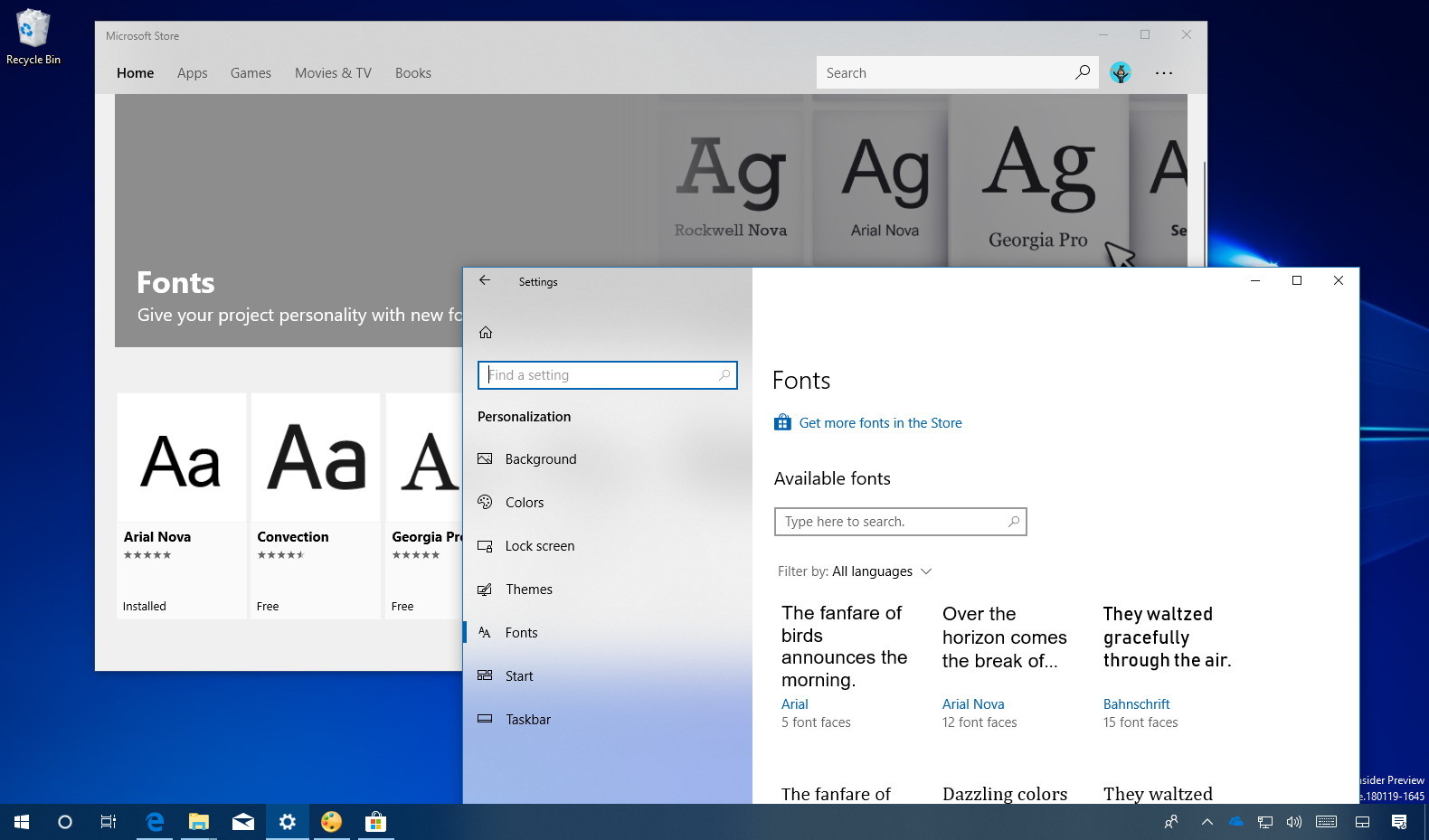
This comprehensive guide delves into the practicalities of font installation on Windows 10, offering clear, step-by-step instructions for various methods. But we won’t stop there. We’ll also explore the deeper significance of fonts in the context of our digital lives, touching upon how they impact technology trends, shape brand perception, and even subtly influence our financial opportunities through enhanced professionalism and distinct marketing. Get ready to transform your Windows 10 experience, one beautiful typeface at a time.
Understanding Fonts: More Than Just Letters
Before we dive into the “how-to,” it’s essential to grasp the “why.” What exactly are fonts, and why do they command such importance in our digital landscape? A clear understanding empowers you to make informed choices that benefit your tech usage, brand identity, and even your bottom line.
What Are Fonts and Why Do They Matter?
At its core, a font (or typeface) is a set of characters — letters, numbers, symbols, and punctuation — designed with a consistent visual style. Think of it as the personality of your text. While the default fonts in Windows 10 (like Segoe UI, Calibri, or Arial) are perfectly functional and optimized for readability, they often lack the distinctiveness needed for specific creative projects or strong brand communication.
The impact of fonts extends far beyond aesthetics:
- Readability and Productivity: A well-chosen font can dramatically improve readability, reducing eye strain and increasing the speed at which information is processed. For tasks requiring extensive reading or writing, selecting a clear, legible font directly contributes to improved productivity, a core tenet of effective tech usage. Imagine trying to proofread a 50-page document written in an overly decorative script – the time lost and frustration gained would be substantial.
- Brand Identity and Communication: This is where fonts truly shine in the realm of “Brand.” A unique and consistent typeface is a cornerstone of corporate identity and personal branding. It conveys mood, professionalism, trustworthiness, or creativity before a single word is read. Consider the iconic logos of major companies – a significant part of their immediate recognition comes from their custom or carefully chosen typefaces. For a small business owner, blogger, or freelancer, a thoughtfully selected font can differentiate their marketing materials, website, and social media presence, creating a memorable and professional impression that can directly lead to client acquisition and financial success.
- User Experience (UX): In software and app design, fonts are integral to UX. The right font hierarchy and style guide users through interfaces, highlight important information, and make interactions intuitive and pleasant. This directly relates to the “Tech” aspect of our discussion, as developers and designers constantly strive for optimal digital experiences.
- Creative Expression: For artists, designers, and hobbyists, fonts are tools for creative expression, much like colors or textures. Access to a diverse font library allows for greater artistic freedom and the ability to realize specific visual concepts.
In essence, fonts are silent communicators. They dictate not just what we read, but how we feel about what we’re reading, influencing our perception of professionalism, creativity, and authority in the digital sphere.
Common Font Formats: TTF, OTF, and Beyond
When you download a font, you’ll typically encounter a few common file formats. Understanding these helps ensure compatibility and optimal performance on your Windows 10 system.
- TrueType Font (TTF): Developed by Apple in the late 1980s and later adopted by Microsoft, TTF is one of the most common and widely supported font formats. TTF files contain both the screen and print data in a single file, making them highly versatile. They are generally easy to install and work well across various applications. Most free fonts you’ll find online are in TTF format.
- OpenType Font (OTF): A more advanced and versatile format, OTF was developed jointly by Microsoft and Adobe. It builds upon TrueType technology but offers significant enhancements, particularly for professional typography. OTF fonts can contain up to 65,536 glyphs (characters), allowing for a broader range of features like ligatures (connected characters), alternate characters (swashes, stylistic sets), small caps, old-style figures, and more precise kerning (spacing between characters). This makes OTF a favorite among designers for its rich typographic capabilities, especially for print and high-end digital branding. While typically larger in file size than TTF, the added functionality often justifies it.
- Other Formats (Less Common for Installation):
- Web Open Font Format (WOFF/WOFF2): These are specifically designed for web use. While you might encounter them when working with web design, they are not typically installed on your local system for application use. WOFF and WOFF2 are compressed versions of OTF or TTF, optimized for faster loading times on websites.
- PostScript Type 1 Fonts: An older format, primarily used in professional printing and desktop publishing on macOS. While Windows 10 might have some limited compatibility, they are largely superseded by OTF for general use.
For the average Windows 10 user looking to install fonts for word processors, design software, or general system personalization, TTF and OTF will be your primary focus. Most modern applications and the operating system itself handle both formats seamlessly.
Step-by-Step Font Installation Methods in Windows 10
Windows 10 offers several straightforward methods for installing new fonts, catering to different preferences and scenarios. Whether you’re adding a single typeface or a whole collection, there’s an approach that suits your needs. Before you begin, always ensure you’ve downloaded the font files (usually a .ttf or .otf file) to a location you can easily access, such as your Downloads folder or a dedicated “Fonts” folder. Often, fonts come compressed in a .zip file, so you’ll need to extract them first. Simply right-click the .zip file and select “Extract All…” to reveal the font files within.
The Classic Way: Right-Click and Install
This is arguably the most common and simplest method for installing individual or a small group of fonts. It’s quick, intuitive, and has been a staple of Windows for many versions.
- Locate Your Font File(s): Navigate to the folder where you’ve saved your downloaded and extracted font files (e.g., “MyBeautifulFont.ttf” or “CreativeBrandFont-Regular.otf”).
- Select the Font: If you’re installing a single font, simply click on it once to select it. If you have multiple font files (e.g., regular, bold, italic variations) that you want to install simultaneously, hold down the
Ctrlkey and click on each font file to select them all. - Right-Click and Install: Right-click on any of the selected font files. In the context menu that appears, you will see an option labeled “Install.” Click on it.
- Confirm Installation (Optional): If a font with the same name is already installed on your system, Windows will prompt you to replace it. You can choose to replace it, skip it, or cancel the operation. For new fonts, this prompt typically won’t appear.
- Installation Complete: A small progress bar might briefly appear, and then the font will be installed. It should now be available for use in most applications that support custom fonts (e.g., Microsoft Word, Photoshop, GIMP, web browsers for design previews). You might need to restart some applications for the new font to appear in their font lists.
This method is ideal for quick installations and is very user-friendly, making it a go-to choice for most users.
Streamlined Installation: Using Windows Settings
For a more integrated and centralized approach to font management, Windows 10’s Settings app offers a modern interface for adding new fonts and viewing your existing collection. This method is particularly useful if you prefer to use Windows’ native tools for system configurations.
- Open Windows Settings: Click on the
Startbutton, then click thegear iconto open Settings, or pressWindows key + I. - Navigate to Personalization: In the Settings window, click on Personalization.
- Go to Fonts: In the left-hand sidebar of the Personalization section, click on Fonts.
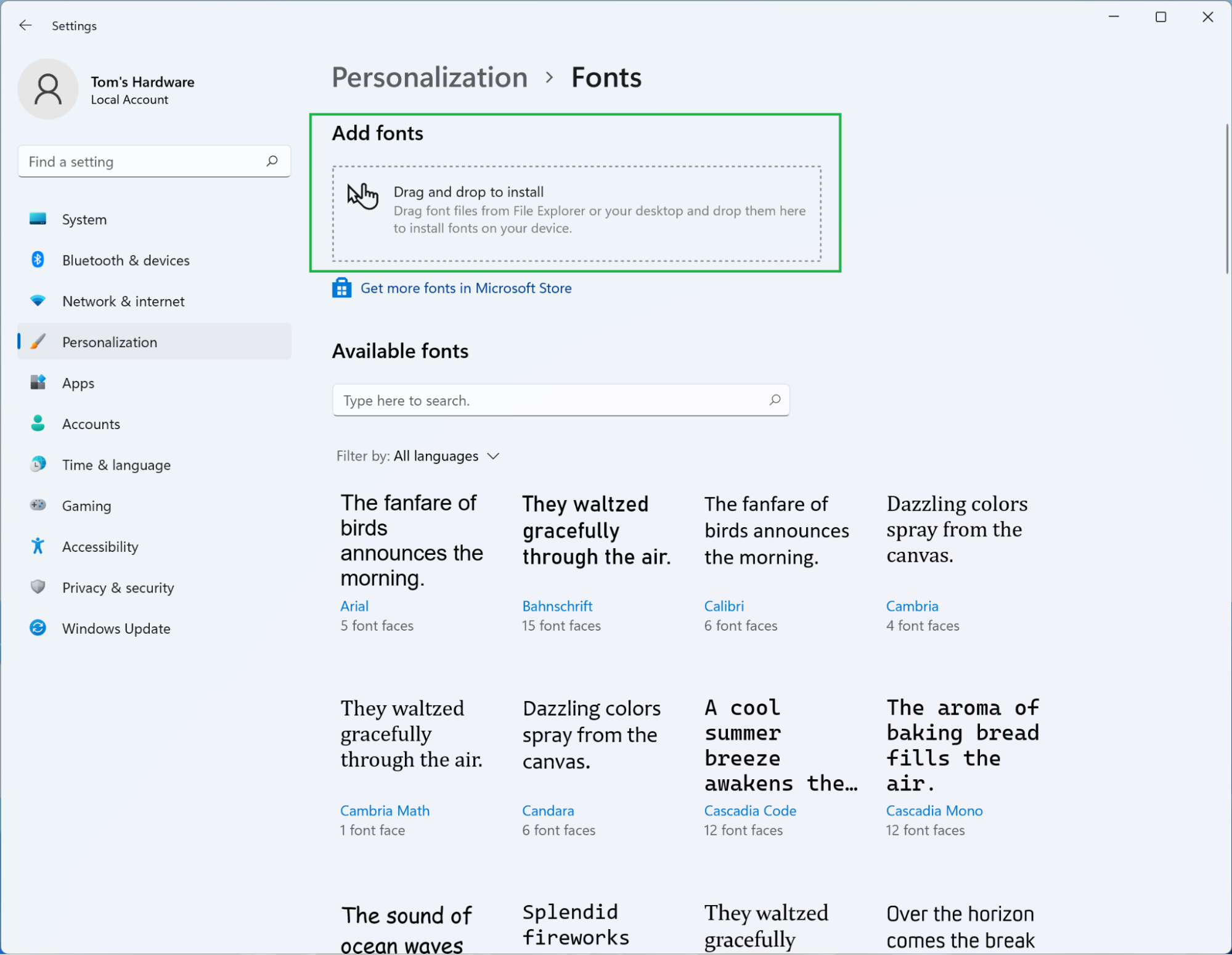
- Drag and Drop to Install: In the Fonts settings page, you’ll see a section at the top labeled “Add fonts.” Simply drag your font files (the
.ttfor.otffiles) directly from File Explorer into this “Drag and drop to install” area. - Installation Confirmation: Windows will automatically process and install the dropped fonts. You’ll see a brief notification, and the newly installed fonts will then appear in the list below, confirming their successful addition.
This method is clean, visually intuitive, and aligns with Windows 10’s modern design philosophy, offering a seamless user experience for those who prefer to manage settings through the dedicated app.
The Microsoft Store: A Curated Font Collection
For convenience and access to a curated selection of fonts, many of which are premium and licensed, the Microsoft Store offers another viable installation route. This method is especially appealing for users who prefer the security and ease of an app store environment, and it often provides fonts that come with comprehensive licensing for professional use, aligning with the “Money” and “Brand” aspects.
- Open Windows Settings: Follow steps 1 and 2 from the “Using Windows Settings” method above (Start > Settings > Personalization).
- Go to Fonts: Click on Fonts in the left-hand sidebar.
- Find More Fonts in Microsoft Store: Below the “Drag and drop to install” section, you’ll see a link that says “Get more fonts in Microsoft Store.” Click this link.
- Browse and Select: The Microsoft Store will open, displaying a dedicated Fonts section. You can browse free and paid fonts, often organized by categories or collections.
- Install/Purchase: Once you find a font you like, click on it to view its details. If it’s free, click the “Get” button. If it’s a paid font, you’ll see a price and a “Buy” button. Follow the prompts to complete the download or purchase.
- Automatic Installation: Fonts downloaded from the Microsoft Store are automatically installed into your system and become immediately available across your applications. No manual file handling is required.
The Microsoft Store offers a hassle-free experience, often including commercial licenses for purchased fonts, which is crucial for businesses and professionals using fonts for branding, marketing, and commercial projects where legal compliance is essential to avoid potential financial repercussions.
Drag-and-Drop: Quick Install for Specific Needs
This method is a variation of using the Settings app but can also be applied directly to the old Control Panel Fonts folder for those who prefer that interface. It’s incredibly fast for installing one or more fonts.
- Locate Your Font File(s): Open File Explorer and navigate to the folder containing your downloaded font files.
- Open the Fonts Folder: There are two main ways to access the target folder:
- Via Settings: Go to
Settings > Personalization > Fonts. You can drag and drop directly into the “Drag and drop to install” area. - Via Control Panel: Type “fonts” into the Windows search bar and select “Fonts Control Panel.” This will open the traditional Fonts folder.
- Via Settings: Go to
- Drag and Drop: Select your desired font files in File Explorer and drag them directly into the “Add fonts” area in the Settings app, or into the open Fonts folder in the Control Panel.
- Installation: Windows will automatically install the fonts. You’ll see them appear in the list once the process is complete.
This method is perhaps the most direct for bulk installation or when you just want to quickly add a font without navigating through multiple menus, serving as a powerful productivity hack for creative professionals.

Managing Your Typography: Beyond Installation
Installing fonts is only half the battle. To maintain a lean, efficient, and personalized Windows 10 environment, effective font management is crucial. Over time, an excessive number of installed fonts can slow down your system or make it difficult to find the specific typeface you need. This section covers how to view, organize, and uninstall fonts, as well as troubleshooting common issues.
Viewing and Organizing Installed Fonts
Knowing what fonts you have and where to find them is key to efficient creative and professional workflows. Windows 10 provides centralized locations for this.
- Windows Settings (Recommended):
- Go to
Start > Settings > Personalization > Fonts. - Here, you’ll see a comprehensive list of all installed fonts. You can search for specific fonts using the search bar at the top, filter them, and preview how they look.
- Clicking on a font name will show you detailed information, including its designer, version, and the various styles available (e.g., Regular, Bold, Italic). This view also lets you see font previews at different sizes and provides an uninstall option for each font.
- The “Font Family” grouping helps organize related styles (e.g., Arial Regular, Arial Bold, Arial Italic all under the Arial family).
- Go to
- Control Panel (Legacy):
- Type “Control Panel” in the Windows search bar and open it.
- Change “View by” to “Large icons” or “Small icons.”
- Click on “Fonts.”
- This older interface also lists all installed fonts. You can hide or show fonts, and double-clicking a font provides a preview window. While functional, the Settings app offers a more modern and integrated experience.
Regularly reviewing your font collection helps keep your system organized, making it easier to select the right font for your design or document, thereby boosting productivity and ensuring consistency in your brand’s visual identity.
Uninstalling Unused Fonts
Just as installing new software can clutter your system, accumulating too many unused fonts can lead to several downsides:
- System Performance: While modern Windows versions are better at handling many fonts, an extremely large collection can still marginally impact system startup times, application loading, and overall responsiveness, especially for design software that loads all fonts.
- Clutter and Decision Fatigue: A massive, unorganized font list in your applications can be overwhelming, making it harder to find the font you actually want to use. This can slow down your creative process and lead to inconsistent font usage across projects, which is detrimental to brand consistency.
- Security (Minor Risk): Rarely, corrupted or malicious font files could potentially cause system instability or present security vulnerabilities. Removing unverified or unused fonts reduces this minimal risk.
To uninstall a font:
- Via Windows Settings (Recommended):
- Go to
Start > Settings > Personalization > Fonts. - Find the font you wish to uninstall. You can use the search bar if you have many fonts.
- Click on the font name to open its detail page.
- Click the “Uninstall” button. Confirm when prompted.
- Go to
- Via Control Panel (Legacy):
- Open the Fonts Control Panel (
Control Panel > Fonts). - Right-click on the font you want to remove.
- Select “Delete” from the context menu. Confirm the deletion.
- Open the Fonts Control Panel (
Uninstalling fonts is a straightforward process that contributes to better system hygiene, improved application performance, and a more streamlined creative workflow – all aspects that directly influence “Tech” and, indirectly, “Money” through increased efficiency.
Troubleshooting Common Font Issues
Even with seamless installation methods, you might occasionally encounter issues. Here are some common problems and their solutions:
- Font Not Appearing in Applications:
- Restart the Application: Most applications, especially design software like Photoshop, Illustrator, or even Microsoft Word, need to be restarted after new fonts are installed for them to refresh their font lists.
- Restart Windows: If restarting the application doesn’t work, a full system restart can often resolve lingering issues.
- Check Font Folder: Ensure the font file is actually in the
C:WindowsFontsfolder (where Windows stores all system fonts).
- Corrupted or Damaged Font:
- Re-download the Font: The font file itself might be corrupt. Download it again from the source, preferably a reputable one.
- Check for Conflicts: Rarely, two fonts might have conflicting internal names. Try installing fonts one by one to identify the culprit.
- Font Appears Jagged or Blurry:
- ClearType Settings: Windows uses ClearType technology to make text smoother on LCD screens. Search for “Adjust ClearType text” in the Windows search bar and run the wizard to optimize your settings.
- Check Font Quality: Some free fonts, especially older ones, might have lower quality outlines, leading to pixelation at larger sizes. Consider using higher-quality OTF fonts for professional work.
- System Slowdown After Installing Fonts:
- Too Many Fonts: If you’ve installed hundreds or thousands of fonts, consider uninstalling those you rarely use.
- Corrupted Font: A single corrupted font can sometimes cause system instability. Check your Event Viewer for font-related errors, or try uninstalling recently added fonts one by one to see if the issue resolves.
- Font Licensing Issues: This isn’t a technical issue but a crucial “Money” and “Brand” concern. Always check the license agreement when downloading fonts. Many free fonts are “for personal use only.” Using them for commercial projects (logos, marketing, client work) without the proper commercial license can lead to legal issues and financial penalties. Invest in commercial licenses for fonts used in your business or client work to protect your brand and finances.
Addressing these issues promptly ensures your creative and professional work remains uninterrupted, safeguarding your productivity and brand integrity.
Leveraging Fonts for Productivity, Branding, and Creativity
The journey of understanding and installing fonts doesn’t end with a successful installation. It opens up avenues for enhanced productivity, robust brand development, and limitless creative expression. In today’s competitive digital landscape, every detail counts, and typography is a powerful, often underestimated, asset.
Where to Discover and Download Quality Fonts
The internet is awash with fonts, but discerning between high-quality, legally usable fonts and those that might cause issues is critical.
- Free Font Sources (for Personal Use, often with Commercial Options):
- Google Fonts: An excellent starting point, offering hundreds of high-quality, open-source fonts. All fonts on Google Fonts are licensed under open-source licenses, meaning you can use them freely in your personal and commercial projects without worrying about complex licensing agreements. This is a massive boon for small businesses and freelancers on a budget, directly influencing their “Money” aspect by providing free, legally sound resources for “Brand” development.
- DaFont.com & Font Squirrel: Popular repositories with a vast collection. Always check the individual license for each font, as many are “100% Free” (often for personal use only) or “Public Domain,” while others require a donation or a commercial license for business use. Font Squirrel specifically curates fonts that are free for commercial use.
- Open Font Library: Another source for open-source fonts.
- Paid Font Marketplaces (for Commercial Use & Premium Quality):
- Adobe Fonts (Included with Creative Cloud): If you subscribe to Adobe Creative Cloud, you get access to a massive library of high-quality fonts for commercial use. These are easy to sync and use across Adobe applications, a significant “Tech” and “Productivity” advantage for designers.
- MyFonts.com & Fontspring.com: Leading marketplaces offering thousands of professional-grade fonts from various foundries. These are excellent for finding unique, high-quality typefaces that can truly differentiate a brand. While an upfront investment, purchasing a commercial license from these sites is often essential for building a professional “Brand” and avoiding legal pitfalls.
- Creative Market & Envato Elements: These platforms offer a mix of fonts, graphics, and templates, often with specific licensing options for individual fonts or subscription-based access to their entire library.
When selecting fonts, especially for “Brand” purposes, always scrutinize the licensing. Understanding whether a font is free for personal use, free for commercial use, or requires a purchase with a specific license type (desktop, web, app, etc.) is paramount to protecting your business from legal issues and unforeseen financial costs. A small investment in a high-quality, properly licensed font can save significant headaches and enhance your professional image.
The Strategic Impact of Font Choice on Brand Identity and User Experience
In an increasingly visual and digital world, your font choices are not just aesthetic preferences; they are strategic decisions that profoundly impact your “Brand” identity and the user’s experience.
- Brand Consistency: A strong brand uses a consistent set of fonts across all touchpoints – website, marketing materials, social media, presentations, and even email signatures. This consistency builds recognition, trust, and professionalism. Imagine a company whose logo uses a sleek sans-serif but their website body text is a whimsical script – it creates a disjointed and unprofessional impression, potentially costing them customer trust and, ultimately, “Money.”
- Emotional Connection: Different typefaces evoke different emotions. A serif font might convey tradition, elegance, or trustworthiness (e.g., a law firm or luxury brand). A clean sans-serif might suggest modernity, efficiency, or approachability (e.g., a tech startup). A handwritten script could imply creativity, personality, or intimacy. Choosing a font that aligns with your brand’s core values and message is critical for resonating with your target audience. This is pure “Brand Strategy” in action.
- Accessibility and Inclusivity: From a “Tech” and “User Experience” perspective, font choice impacts accessibility. Highly decorative or very thin fonts can be challenging for users with visual impairments or dyslexia. Choosing legible fonts with good contrast and appropriate sizing ensures your content is accessible to a wider audience, which is not only ethical but can expand your reach and market.
- Differentiation: In a crowded market, a unique and well-executed font pairing can help your brand stand out. While default system fonts are safe, they don’t capture attention. A distinctive typeface, used thoughtfully, can become a memorable part of your brand’s visual language, helping you to connect with potential customers and clients, leading to greater engagement and potentially increased “Money” opportunities.
- Marketing and Conversion: Fonts influence how headlines are perceived, how calls to action are read, and the overall professional feel of marketing collateral. A persuasive headline in a strong, confident typeface is more likely to capture attention than one in a weak or generic font. This directly impacts marketing effectiveness and conversion rates, linking font strategy to financial outcomes.
Fonts as a Tool for Productivity and Professionalism
Beyond branding, fonts are powerful “Tech” tools for enhancing productivity and projecting professionalism in everyday tasks.
- Enhanced Readability in Documents: For anyone working with documents, reports, or presentations, selecting a font optimized for readability is a productivity booster. Clear, well-spaced fonts reduce eye strain and fatigue, allowing you to focus on content rather than struggling with legibility. This applies to legal documents, academic papers, or even internal company memos.
- Professional Presentations: A consistent and legible font choice in presentations (e.g., PowerPoint, Google Slides) enhances professionalism and ensures your message is conveyed clearly. Using too many different fonts or unreadable decorative fonts can distract from your content, undermining your authority and potentially impacting critical business outcomes.
- Coding and Development: Programmers often choose monospaced fonts (where every character takes up the same horizontal space) specifically designed for coding. These fonts improve code readability, making it easier to identify syntax errors, align code, and overall boost “Tech” productivity for developers.
- Digital Security and Document Integrity: While not directly a font feature, the ability to embed fonts in documents (e.g., PDF) ensures that the document retains its intended appearance regardless of where it’s opened. This maintains the integrity and professionalism of your digital output, crucial for contracts, official reports, and any document where consistent visual presentation is paramount.
By strategically choosing and managing fonts, you’re not just customizing your Windows 10 environment; you’re investing in tools that bolster your “Tech” efficiency, solidify your “Brand” identity, and ultimately contribute to your professional and financial success.
Conclusion
Installing a font in Windows 10 is a simple yet powerful gateway to a more personalized, productive, and professionally refined computing experience. Whether you opt for the classic right-click installation, the streamlined Settings app, the curated Microsoft Store, or a quick drag-and-drop, the process is designed to be accessible to everyone.
Beyond the mechanics, however, lies a deeper appreciation for typography’s impact. Fonts are not merely decorative; they are fundamental elements of technology, driving readability and user experience. They are the silent pillars of brand strategy, shaping identity and conveying messages that resonate with audiences. And in the realm of money, intelligent font choices can translate into enhanced professionalism, effective marketing, and a tangible competitive edge for individuals and businesses alike.
By taking control of your font library, you gain a versatile tool for creative expression, an ally in your quest for digital efficiency, and a vital component in crafting a distinctive and memorable brand. So, go ahead: explore, install, and let your Windows 10 experience truly reflect your unique vision.
aViewFromTheCave is a participant in the Amazon Services LLC Associates Program, an affiliate advertising program designed to provide a means for sites to earn advertising fees by advertising and linking to Amazon.com. Amazon, the Amazon logo, AmazonSupply, and the AmazonSupply logo are trademarks of Amazon.com, Inc. or its affiliates. As an Amazon Associate we earn affiliate commissions from qualifying purchases.