
The Nintendo Switch, a revolutionary hybrid console, has captivated millions with its versatile gameplay. However, for a segment of its passionate user base, the allure extends beyond official functionalities. Custom Firmware (CFW) unlocks a universe of possibilities, from homebrew applications and game backups to enhanced emulation and deep system customization. While early iterations of the Switch were amenable to relatively straightforward software exploits, the “Mariko” revision (including most V2 Switches, Switch Lites, and OLED models) introduced significantly patched hardware, making traditional software-only exploits obsolete. As we navigate 2024, the landscape for Mariko CFW has matured, offering robust, albeit more involved, solutions for those determined to push their console’s boundaries.

This comprehensive guide will demystify the process of installing Custom Firmware on your Mariko Nintendo Switch. It’s a journey that demands precision, patience, and a clear understanding of the risks involved. While the rewards of an unrestricted Switch can be immense, the path requires a significant hardware modification, unlike its older, more vulnerable siblings. We’ll cover everything from understanding your console’s unique challenges to the critical steps of hardware modification and the subsequent software setup, ensuring you have the knowledge to embark on this advanced technical endeavor with confidence and caution.
Decoding Your Mariko Switch: Why CFW and What It Entails
Before diving into the technicalities, it’s crucial to understand what distinguishes a Mariko Switch from its predecessors and why Custom Firmware continues to be a sought-after modification for this particular model. This section will clarify the unique challenges and the compelling benefits, alongside the inherent risks of venturing into the world of modded consoles.
The Mariko Difference: Beyond Software Exploits
The original Nintendo Switch (often referred to as V1 or “unpatched”) was vulnerable to a hardware flaw in its NVIDIA Tegra X1 chip, allowing for easy entry into a Recovery Mode (RCM) via a simple jig and USB cable. This vulnerability was widely exploited to inject payloads and install CFW. The Mariko revision, released from mid-2018 onwards (including the Switch Lite, OLED, and most V2 models), came with this vulnerability patched at the hardware level. This means the RCM exploit is no longer viable. For Mariko consoles, installing CFW fundamentally requires a hardware modification – specifically, the installation of a modchip. This crucial distinction elevates the technical bar significantly, transitioning from a software-only procedure to one that involves intricate soldering and specialized components.
The Promise of Custom Firmware (CFW) for Mariko Owners
Despite the added complexity, the drive to install CFW on Mariko Switches remains strong due to the extensive capabilities it unlocks. CFW, primarily embodied by the open-source Atmosphere project, transforms your Switch into a powerful, versatile entertainment hub. It enables the use of homebrew applications, ranging from custom themes and media players to emulators for older consoles, greatly expanding the Switch’s utility. Users can back up their game cartridges and digital titles, preserving their investment and allowing for convenient access without physical media. Furthermore, CFW provides unparalleled customization options, allowing users to fine-tune system settings, optimize performance, and even overclock their console for demanding games. For many, it’s about reclaiming ownership and maximizing the potential of their expensive gadget.
Crucial Warnings: Navigating the Risks
It cannot be overstated: installing CFW on any Nintendo Switch, especially a Mariko unit requiring hardware modification, carries significant risks. The primary concern is “bricking” your console, rendering it permanently unusable, if instructions are not followed precisely during the hardware installation. Additionally, Nintendo actively monitors and bans consoles detected using CFW on their online services. This can result in a permanent ban from Nintendo Network, preventing access to online multiplayer, the eShop, and system updates. Installing CFW also unequivocally voids your console’s warranty. While CFW itself is not illegal, the use of pirated games or copyrighted content through homebrew applications is. It is imperative to proceed with a clear understanding of these risks and to take full personal responsibility for any consequences.
Essential Preparations: Gathering Your Tools and Laying the Groundwork
Success in installing CFW on your Mariko Switch hinges on meticulous preparation. This phase involves acquiring the necessary hardware and software, understanding critical safety procedures, and setting up your storage correctly. Rushing through these steps is a common pitfall that can lead to irreversible damage or frustrating setbacks.
Hardware and Software Essentials
The prerequisite list for a Mariko CFW installation is more demanding than for an unpatched Switch.
Hardware:
- Mariko Nintendo Switch: Ensure your console is indeed a Mariko model (check serial number; typically XAW1007XXX or higher, XAJ7004XXX or higher, or any Switch Lite/OLED).
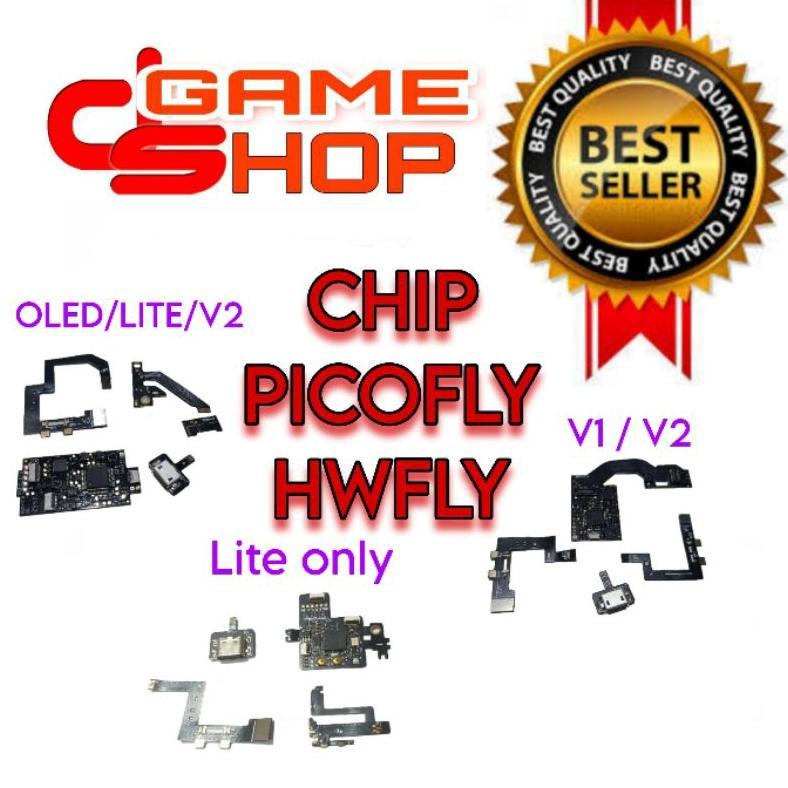
- Modchip: This is the core component for Mariko CFW. Common options include PicoFly, HWFLY, or their derivatives. These chips bypass the console’s security.
- Soldering Equipment: A fine-tip soldering iron (preferably temperature-controlled), very thin solder wire (e.g., 0.3mm or smaller), flux, and magnification tools (magnifying lamp or microscope) are crucial. This is for experienced hands only.
- MicroSD Card: A high-quality MicroSD card (UHS-I or UHS-II, A1 or A2 rated) with ample storage. 128GB is a practical minimum, but 256GB or 512GB is highly recommended for storing games and applications.
- PC: A computer running Windows, macOS, or Linux to prepare the MicroSD card and download files.
- USB-C Cable: For connecting the Switch to your PC, primarily for file transfers.
- Precision Screwdrivers and Pry Tools: To open the Switch and handle its delicate internal components.
- Heat Gun (optional but recommended): For removing the glued battery, if needed.
- Multimeter: To test connections after soldering.
Software:
- Atmosphere: The leading custom firmware for the Nintendo Switch. Always download the latest stable release.
- Hekate: A powerful bootloader, payload injector, and console manager. Essential for booting CFW, creating NAND backups, and managing partitions.
- Firmware Files: The specific firmware version your Switch is currently on. You will need these to prevent issues with Atmosphere.
- Sigpatches: These patches allow unsigned NSPs (homebrew applications, game backups) to run on CFW.
- SD Card Formatter: A reliable tool to format your MicroSD card.
- Payload Injector Software (e.g., TegraRcmGUI): While Mariko doesn’t use RCM, some modchips might interact with PC tools for initial setup or updates.
The Indispensable NAND Backup: Your Safety Net
Before any physical modification or CFW installation, performing a full NAND (eMMC) backup of your Switch is paramount. This backup is a complete snapshot of your console’s factory firmware and unique console data. In the event of an error during the modchip installation, a corrupted CFW setup, or a ban, a clean NAND backup can potentially restore your Switch to its original state (or at least a working state), albeit without removing a permanent ban. This process typically involves booting into Hekate (which your modchip will facilitate), navigating to the ‘Tools’ section, and initiating a full NAND dump to your MicroSD card. This can take a significant amount of time (often 1-2 hours for a 32GB console), but it is a non-negotiable step that provides an invaluable safety net. Store this backup securely on your PC, ideally in multiple locations.
Setting Up Your MicroSD Card for the Journey
A properly prepared MicroSD card is the foundation of your CFW environment.
- Format the MicroSD Card: Use a reliable SD card formatter (e.g., guiformat for Windows) to format your MicroSD card to FAT32. While exFAT offers larger file size support, it has been known to be more prone to corruption on the Switch. If you must use exFAT for larger game files, understand the potential trade-offs.
- Create Essential Folders: On the root of your freshly formatted MicroSD card, create the following folders:
atmosphere,bootloader,emuMMC(if planning for EmuNAND),payloads. - Copy Core Files:
- Hekate: Copy the
bootloaderfolder and thehekate_ctcaer.binpayload file (often within the bootloader folder) to the root. - Atmosphere: Copy the contents of the Atmosphere release (the
atmospherefolder andfusee.bin) to the root of your SD card. - Firmware Files: Place these in a designated folder, usually within the
atmospherefolder or a newfirmwarefolder, as needed by specific tools. - Sigpatches: Copy the contents of the sigpatches archive (typically
atmosphereandbootloaderfolders) to the root, merging them with existing folders. - Other Payloads: Copy any other necessary
.binpayload files (e.g., Lockpick_RCM.bin, TegraExplorer.bin) into thebootloader/payloadsfolder.
- Hekate: Copy the
This meticulous file arrangement ensures Hekate and Atmosphere can correctly locate and load all necessary components for a successful CFW boot and operation.
The Dual-Phase Installation: Modchip Integration and Software Configuration

The installation of Custom Firmware on a Mariko Switch is a two-pronged process. It begins with the intricate and high-stakes physical installation of a modchip, which is the gateway to injecting custom payloads. Once the hardware is in place, the second phase involves the software configuration on the MicroSD card and the initial boot processes.
Phase 1: The Hardware Modchip – A Specialized Endeavor
This is by far the most challenging and risk-intensive part of the entire process. Installing a modchip on a Mariko Switch requires advanced soldering skills, precision, and specialized equipment.
- Opening the Console: Carefully disassemble your Switch, starting with the outer screws and working your way inward. Be extremely gentle with ribbon cables and connectors. Remove the metal shields covering the motherboard.
- Locating Solder Points: Each modchip comes with a specific wiring diagram tailored to the Switch model (V2 Mariko, Lite, OLED). These diagrams pinpoint tiny solder pads on the motherboard where the modchip wires must be connected. These pads are often microscopic, requiring extreme precision and magnification.
- Soldering the Modchip: This step involves soldering multiple very thin wires from the modchip to the designated points on the Switch’s motherboard. The key challenges include:
- Delicacy: The solder pads are tiny and can lift easily, permanently damaging the motherboard.
- Heat Management: Too much heat can damage components; too little results in cold solders.
- Precision: Wires must be perfectly aligned and secured without shorting neighboring components.
- Chip Placement: The modchip itself must be carefully positioned and secured within the console’s tight internal space, often requiring insulation.
- Testing Connections: After soldering, use a multimeter to check for continuity between the modchip’s pads and the motherboard’s corresponding points, ensuring no shorts.
- Reassembly (Partial): Before fully reassembling, perform an initial power-on test. This might involve temporarily reconnecting essential components like the screen and battery to verify the modchip is functioning (e.g., showing a boot screen or LED indicator).
Strong Recommendation: If you do not have significant experience with micro-soldering, seek professional installation. The cost of professional installation is significantly less than the cost of a bricked console. Attempting this step without the necessary skills and equipment almost guarantees console damage. Modchips like PicoFly and HWFLY clones are complex, often requiring firmware flashing on the chip itself before installation.
Phase 2: Initial Software Setup via Hekate
Once the modchip is successfully installed and passes initial power-on tests, it will typically automatically inject Hekate (or a similar bootloader) when the console powers on. This signifies the modchip is working and the software setup can begin.
- First Boot into Hekate: Insert your prepared MicroSD card into the Switch. Power on the console. If the modchip is correctly installed, you should be greeted by the Hekate bootloader interface.
- Initial NAND Backup (Post-Mod): While you ideally performed a NAND backup before the hardware mod, it’s prudent to make another one immediately after confirming the modchip’s functionality. This captures the console state with the modchip active.
- Creating EmuNAND: An EmuNAND (Emulated NAND) is a separate partition on your MicroSD card that acts as an isolated environment for CFW. This is highly recommended to keep your original (SysNAND) firmware clean and untouched, significantly reducing the risk of an online ban if you decide to play legitimate games online.
- In Hekate, navigate to ‘Tools’ -> ‘Partition SD’ or ’emuMMC’.
- Choose ‘Create emuMMC’ and select ‘SD File Based’ or ‘SD Partition Based’ (file-based is generally easier).
- Allow Hekate to create the EmuNAND. This copies your SysNAND to the MicroSD and can take a long time.
- Configuring Boot Settings: In Hekate, go to ‘Config’ or ‘Payloads’ and set up boot entries. You’ll typically want entries for:
Atmosphere (EmuNAND): For booting into your modded environment.Stock (SysNAND): For booting into the unmodded, official firmware, primarily for online play (but caution is still advised even then).Atmosphere (SysNAND): For advanced users who understand the risks of directly modding their clean firmware. (Generally not recommended for online consoles).
Configuring Atmosphere and Essential Files
With EmuNAND created and boot entries set, the final steps involve configuring Atmosphere and ensuring all necessary components are present.
- Boot into Atmosphere (EmuNAND): Select the “Atmosphere (EmuNAND)” boot entry in Hekate. Your Switch should now boot into the custom firmware. You might notice a custom boot logo or subtle UI changes.
- Verify CFW: Once booted, navigate to System Settings. Scroll down to “System.” You should see “Current System Firmware” followed by “(AMS M.N.P | E)”. The “AMS” indicates Atmosphere, and “E” confirms you are on EmuNAND.
- Install Sigpatches: While copied to the SD card earlier, ensure they are correctly integrated. Sigpatches allow you to install and run homebrew NSPs and game backups without error. If you encounter errors launching unsigned titles, re-check your sigpatch installation.
- Initial Homebrew Setup: Access the Homebrew Menu (often by holding R while launching an album applet, or via a dedicated homebrew launcher if available). Here, you can install essential applications like Tinfoil, Awoo Installer, and various emulators.
Congratulations! Your Mariko Nintendo Switch is now running Custom Firmware, ready to explore a world of expanded functionalities.
Maximizing Your Modded Switch: Usage, Updates, and Online Security
Having successfully installed CFW, the journey doesn’t end there. To truly maximize your modded Switch experience and ensure its longevity, it’s crucial to understand how to use it effectively, manage updates, and, most importantly, maintain a high level of digital security, especially concerning online interactions.
Unleashing Homebrew and Enhanced Functionality
The primary draw of CFW is its ability to run homebrew applications and tools, transforming your Switch beyond its official capabilities.
- Game Backups and Installations: Tools like Tinfoil or Goldleaf allow you to install game backups (NSPs) directly from your SD card or network. This provides convenience and preserves your physical game collection.
- Emulation: Turn your Switch into a retro gaming powerhouse with emulators for classic consoles like the NES, SNES, N64, PS1, and even some PSP and Dreamcast games. RetroArch is a popular multi-system emulator.
- System Customization: Install custom themes, change splash screens, and modify various UI elements to personalize your Switch’s look and feel.
- Utility Tools: Access file managers, overclocking tools (e.g., sys-clk for improved performance in demanding games), save data managers, and battery life optimizers. These tools offer enhanced control and productivity over your console.
- Media Playback: Use applications like Lakka or custom media players to turn your Switch into a portable media center, capable of playing various video and audio formats.
Navigating Online Safely and Updating Your CFW
Online safety is paramount for any modded console. Nintendo’s anti-piracy measures are sophisticated, and even accidental online contact with CFW can lead to a ban.
- The Golden Rule: EmuNAND for CFW, SysNAND for Online: Always operate CFW on your EmuNAND. If you wish to play legitimate games online, always boot into your clean SysNAND. Never connect your EmuNAND to Nintendo’s servers.
- DNS Blocking: Implement DNS blocking measures (e.g., using 90DNS, Incognito, or Exosphere configuration) to prevent your CFW environment from connecting to Nintendo’s telemetry servers. These tools delete or spoof identifying information that Nintendo uses to detect modded consoles. This is your first line of defense against a ban.
- Incognito/Exosphere: These tools specifically strip console unique identifiers (like your console’s serial number) when using CFW, further mitigating ban risk.
- Updating CFW: Never update your Switch’s Official Firmware (OFW) through Nintendo’s system update while in CFW (EmuNAND). Always update Atmosphere, Hekate, and your firmware files manually. Download the latest versions from reputable sources (e.g., GitHub pages of the respective projects), update your SD card files, then use a tool like Daybreak (within Atmosphere) to safely update your EmuNAND’s firmware. Ensure your sigpatches are compatible with the new firmware. Updating directly via Nintendo will likely lead to a ban or brick.
Maintaining and Troubleshooting Your CFW Setup
Like any complex system, a modded Switch requires regular maintenance and knowledge of basic troubleshooting.
- Regular Backups: Periodically back up your EmuNAND to your PC, especially after major changes or successful updates. This protects your CFW setup from corruption.
- Stay Informed: Follow reputable Switch hacking communities (e.g., r/SwitchPirates on Reddit, GBATemp forums) to stay updated on new CFW releases, exploit developments, and potential ban waves.
- Troubleshooting Common Issues:
- “Error occurred” when launching games: Usually a sigpatch issue. Ensure they are up-to-date and correctly installed.
- Hekate or Atmosphere won’t boot: Could be corrupted SD card files, outdated CFW components, or an issue with your modchip installation. Re-check files, re-copy if necessary.
- “Black screen on boot”: Often a sign of incorrect firmware files or an incompatible payload.
- Clean Your SD Card: Over time, your SD card might accumulate unnecessary files. Periodically clean it, but be careful not to delete critical CFW components.
By following these best practices, you can enjoy a stable, feature-rich CFW experience on your Mariko Switch for years to come, unlocking the true potential of Nintendo’s remarkable hardware.
Conclusion
Installing Custom Firmware on a Mariko Nintendo Switch in 2024 is an undertaking that marries advanced hardware modification with intricate software configuration. It’s a testament to the ingenuity of the homebrew community and the persistent desire of users to extend the functionality and lifespan of their devices. While the initial hurdle of modchip installation demands either expert hands or professional assistance, the rewards of unlocking your Switch’s full potential, from robust homebrew support to enhanced emulation, are substantial.
This guide has aimed to provide a comprehensive roadmap, detailing the crucial distinctions of the Mariko model, the essential preparatory steps, the dual-phase installation process, and the ongoing best practices for maximizing your modded console while mitigating risks. Remember, prudence, patience, and a commitment to understanding each step are your most valuable tools. Always prioritize data backups, remain vigilant about online security, and stay informed about the latest developments within the CFW community. With these principles in mind, your Mariko Switch can transcend its factory limitations, offering an unparalleled and personalized gaming experience.
aViewFromTheCave is a participant in the Amazon Services LLC Associates Program, an affiliate advertising program designed to provide a means for sites to earn advertising fees by advertising and linking to Amazon.com. Amazon, the Amazon logo, AmazonSupply, and the AmazonSupply logo are trademarks of Amazon.com, Inc. or its affiliates. As an Amazon Associate we earn affiliate commissions from qualifying purchases.