
The debate between macOS and Windows has raged for decades, with each operating system offering unique strengths and a dedicated user base. Macs are renowned for their elegant design, robust security, intuitive user interface, and powerful ecosystem, making them a favorite among creatives, developers, and everyday users. However, even the most ardent Mac loyalists sometimes encounter a situation where Windows is simply indispensable. Whether it’s for running specific software, playing demanding games, or navigating a work environment built around Microsoft technologies, the need to bridge the operating system divide is a common one.

Fortunately, installing Windows on your Mac is not only possible but also a remarkably straightforward process, thanks to Apple’s built-in Boot Camp utility and a suite of powerful virtualization tools. This guide will walk you through everything you need to know, from understanding the core reasons for running Windows on your Mac to detailed, step-by-step installation instructions for both native and virtual environments. By the end, you’ll be equipped to transform your Mac into a dual-OS powerhouse, seamlessly transitioning between macOS and Windows to meet all your computing needs.
Why Run Windows on Your Mac? Unlocking Dual Functionality
While macOS excels in many areas, there are compelling reasons why you might need or want to run Windows on your Apple hardware. Understanding these motivations is the first step in deciding which installation method is best suited for your requirements.
Bridging the OS Divide for Software Compatibility
One of the most frequent reasons for installing Windows on a Mac is software compatibility. Many legacy applications, specialized industry tools, and even some newer programs are developed exclusively for Windows. For instance:
- Industry-Specific Software: Architects, engineers, and financial professionals often rely on Windows-only applications like AutoCAD, specific CAD/CAM tools, or proprietary trading platforms.
- Legacy Applications: Older software, especially those with specific hardware dependencies or those that haven’t been updated for macOS, might only run on Windows.
- Microsoft Office Suite (with caveats): While a Mac version of Microsoft Office exists, some users prefer the Windows version for specific features, add-ins, or macro compatibility that might not be identical on macOS.
- Developer Tools: Certain development environments, compilers, or testing tools are Windows-centric, making it essential for developers targeting the Windows platform.
By having Windows accessible on your Mac, you eliminate the frustration of encountering a “Windows-only” roadblock, effectively broadening your Mac’s software ecosystem.
Gaming and Performance Considerations
For many, gaming is a primary driver for installing Windows. While macOS has made strides in supporting games, the vast majority of PC games, especially AAA titles, are optimized and released first for Windows. Furthermore:
- Wider Game Library: Steam, Epic Games Store, and other platforms boast a significantly larger library of Windows-compatible games.
- DirectX Support: Windows features DirectX, a powerful API that many modern games rely on for optimal graphics and performance, which is not available on macOS.
- Graphics Card Performance: When running Windows natively via Boot Camp, your Mac’s dedicated graphics card (if it has one) can be fully utilized, delivering the best possible frame rates and graphical fidelity, often surpassing what’s achievable in macOS for the same game.
- Anti-Cheat Systems: Some competitive online games employ anti-cheat systems that are more robust or exclusively compatible with Windows.
If you’re a serious gamer who prefers the portability and design of a Mac but doesn’t want to compromise on gaming performance or selection, running Windows is an excellent solution.
Professional and Educational Requirements
In professional and academic settings, Windows often remains the dominant operating system. You might find yourself in situations where:
- Company Mandates: Your workplace might require you to use a specific version of Windows or software that is only compatible with the Windows environment for security, network integration, or standardization purposes.
- University Courses: Certain university courses, particularly in engineering, computer science, or business, might necessitate the use of Windows-specific software or testing platforms.
- Client Compatibility: If you frequently collaborate with clients who are exclusively Windows users, having access to Windows can ensure seamless file sharing, software compatibility, and a consistent user experience.
In these scenarios, having Windows readily available on your Mac can prevent compatibility headaches and ensure you meet all necessary professional or educational demands without needing a separate machine.
Preparing Your Mac for Windows Installation: Essential Pre-Flight Checks
Before embarking on the Windows installation journey, thorough preparation is key to a smooth and successful process. Neglecting these crucial steps can lead to data loss, installation failures, or unnecessary headaches.
System Requirements and Compatibility
Not all Macs are created equal, and neither are all versions of Windows. Before you begin, verify your Mac’s compatibility:
- Boot Camp Compatibility: Apple’s Boot Camp Assistant is designed for Intel-based Macs. M1/M2/M3 Macs (Apple Silicon) do not support Boot Camp. For Apple Silicon Macs, virtualization software (like Parallels Desktop, VMware Fusion, or the upcoming native version of Windows for ARM) is your only option. For Intel Macs, check Apple’s support pages for specific macOS and Windows version compatibility. Generally, Macs from 2012 onwards support Windows 10, and newer models support Windows 11.
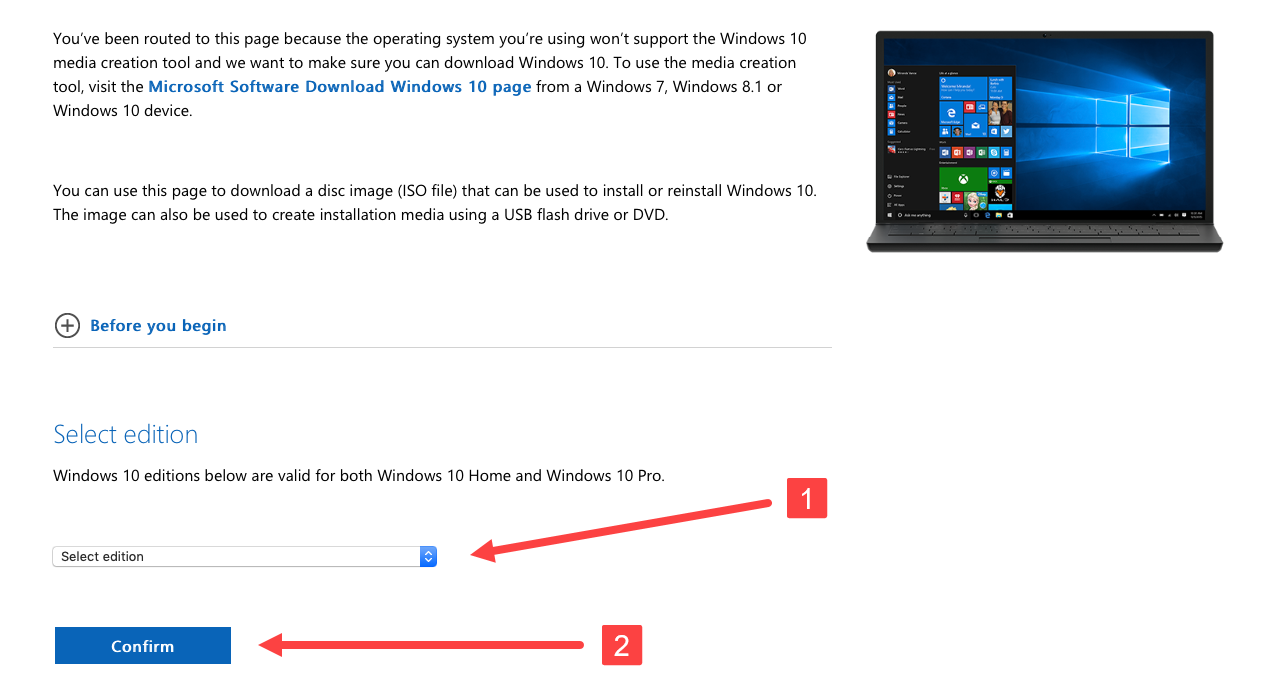
- Windows Version: You’ll need a full installation of Windows (Home or Pro edition). It’s highly recommended to use a 64-bit version. For Boot Camp, a Windows 10 or Windows 11 ISO (disk image file) downloaded directly from Microsoft’s website is ideal.
- macOS Version: Ensure your macOS is up to date. This ensures you have the latest Boot Camp Assistant version and necessary drivers.
Back Up Your Mac: A Non-Negotiable Step
This cannot be stressed enough: Always back up your entire Mac before making significant changes to your disk partitions. Installing a new operating system or partitioning your hard drive carries inherent risks, and while rare, unexpected data loss can occur.
- Time Machine: The easiest and most reliable method is to use Apple’s built-in Time Machine. Connect an external hard drive and let Time Machine create a full backup of your macOS installation and all your files.
- Cloud Backups: Complement Time Machine with cloud storage services like iCloud, Google Drive, or Dropbox for your most critical documents.
- Cloning Software: For an extra layer of security, consider using disk cloning software like Carbon Copy Cloner or SuperDuper! to create a bootable clone of your macOS drive.
This backup will be your safety net, allowing you to restore your Mac to its previous state if anything goes awry.
Free Up Disk Space
Both Boot Camp and virtualization require a substantial amount of free storage space on your Mac’s internal drive.
- Boot Camp: Apple recommends at least 64GB of free space for Windows, but for a comfortable experience, especially if you plan to install games or large applications, allocate 128GB or more. Windows itself takes up a significant portion, and future updates and installed software will consume more.
- Virtualization: The space required for a virtual machine is more flexible, as it’s often a single file that expands as you add more data. However, aim for at least 60-80GB for a functional Windows VM. You’ll also need space for the virtualization software itself.
To free up space, consider deleting old files, emptying the Trash, uninstalling unused applications, and moving large media files to an external drive. macOS’s “Optimize Storage” feature (found in About This Mac > Storage) can help identify large files for deletion.
Gather Your Tools: Windows ISO and Drivers
Before you begin the installation, ensure you have the following ready:
- Windows ISO File: This is the installation file for Windows. You can download it directly from Microsoft’s official website. Make sure you select the correct edition (Home or Pro) and architecture (64-bit).
- Stable Internet Connection: Crucial for downloading the Windows ISO, Boot Camp support software, and any necessary updates or drivers during and after installation.
- Power Adapter: Keep your Mac connected to power throughout the entire installation process to prevent unexpected shutdowns.
- External USB Drive (Optional for older Macs/Boot Camp): Some older Macs might require a USB drive (at least 16GB) to store the Windows ISO and Boot Camp drivers, but newer Macs often handle this internally.
Having all these prerequisites in place will streamline your installation and minimize potential issues.
Method 1: Installing Windows Natively with Apple Boot Camp
For Intel-based Macs, Apple’s Boot Camp Assistant is the official and most recommended way to install Windows. It allows you to partition your hard drive and install Windows as a separate, native operating system, enabling a true dual-boot setup.
What is Boot Camp? The Native Performance Advantage
Boot Camp is a utility included with macOS that facilitates the installation of Windows on compatible Intel-based Mac computers. When you use Boot Camp, Windows is installed directly onto a dedicated partition of your Mac’s internal hard drive, not within macOS. This means:
- Native Performance: When you boot into Windows via Boot Camp, your Mac is running Windows directly, without any virtualization layer. This provides full access to your Mac’s hardware resources, including the CPU, RAM, and most importantly, the graphics card. This results in the best possible performance for demanding applications and games.
- Dual-Boot Functionality: You can choose which operating system to boot into (macOS or Windows) when you start your Mac. This gives you the flexibility to switch between environments as needed, though you can only run one OS at a time.
- Apple-Provided Drivers: Boot Camp Assistant downloads and provides all the necessary Apple-specific drivers for Windows, ensuring that your Mac’s hardware (trackpad, keyboard, Wi-Fi, audio, display, etc.) functions correctly within Windows.
Step-by-Step Boot Camp Installation Guide
Follow these steps carefully to install Windows using Boot Camp Assistant:
- Open Boot Camp Assistant:
- Navigate to
Applications > Utilities > Boot Camp Assistant. - Click
Continueon the introductory screen.
- Navigate to
-
Select Windows ISO and Partition Disk:
- Boot Camp Assistant will automatically detect your Windows ISO file if it’s in your Downloads folder or if you browse to it.
- Drag the divider between the macOS and Windows partitions to allocate space for Windows. Remember the recommended minimums (64GB, but 128GB+ for practical use). Ensure you leave enough space for macOS as well.
- Click
Install.
-
Download Windows Support Software (Drivers):
- Boot Camp Assistant will now download the necessary Windows support software (drivers) from Apple. This ensures your Mac’s hardware works correctly in Windows. This step requires a stable internet connection and may take some time.
- Once downloaded, your Mac will restart and boot into the Windows installer.
-
Install Windows:
- When the Windows installer appears, select your language, time, and keyboard preferences, then click
Next. - Click
Install now. - If prompted for a product key, you can enter it now or click “I don’t have a product key” to continue and activate Windows later.
- Choose the edition of Windows you want to install (Home or Pro).
- Accept the license terms.
- On the “Which type of installation do you want?” screen, choose
Custom: Install Windows only (advanced). - You’ll see a list of partitions. Select the partition labeled “BOOTCAMP” (it should be the one with the correct allocated size). Be extremely careful not to select or format your macOS partition.
- Click
Formatto format the BOOTCAMP partition, then clickNextto begin the Windows installation. - Windows will now install. Your Mac will restart multiple times during this process. Do not intervene unless prompted.
- When the Windows installer appears, select your language, time, and keyboard preferences, then click
-
Install Boot Camp Drivers in Windows:
- Once Windows has finished installing and you reach the desktop, the Boot Camp installer should automatically launch. If it doesn’t, navigate to the USB drive (if you used one) or the drive that Boot Camp Assistant created for the support software, and run the
setup.exefile. - Follow the on-screen prompts to install all the Apple-specific drivers for Windows. This will enable your Wi-Fi, Bluetooth, trackpad gestures, keyboard backlight, and other Mac features to work correctly in Windows.
- After the drivers are installed, click
Finishand restart Windows when prompted.
- Once Windows has finished installing and you reach the desktop, the Boot Camp installer should automatically launch. If it doesn’t, navigate to the USB drive (if you used one) or the drive that Boot Camp Assistant created for the support software, and run the
-
Switching Between macOS and Windows:
- To switch between operating systems, restart your Mac.
- As soon as you hear the startup chime (or see the screen light up on newer Macs), press and hold the
Option (Alt)key. - The Startup Manager will appear, allowing you to select whether to boot into macOS or Windows (labeled as “Windows” or “Boot Camp”).
- You can also set a default startup disk in either macOS (System Settings/Preferences > Startup Disk) or Windows (Boot Camp Control Panel, usually found in the system tray).
Pros and Cons of Boot Camp
Pros:
- Optimal Performance: You get 100% of your Mac’s hardware power dedicated to Windows, ideal for gaming and demanding applications.
- Native Experience: Windows runs as if it were on a dedicated PC, offering full compatibility with Windows drivers and software.
- Free: Boot Camp Assistant is a free utility from Apple (though you still need to purchase a Windows license).
Cons:
- Requires Reboot: To switch between macOS and Windows, you must restart your computer.
- Fixed Partition Size: The disk space allocated to Windows is fixed during installation. Changing it later is complex and risky, often requiring reinstallation.
- Intel Macs Only: Not compatible with Apple Silicon (M1/M2/M3) Macs.
- Disk Space Commitment: Commits a significant portion of your internal storage solely to Windows.
Method 2: Running Windows Virtually with Emulation Software
For Apple Silicon Macs or users who prefer the convenience of running both operating systems simultaneously without rebooting, virtualization is the answer. This method involves using special software to create a “virtual machine” (VM) within macOS, allowing Windows to run inside a window on your Mac desktop.
Understanding Virtualization: Flexibility Without Rebooting
Virtualization software creates a virtualized hardware environment (CPU, RAM, storage, network, etc.) that mimics a physical computer. Windows (or any other OS) is then installed into this virtual environment, believing it’s running on actual hardware.
- Simultaneous Operation: The primary advantage is the ability to run macOS and Windows side-by-side. You can switch between them with a click, copy and paste between applications, and even drag and drop files.
- Resource Sharing: Both operating systems share your Mac’s hardware resources. You allocate a certain amount of RAM, CPU cores, and disk space to the virtual machine, which means neither OS gets full access to all resources.
- Portability and Snapshots: Virtual machines are typically stored as a single file or a collection of files. This makes them portable and easy to back up. You can also take “snapshots” of your VM’s state, allowing you to revert to a previous configuration if something goes wrong.
Popular Virtualization Software Options
Several excellent virtualization programs are available, each with its own strengths:
- Parallels Desktop: (Paid, highly recommended for Apple Silicon and Intel Macs) Known for its exceptional performance, seamless integration with macOS (e.g., Coherence mode allows Windows apps to appear like Mac apps), and user-friendliness. It’s often the go-to choice for Mac users due to its optimization for Apple hardware. Parallels was one of the first to offer robust support for Windows on ARM for Apple Silicon Macs.
- VMware Fusion: (Paid, robust for Intel and Apple Silicon Macs) A professional-grade virtualization solution offering powerful features, good performance, and excellent compatibility. It’s often preferred by IT professionals and developers.
- VirtualBox: (Free, open-source for Intel Macs, limited/experimental for Apple Silicon) A free and open-source option from Oracle. While it might not offer the same level of integration or raw performance as Parallels or VMware, it’s a capable tool for basic Windows usage on Intel Macs. Support for Apple Silicon is still developing and often requires specific preview builds or manual configuration for Windows on ARM.
For Apple Silicon Macs, Parallels Desktop and VMware Fusion are currently the most mature and user-friendly options for running Windows on ARM. Microsoft has also officially licensed Windows 11 on ARM for use in Parallels Desktop and VMware Fusion on Apple Silicon Macs.
Step-by-Step Virtual Machine Setup (General Guide)
While specific steps vary slightly between applications, the general process is as follows:
-
Install Virtualization Software:
- Download and install your chosen virtualization software (Parallels Desktop, VMware Fusion, or VirtualBox) on your Mac.
-
Create a New Virtual Machine:
- Launch the virtualization software and choose to create a “New Virtual Machine.”
- The software will typically guide you through an assistant. You’ll usually have the option to install from a disk image (ISO file) or migrate an existing Windows PC.
- Select your Windows ISO file when prompted.
-
Allocate Resources:
- The wizard will ask you to allocate RAM, CPU cores, and disk space for your virtual machine.
- RAM: Allocate at least 4GB, preferably 8GB or more, for Windows 10/11 to run smoothly. Be mindful not to allocate too much, as macOS also needs RAM to function.
- CPU: Assign 2-4 virtual CPU cores if your Mac has enough physical cores.
- Disk Space: Allocate at least 60-80GB of virtual disk space. Most virtualization software uses a dynamically expanding disk image, so it won’t take up all that space initially but will grow as needed.
-
Install Windows:
- Once the VM is configured, start it up. It will boot from the Windows ISO, and you’ll proceed with the standard Windows installation process, much like you would on a physical PC.
- Choose language, time, keyboard.
- Enter your product key or choose to activate later.
- Select
Custom: Install Windows only (advanced)and install it to the primary virtual hard disk created by the virtualization software. Do NOT create or format other partitions within the VM unless you know what you are doing. - Windows will install and restart several times.
-
Install Guest Additions/Tools:
- After Windows is installed and you reach the desktop, the virtualization software will prompt you to install its “Guest Additions” (VirtualBox), “Parallels Tools” (Parallels), or “VMware Tools” (VMware).
- This step is crucial for optimal performance and integration. These tools install drivers for the virtual hardware, enable seamless mouse movement between OSes, improve display resolution, facilitate shared folders, and enable features like copy-paste between macOS and Windows.
- Follow the on-screen instructions, which usually involve mounting a virtual CD/DVD and running a setup program within Windows.
- Restart the virtual machine when prompted.
Pros and Cons of Virtualization
Pros:
- Simultaneous Operation: Run both macOS and Windows at the same time, switching instantly.
- Flexibility: Easily adjust allocated resources (RAM, CPU, disk space) to the VM.
- Snapshots: Create restore points for your VM, allowing you to revert to a previous state if something goes wrong or you want to experiment.
- Portability: VMs can often be moved between different Macs or even to other virtualization platforms.
- Works on Apple Silicon: The primary method for running Windows on M1/M2/M3 Macs.
Cons:
- Performance Overhead: Running two operating systems simultaneously means resources are shared, leading to a performance hit compared to native Boot Camp. Not ideal for very demanding games or applications.
- Cost: Parallels Desktop and VMware Fusion are paid software. While free trials are available, long-term use requires a license.
- Resource Intensive: Requires more RAM and CPU cycles from your Mac overall, as both OSes are running concurrently.
- Limited Hardware Access: The virtualized environment means direct access to certain Mac hardware components (like high-end graphics cards) might be less efficient or limited compared to Boot Camp.
Post-Installation and Optimization Tips
Once Windows is successfully installed, whether via Boot Camp or virtualization, a few steps can help ensure optimal performance and a smooth user experience.
Keeping Windows and Drivers Up-to-Date
Maintaining an up-to-date system is vital for security, stability, and performance.
- Windows Updates: Regularly check for and install Windows Updates. Go to
Settings > Update & Security > Windows Updateto ensure your system has the latest security patches and feature improvements. - Boot Camp Drivers (for Boot Camp installations): Periodically check for updated Boot Camp drivers from Apple. These are often released with new macOS versions or significant Windows updates. You can check for these through Apple Software Update within Windows or by re-running Boot Camp Assistant in macOS to download updated support software.
- Virtualization Tools (for VM installations): Ensure your virtualization software (Parallels Tools, VMware Tools, Guest Additions) is always up-to-date. The software itself usually prompts you when updates are available, or you can check for them manually from the VM’s menu bar. These updates often contain critical performance improvements and bug fixes for the virtualized environment.
Optimizing Performance for Your Setup
Depending on whether you’re using Boot Camp or a VM, different optimization strategies apply.
- For Boot Camp:
- Graphics Drivers: Beyond Apple’s provided drivers, if you have a dedicated AMD or NVIDIA graphics card, you might consider installing the latest drivers directly from the manufacturer’s website. Sometimes these offer better performance for games than Apple’s generic drivers.
- Power Settings: In Windows, adjust your power plan to “High performance” (or “Ultimate Performance” if available) when you need maximum power, especially for gaming.
- Disable Unnecessary Startup Programs: Use Task Manager (
Ctrl+Shift+Esc) to disable programs that automatically start with Windows and consume resources.
- For Virtual Machines:
- Allocate Sufficient Resources: Ensure you’ve allocated enough RAM and CPU cores to your VM without starving macOS. Find a balance that allows both to run comfortably.
- Install Guest Additions/Tools: As mentioned, this is crucial for performance.
- Keep VM Tools Updated: Always update Parallels Tools, VMware Tools, or Guest Additions when new versions are available.
- Defragment Virtual Disk: Periodically defragment your virtual hard disk within Windows (if it’s a traditional HDD, though less critical for SSDs). Some virtualization software also has an option to “compact” the virtual disk file to reclaim unused space.
- Disable Visual Effects: In Windows, you can go to
System Properties > Advanced > Performance Settingsand choose “Adjust for best performance” to disable some visual effects that consume resources. - Exclude VM Files from macOS Antivirus: If you have an antivirus running on macOS, exclude your virtual machine’s files from real-time scanning to prevent performance degradation.
Troubleshooting Common Issues
While installing Windows on a Mac is generally smooth, issues can arise.
- Driver Problems: If your Wi-Fi, trackpad, or graphics aren’t working correctly in Windows, it’s almost always a driver issue.
- Boot Camp: Re-run the Boot Camp support software installer. Ensure you have the correct version for your Mac and Windows.
- Virtual Machine: Reinstall or update the Guest Additions/Tools.
- Boot Issues: If your Mac isn’t booting into Windows or macOS correctly:
- Hold
Option (Alt)at startup to bring up the Startup Manager and select your desired OS. - If using Boot Camp, ensure the BOOTCAMP partition wasn’t accidentally deleted or corrupted.
- Hold
- Performance Lags:
- Boot Camp: Check for outdated graphics drivers or power settings. Ensure your Mac isn’t overheating.
- Virtual Machine: Increase allocated RAM/CPU, install/update VM tools, close unnecessary applications in both macOS and Windows, and ensure macOS isn’t running too many background tasks.
- Windows Activation: If Windows isn’t activating, double-check your product key. If you purchased Windows through an OEM (Original Equipment Manufacturer) license, it might be tied to specific hardware and not transferrable.
- Insufficient Disk Space: If you run out of space, especially in a Boot Camp partition, resizing it is difficult. For VMs, you can often expand the virtual disk size within the virtualization software settings, then extend the partition within Windows Disk Management.
For persistent problems, consulting the official support documentation for Apple Boot Camp, your virtualization software, or Microsoft Windows is always recommended. Online forums and communities are also valuable resources.

Conclusion
Installing Windows on your Mac, whether through Apple’s Boot Camp or via virtualization software, significantly expands the capabilities and versatility of your device. You’re no longer confined to the macOS ecosystem, gaining access to a vast library of Windows-exclusive software, games, and professional tools. This dual-OS functionality transforms your Mac into an even more powerful and adaptable machine, ready to tackle any computing challenge you throw its way.
The choice between Boot Camp and a virtual machine largely depends on your specific needs:
- Boot Camp is ideal for Intel Mac users who prioritize raw, native Windows performance for gaming or resource-intensive applications and don’t mind rebooting to switch operating systems.
- Virtualization is perfect for Apple Silicon Mac users and those on Intel Macs who need to run macOS and Windows simultaneously, value flexibility, and require seamless integration, even if it comes with a slight performance overhead.
By following the comprehensive steps outlined in this guide and performing the necessary pre-installation checks, you can confidently set up your Mac to run Windows. Embrace the best of both worlds, unlocking new levels of productivity, entertainment, and compatibility, all from the comfort of your beloved Mac.
aViewFromTheCave is a participant in the Amazon Services LLC Associates Program, an affiliate advertising program designed to provide a means for sites to earn advertising fees by advertising and linking to Amazon.com. Amazon, the Amazon logo, AmazonSupply, and the AmazonSupply logo are trademarks of Amazon.com, Inc. or its affiliates. As an Amazon Associate we earn affiliate commissions from qualifying purchases.