
Kodi, the versatile open-source media player, has become a go-to platform for users seeking a personalized entertainment experience. At its heart, Kodi’s power lies in its vast ecosystem of add-ons, which unlock a universe of content, from live TV and movies to music and games. If you’ve recently dived into the world of Kodi and are wondering “how do I install Kodi addons,” you’ve come to the right place. This comprehensive guide will walk you through the process, covering everything from understanding what add-ons are to safely installing and managing them.
Understanding Kodi Addons: The Building Blocks of Your Entertainment Hub
Before we delve into the “how-to,” it’s crucial to understand what Kodi add-ons actually are and why they’re so important. Think of Kodi as a powerful engine. Add-ons are the modifications and enhancements that allow this engine to perform specific tasks and access different types of content.
What are Kodi Addons?
In essence, Kodi add-ons are small pieces of software that extend the functionality of the Kodi media center. They are developed by a global community of enthusiasts and can be broadly categorized into:
- Official Addons: These are typically developed by Kodi itself or by official content providers. They often provide access to legitimate streaming services or curated content repositories. Examples include official YouTube add-ons, streaming service add-ons approved by the service, and documentation add-ons.
- Third-Party Add-ons: This is where the vast majority of Kodi’s flexibility lies. Third-party add-ons are created by independent developers and can offer access to a much wider range of content, including live TV, movies, TV shows, music, and even utility tools. However, it’s important to note that the legality and safety of some third-party add-ons can be a concern, and we will address this in more detail later.
Why Install Kodi Addons?
The primary reason to install Kodi add-ons is to customize your media consumption experience. Instead of being limited to what a standard media player offers, add-ons empower you to:
- Access a Wider Content Library: Stream movies, TV shows, live sports, documentaries, and more from various sources.
- Integrate Streaming Services: Connect your existing subscriptions to Kodi for a unified viewing experience.
- Enjoy Music and Podcasts: Discover and listen to a vast array of audio content.
- Play Games: Some add-ons even offer retro gaming capabilities.
- Enhance Functionality: Use add-ons for system maintenance, information retrieval, or to connect with other services.
Navigating the Installation Landscape: From Official Repositories to Zipped Files
Installing Kodi add-ons can be done in a few primary ways, each with its own set of steps. We’ll break down the most common methods, starting with the simplest and most recommended.
Installing Addons from the Official Kodi Repository
The safest and most straightforward method to install add-ons is by using the official Kodi repository. This repository is pre-installed with Kodi and contains a curated selection of add-ons that have undergone some level of vetting.
Steps:
- Launch Kodi: Open the Kodi application on your chosen device.
- Navigate to Addons: From the main menu, select “Add-ons.”
- Select “Install from repository”: This option will take you to a list of available repositories.
- Choose “Kodi Add-on repository”: This is the official repository. If you don’t see it, you may need to enable it or ensure your Kodi installation is up-to-date.
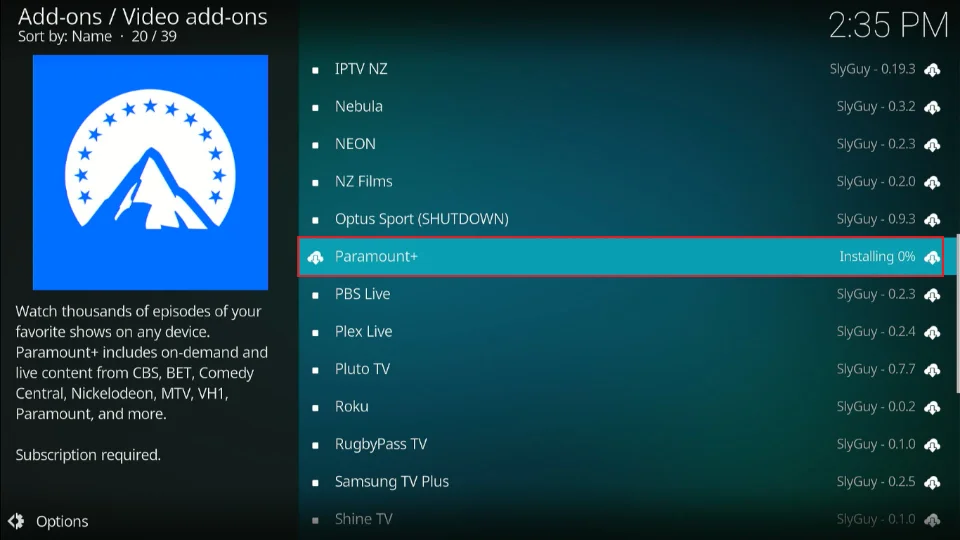
- Browse Categories: Within the official repository, you’ll find various categories like “Video add-ons,” “Music add-ons,” “Program add-ons,” etc. Select the category that corresponds to the type of add-on you’re looking for.
- Select Your Desired Addon: Click on the specific add-on you wish to install.
- Click “Install”: You’ll see an “Install” button. Click it to begin the installation process.
- Confirm Dependencies: Kodi may prompt you to install additional add-ons that are required for the selected add-on to function. Click “OK” to accept these dependencies.
- Wait for Installation: The add-on will download and install. You’ll typically see a notification when it’s complete.
- Access the Addon: Once installed, you can usually find the add-on in its respective category within the “Add-ons” section.
Benefits of Using the Official Repository:
- Safety and Security: Add-ons from the official repository are generally considered safe and less likely to contain malware or pose security risks.
- Legality: Most add-ons here are designed to work with legal content sources.
- Ease of Use: The process is very user-friendly and integrated directly into Kodi.
- Automatic Updates: Add-ons from the official repository are usually updated automatically, ensuring you always have the latest versions.
Installing Addons from a Zip File (Third-Party Repositories)
When you venture beyond the official repository, you’ll often encounter add-ons that are not available there. These are typically distributed as zip files that you can install manually. This method is commonly used for installing add-ons from third-party repositories.
Important Consideration: While this method is powerful, it’s also where you need to exercise the most caution. Third-party add-ons are not vetted by Kodi and can vary greatly in quality, legality, and safety. Always research the source of any third-party add-on before installing it.
Steps:
- Download the Addon Zip File: Find a reputable source for the add-on you want to install. This could be a developer’s website, a dedicated Kodi forum, or a trusted online community. Download the
.zipfile containing the add-on to a location accessible by your Kodi device (e.g., a USB drive, a network share, or your device’s internal storage). - Launch Kodi: Open the Kodi application.
- Navigate to Addons: From the main menu, select “Add-ons.”
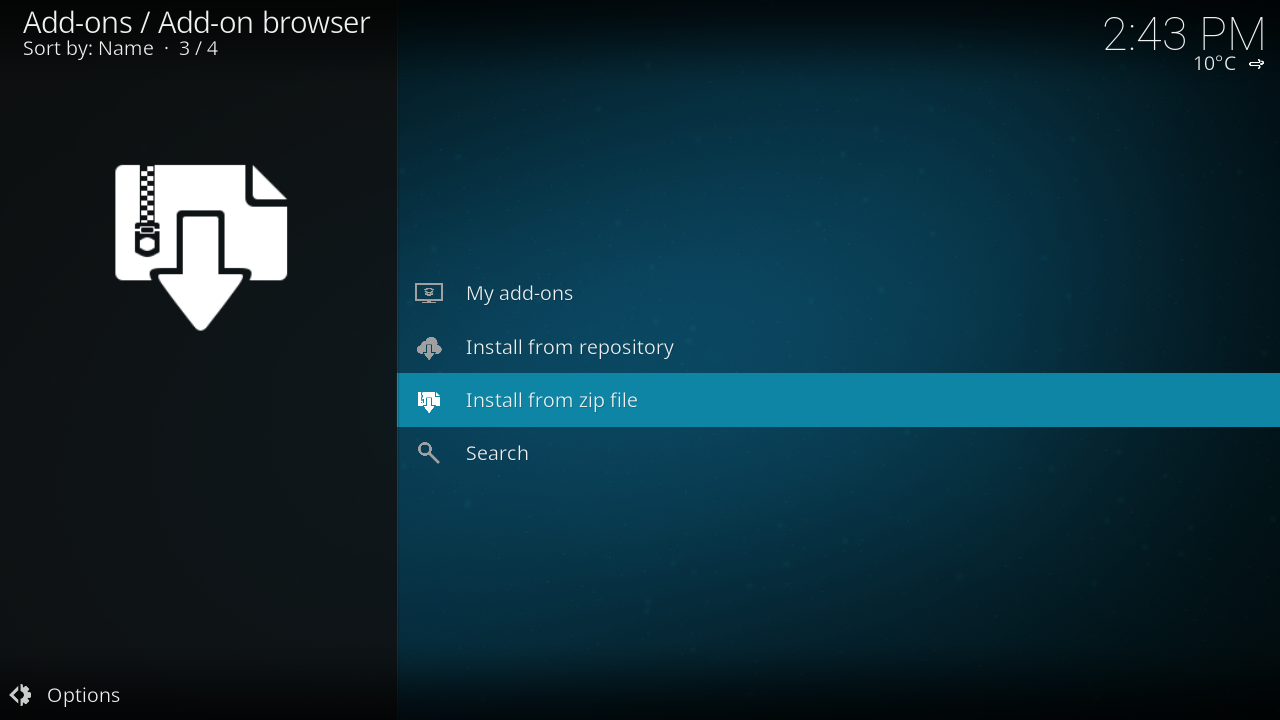
- Select “Install from zip file”: This option allows you to browse for local zip files.
- Locate the Downloaded Zip File: Navigate through your file system to find the add-on zip file you downloaded.
- Select the Zip File: Click on the zip file to initiate the installation.
- Wait for Installation: Kodi will install the add-on. You’ll receive a notification when it’s complete.
- Enable Unknown Sources (if prompted): If you haven’t previously installed add-ons from zip files, Kodi might ask you to enable “Unknown Sources” in its settings. Proceed with extreme caution when enabling this option. It allows installation from sources other than the official repository. You can find this setting under
Settings > System > Add-ons. - Access the Addon: The newly installed add-on will appear in its relevant category within the “Add-ons” section.
Installing Addons from a Repository (Third-Party Repositories)
This method is a hybrid of the previous two. Instead of downloading individual zip files, you first add a URL to Kodi, which then allows Kodi to access a repository containing multiple add-ons. This is a more organized way to manage third-party add-ons.
Steps:
- Get the Repository URL: Find the URL for the repository that hosts the add-ons you want. This is typically provided by the developers of the add-ons or found on trusted Kodi communities.
- Launch Kodi: Open the Kodi application.
- Navigate to Settings: From the main menu, select the gear icon to access “Settings.”
- Select “File manager”: In the Settings menu, choose “File manager.”
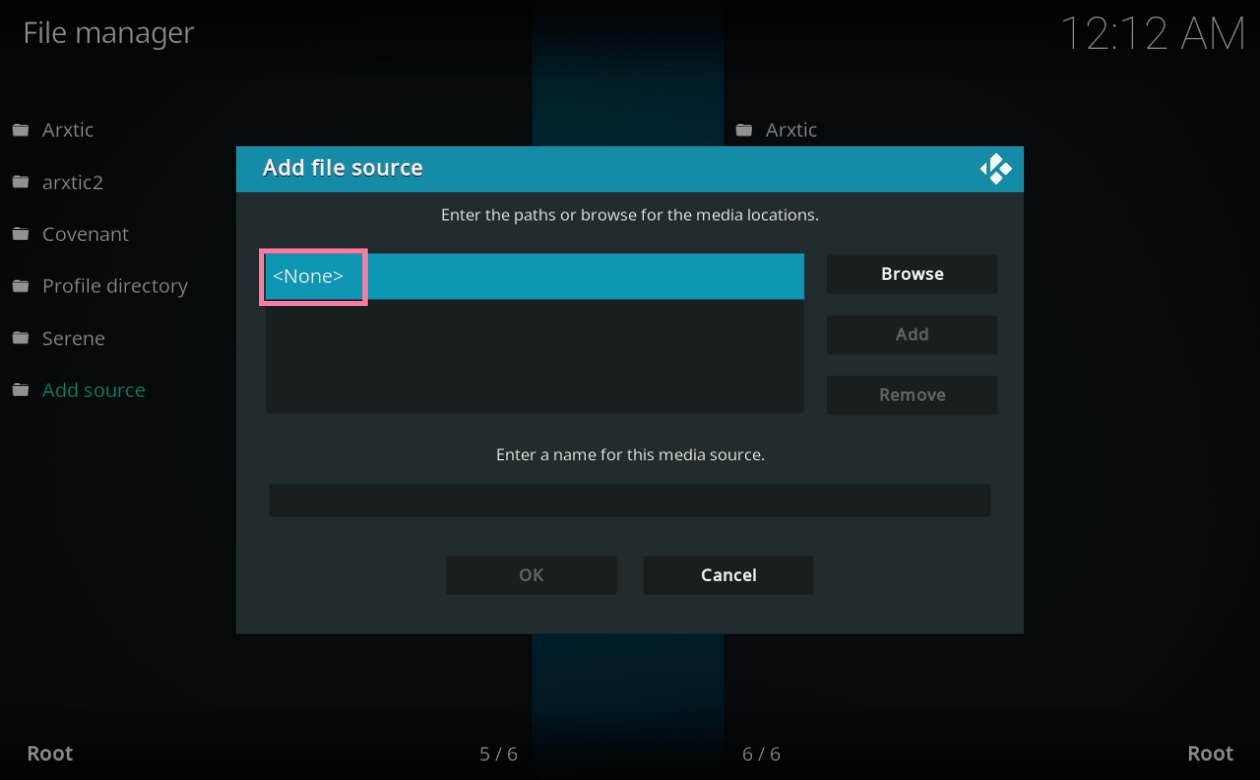
- Select “Add source”: On the left-hand pane, choose “Add source.”
- Enter the Repository URL: In the “None” field, paste or type the URL of the repository.
- Name the Media Source: In the “Enter a name for this media source” field, give the repository a descriptive name (e.g., “My Third-Party Repo”).
- Click “OK”: Confirm the addition of the source.
- Navigate to Addons: Go back to the main menu and select “Add-ons.”
- Select “Install from zip file”: This might seem counterintuitive, but this is where you’ll point Kodi to the newly added repository.
- Choose the repository name you just entered: Select the name you gave the media source in step 7.
- Select the repository zip file: You’ll usually see a zip file corresponding to the repository itself. Install this file.
- Wait for Repository Installation: Kodi will install the repository. You’ll see a notification.
- Select “Install from repository”: Now that the repository is installed, go back to the main “Add-ons” menu and select “Install from repository.”
- Choose Your Newly Added Repository: Select the repository you just installed from the list.
- Browse and Install Addons: You can now browse the add-ons within this third-party repository and install them as you would from the official repository.
Essential Considerations for Safe and Effective Addon Management
Installing add-ons is only half the battle. To ensure a smooth and secure Kodi experience, it’s vital to understand best practices for management, troubleshooting, and staying safe.
Maintaining a Secure and Reliable Kodi Setup
When dealing with third-party add-ons, security and reliability become paramount.
- Source Verification: This is the most crucial step. Before installing any third-party add-on, thoroughly research its source. Stick to well-known and reputable communities or developer websites. Avoid installing add-ons from random links or untrusted sources, as they could contain malware, spyware, or be designed to exploit your system.
- Legality of Content: Be aware of the legal implications of the content you access through add-ons. Kodi itself is legal, but accessing copyrighted material without proper authorization is not. Stick to add-ons that provide access to legitimate and legal content.
- Regular Updates: Keep both Kodi and your installed add-ons updated. Developers often release updates to fix bugs, improve performance, and patch security vulnerabilities.
- Disable “Unknown Sources” When Not in Use: If you’ve enabled “Unknown Sources” to install a specific add-on, remember to disable it afterward if you don’t intend to install more from untrusted sources. This adds an extra layer of protection.
- Antivirus/Anti-Malware Software: Ensure you have robust antivirus and anti-malware software installed and running on the device where Kodi is installed, especially if you are frequently installing third-party add-ons.
Troubleshooting Common Kodi Addon Issues
Even with the best intentions, you might encounter problems. Here are some common issues and how to address them:
- Addon Not Loading or Crashing:
- Restart Kodi: The simplest fix often works wonders. Close Kodi completely and reopen it.
- Update the Addon: Check if there’s an update available for the problematic add-on.
- Clear Cache: Some add-ons have a cache that can become corrupted. Look for a “clear cache” option within the add-on’s settings or use a dedicated maintenance add-on.
- Check Dependencies: Ensure all necessary dependencies for the add-on are installed and up-to-date.
- Reinstall the Addon: Uninstall and then reinstall the add-on.
- Check Repository Status: If it’s a third-party add-on, the repository it comes from might be temporarily down or experiencing issues.
- Buffering or Slow Streaming:
- Check Your Internet Connection: Ensure your internet speed is sufficient for streaming the content.
- Server Load: The server hosting the content might be overloaded. Try a different source or come back later.
- VPN Issues: If you’re using a VPN, try disconnecting or changing servers. Sometimes VPNs can interfere with streaming.
- Update Addon: Developers might optimize streaming performance in newer versions.
- Addon Not Found or Missing:
- Correct Repository: Ensure you’ve added the correct repository and that it’s still active.
- Addon Name: Double-check the spelling of the add-on name when searching.
- Repository Updates: The add-on might have been removed from the repository or moved.
Managing Your Addons for Optimal Performance
As your Kodi library grows, so does the potential for clutter and performance degradation.
- Uninstall Unused Addons: Regularly review your installed add-ons and uninstall any that you no longer use. This frees up storage space and can improve Kodi’s overall responsiveness.
- Organize Your Favorites: For frequently used add-ons, consider adding them to your Kodi favorites for quick access.
- Utilize Maintenance Tools: Consider installing reputable maintenance add-ons that can help you clear cache, manage databases, and perform other housekeeping tasks to keep Kodi running smoothly.
- Backup Your Kodi Setup: For peace of mind, consider backing up your entire Kodi configuration, including your add-ons and settings. This can be done using various backup add-ons and is invaluable if you need to restore your setup or migrate to a new device.
By following these guidelines, you can confidently navigate the world of Kodi add-ons, unlock a wealth of entertainment, and maintain a secure and enjoyable media experience. Happy streaming!
aViewFromTheCave is a participant in the Amazon Services LLC Associates Program, an affiliate advertising program designed to provide a means for sites to earn advertising fees by advertising and linking to Amazon.com. Amazon, the Amazon logo, AmazonSupply, and the AmazonSupply logo are trademarks of Amazon.com, Inc. or its affiliates. As an Amazon Associate we earn affiliate commissions from qualifying purchases.