
The allure of high-definition graphics, immersive storytelling, and the thrill of competitive multiplayer gaming has captivated audiences worldwide. For many, PC gaming is synonymous with the Steam platform, a digital distribution service that has become the de facto hub for purchasing, downloading, and playing a vast library of video games. Naturally, as Apple’s macOS has matured into a powerful and versatile operating system, a common question arises among its users: “Can you install Steam on Mac?” The answer, unequivocally, is yes.
This article will delve deep into the process of installing and running Steam on your Mac, addressing not just the “how” but also the “why” and “what’s next.” We’ll explore the compatibility, the installation process, essential considerations for optimal performance, and how Steam fits into the broader tech landscape, touching upon its intersection with brand experiences and even the financial aspects of PC gaming.
Getting Started: Steam’s Mac Compatibility and Installation
Steam has long been a champion of cross-platform accessibility, and its presence on macOS is a testament to this commitment. Valve Corporation, the developer behind Steam, recognized the growing popularity and capability of Apple’s computers and ensured that their flagship gaming platform would be readily available.
What You Need: System Requirements for Steam on Mac
Before you embark on the installation journey, it’s wise to ensure your Mac meets the basic requirements to run Steam smoothly. While Steam itself is relatively lightweight, the games you intend to play are the primary determinants of your Mac’s hardware demands.
- Operating System: Steam officially supports macOS 10.13 (High Sierra) and later versions. If your Mac is running an older operating system, you might need to consider upgrading your macOS to ensure full compatibility and access to the latest features and security updates.
- Processor: A minimum of an Intel processor is required. While older Intel Macs might run Steam, newer, more powerful processors will undoubtedly offer a smoother experience, especially when running demanding games. Apple Silicon (M1, M2, etc.) Macs are also well-supported.
- RAM: While 4GB of RAM is the bare minimum for Steam itself, it’s highly recommended to have 8GB or more for a decent gaming experience. Resource-intensive games will benefit significantly from 16GB or even 32GB of RAM.
- Storage: Steam games can consume a substantial amount of disk space. Ensure you have ample free storage on your Mac, especially if you plan to download multiple large titles. External hard drives can be a viable option for expanding your game library storage.
- Internet Connection: A stable and reasonably fast internet connection is crucial for downloading games, updates, and for online multiplayer gameplay.
The Installation Process: A Step-by-Step Guide
Installing Steam on your Mac is a straightforward process, mirroring the installation of many other desktop applications.
-
Download the Steam Installer:
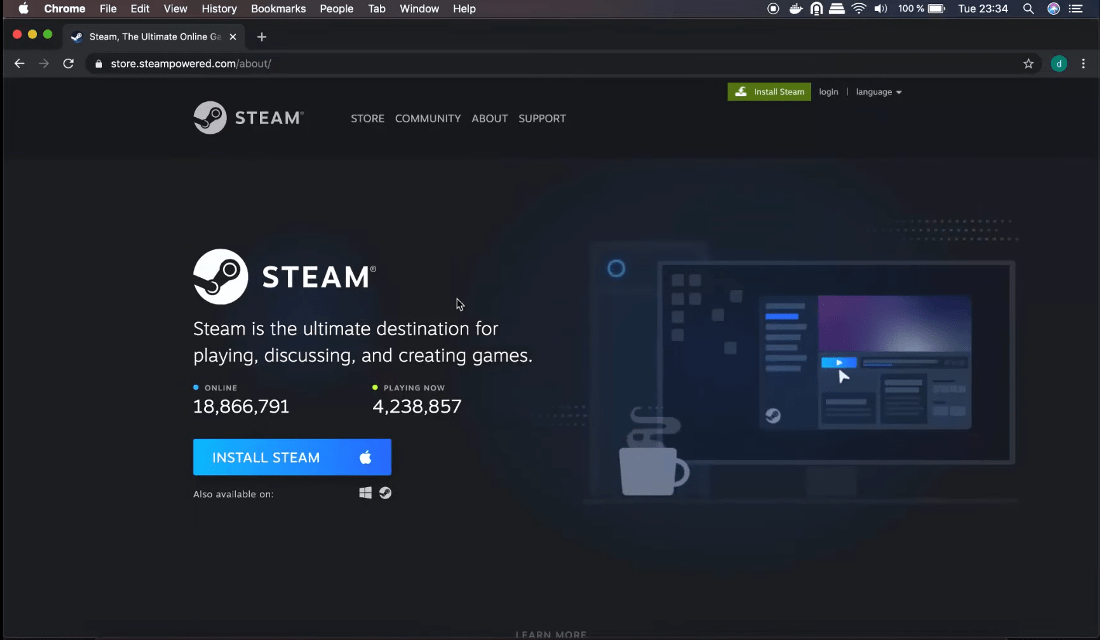
- Open your preferred web browser and navigate to the official Steam website: https://store.steampowered.com/
- On the homepage, look for the “Install Steam” button, usually located in the top right corner of the page.
- Clicking this button will take you to a download page. Select the download option for macOS. The installer file (typically a
.dmgfile) will begin downloading to your computer.
-
Run the Installer:
- Once the download is complete, locate the downloaded
.dmgfile in your Downloads folder. - Double-click the
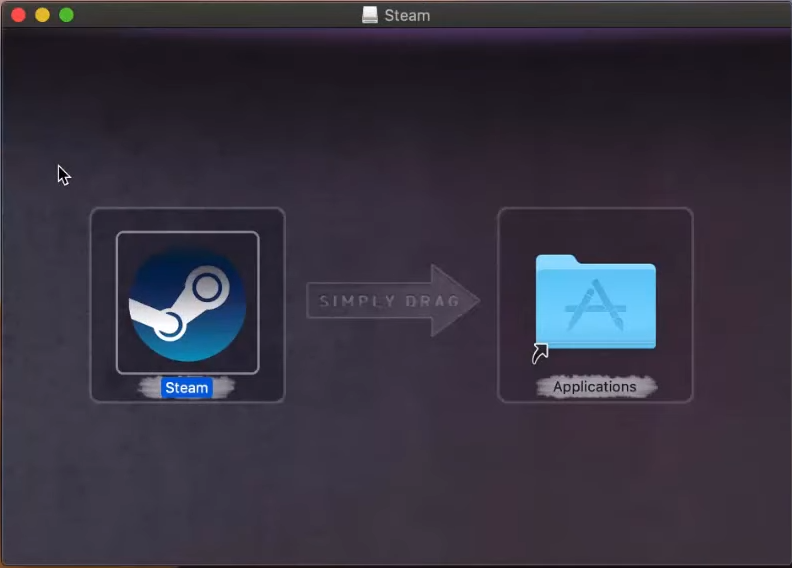
.dmgfile to open it. This will mount the Steam disk image. - Inside the opened disk image, you will see the Steam application icon and an alias to your Applications folder.
- Drag the Steam application icon into the Applications folder. This copies Steam to your Mac’s core applications.
- Once the download is complete, locate the downloaded
-
Launch Steam and Create/Log In to Your Account:
- Navigate to your Applications folder and double-click the Steam icon to launch the application.
- The first time you launch Steam, it will likely prompt you to download updates. Allow it to do so.
- Once the updates are complete, you will be presented with the Steam login screen.
- If you already have a Steam account, enter your username and password to log in.
- If you are new to Steam, click on the “Create a New Account” button and follow the on-screen instructions to set up your new account. This involves choosing a username, password, and providing a valid email address.
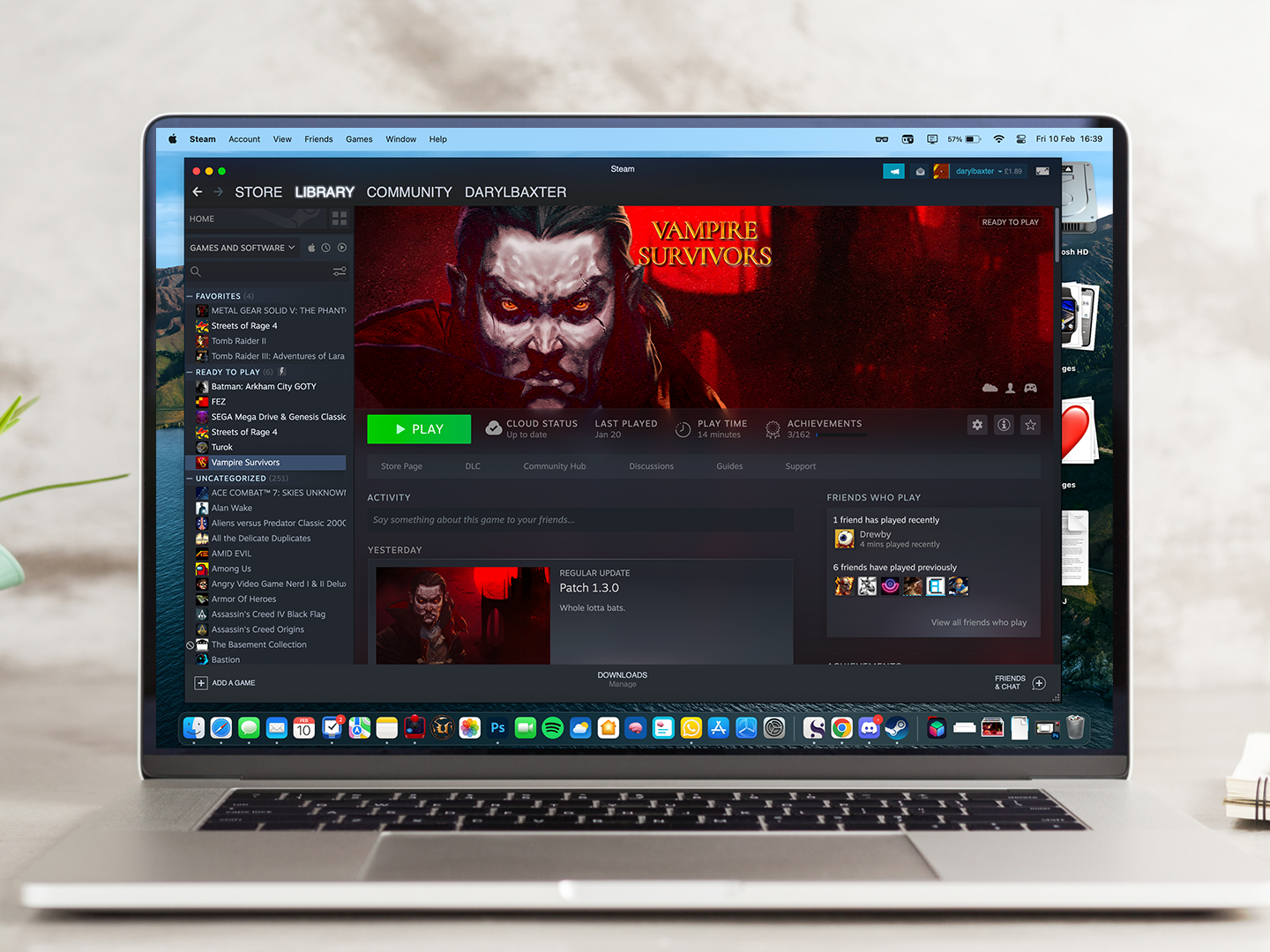
Congratulations! You have successfully installed Steam on your Mac. You can now browse the vast Steam store, purchase games, and begin building your digital game library.
Optimizing Your Mac for Steam Gaming: Beyond Installation
While simply installing Steam is the first hurdle, achieving a truly satisfying gaming experience on your Mac involves more than just having the application. This is where the tech aspects of your machine, and how you utilize them, come into play.
Understanding Game Compatibility and Performance
Not all games are created equal, and their performance on macOS can vary significantly.
- Native Mac Games: Many popular titles are developed with native macOS support. These generally offer the best performance and stability as they are optimized for the platform.
- Games via Proton (Steam Play): For games that do not have native macOS support, Steam offers a feature called Proton (integrated into Steam Play). Proton is a compatibility layer that allows Windows games to run on Linux and, by extension, on macOS. While Proton has made incredible strides in recent years, its compatibility and performance can be inconsistent. Some games will run flawlessly, while others may experience bugs, graphical glitches, or performance issues. You can check ProtonDB (https://www.protondb.com/) for community-reported compatibility ratings and tips for specific games.
- Rosetta 2 (for Apple Silicon Macs): If you have a Mac with Apple Silicon (M1, M2, etc.), Steam and many of your games might be running through Rosetta 2, Apple’s translation layer that allows Intel-based apps to run on Apple Silicon. While Rosetta 2 is remarkably efficient, native Apple Silicon versions of games and applications will always offer superior performance. Valve has been actively working on native Apple Silicon versions of Steam, and many developers are following suit.
Graphics Settings and Performance Tuning
To get the most out of your Mac’s hardware for gaming, understanding and adjusting in-game graphics settings is crucial.
- Resolution: Lowering the game’s resolution from your Mac’s native display resolution can significantly boost frame rates.
- Graphics Quality: Settings like texture quality, shadow detail, anti-aliasing, and post-processing effects have a direct impact on performance. Experiment with these settings, starting with lower values and gradually increasing them until you find a balance between visual fidelity and smooth gameplay.
- V-Sync: Vertical Sync (V-Sync) synchronizes your game’s frame rate with your display’s refresh rate to prevent screen tearing. However, it can sometimes introduce input lag. Try disabling V-Sync if you experience input delay.
- Game-Specific Optimization Tools: Some games come with built-in performance monitoring tools or optimization guides. Consult these resources for game-specific tips.
- Mac’s Built-in Tools: While less common for direct game optimization, Activity Monitor can help you identify any background processes that might be consuming excessive CPU or RAM, impacting your game’s performance.
Steam, Brand Experience, and the Digital Economy
The reach and influence of Steam extend beyond mere software installation. It represents a significant player in the digital economy and shapes how we interact with brands, both gaming publishers and the tech companies behind our hardware.
The Brand Power of Steam and its Ecosystem
Steam has cultivated an incredibly strong brand identity. It’s more than just a store; it’s a community, a curated experience, and a gateway to endless entertainment.
- User Experience (UX) and User Interface (UI): Valve has consistently invested in refining Steam’s interface, making it intuitive and visually appealing. The ability to wishlist games, track sales, engage in community forums, and manage your library contributes to a robust user experience that keeps players engaged. This focus on UX is a prime example of effective brand strategy.
- Digital Reputation and Trust: Over the years, Steam has built a reputation for reliability and security. Players trust Steam with their personal information and financial transactions, a testament to its strong digital security practices and consistent delivery of service.
- Marketing and Community Engagement: Steam’s seasonal sales, daily deals, and community events are masterstrokes in marketing and brand engagement. They create anticipation, drive sales, and foster a sense of belonging among its user base. The user reviews and community hubs also provide authentic social proof, influencing purchasing decisions.
The Financial Landscape of PC Gaming Through Steam
The existence and popularity of Steam have profoundly impacted the financial aspects of gaming.
- Accessibility and Affordability: Steam has democratized PC gaming by offering games at significantly lower price points than traditional retail, especially during its frequent sales. This makes gaming accessible to a wider audience and fosters a culture of collecting and exploring diverse titles.
- The Rise of Indie Development: Steam’s platform has been instrumental in the success of independent game developers. By providing a direct channel to a massive audience, indie developers can bypass traditional publishers and reach gamers worldwide, fostering innovation and diversity in the gaming market.
- Online Income and Side Hustles: For some, the gaming ecosystem extends to earning money. This can range from aspiring streamers and content creators who build a brand around playing games on platforms like Twitch and YouTube, often leveraging Steam for their game libraries, to those who engage in virtual item trading within certain games, which can sometimes be facilitated through Steam’s marketplace. While not a direct income source from installing Steam, it’s a significant facet of the modern gaming economy that Steam sits at the center of.
- Investment in Hardware: The demand for better gaming experiences on Macs, fueled by platforms like Steam, also drives consumer spending on higher-end Macs, external GPUs (though less common for Macs), and accessories. This creates a ripple effect in the consumer electronics and tech industries.
Conclusion: Embracing the Gaming Potential of Your Mac
The question “Can you install Steam on Mac?” is no longer a point of speculation but a confirmation of Apple’s evolving role in the gaming sphere. With a straightforward installation process and a growing library of games, your Mac can be a powerful gaming machine. By understanding system requirements, optimizing performance, and appreciating the broader context of Steam’s influence on technology, brand, and the economy, Mac users can unlock a world of digital entertainment. Whether you’re a seasoned gamer or a curious newcomer, the journey into PC gaming on your Mac, powered by Steam, is an accessible and rewarding adventure.
aViewFromTheCave is a participant in the Amazon Services LLC Associates Program, an affiliate advertising program designed to provide a means for sites to earn advertising fees by advertising and linking to Amazon.com. Amazon, the Amazon logo, AmazonSupply, and the AmazonSupply logo are trademarks of Amazon.com, Inc. or its affiliates. As an Amazon Associate we earn affiliate commissions from qualifying purchases.