
Setting up a new PC is an exciting endeavor. Whether it’s a custom-built powerhouse, a sleek pre-built workstation, or a gaming rig designed for the latest titles, the thrill of that first boot is unmatched. However, many users overlook a critical step that dictates the machine’s true potential and stability: installing the correct drivers. Far beyond the basic functionality Windows provides out of the box, specialized drivers are the digital language that allows your hardware to communicate effectively with your operating system, unlocking peak performance, enhanced features, and rock-solid reliability.
In the fast-evolving world of tech, where new components are released regularly and software updates are constant, understanding driver management is not just for enthusiasts; it’s a fundamental aspect of digital literacy. This guide, deeply rooted in the “Tech” focus of our platform, will walk you through everything you need to know about identifying, sourcing, and installing the essential drivers for your new PC. By taking the time to properly configure your system, you’ll safeguard your investment, minimize frustrating issues, and ensure your new machine delivers the seamless, powerful experience you expect. We’ll delve into why drivers are crucial, which ones are indispensable, how to install them correctly, and best practices for maintaining your system for years to come.
The Foundation: Understanding Drivers and Their Importance
Before diving into the specifics of what to install, it’s crucial to grasp what drivers are and why they play such a pivotal role in your computer’s ecosystem. Often misunderstood or entirely overlooked, drivers are the unsung heroes working behind the scenes.
What Exactly Are Drivers?
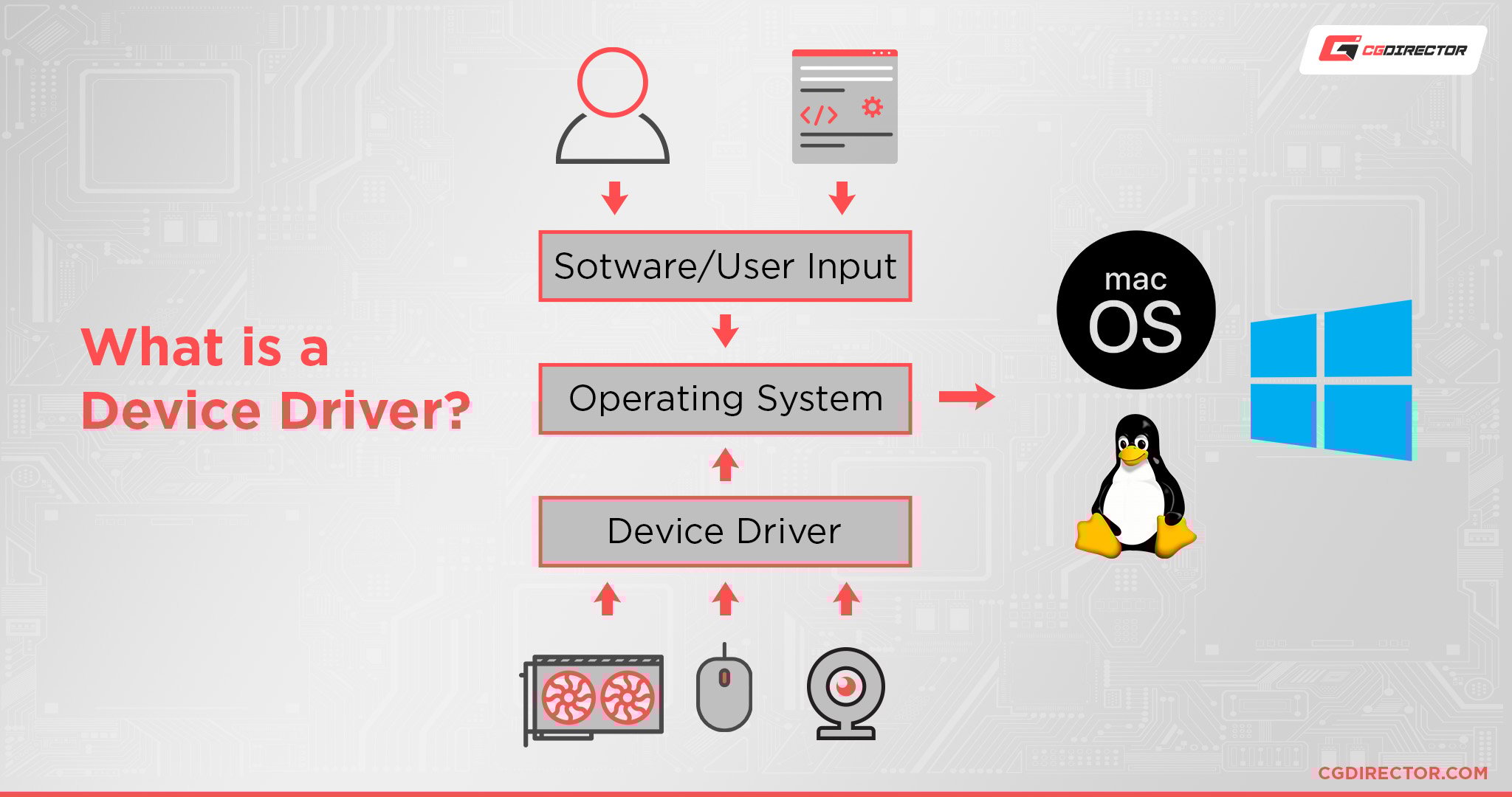
In the simplest terms, a driver is a piece of software that enables your computer’s operating system (like Windows) to communicate with a specific hardware device (like your graphics card, sound card, or Wi-Fi adapter). Think of it as a translator: without the correct driver, your operating system wouldn’t understand how to send commands to your hardware, nor would it know how to interpret the signals coming back. Each hardware component, from the most complex CPU to a simple USB port, requires a specific set of instructions – its driver – to function correctly and efficiently.
Why Aren’t They Always Plug-and-Play?
Modern operating systems, particularly Windows, have become incredibly adept at “plug-and-play.” This means that when you connect a new device, Windows often has a generic or basic driver pre-installed that allows the device to function immediately. While this is convenient for common peripherals like keyboards and mice, or for getting a display working, these generic drivers rarely unlock the full capabilities of your hardware.
For instance, a generic display driver might allow you to see your desktop, but it won’t enable high resolutions, refresh rates, advanced gaming features, or professional photo/video editing capabilities that your dedicated graphics card is designed for. Similarly, generic network drivers might get you online, but they won’t optimize speed, stability, or support advanced features like Wi-Fi 6 or Bluetooth 5. Consequently, relying solely on Windows’ default drivers leaves a significant portion of your hardware’s potential untapped, leading to subpar performance, missing features, and potential system instability. This is where active driver installation becomes essential, a vital step for anyone serious about maximizing their tech investment.
The Risks of Missing or Outdated Drivers
The consequences of ignoring driver management can range from minor annoyances to significant system failures. At best, you’ll experience reduced performance, limited functionality, and an overall sluggish user experience. Your games might stutter, videos might lag, and applications might not launch or perform as expected. This directly impacts productivity and enjoyment, effectively undermining the “Tech” advantages you sought when building or buying your PC.
At worst, missing or outdated drivers can lead to frequent system crashes, Blue Screens of Death (BSODs), hardware recognition issues, and even potential data corruption. These issues aren’t just inconvenient; they can be incredibly frustrating and time-consuming to diagnose, costing you precious hours or even professional fees if you need external help. For businesses or individuals relying on their PC for online income or critical tasks, such instability can lead to tangible “Money” losses due to downtime and lost productivity. Ensuring up-to-date and correct drivers is a preventative measure that saves time, money, and hassle in the long run.
Essential Drivers for Your New System
When setting up a new PC, certain drivers are non-negotiable. These are the core components that dictate the fundamental operation and performance of your entire system. Prioritizing these drivers ensures a stable and efficient foundation.
Motherboard and Chipset Drivers: The System’s Backbone
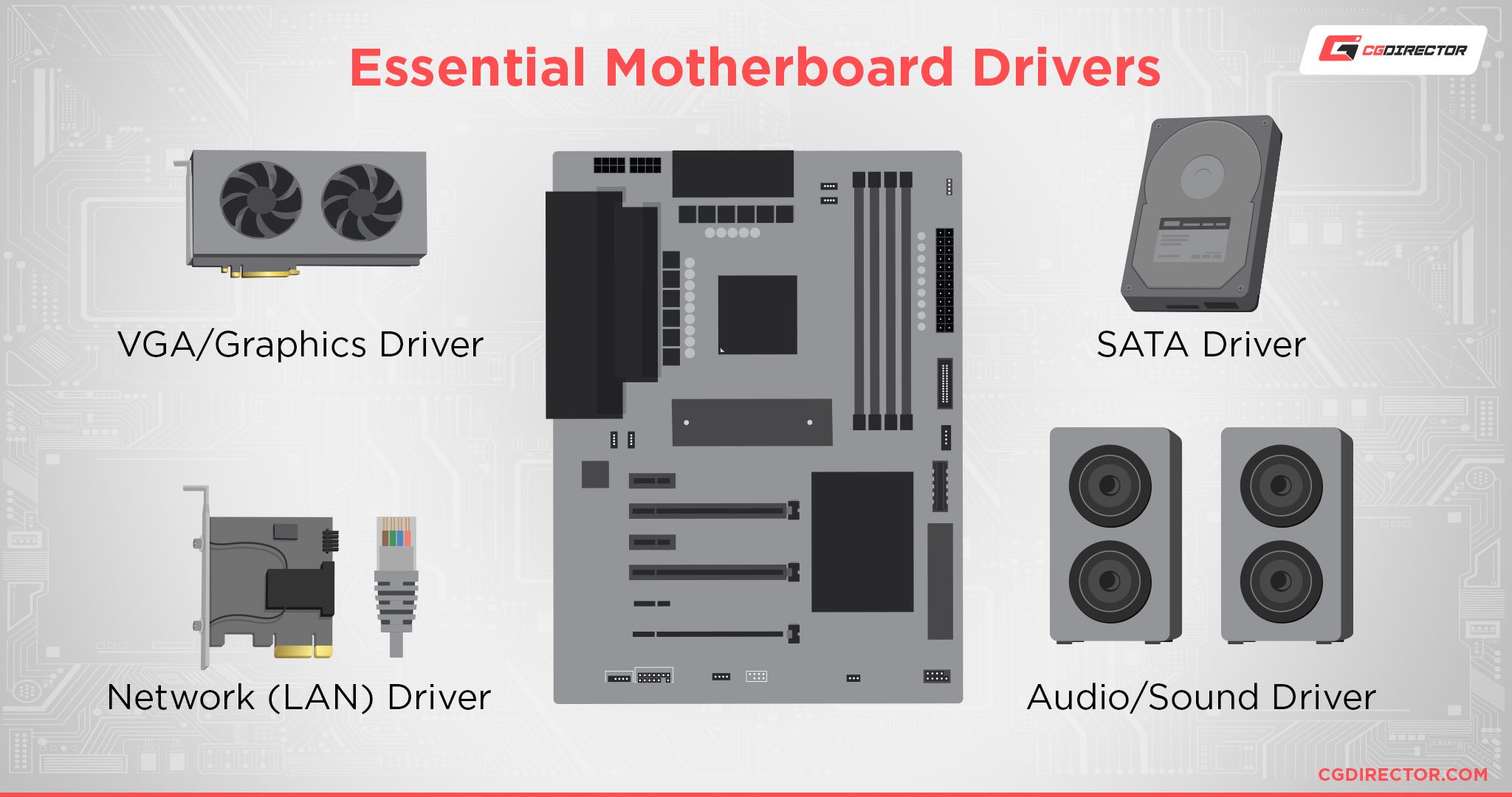
The motherboard is the central nervous system of your PC, and the chipset is its brain, managing communication between all other components. Chipset drivers are arguably the most critical drivers to install first on a new system. They optimize how the CPU interacts with memory, storage, graphics, and peripherals connected to the motherboard. Without proper chipset drivers, your system’s overall stability and performance will suffer significantly. You might experience slow data transfer speeds, USB ports not working correctly, or general system sluggishness. Always download these directly from your motherboard manufacturer’s website (e.g., ASUS, MSI, Gigabyte, ASRock) by searching for your specific motherboard model.
Graphics Card (GPU) Drivers: Unlocking Visual Potential
For anyone using their PC for gaming, graphic design, video editing, or even just high-resolution display output, dedicated graphics card drivers are paramount. Whether you have an NVIDIA GeForce, AMD Radeon, or Intel Arc GPU, installing the latest drivers from the respective manufacturer’s website is a must. Generic Windows drivers will allow your monitor to display an image, but they won’t enable hardware acceleration, optimize game performance, support higher refresh rates, or unlock advanced features like ray tracing or specialized rendering engines. An up-to-date GPU driver is the key to experiencing smooth frame rates, vibrant visuals, and overall superior graphical performance, truly harnessing the “Tech” capabilities of your display hardware.
Network Drivers: Staying Connected
In our interconnected world, network connectivity is non-negotiable. Your PC’s Ethernet port and Wi-Fi adapter both require specific drivers to function optimally. While Windows usually provides basic drivers that get you online, installing the official drivers from your motherboard manufacturer (for integrated network adapters) or the adapter manufacturer (for discrete network cards) can significantly improve stability, speed, and support for newer network standards like Wi-Fi 6E. Ensuring reliable and fast internet is crucial for everything from online gaming to streaming, remote work, and accessing cloud-based “Tech” services, making these drivers fundamental.
Audio Drivers: Hearing is Believing
Integrated audio solutions (like Realtek, VIA, or ALC codecs on your motherboard) also benefit greatly from dedicated drivers. Generic audio drivers from Windows will produce sound, but they often lack the fidelity, surround sound capabilities, microphone enhancements, and equalizer settings that official drivers provide. Installing the specific audio drivers from your motherboard’s support page (or the sound card manufacturer’s site if you have a discrete sound card) ensures you get the richest, clearest, and most immersive audio experience, whether you’re gaming, listening to music, or participating in video conferences.
Storage Drivers: Maximizing Data Speed
While modern operating systems have robust support for SATA and NVMe storage devices, installing specific storage controller drivers from your motherboard manufacturer can sometimes provide marginal performance improvements and ensure optimal compatibility, particularly for advanced RAID configurations or newer NVMe SSDs. For most users, Windows’ built-in drivers are sufficient for basic functionality, but checking your motherboard’s support page for any specific storage drivers, especially for high-performance NVMe drives, is a good practice to ensure you’re getting the most out of your fast storage.
Other Crucial Drivers (USB, Peripherals)
Beyond these core components, your motherboard may have additional integrated controllers for USB ports (especially USB 3.0/3.1/3.2 or Thunderbolt), Bluetooth modules, and other features. While Windows often has built-in support, installing the latest drivers from your motherboard’s website can enhance compatibility, stability, and data transfer speeds for these ports. Similarly, if you have specific peripherals like high-end webcams, printers, gaming controllers, or drawing tablets, these may come with their own dedicated drivers or software packages that unlock their full feature set. Always refer to the manufacturer’s website for these device-specific installations.
Your Driver Installation Playbook: A Step-by-Step Guide
Successfully installing drivers on a new PC involves more than just downloading files. A systematic approach ensures all necessary components are covered and conflicts are avoided.
Identifying Missing Drivers: The Device Manager Method
The first step after a fresh Windows installation is to identify what drivers are missing or not properly installed. The primary tool for this is the Device Manager. To access it:
- Right-click the Start button (or press
Win + X). - Select “Device Manager” from the menu.
In the Device Manager window, look for any devices listed with a yellow exclamation mark or a red ‘X’. These indicators signify that a device is not functioning correctly, likely due to a missing or corrupted driver. Common culprits include “Ethernet Controller,” “Display Adapter,” “SM Bus Controller,” “PCI Device,” or “Unknown Device.” Making a note of these devices, especially their hardware IDs (found in the ‘Details’ tab > ‘Hardware Ids’ property), can be helpful if you struggle to identify them later. This systematic approach is a core “Tech” skill for any PC owner.
Sourcing Drivers: Official Channels Are Key
This is perhaps the most critical rule of driver management: always download drivers directly from the official manufacturer’s website. Avoid third-party driver update utilities or unofficial driver download sites, as these can often bundle malware, install outdated drivers, or cause system instability. Trusting reputable “Brand” names in hardware is crucial for digital security.
Here’s where to find your drivers:
- Motherboard: Go to the website of your motherboard manufacturer (e.g., ASUS, MSI, Gigabyte, ASRock). Navigate to the “Support” or “Downloads” section, search for your exact motherboard model, and locate the drivers page. Download the latest chipset, network (LAN/Wi-Fi/Bluetooth), audio, and any specific storage or USB drivers.
- Graphics Card (Dedicated GPU):
- NVIDIA: Visit
nvidia.com/drivers. Use their automatic detection tool or manually select your card series and operating system. - AMD: Visit
amd.com/drivers. Use their auto-detect tool or manually select your GPU. - Intel (Integrated Graphics/Dedicated GPUs): Visit
intel.com/support/downloads. Use their Driver & Support Assistant or manually search for your CPU model (for integrated graphics) or specific Intel Arc GPU.
- NVIDIA: Visit
- Peripherals: For printers, webcams, keyboards, mice, or other specialized devices, visit the respective manufacturer’s official website (e.g., Logitech, HP, Canon, Razer).
The Installation Sequence: A Logical Approach
While not always strictly necessary, following a logical order can prevent conflicts and ensure maximum compatibility. A recommended sequence is:
- Chipset Drivers: Install these first. They lay the groundwork for everything else. Reboot if prompted.
- Network Drivers: Install your Ethernet and/or Wi-Fi drivers next. This is crucial because it allows your PC to access the internet, enabling you to download any remaining drivers or updates directly. Reboot if prompted.
- Graphics Card (GPU) Drivers: Install your dedicated GPU drivers. For NVIDIA and AMD, their installers often include options for a “clean installation,” which is recommended for new setups. Reboot if prompted.
- Audio Drivers: Install your motherboard’s audio drivers or discrete sound card drivers.
- Storage, USB, and Other Onboard Drivers: Install any remaining motherboard-specific drivers for USB controllers, SATA/NVMe controllers (if applicable), Bluetooth, etc.
- Peripheral Drivers: Finally, install drivers for printers, scanners, webcams, or other external devices.
Always follow the on-screen instructions during installation, and restart your PC whenever prompted.
Best Practices for Driver Management
- Download ALL Drivers Before Starting: If you don’t have internet access on your new PC initially, download all necessary drivers (especially chipset and network drivers) onto a USB flash drive using another computer.
- Create a Restore Point: Before installing a major driver (like graphics), create a system restore point. This provides a safety net if a new driver causes issues, allowing you to roll back to a stable state.
- Keep Driver Installers: Store a folder of your downloaded driver installers on your PC or an external drive. This is invaluable if you ever need to reinstall Windows or troubleshoot an issue without internet access.
- One Driver at a Time: Avoid installing multiple drivers simultaneously. Install one, reboot if required, then proceed to the next.
Beyond the Essentials: Maintaining and Troubleshooting Drivers
Installing drivers is not a one-time event. Regular maintenance and a strategic approach to updates are crucial for long-term system health and performance.
Regular Updates: Keeping Your System Current
Hardware manufacturers continually release updated drivers to fix bugs, improve performance, add new features, and ensure compatibility with the latest operating system versions and software. Especially for graphics cards, new game titles often come with “Game Ready” drivers that significantly boost performance.
- Check Regularly: Make it a habit to check the manufacturer’s websites for new drivers every few months, or whenever you experience performance issues or install a major new game or application.
- Graphics Card Software: NVIDIA’s GeForce Experience and AMD’s Radeon Software Adrenalin Edition are excellent tools for managing GPU driver updates, optimizing game settings, and accessing advanced features. Use these, but always ensure they are official software.
- Windows Update: While not always providing the very latest drivers, Windows Update will occasionally deliver important driver updates, especially for integrated components. Keep your Windows installation updated.
This proactive approach is key to maintaining peak “Tech” performance and avoiding potential issues down the line, safeguarding the “Money” you invested in your hardware.
Tackling Common Driver-Related Issues
Even with the best practices, driver issues can sometimes arise. Here are common problems and solutions:
- Blue Screen of Death (BSOD): Often accompanied by an error code (e.g.,
DRIVER_IRQL_NOT_LESS_OR_EQUAL). If a BSOD occurs after a recent driver update, try rolling back the driver in Device Manager (right-click device > Properties > Driver tab > Roll Back Driver) or using System Restore. - Device Not Recognized/Not Working: Reinstall the driver for that specific device. Ensure you have the correct driver version for your hardware and operating system.
- Performance Drops/Stuttering: This is common with outdated or corrupted graphics drivers. Perform a clean installation of the latest GPU drivers. For NVIDIA, this is an option in the installer. For AMD, you might use their clean install utility. Alternatively, for a truly thorough clean, use Display Driver Uninstaller (DDU) in Windows Safe Mode, then install the new drivers.
- Sound Problems: Check audio device in Device Manager. Reinstall audio drivers from the motherboard manufacturer. Ensure speakers/headphones are properly connected and selected as the default output device.
The Pitfalls of Automatic Driver Updaters
While tempting, most third-party “automatic driver updater” software should be approached with extreme caution. Many are notorious for:
- Installing incorrect or outdated drivers: Leading to instability or reduced performance.
- Bundling bloatware or malware: Compromising your system’s security and privacy.
- Creating dependency on paid subscriptions: For features that are free from official sources.
Stick to official manufacturer tools (like NVIDIA GeForce Experience or Intel Driver & Support Assistant) and your motherboard’s support website. These are the only truly reliable and secure sources for your drivers, aligning with best practices for digital security outlined in our “Tech” articles. Trusting official “Brand” channels protects your PC and your data.
Final Thoughts: Empowering Your New PC
The process of installing and managing drivers might seem daunting at first, but it is an essential aspect of maximizing the performance, stability, and longevity of your new PC. By understanding the role of each driver, diligently sourcing them from official manufacturer websites, and following a logical installation sequence, you lay a solid foundation for a seamless computing experience.
This meticulous approach is not just a technicality; it’s an investment in your productivity, entertainment, and digital security. For those leveraging their PC for online income, creative projects, or simply everyday tasks, ensuring your hardware is communicating optimally with your software can save you countless hours of troubleshooting and potential “Money” lost due to system downtime.
Embrace driver management as a core “Tech” skill. Regularly check for updates, understand how to troubleshoot common issues, and always prioritize official sources. Your new PC is a powerful tool; by giving it the right drivers, you unlock its full potential, ensuring it remains a responsive, reliable, and high-performing companion for years to come.
aViewFromTheCave is a participant in the Amazon Services LLC Associates Program, an affiliate advertising program designed to provide a means for sites to earn advertising fees by advertising and linking to Amazon.com. Amazon, the Amazon logo, AmazonSupply, and the AmazonSupply logo are trademarks of Amazon.com, Inc. or its affiliates. As an Amazon Associate we earn affiliate commissions from qualifying purchases.