
Adobe After Effects is a cornerstone of modern motion graphics and visual effects creation. Its immense power and flexibility are further amplified by a vast ecosystem of third-party plugins. These plugins can unlock new creative possibilities, streamline complex workflows, and introduce entirely novel capabilities that are not natively available within After Effects. Whether you’re looking to add sophisticated particle systems, achieve cinematic color grading, generate realistic 3D elements, or automate tedious tasks, there’s a plugin for that. However, the process of installing and integrating these powerful tools can sometimes feel like a hurdle for new users.

This comprehensive guide will demystify the process of installing plugins on After Effects, ensuring you can seamlessly expand your creative toolkit and elevate your projects to the next level. We’ll cover the fundamental installation methods, common troubleshooting steps, and provide insights into managing your plugin library effectively. By the end of this article, you’ll be equipped with the knowledge to confidently install and utilize any plugin that sparks your creative interest.
Understanding After Effects Plugin Types and Installation Methods
Before diving into the actual installation, it’s crucial to understand that plugins for After Effects come in various forms, and their installation methods can differ slightly. The most common types are:
- Effect Plugins: These plugins add new visual effects or modify existing ones within After Effects. They appear in the “Effects & Presets” panel or under the “Effect” menu when applied to a layer.
- Transition Plugins: While After Effects has its own transition capabilities, dedicated transition plugins can offer more advanced and customizable options.
- Importer/Exporter Plugins: These plugins allow After Effects to read or write to file formats that are not natively supported.
- Panel Plugins: These plugins introduce new user interface panels that can offer specialized tools, workflows, or creative assets. They typically appear under the “Window” menu.
The installation process generally revolves around placing the plugin files in specific folders within your After Effects installation directory. While Adobe has made efforts to standardize this, older plugins or those developed by smaller studios might have unique instructions. Always prioritize the specific installation guide provided by the plugin developer, as it will be the most accurate for their particular product.
The Manual Installation Method: Navigating the After Effects Folders
The most common and fundamental method for installing After Effects plugins involves manually placing the plugin files into the correct folders. This method is generally applicable to a wide range of effect and transition plugins.
Locating the After Effects Plugins Folder
The first step is to find the designated folder where After Effects looks for plugins. This location varies slightly depending on your operating system and the version of After Effects you are using.
On Windows:
The typical path is:
C:Program FilesAdobeAdobe After Effects [Version Name]Support FilesPlug-ins
On macOS:
The typical path is:
/Applications/Adobe After Effects [Version Name]/Plug-ins
Important Considerations:
- Version Specificity: Ensure you are placing the plugins in the
Plug-insfolder corresponding to the exact version of After Effects you are running. If you have multiple versions installed, each will have its own dedicatedPlug-insfolder. - Administrator Privileges: On both Windows and macOS, you may need administrator privileges to move or copy files into these system folders. If prompted, grant the necessary permissions.
- Plugin File Types: Plugins can come as single
.aexfiles (the most common for effects), folders containing multiple files, or even installers that automate this process. Always check the plugin’s documentation to know what files you need to move.
The Installation Process: Copying and Pasting
Once you’ve located the correct Plug-ins folder, the installation process is usually as simple as copying the plugin files and pasting them into this directory.
- Extract Plugin Files: If your plugin came in a compressed format (like
.zipor.rar), extract its contents to a temporary location on your computer. - Identify Plugin Files: Within the extracted folder, look for files with the
.aexextension (for effect plugins) or potentially entire folders if the plugin is more complex. The plugin’s documentation will clarify which files are the ones to install. - Copy Plugin Files: Select the plugin files or folders you need to install. Right-click and choose “Copy” (or use
Ctrl+Con Windows,Cmd+Con macOS). - Paste into After Effects Plug-ins Folder: Navigate to your After Effects
Plug-insfolder (as identified earlier). Right-click in an empty space within the folder and choose “Paste” (or useCtrl+Von Windows,Cmd+Von macOS). - Restart After Effects: For After Effects to recognize the newly installed plugin, you must restart the application. Close After Effects completely and then reopen it.
After restarting, your new plugin should be available. Effect plugins will typically appear in the “Effects & Presets” panel, often categorized under a custom name or alphabetically. Panel plugins will usually be accessible via the “Window” menu.
Automated Installation with Installers
Many reputable plugin developers provide dedicated installers that simplify the installation process significantly. These installers are designed to automatically locate your After Effects installation and place the plugin files in the correct directories.
Using Plugin Installers
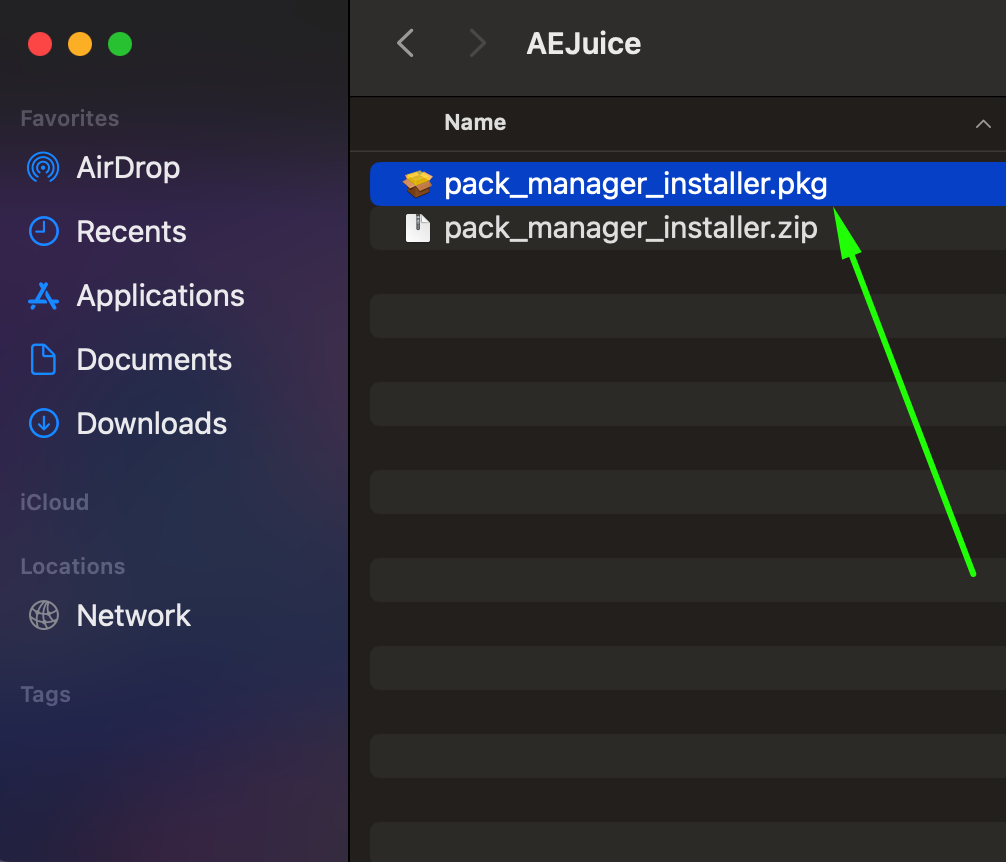
- Download the Installer: After purchasing or downloading a plugin that comes with an installer, locate the installer file (usually an
.exeon Windows or a.dmgor.pkgon macOS). - Run the Installer: Double-click the installer file to launch it. You may need to grant administrator privileges.
- Follow On-Screen Prompts: The installer will typically guide you through the process. Pay close attention to any options presented:
- Select After Effects Version: Most installers will detect installed versions of After Effects. Make sure you select the correct version you wish to install the plugin for.
- Choose Installation Location (if applicable): While most installers handle this automatically, some might give you the option to choose a custom installation path. Stick to the default unless you have a specific reason to change it.
- Accept License Agreement: Read and accept the terms of the license agreement.
- Complete Installation: Once the installer finishes, it will usually inform you that the installation is complete.
- Restart After Effects: As with manual installation, it is essential to restart After Effects after running an installer for the plugin to be recognized.
Benefits of Using Installers:
- Simplicity: Eliminates the need to manually navigate file directories.
- Error Prevention: Reduces the risk of placing files in the wrong location.
- Automatic Updates: Some installers can also manage plugin updates.
- Clean Uninstallation: Installers often provide a way to cleanly uninstall plugins, removing all associated files.
Troubleshooting Common Plugin Installation Issues
Even with the best intentions, you might encounter problems when trying to install plugins. Here are some common issues and their solutions:
Plugin Not Appearing in After Effects
This is the most frequent problem. Several factors could be at play:
- Incorrect Folder Location: Double-check that you’ve placed the plugin files in the
Plug-insfolder of the correct After Effects version. It’s easy to accidentally put it in a different version’s folder or a general Adobe folder. - Corrupted Plugin Files: The downloaded plugin files might be corrupted. Try re-downloading the plugin from its official source.
- Incompatible Plugin Version: Ensure the plugin is compatible with your specific version of After Effects. Older plugins may not work with newer versions, and vice-versa. Plugin developers usually list compatibility information on their websites.
- Missing Dependencies: Some advanced plugins might require other software components or libraries to be installed. Check the plugin’s documentation for any such requirements.
- Corrupted After Effects Preferences: In rare cases, corrupted After Effects preference files can interfere with plugin loading. You can try resetting After Effects preferences. (To do this, quit After Effects, then hold down
Ctrl+Alt+Shifton Windows orCmd+Option+Shifton macOS immediately after launching After Effects. A dialog box will ask if you want to delete your preferences file.) - Plugin Conflicts: Occasionally, two or more plugins might conflict with each other. If you’ve installed multiple plugins around the same time, try installing them one by one to identify the culprit.
- Antivirus or Firewall Interference: Aggressive antivirus or firewall software can sometimes block After Effects from accessing or loading plugin files. Temporarily disable your security software (at your own risk) and see if the plugin appears. If it does, you’ll need to configure your security software to allow After Effects and its plugins.
Installer Errors
If an installer fails to complete:
- Run as Administrator: Ensure you are running the installer with administrator privileges. Right-click the installer file and select “Run as administrator” on Windows.
- Insufficient Disk Space: Make sure you have enough free space on your hard drive for the plugin installation.
- After Effects Not Closed: The installer might require After Effects to be closed during the installation process. Ensure After Effects is not running.
Plugin Crashing After Effects
If After Effects crashes immediately after applying a plugin or while using it:
- Incompatible Version: This is the most common cause. Confirm the plugin is compatible with your After Effects version.
- Buggy Plugin: The plugin itself might contain a bug. Contact the plugin developer for support or a potential update.
- Hardware Limitations: Some very demanding plugins might push your system hardware beyond its limits, leading to instability.
- Corrupted Plugin Files: Re-download and reinstall the plugin.
Managing Your Plugin Library
As your plugin collection grows, effective management becomes essential for maintaining a clean and efficient workflow.
Keeping Plugins Organized
- Dedicated Folders: While After Effects has a primary
Plug-insfolder, some plugins might create subfolders within it for their assets or configurations. Respect these structures. - Documentation: Keep the documentation for each plugin readily accessible. This includes installation instructions, usage guides, and troubleshooting tips.
- Backup: Consider backing up your
Plug-insfolder periodically, especially after installing a significant number of new plugins.
Updating Plugins
Plugin developers regularly release updates to fix bugs, improve performance, and add new features.
- Check Developer Websites: Regularly visit the websites of your plugin developers to check for updates.
- Use Plugin Managers (if available): Some plugin suites come with their own update managers.
- Reinstall: For manual installations, updating often involves downloading the new version and replacing the old plugin files in the
Plug-insfolder. For installer-based plugins, run the new installer for the updated version.
Uninstalling Plugins
When you no longer need a plugin or want to troubleshoot conflicts:
- Use the Installer: If the plugin came with an installer, it will likely have an uninstall option. This is the cleanest method.
- Manual Removal: For manually installed plugins, navigate to the After Effects
Plug-insfolder and delete the plugin files or folders. Be absolutely sure you are deleting the correct files to avoid removing other essential plugins.
By understanding these methods and common troubleshooting steps, you can confidently expand your After Effects capabilities with the incredible array of plugins available. The key is to always refer to the specific instructions provided by the plugin developer and to restart After Effects after any installation or uninstallation. Happy creating!
aViewFromTheCave is a participant in the Amazon Services LLC Associates Program, an affiliate advertising program designed to provide a means for sites to earn advertising fees by advertising and linking to Amazon.com. Amazon, the Amazon logo, AmazonSupply, and the AmazonSupply logo are trademarks of Amazon.com, Inc. or its affiliates. As an Amazon Associate we earn affiliate commissions from qualifying purchases.