
The landscape of professional sports broadcasting has undergone a seismic shift over the last few years, moving away from the traditional constraints of regional sports networks (RSNs) and cable bundles toward centralized, high-tech streaming platforms. At the forefront of this revolution is the partnership between Major League Soccer (MLS) and Apple. By securing a ten-year exclusivity deal, Apple has transformed how fans interact with the pitch, turning the Apple TV app into a global stadium.
For the modern tech enthusiast and soccer fan, “how to watch MLS on Apple TV” is more than a simple query—it is an entry point into a sophisticated ecosystem of high-definition streaming, integrated metadata, and cross-device synchronization. This guide provides a deep dive into the technology, the setup, and the optimization strategies required to get the most out of your MLS Season Pass.
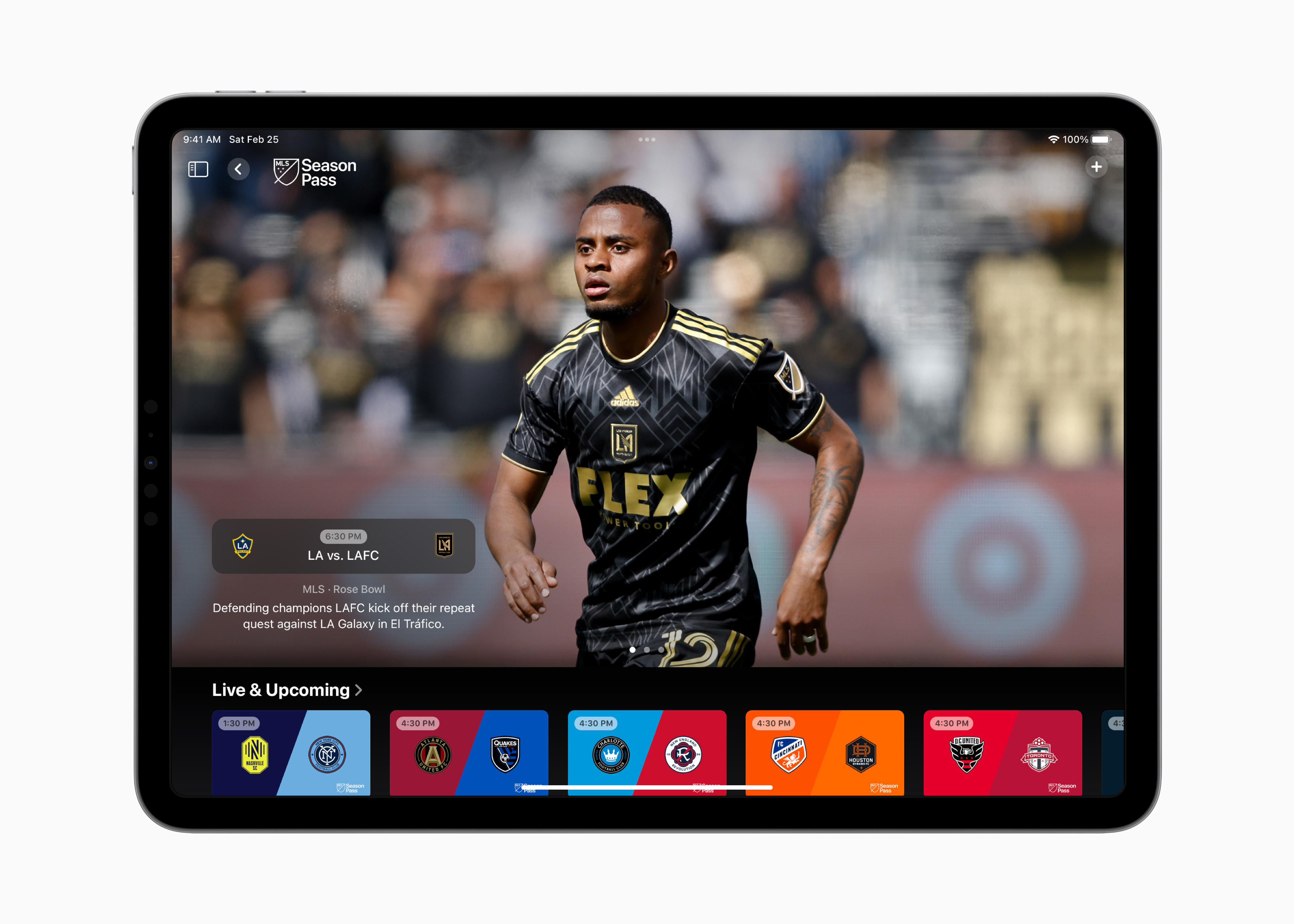
Understanding the Ecosystem: The Apple TV App vs. Apple TV Hardware
Before diving into the subscription details, it is crucial to clarify a common technical distinction: the difference between the Apple TV app and the Apple TV hardware. Understanding this distinction is the first step in ensuring a seamless viewing experience.
The Apple TV App: The Software Hub
The Apple TV app is the software gateway to the MLS Season Pass. It is a unified platform available not only on Apple devices but also on smart TVs, gaming consoles (PlayStation and Xbox), and third-party streaming sticks like Roku and Amazon Fire TV. Within this app, the MLS Season Pass exists as a dedicated “channel” or sub-service. It aggregates live matches, pre-game shows, and an extensive archive of historical content.
The Apple TV 4K: The Premium Hardware Experience
While you can watch MLS on almost any modern screen, the Apple TV 4K hardware offers the most robust technical performance. Equipped with the A15 Bionic chip (or later), the device ensures that the high-bitrate streams provided by Apple are processed without lag. For users seeking the most fluid frame rates—essential for a fast-moving sport like soccer—the hardware’s ability to handle 1080p at 60 frames per second (fps) with high-efficiency video coding (HEVC) is unmatched.
Cross-Device Integration
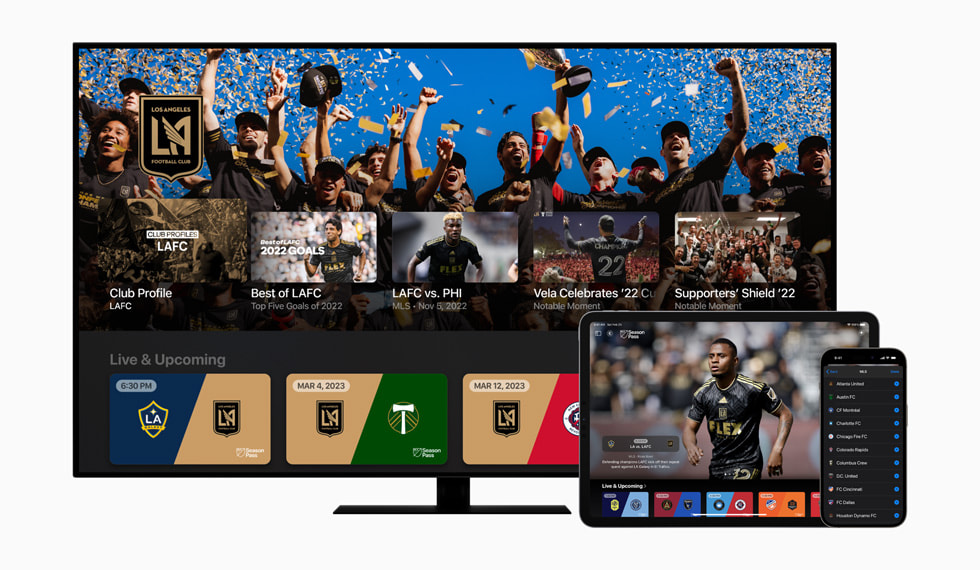
One of the most powerful features of the Apple ecosystem is Continuity. If you begin watching a match on your Apple TV 4K in the living room, your progress and “My Sports” preferences are synced via iCloud. This allows you to pick up exactly where you left off on an iPad or iPhone during a commute, with all your personalized notifications for goals and cards intact.
Setting Up Your MLS Season Pass Subscription
The MLS Season Pass is a standalone subscription service housed within the Apple TV app. It does not require a standard Apple TV+ subscription, though being an Apple TV+ subscriber often provides a discounted rate.
Step-by-Step Activation
To begin, open the Apple TV app on your preferred device. Navigate to the “Search” tab or the “Watch Now” section, where you will find the MLS Season Pass branding.
- Authentication: Sign in with your Apple ID. If you do not have one, you will need to create it, as the subscription is tied to your Apple billing ecosystem.
- Subscription Tiers: Choose between a monthly or annual pass. The annual pass is generally more cost-effective for dedicated fans who want access to off-season content and replays.
- Confirmation: Once confirmed through FaceID, TouchID, or your password, the MLS interface will unlock, providing instant access to every live match without local blackouts—a significant technological hurdle that Apple successfully eliminated.
Family Sharing and Privacy
Apple’s tech-forward approach includes “Family Sharing.” A single subscription to the MLS Season Pass can be shared with up to six family members. Each member uses their own Apple ID, meaning their “Following” list and “Up Next” queues remain personalized. From a privacy perspective, Apple ensures that your viewing habits are used to improve recommendations without selling individual data to third-party advertisers, a hallmark of their software philosophy.
Integration with “My Sports”
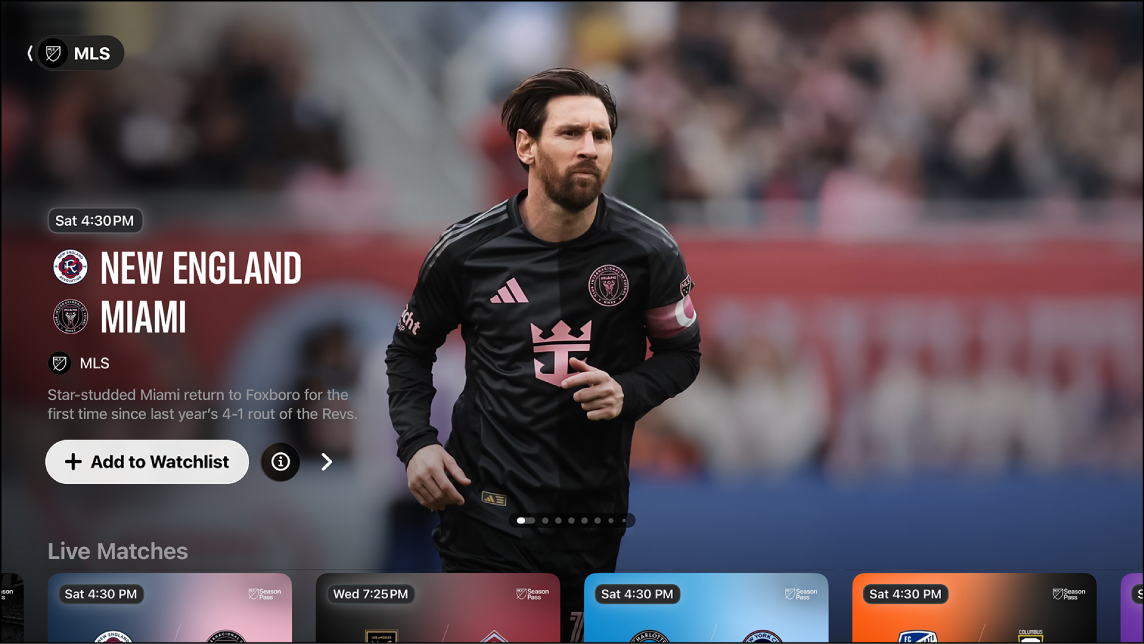
To optimize the UI, users should utilize the “My Sports” feature. By selecting your favorite clubs (e.g., Inter Miami CF, LAFC), the Apple TV app will automatically surface live scores and upcoming fixtures on your home screen. On iOS and iPadOS, this integrates with “Live Activities,” allowing you to see real-time scores on your lock screen via a dynamic widget that updates over the air.
Optimizing Video and Audio Performance
To truly appreciate the technical prowess of Apple’s broadcasting, you must ensure your hardware and network settings are optimized for high-bandwidth streaming.
Bandwidth and Bitrate Requirements
Apple broadcasts MLS matches in 1080p at 60fps. While some users might clamor for 4K, the high frame rate (60fps) is actually more critical for sports, as it reduces motion blur during fast sprints and ball movement. To maintain this quality without buffering, a stable internet connection of at least 25 Mbps is recommended. For those using the Apple TV 4K hardware, connecting via an Ethernet cable (rather than Wi-Fi) provides the lowest latency and most stable bitrate.
Advanced Viewing Features: Multi-View
For the ultimate “command center” experience, Apple TV 4K users can take advantage of the Multi-View feature. This allows fans to watch up to four live matches simultaneously on a single screen.
- How to trigger: During a live match, move the cursor to the “Grid” icon.
- Customization: You can choose which matches to display and toggle the audio between them instantly. This feature leverages the powerful processing power of the A-series chips to decode multiple high-definition streams at once without overheating or dropping frames.
Audio Customization and Local Radio
A unique technical feature of the MLS Season Pass is the ability to switch audio tracks. If you prefer the local home team’s radio broadcast over the national English or Spanish commentators, you can toggle the audio settings within the player interface. This synchronization of a digital video feed with a local radio audio track is a complex timing feat that Apple handles seamlessly in the cloud.
Troubleshooting and Technical Support
Even with a high-end setup, software glitches or connectivity issues can occur. Knowing how to troubleshoot the Apple TV environment is essential for ensuring you don’t miss a minute of the action.
Resolving App Crashes and Buffering
If the Apple TV app becomes unresponsive, the first step is a “Force Quit.” On the Apple TV hardware, double-click the TV button on the Siri Remote and swipe up on the app. If buffering occurs despite having high-speed internet, check for “Match Frame Rate” and “Match Dynamic Range” settings in the Video and Audio menu. Disabling these can sometimes resolve handshake issues between the Apple TV box and older 4K televisions.
Software Updates
Apple frequently pushes updates to the tvOS and the Apple TV app to improve streaming protocols and security. Ensure your device is running the latest version of its operating system. For the MLS Season Pass specifically, updates often include new metadata features, such as enhanced statistics overlays or improved “Key Plays” markers that allow you to jump to significant moments in a recorded match.
Managing Subscriptions and Billing
Since the subscription is tied to your Apple ID, management is handled through the “Subscriptions” menu in your account settings. This is where you can toggle auto-renewal or upgrade from a monthly to an annual plan. If you encounter “Content Unavailable” errors, it is often a matter of verifying that your Apple ID region matches your physical location, as rights are managed globally but still subject to international digital store regulations.
The Future of Sports Tech on Apple TV
The partnership between MLS and Apple is a blueprint for the future of digital sports consumption. By removing the “blackout” restrictions that have plagued sports fans for decades, Apple has leveraged its cloud infrastructure to provide a truly global product.
Looking forward, we can expect deeper integration with Apple’s Vision Pro, potentially allowing for immersive, 180-degree courtside views of MLS matches. Furthermore, as AI and machine learning continue to evolve, the Apple TV app may soon provide real-time, AI-generated highlights tailored to your specific interests.
By mastering the technical nuances of the Apple TV app and hardware, you are not just watching a soccer game; you are participating in the most advanced sports media experiment of the decade. Whether you are using a high-end 4K OLED setup or an iPhone on the go, the technology behind the MLS Season Pass ensures that the beautiful game is more accessible, more detailed, and more engaging than ever before.
aViewFromTheCave is a participant in the Amazon Services LLC Associates Program, an affiliate advertising program designed to provide a means for sites to earn advertising fees by advertising and linking to Amazon.com. Amazon, the Amazon logo, AmazonSupply, and the AmazonSupply logo are trademarks of Amazon.com, Inc. or its affiliates. As an Amazon Associate we earn affiliate commissions from qualifying purchases.