
In an age defined by ubiquitous digital entertainment, the living room television remains the ultimate canvas for immersive viewing experiences. Amazon Prime Video, a cornerstone of the Amazon Prime subscription, offers an expansive library of movies, TV shows, and exclusive originals. While readily accessible on mobile devices and computers, transferring that rich content to the larger, more captivating screen of a television is a common desire for many users. This guide delves into the various technological pathways available, offering a comprehensive tutorial on how to seamlessly integrate Amazon Prime Video into your home entertainment setup, ensuring you get the most out of your subscription on the best possible display.
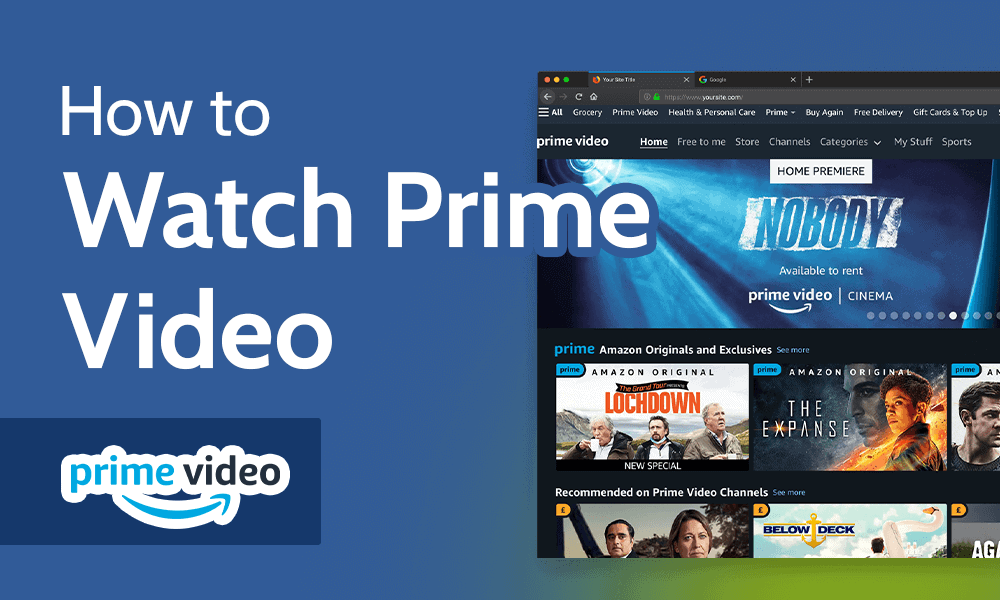
The Versatility of Amazon Prime Video Access
Amazon Prime Video is more than just a streaming service; it’s an integral part of the broader Amazon ecosystem, designed for accessibility across a multitude of devices. Understanding its inherent flexibility is the first step toward unlocking its full potential on your television.
Understanding Amazon Prime Video’s Ecosystem
At its core, Amazon Prime Video is an on-demand streaming service bundled with an Amazon Prime membership. This means subscribers gain access to a vast catalog of content, including critically acclaimed Amazon Originals like “The Boys,” “The Marvelous Mrs. Maisel,” and “Invincible,” alongside a rotating selection of licensed movies and TV series. Beyond the included content, Prime Video also functions as a digital storefront, allowing users to rent or purchase individual titles, offering a comprehensive entertainment hub. The beauty of the service lies in its multi-platform design, ensuring that whether you’re on a smartphone, tablet, laptop, or dedicated streaming device, your viewing experience can follow you. This cross-device compatibility is crucial, as it underpins every method of getting Prime Video onto your TV. Your account and watch progress sync across devices, making it easy to pick up where you left off, regardless of where you started watching.
Why Watch on TV? The Immersive Experience
While portable devices offer convenience, watching content on a television elevates the experience considerably. The larger screen size provides a more cinematic feel, drawing viewers deeper into the narrative. Paired with a good sound system, whether it’s a soundbar, home theater system, or even decent built-in TV speakers, the audio quality is vastly superior to that of a mobile device. Furthermore, watching on a TV often transforms viewing into a shared activity, allowing families and friends to enjoy content together comfortably. This communal aspect, combined with the superior visual and auditory fidelity, makes the television the preferred medium for consuming long-form content and truly appreciating the production quality of today’s high-definition and 4K programming. For many, it’s about recreating the magic of the movie theater in the comfort of their own home.
Direct Methods: Smart TVs and Built-in Apps
The most straightforward way to access Amazon Prime Video on your television is often directly through the TV itself, provided it’s a modern smart TV. These devices come equipped with internet connectivity and pre-installed or downloadable applications, simplifying the streaming process significantly.
Setting Up Amazon Prime Video on a Smart TV
Most smart TVs from major manufacturers like Samsung, LG, Sony, Vizio, and Panasonic, among others, come with the Amazon Prime Video app either pre-installed or readily available for download from their respective app stores. The setup process is generally intuitive:
- Connect to the Internet: Ensure your smart TV is connected to your home Wi-Fi network or via an Ethernet cable for optimal performance.
- Locate the App: Navigate to your TV’s home screen or app launcher. Look for the Amazon Prime Video app icon. If you don’t see it, go to your TV’s app store (e.g., LG Content Store, Samsung Smart Hub, Google Play Store for Android TVs) and search for “Amazon Prime Video.”
- Download and Install: If not pre-installed, select the app and choose to download or install it.
- Launch the App: Once installed, open the Amazon Prime Video app.
- Sign In: You will be prompted to sign in with your Amazon account credentials. Often, the app will provide a code that you need to enter on a separate web browser (e.g., amazon.com/mytv or primevideo.com/ontv) while logged into your Amazon account, making the login process seamless and secure without typing on your TV remote. Alternatively, you might enter your email and password directly.
- Start Watching: Once signed in, you’ll have full access to your Prime Video library and subscription benefits.
Troubleshooting Common Smart TV Issues
While generally reliable, smart TVs can occasionally present hurdles.
- App Not Loading/Crashing: Try restarting your TV (unplug from power for 60 seconds and plug back in). Ensure the app and your TV’s firmware are updated to the latest versions. Clearing the app’s cache (if your TV’s settings allow) can also resolve issues.
- Buffering/Poor Quality: This often points to an internet connectivity issue. Test your Wi-Fi signal strength, restart your router, or try a wired Ethernet connection if possible. Close other apps on your TV or network that might be consuming bandwidth.
- Login Problems: Double-check your Amazon account credentials. If using the web activation code, ensure you’re logged into the correct Amazon account on your computer or phone and that the code is entered accurately within the given time frame.
- Sound/Video Sync Issues: Check your TV’s audio settings, especially if you’re using an external sound system. Sometimes, toggling sound modes or restarting the app can help.
Streaming Devices: Your Gateway to Prime Entertainment
For non-smart TVs, or those with older, slower smart TV interfaces, dedicated streaming devices offer a robust and user-friendly alternative. These small gadgets plug into your TV’s HDMI port and provide a dedicated platform for streaming apps, including Amazon Prime Video.
Amazon Fire TV Devices: Seamless Integration
It’s no surprise that Amazon’s own line of Fire TV devices offers the most integrated and optimized experience for Prime Video. These include:
- Fire TV Stick (Lite, 4K, 4K Max): These HDMI dongles are compact and affordable, offering quick access to Prime Video, Alexa voice control, and a wide array of other streaming apps. The 4K and 4K Max versions support higher resolutions and HDR for compatible TVs.
- Fire TV Cube: Combining a Fire TV streamer with an Echo speaker, the Cube offers hands-free Alexa control for your TV and sound system, alongside premium streaming performance.
- Fire TV Smart TVs: Some smart TVs come with Fire TV OS built-in, essentially making them a large Fire TV device.
Setup is straightforward: plug the Fire TV device into an HDMI port, connect it to power, and follow the on-screen instructions to connect to Wi-Fi and sign in with your Amazon account. Prime Video is typically front and center on the home screen.
Other Popular Streaming Sticks and Boxes (Roku, Apple TV, Chromecast)
Beyond Amazon’s own ecosystem, a host of other popular streaming devices offer excellent support for Amazon Prime Video:
- Roku (Roku Express, Streaming Stick, Ultra, Streambar): Roku devices are renowned for their simplicity and extensive app support. The Prime Video app is available through the Roku Channel Store.
- Apple TV (HD, 4K): For those within the Apple ecosystem, Apple TV provides a premium streaming experience with a sleek interface. The Prime Video app is available in the App Store.
- Google Chromecast (with Google TV, or older models for casting): The newer Chromecast with Google TV acts as a full-fledged streaming device with an interface, allowing direct installation of the Prime Video app. Older Chromecast models require casting from a mobile device or computer.
- Nvidia Shield TV: A powerful Android TV-based streamer, popular among enthusiasts for its gaming capabilities and robust media playback, also supports the Prime Video app.
Connecting and Configuring Streaming Devices
The general process for connecting these devices is similar:
- Plug In: Connect the streaming device to an available HDMI port on your TV. If it requires external power, plug it into a wall outlet or a USB port on your TV if available and powerful enough.
- Select Input: Use your TV remote to switch the input source to the HDMI port where the streaming device is connected.
- Initial Setup: Follow the on-screen instructions to connect the device to your Wi-Fi network.
- Download Prime Video App: Navigate to the device’s app store or channel store (e.g., Roku Channel Store, Apple App Store, Google Play Store) and search for “Amazon Prime Video.”
- Install and Sign In: Download and install the app, then sign in with your Amazon Prime account details using the method provided (direct login or web activation code).
Gaming Consoles and Other Media Centers
Modern gaming consoles have evolved beyond their primary function, transforming into comprehensive entertainment hubs capable of streaming various media, including Amazon Prime Video.
PlayStation and Xbox: Gaming Meets Streaming
Both Sony’s PlayStation (PS4, PS5) and Microsoft’s Xbox (Xbox One, Xbox Series X/S) consoles provide full access to the Amazon Prime Video app.

- Installation: Navigate to the console’s store (PlayStation Store or Microsoft Store), search for “Amazon Prime Video,” and download the app.
- Launch and Login: Once installed, launch the app from your game library or media section, and sign in with your Amazon Prime credentials.
These consoles leverage their powerful hardware to deliver a smooth streaming experience, often supporting 4K HDR playback for compatible content and TVs. This makes them a convenient all-in-one solution for gamers who also want robust streaming capabilities.
Blu-ray Players and Home Theater Systems
Many newer Blu-ray players and some advanced home theater receivers are also internet-connected and come with built-in smart apps, including Amazon Prime Video.
- Check Compatibility: Refer to your device’s manual or on-screen interface to see if it supports streaming apps and if Prime Video is available.
- Connect to Internet: Ensure the device is connected to your home network.
- Access App: Navigate to the ‘Smart Features’ or ‘Apps’ section of your Blu-ray player or receiver, launch the Prime Video app, and sign in.
While perhaps less common than dedicated streaming devices or smart TVs, this method can be useful for those who already own such equipment and prefer to consolidate their entertainment sources.
Casting and Mirroring: Bringing Your Mobile to the Big Screen
For users who prefer to initiate playback from their mobile devices or computers, casting and screen mirroring technologies offer flexible ways to project Amazon Prime Video onto a television.
Casting from Mobile Devices (Chromecast, AirPlay)
Casting involves sending the content stream from your mobile device (phone or tablet) to a compatible receiver connected to your TV, such as a Google Chromecast or an Apple TV.
- Google Chromecast:
- Ensure your Chromecast device is set up, connected to your TV, and on the same Wi-Fi network as your mobile device.
- Open the Amazon Prime Video app on your smartphone or tablet.
- Select the movie or show you wish to watch.
- Tap the “Cast” icon (a small rectangle with a Wi-Fi symbol) usually found at the top right of the playback screen.
- Select your Chromecast device from the list. The video will begin playing on your TV, and your phone effectively becomes a remote control.
- Apple AirPlay (with Apple TV or AirPlay 2 compatible Smart TV):
- Ensure your Apple TV or AirPlay 2 compatible smart TV is connected to the same Wi-Fi network as your iPhone or iPad.
- Open the Amazon Prime Video app on your iOS device.
- Start playing your desired content.
- Tap the “AirPlay” icon (a rectangle with an upward-pointing triangle) during playback.
- Select your Apple TV or AirPlay 2 compatible TV from the list.
Casting is efficient because your phone isn’t actually streaming the video itself; it’s simply instructing the casting device to fetch the stream directly from the internet, saving mobile battery and bandwidth.
Screen Mirroring for Enhanced Flexibility
Screen mirroring duplicates your entire device screen onto your TV. While less efficient for dedicated video playback than casting, it offers greater flexibility for showing anything on your device.
- Built-in Mirroring: Many Android phones and Windows computers have built-in screen mirroring capabilities (often called “Smart View,” “Screen Cast,” or “Connect to Wireless Display”) that can connect to compatible smart TVs or Miracast receivers.
- HDMI Cable (for laptops/PCs): The most direct method for a laptop or desktop PC is to connect it to your TV using an HDMI cable. Your TV effectively becomes a second monitor, allowing you to open Prime Video in a web browser and play it full-screen.
- Limitations: Screen mirroring can be prone to latency, lower resolution, and higher battery drain compared to direct app playback or casting, making it a less ideal primary method for long viewing sessions but useful for quick demonstrations or when other options aren’t available.
Optimizing Your Viewing Experience
Beyond simply getting Prime Video on your TV, several technical considerations can significantly enhance your viewing quality and enjoyment.
Ensuring a Stable Internet Connection
High-quality streaming, especially 4K Ultra HD, demands a robust and stable internet connection.
- Bandwidth: Amazon recommends a minimum of 1 Mbps for SD, 3.5 Mbps for HD, and 15 Mbps for 4K Ultra HD. For optimal 4K, aim for 25 Mbps or higher.
- Wi-Fi vs. Wired: A wired Ethernet connection is always preferable for streaming devices and smart TVs as it offers maximum stability and speed, reducing interference. If using Wi-Fi, ensure your router is relatively close to your TV/streaming device, or consider a mesh Wi-Fi system for larger homes.
- Router Placement: Position your router centrally and away from obstructions or other electronics that could cause interference.
- Minimize Congestion: Avoid having too many devices actively streaming or downloading on your network simultaneously, which can hog bandwidth.
Adjusting Video Quality and Audio Settings
While Amazon Prime Video generally auto-adjusts quality based on your internet speed, you can sometimes manually influence settings.
- App Settings: Within the Prime Video app on your TV or streaming device, check for a ‘Settings’ or ‘Playback’ section. You might find options to prefer higher quality (if bandwidth allows) or limit it to save data.
- TV Picture Settings: Experiment with your TV’s picture modes (e.g., Cinema, Standard, Game). Many modern TVs offer calibration settings for brightness, contrast, color, and sharpness to optimize the visual experience. Look for modes that support HDR (High Dynamic Range) or Dolby Vision if your TV and content support them, as these significantly enhance color and contrast.
- Audio Output: Ensure your TV’s audio output is configured correctly for your sound system (e.g., HDMI ARC/eARC for soundbars, optical out for older receivers). Within the Prime Video app, you might also find options to select specific audio tracks (e.g., 5.1 surround sound) if available.
Exploring Prime Video Features: Profiles, Watchlist, X-Ray
Amazon Prime Video offers a suite of features designed to enrich the viewing experience.
- User Profiles: Create separate profiles for family members to keep watch history, recommendations, and watchlists distinct. This is especially useful for families with children, allowing for age-appropriate content settings.
- Watchlist: Add movies and shows you want to watch later to your personalized Watchlist, making it easy to find them when you’re ready.
- X-Ray: A unique Amazon feature, X-Ray provides IMDb data about actors, music, trivia, and more, all contextualized to the scene you’re watching. Access it by pausing the video or moving your remote cursor on the screen. It’s a fantastic tool for discovering more about your favorite shows and movies.
- Subtitles/Closed Captions: Easily enable or customize subtitles and closed captions within the playback options.
Common Challenges and Solutions
Even with the best setup, technical glitches can occur. Being prepared for common issues can save time and frustration.
Login and Account Issues
- Incorrect Credentials: Double-check your Amazon email and password. If you’ve forgotten them, use Amazon’s “Forgot Password” feature.
- Account Region: Ensure your Amazon Prime account is registered in the country where you are trying to stream. Prime Video content varies by region due to licensing agreements.
- Subscription Status: Verify that your Amazon Prime membership is active and that your payment method is up to date. Sometimes a lapsed payment can revoke access.
- Device De-registration: If you’re encountering issues with too many devices or unauthorized access, visit your Amazon account settings on a computer (under “Digital Content and Devices” > “Prime Video Settings” > “Registered Devices”) to manage and de-register devices.
Buffering and Playback Problems
- Internet Speed: As discussed, inadequate internet speed is the most frequent culprit. Run a speed test on your network.
- Router/Modem Restart: A simple power cycle (unplug for 60 seconds, then plug back in) can often resolve temporary network issues.
- Device Restart: Restarting your TV, streaming device, or console can clear up temporary software glitches.
- App Reinstallation: If buffering persists only with Prime Video, try uninstalling and reinstalling the app on your device.
- Reduce Quality: As a last resort, try manually setting the video quality to a lower resolution within the app’s settings to see if it improves playback stability.

App Not Working or Crashing
- Software Updates: Always ensure your smart TV, streaming device firmware, and the Amazon Prime Video app itself are updated to the latest versions. Updates often contain bug fixes and performance improvements.
- Clear Cache/Data: Many smart TVs and streaming devices allow you to clear the cache or data for individual apps in their settings. This can resolve issues caused by corrupted temporary files.
- Factory Reset (Last Resort): For persistent issues with a specific device, a factory reset might be necessary, but be aware this will wipe all settings and apps, requiring you to set up your device from scratch. Only consider this after exhausting all other options.
- Contact Support: If all else fails, reach out to Amazon Prime Video customer support or the support for your specific TV/device manufacturer for further assistance.
By understanding these technological pathways and troubleshooting tips, you can ensure a smooth, high-quality, and enjoyable Amazon Prime Video experience on your television, truly bringing the cinematic magic into your home.
aViewFromTheCave is a participant in the Amazon Services LLC Associates Program, an affiliate advertising program designed to provide a means for sites to earn advertising fees by advertising and linking to Amazon.com. Amazon, the Amazon logo, AmazonSupply, and the AmazonSupply logo are trademarks of Amazon.com, Inc. or its affiliates. As an Amazon Associate we earn affiliate commissions from qualifying purchases.