
In the era of Digital Transformation, the shift from traditional, localized bookkeeping to cloud-based Software as a Service (SaaS) has revolutionized how businesses manage their operational data. QuickBooks Online (QBO) stands at the forefront of this evolution, offering a robust, scalable, and automated environment for financial data management. For modern businesses, learning how to use QuickBooks Online is not just about recording transactions; it is about leveraging a sophisticated technical ecosystem to gain real-time insights and operational efficiency.
This guide explores the technical architecture of QuickBooks Online, detailing the steps to initialize the software, automate data workflows, and secure digital assets within the cloud.
Getting Started with the QuickBooks Online Ecosystem
Transitioning to a cloud-based accounting platform requires an understanding of the software’s infrastructure and how it differs from legacy desktop solutions. QuickBooks Online operates on a multi-tenant cloud architecture, meaning users access the software via a web browser or mobile application, with data stored on secure, remote servers managed by Intuit.
Choosing the Right Subscription Level for Your Needs
Before diving into the interface, it is essential to select the version of the software that matches your technical requirements. Intuit offers several tiers—Simple Start, Essentials, Plus, and Advanced.
- Simple Start is designed for single users and basic income/expense tracking.
- Essentials introduces time tracking and multi-user access (up to three users).
- Plus adds inventory management and project profitability tracking, making it the standard for growing tech startups and service providers.
- Advanced utilizes data expansion and custom fields, aimed at larger enterprises requiring deeper analytical capabilities and automated workflows.
Navigating the Cloud-Based Interface and Dashboard
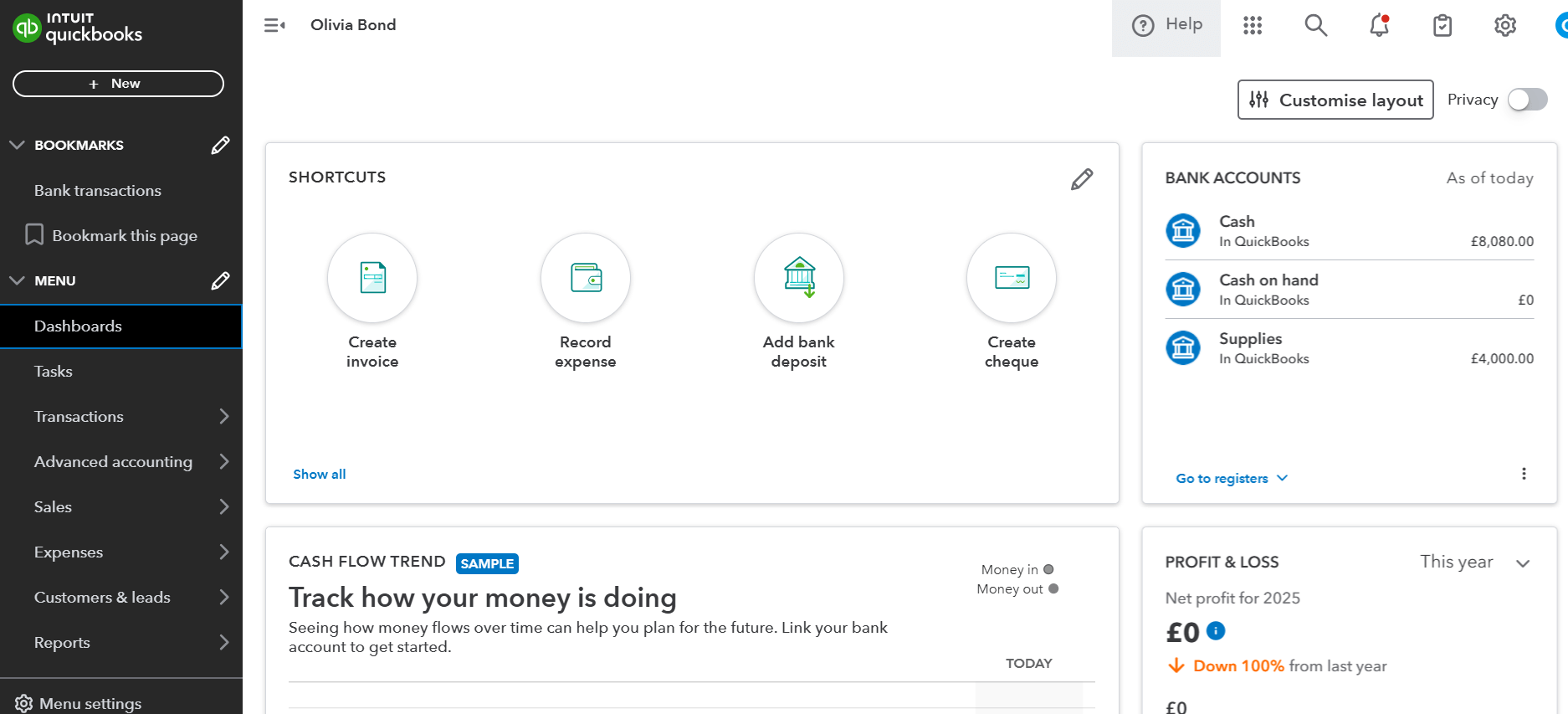
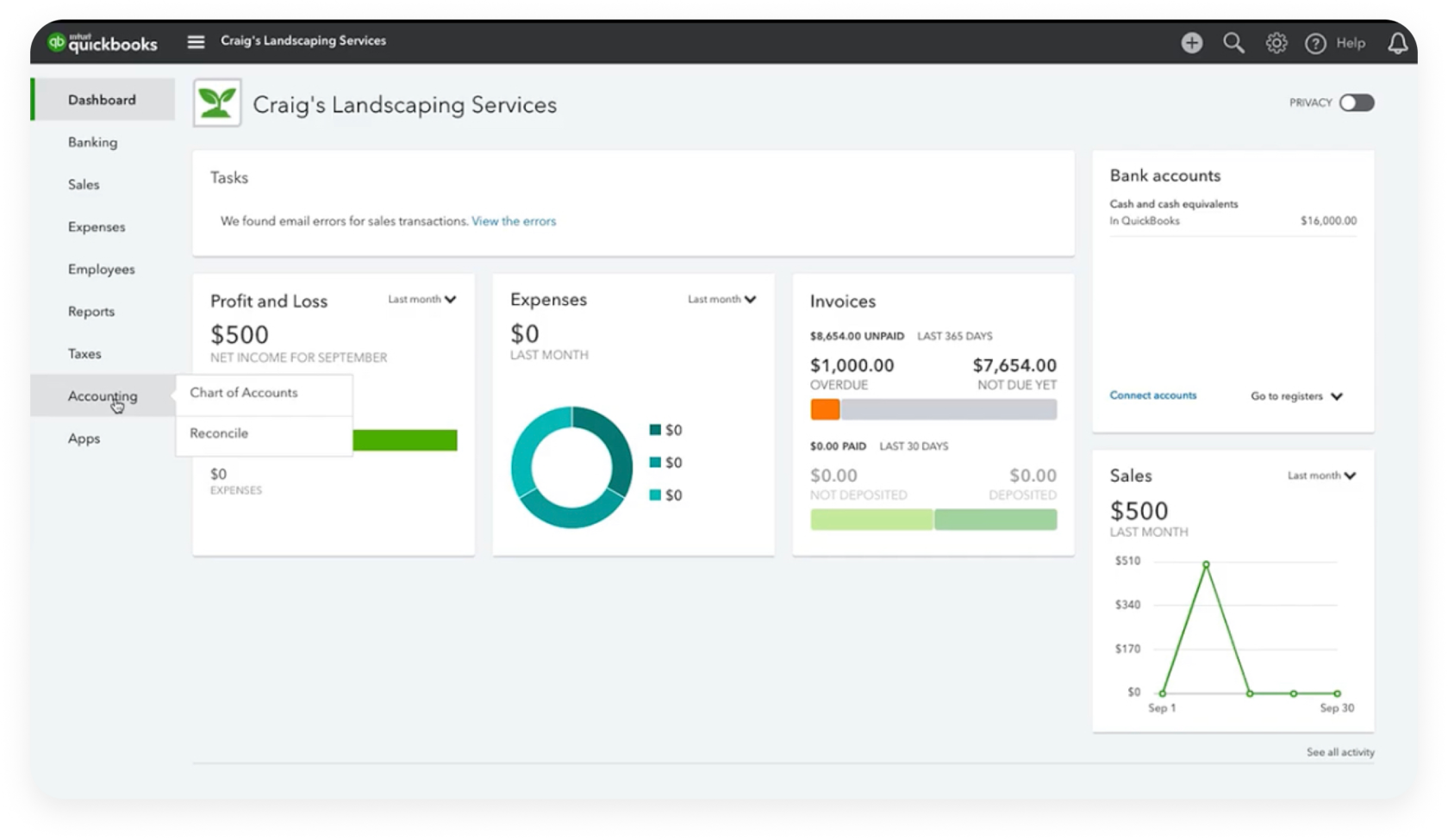
The QuickBooks Online interface is designed for high usability, featuring a “Left Navigation Bar” that serves as the command center for all software modules. Upon logging in, users are met with the Dashboard, which provides a high-level visualization of data through dynamic widgets. From a technical perspective, these widgets are real-time data visualizations pulled from the underlying SQL databases. Familiarizing yourself with the “Gear Icon” (for back-end settings and company configuration) and the “New” button (for transactional data entry) is the first step in mastering the software’s workflow.
Automating Financial Data Entry and Syncing
The true power of QuickBooks Online lies in its ability to reduce manual data entry through automation and machine learning. By creating a seamless flow of data from external sources into the software, businesses can eliminate human error and maintain a “continuous accounting” cycle.
Connecting Bank Feeds and Real-Time Transaction Processing
One of the most critical technical features of QBO is the Bank Feed integration. Using secure API connections (often via OAuth 2.0 protocols), QuickBooks Online links directly to financial institutions. This allows the software to pull transaction data automatically every 24 hours.
To set this up, navigate to the “Banking” or “Transactions” tab and link your accounts. Once the connection is established, transactions appear in a “For Review” queue. This architectural layer acts as a buffer, allowing the user to verify data before it is permanently committed to the general ledger.
Utilizing Artificial Intelligence for Expense Categorization
QuickBooks Online employs proprietary machine learning algorithms to suggest categorizations for imported transactions. As you “match” or “add” transactions, the software learns your behavior.
Users can further optimize this by creating “Bank Rules.” These are essentially “If-Then” logic statements within the software. For example, a rule can be set so that if a transaction contains the keyword “Amazon,” then it is automatically categorized as “Office Supplies” and assigned to a specific department. This level of automation transforms the software from a static record-keeping tool into a proactive data processor.
Advanced Features for Business Operations
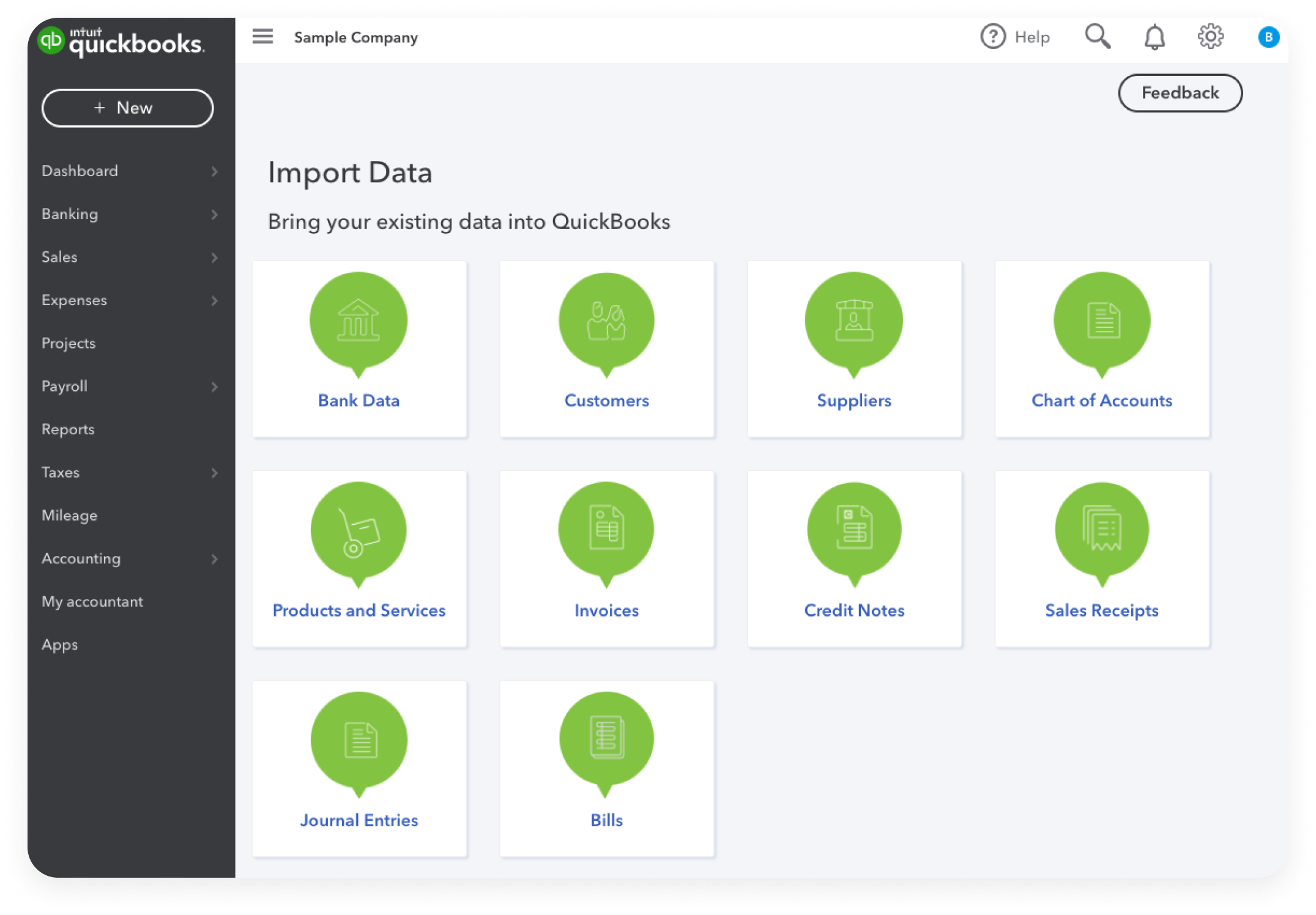
Beyond simple tracking, QuickBooks Online serves as a comprehensive tool for managing the lifecycle of business operations, from the initial quote to the final payment and vendor fulfillment.
Managing Accounts Receivable and Customizable Invoicing
The invoicing module in QBO is highly programmable. Users can create custom templates that reflect their corporate identity, but the technical advantage lies in the “Online Invoice” feature. When an invoice is sent via the software, it includes a unique URL. This allows the sender to track when the invoice was viewed—a feature driven by web beacons (tracking pixels).
Furthermore, by enabling “QuickBooks Payments,” the software integrates a payment gateway directly into the invoice. When a client pays via credit card or ACH, the software automatically records the payment and reconciles the bank deposit, completing the data loop without manual intervention.
Streamlining Accounts Payable and Vendor Management
On the flip side of the ledger, managing outgoing funds is streamlined through the “Bills” and “Vendors” modules. Users can upload PDF receipts or bills directly into the software using the “Receipt Capture” feature. QBO uses Optical Character Recognition (OCR) technology to scan the document, extract the vendor name, date, and amount, and pre-populate a transaction form. This use of AI-driven data extraction significantly reduces the time spent on administrative tasks and ensures that digital copies of all source documents are attached to the relevant transactions for audit purposes.
Optimizing the Software with Third-Party Integrations
QuickBooks Online does not exist in a vacuum; it is designed to be the hub of a much larger “Tech Stack.” Through the Intuit App Store, the software can be integrated with hundreds of specialized applications.
Connecting CRM and E-commerce Platforms
For tech-driven businesses, syncing QuickBooks with a Customer Relationship Management (CRM) tool like Salesforce or HubSpot ensures that sales data flows seamlessly into the accounting system. Similarly, e-commerce integrations with platforms like Shopify, Amazon, or eBay allow for the automatic synchronization of sales orders, inventory adjustments, and sales tax calculations. These integrations typically use REST APIs to communicate, ensuring that data remains consistent across all platforms in the business’s digital ecosystem.
Leveraging the Mobile App for On-the-Go Productivity
The QuickBooks Online mobile app (available on iOS and Android) is not just a scaled-down version of the web interface; it is a functional extension that utilizes mobile-specific hardware. For instance, the app uses the phone’s GPS to automatically track business mileage, and the camera functions as a high-speed scanner for real-time expense reporting. The mobile app synchronizes instantly with the cloud, ensuring that the “single source of truth” is maintained whether the user is in the office or in the field.
Ensuring Data Integrity and Digital Security
When moving sensitive financial information to the cloud, digital security becomes a paramount concern. QuickBooks Online implements enterprise-grade security protocols to protect user data from unauthorized access and technical failures.
Understanding Multi-Factor Authentication and Cloud Backups
To secure the login process, QuickBooks Online utilizes Multi-Factor Authentication (MFA). This requires users to provide two or more verification factors to gain access, significantly reducing the risk of compromised credentials.
On the data storage side, Intuit employs AES-256 bit encryption—the same standard used by global financial institutions—to protect data both at rest and in transit. Furthermore, because the software is cloud-native, data is redundantly stored across multiple geographically dispersed servers. This ensures that even in the event of a regional server failure, business data remains accessible and intact.
Audit Logs and User Permissions Management
From an internal security perspective, QBO provides a comprehensive “Audit Log.” This feature tracks every single action taken within the software, identifying which user made a change and when. This is a critical tool for identifying errors or fraudulent activity.
Additionally, the software allows for granular user permissions. In the “Manage Users” section, administrators can limit access based on roles. For example, a sales representative might be granted access to create invoices but restricted from viewing the company’s bank balances or running payroll. This “Principle of Least Privilege” is a fundamental concept in digital security, ensuring that users only have access to the data necessary for their specific roles.
By mastering these technical components—from the initial SaaS setup and AI-driven automation to complex API integrations and robust security protocols—users can transform QuickBooks Online from a simple ledger into a powerful engine for business intelligence and digital growth. In the modern tech landscape, the ability to effectively manage this software is an essential skill for any digitally-fluent professional.
aViewFromTheCave is a participant in the Amazon Services LLC Associates Program, an affiliate advertising program designed to provide a means for sites to earn advertising fees by advertising and linking to Amazon.com. Amazon, the Amazon logo, AmazonSupply, and the AmazonSupply logo are trademarks of Amazon.com, Inc. or its affiliates. As an Amazon Associate we earn affiliate commissions from qualifying purchases.