
In the modern digital landscape, data is the lifeblood of decision-making. Whether you are a software engineer, a data analyst, or a project manager, the ability to manipulate, organize, and interpret data efficiently is a cornerstone of professional success. Microsoft Excel has long been the gold standard for spreadsheet software, but many users only scratch the surface of its capabilities. At the heart of Excel’s power lies a feature that bridges the gap between manual entry and sophisticated software engineering: Excel Macros.
A macro is, in its simplest form, a sequence of instructions that automates repetitive tasks. By leveraging the power of automation, users can transform hours of tedious manual labor into a single click. This article explores the technical foundations of Excel Macros, their practical applications in the tech ecosystem, and how you can harness them to optimize your digital workflow.

1. Understanding the Mechanics: What Are Excel Macros?
To understand Excel Macros, one must first understand the concept of automation within a software environment. In Excel, a macro is a stored set of commands that the software can execute on command. If you find yourself performing the same sequence of actions every Monday morning—such as importing a CSV, formatting headers, calculating averages, and generating a pivot table—you are the perfect candidate for macro implementation.
The Role of VBA (Visual Basic for Applications)
The engine under the hood of every Excel Macro is Visual Basic for Applications, or VBA. VBA is a human-readable programming language developed by Microsoft. While many casual users interact with macros through a “recorder” interface, VBA is what actually writes the script.
Unlike standalone programming languages like Python or C++, VBA is an “event-driven” language designed to live within Microsoft Office applications. It allows users to access the internal objects of Excel—such as cells, worksheets, workbooks, and even the application’s menu bars—and manipulate them programmatically. Understanding that a macro is essentially a VBA script is the first step toward moving from a novice user to a “Power User.”
Recorded Macros vs. Written Code
There are two primary ways to create a macro:
- The Macro Recorder: This is a “no-code” approach where Excel watches your mouse clicks and keystrokes, translating them into VBA code in the background. It is an excellent tool for beginners or for quickly automating simple, linear tasks.
- The Visual Basic Editor (VBE): For more complex logic—such as “if-then” statements, loops, or custom user forms—you must write or edit code directly in the VBE. This allows for “Intelligent Automation,” where the macro can make decisions based on the data it encounters.
2. Why Use Macros? Transforming Productivity and Workflow
In the tech industry, efficiency is often measured by the reduction of “toil”—manual, repetitive work that provides little long-term value. Excel Macros are a primary tool for eliminating toil in data management.
Eliminating Repetitive Tasks
Consider a scenario where a DevOps engineer needs to analyze server logs exported into Excel every day. Manually deleting irrelevant columns, filtering for error codes, and applying conditional formatting to highlight critical failures is a waste of high-level cognitive resources. A macro can perform these 20 steps in less than a second. By automating the mundane, tech professionals can focus on high-impact tasks like system architecture or strategic planning.
Enhancing Data Accuracy and Standardization
Human error is an inevitable byproduct of manual data entry. A single misplaced decimal point or a forgotten filter can lead to catastrophic errors in financial reporting or software testing. Macros eliminate this risk by ensuring that the exact same logic is applied to the data every time.
Furthermore, macros allow for standardization across an organization. A lead developer can write a macro that formats all project reports according to company branding and technical requirements, ensuring that every document produced by the team is consistent and professional.
Complex Calculations and Data Integration
Beyond simple formatting, macros can handle complex computational logic that standard Excel formulas cannot easily manage. This includes “looping” through thousands of rows to perform multi-step validations or reaching out to external databases to pull in real-time information. This capability turns Excel from a static spreadsheet into a dynamic data processing tool.
3. Getting Started with Excel Macros: A Technical Overview

Transitioning into the world of macros requires a shift in how you view the Excel interface. It requires moving from the “Home” tab to the “Developer” tab.
Enabling the Developer Tab
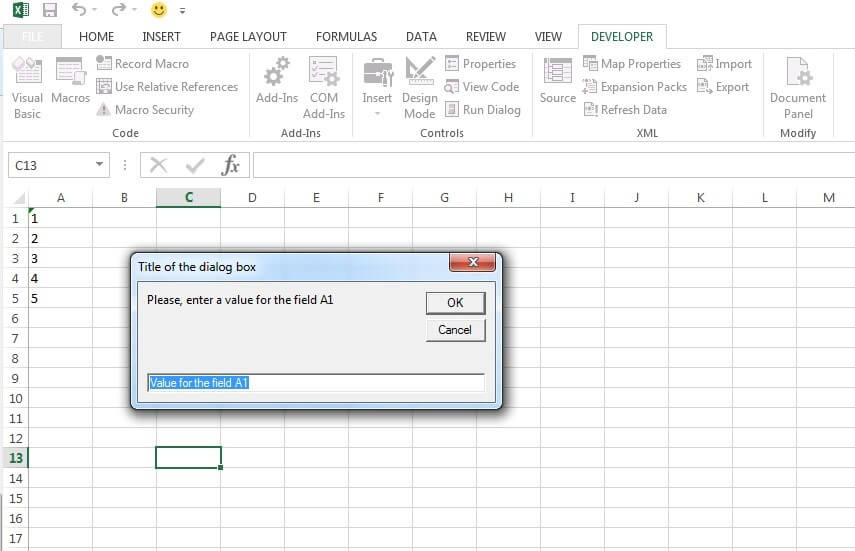
By default, the tools required to create and manage macros are hidden to prevent accidental changes by casual users. To begin, you must enable the Developer tab in the Excel Ribbon. This tab provides access to the “Record Macro” button, the “Macros” list, and the “Visual Basic” button, which opens the code editor.
Understanding Macro-Enabled File Formats
A common technical pitfall for beginners is failing to save their work in the correct format. Standard Excel workbooks (.xlsx) do not support macros for security reasons. To save a workbook containing macros, you must use the Excel Macro-Enabled Workbook (.xlsm) format. This distinction is crucial in a professional environment, as many email servers and security firewalls treat .xlsm files with more scrutiny than standard spreadsheets.
The Anatomy of a Simple Macro
When you record a macro, Excel creates a “Module” within the workbook. Inside that module, you will find a “Subroutine” (indicated by Sub and End Sub). For example, a macro that bolds the first row of a sheet might look like this in VBA:
Sub FormatHeader()
    Rows("1:1").Select
    Selection.Font.Bold = True
End Sub
Even if you are not a programmer, reading this code reveals the logical structure of Excel’s automation: Identify an object (Rows 1:1), select it, and change a property (Bold = True).
4. Advanced Tech Capabilities: Extending Excel with Scripting
While simple automation is powerful, the true potential of Excel Macros lies in their ability to interact with the wider technological ecosystem.
Integrating with Other Microsoft Office Apps
Because VBA is common across the Office suite, an Excel Macro can be programmed to “talk” to Word, Outlook, or PowerPoint. For example, a data analyst could write a macro in Excel that processes a monthly sales report and then automatically opens Outlook, creates a new email, attaches the report, and sends it to a distribution list. This cross-app integration is a hallmark of an automated enterprise workflow.
Dynamic Dashboards and Automated Reporting
In the realm of Business Intelligence (BI), macros are used to create interactive dashboards. By assigning macros to buttons or sliders, you can allow non-technical users to filter data or change visualizations without them ever having to touch a formula. This “Application-like” behavior turns a spreadsheet into a custom software tool tailored to specific business needs.
Moving Toward Office Scripts and Power Automate
As the tech world shifts toward cloud-based solutions, Microsoft has introduced “Office Scripts” for Excel on the Web. While VBA remains the king of the desktop application, Office Scripts (based on TypeScript) represent the next generation of Excel automation. Modern tech professionals are increasingly finding themselves at the intersection of traditional VBA macros and cloud-based Power Automate “flows,” creating a hybrid environment of local and cloud-based efficiency.
5. Security and Best Practices in the Modern Tech Environment
With great power comes great responsibility. Because macros are essentially executable code, they have historically been used as a vector for malware and viruses. Understanding the security implications of macros is essential for any tech-literate professional.
The Risks of Macro-Based Malware
For years, “Macro Viruses” were a common threat. An unsuspecting user would open an Excel file from an unknown source, enable macros, and inadvertently run a script that could steal data or encrypt files. Consequently, Microsoft now blocks macros by default in files downloaded from the internet. As a developer or user, you must ensure that you only run macros from “Trusted Locations” or verified sources.
Best Practices for Clean and Maintainable Code
If you begin writing custom VBA, it is important to follow software development best practices:
- Comment Your Code: Use the apostrophe (
') to leave notes explaining what each section of your code does. This is vital for colleagues who may need to update the macro later. - Avoid “Selecting”: The Macro Recorder often uses the
.Selectmethod, which slows down the script. Direct referencing (e.g.,Worksheets("Sheet1").Range("A1").Value = 10) is faster and more stable. - Error Handling: Use “On Error” statements to provide graceful exits or helpful error messages if the macro encounters unexpected data.
Conclusion: The Future of Spreadsheet Automation
Excel Macros represent a fundamental shift from being a passive user of software to being an active creator of solutions. In a world where data volume is increasing exponentially, the ability to automate the processing of that data is no longer a luxury—it is a necessity.
By mastering the transition from manual entry to recorded macros, and eventually to custom VBA scripting, you position yourself as a highly efficient contributor in any technical field. While newer technologies like Python and Power BI are gaining ground, the ubiquity and accessibility of Excel Macros ensure they will remain a vital tool in the professional’s tech stack for years to come. Whether you are streamlining a personal project or revolutionizing a corporate reporting structure, the journey into Excel automation begins with a single macro.
aViewFromTheCave is a participant in the Amazon Services LLC Associates Program, an affiliate advertising program designed to provide a means for sites to earn advertising fees by advertising and linking to Amazon.com. Amazon, the Amazon logo, AmazonSupply, and the AmazonSupply logo are trademarks of Amazon.com, Inc. or its affiliates. As an Amazon Associate we earn affiliate commissions from qualifying purchases.