
Amazon Prime has become an omnipresent force in the digital lives of millions, offering a sprawling ecosystem of benefits from rapid shipping and video streaming to music and exclusive deals. Its convenience is undeniable, yet like many digital subscriptions, there comes a time when its utility may no longer align with personal needs or financial priorities. Whether you’re streamlining your digital expenditures, finding you no longer utilize its vast array of features, or simply exploring alternatives, knowing how to efficiently terminate your Amazon Prime membership is a crucial skill in managing your digital footprint.
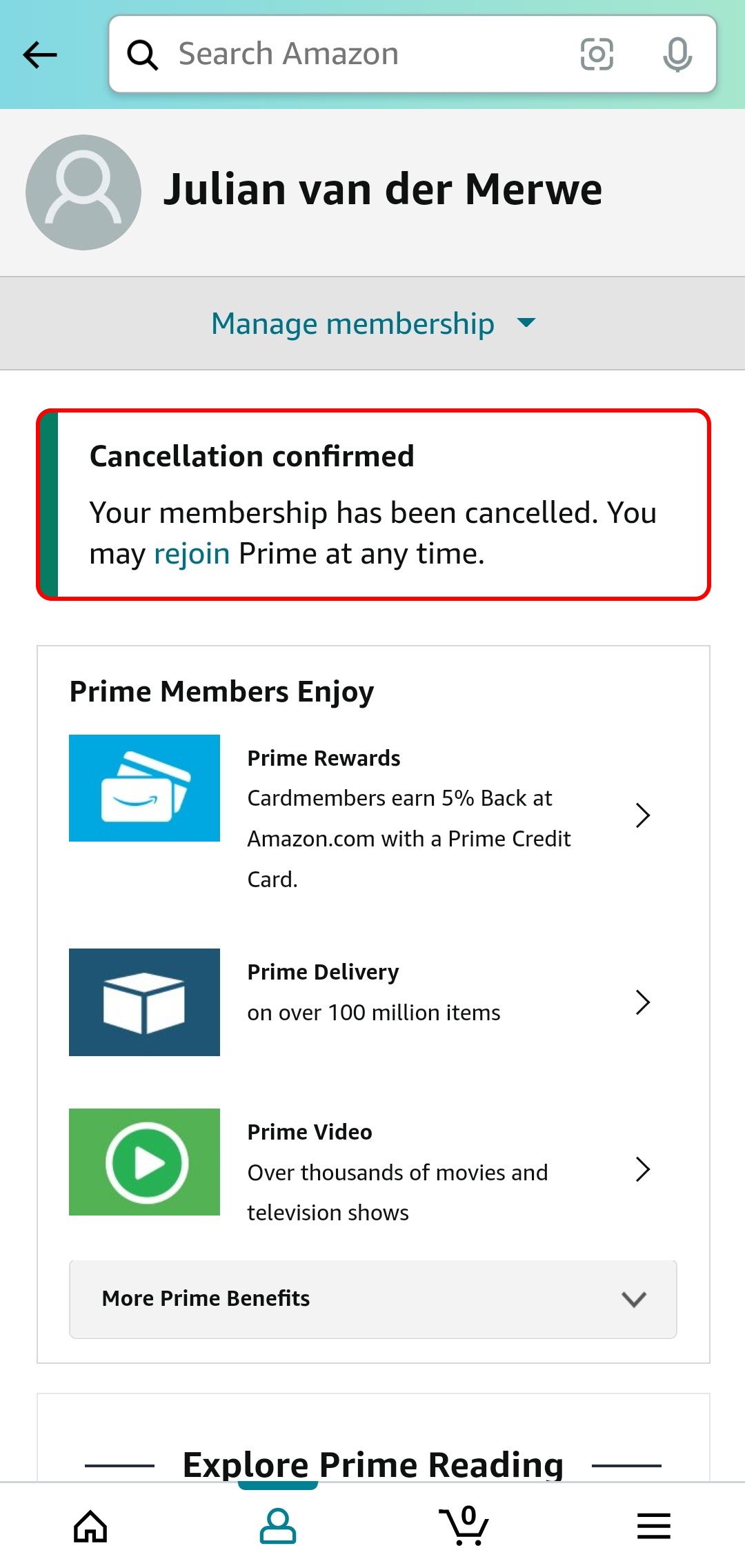
This article serves as a meticulous, tech-focused tutorial, guiding you through the often-obscure pathways of canceling your Amazon Prime subscription. We’ll delve into the user interface (UI) and user experience (UX) considerations Amazon employs, ensuring you navigate the process with confidence and clarity, empowering you to reclaim control over your digital subscriptions.
Understanding Your Amazon Prime Membership from a Tech Perspective
Before embarking on the cancellation journey, it’s beneficial to frame your understanding of Amazon Prime not just as a service, but as a complex digital platform with interconnected features. From a technological standpoint, Prime is an umbrella subscription that unlocks premium access across various Amazon applications and web services.
The Interconnected Digital Features of Amazon Prime
At its core, Amazon Prime leverages a sophisticated back-end infrastructure to deliver a seamless, integrated experience. Subscribers gain preferential access to:
- Prime Video: A streaming platform competing directly with Netflix and Disney+, requiring specialized apps for various devices (smart TVs, phones, tablets, gaming consoles).
- Prime Music: A music streaming service, accessible via dedicated apps and the Amazon website.
- Prime Reading/First Reads: Digital content accessible through Kindle apps and devices.
- Amazon Photos: A cloud storage solution for images, integrated with the Amazon ecosystem.
- Twitch Prime Gaming: Benefits for gamers linked to their Twitch accounts.
- Expedited Shipping: The most visible benefit, reliant on Amazon’s vast logistics and e-commerce platform.
Understanding these interconnected services is vital because canceling Prime means the cessation of access across all these digital touchpoints. It’s not just “ending a subscription”; it’s decoupling your digital identity from a significant facet of Amazon’s integrated digital offerings.
Common Tech-Driven Reasons for Cancellation
While financial considerations are often paramount, many reasons for Prime cancellation are deeply rooted in tech usage patterns and digital ecosystem management:
- Feature Underutilization: Many users find they only use one or two Prime benefits (e.g., shipping and occasional Prime Video) while paying for a full suite they don’t touch (e.g., Prime Music, Reading, Photos). This represents a digital value mismatch.
- Subscription Overload/Fatigue: In an era of burgeoning streaming services and digital subscriptions, users are increasingly consolidating or eliminating services to simplify their digital lives and reduce “app sprawl.”
- Transition to Alternative Platforms: Users might find a different streaming service offers better content, or another cloud storage provider better suits their needs, leading them to de-emphasize Prime’s ecosystem.
- Data and Privacy Concerns: Some users may opt out due to evolving concerns about data collection and privacy practices across large tech platforms.
- Account Simplification: For those striving for digital minimalism, reducing the number of active subscriptions contributes to a cleaner, more manageable online presence.
Pre-Cancellation Tech Considerations
Before initiating the termination, it’s prudent to review a few tech-related aspects:
- Linked Devices and Accounts: Ensure you’ve signed out of Prime Video, Prime Music, and other linked Amazon services on devices you no longer own or share.
- Digital Content Access: Understand that purchased digital content (movies, music, books) remains yours, but Prime exclusive content will be inaccessible. Review your digital library to distinguish between owned and borrowed content.
- Data Archiving (Amazon Photos): If you utilize Amazon Photos, download any critical images you wish to retain elsewhere, as this benefit will cease.
- Twitch Prime Link: If your Amazon Prime is linked to a Twitch account, be aware that Twitch Prime benefits will also terminate.
The Step-by-Step Tech Guide to Canceling Amazon Prime
Amazon, like many subscription-based tech companies, employs specific UI/UX patterns to guide (or gently dissuade) users from canceling. Our guide focuses on navigating these design choices effectively.
1. Accessing Your Membership Settings
The first step involves logging into your Amazon account and locating the Prime membership management section.
- Via Desktop/Web Browser:
- Go to
amazon.com. - Hover over “Accounts & Lists” in the top right corner.
- Select “Prime Membership” from the dropdown menu. This will take you directly to your Prime management page.
- Go to
- Via Amazon Shopping App (iOS/Android):
- Open the Amazon Shopping app.
- Tap the menu icon (three horizontal lines) in the bottom right (or top left on some Android devices).
- Scroll down and tap “Prime.”
- Tap “Manage My Membership” or “Manage Prime Membership” (wording may vary slightly by app version).
- You might be prompted to log in again for security purposes.
2. Locating the “End Membership” Option
Once on the Prime membership management page, Amazon’s interface design often places the cancellation option in a less prominent position, or wraps it within a series of prompts.
- On the “Manage Prime Membership” page: Look for a section titled “Membership Management” or “Update, Cancel, and More.”
- Within this section, you’ll typically find an option like “End Membership and Benefits” or “Manage Membership” followed by a “cancel” link. It’s often discreetly placed or requires clicking through an initial “manage” button.
3. Deciphering Amazon’s Retention Strategies (UI/UX)
This is where Amazon’s UI/UX designers come into play to encourage retention. You will likely encounter several screens designed to make you reconsider:
- Value Proposition Reminders: Amazon will display a summary of how much you’ve “saved” with Prime (e.g., free shipping costs, value of Prime Video). This is an algorithmic calculation based on your usage data.
- Unused Benefits Highlights: It may point out benefits you haven’t used, hoping to spark interest (e.g., “Did you know you have access to Prime Reading?”).
- Partial Refund Offerings: For those who haven’t used many Prime benefits, Amazon might offer a partial refund if you cancel immediately, which can be an incentive to proceed.
- “Pause” or “Switch Plan” Options: Amazon might offer to switch you to a monthly plan if you’re on an annual one, or even suggest pausing your membership (if available), rather than outright canceling. These are designed as softer exits.
Carefully read each screen. To proceed with termination, you’ll consistently need to look for options like “I Do Not Want My Benefits,” “Continue to Cancel,” or “End Membership.” Do not select “Keep My Benefits” or similar prompts.

4. Confirming Your Cancellation
The final step involves a definitive confirmation.
- After navigating through the retention screens, you will reach a page that clearly states the consequences of cancellation (loss of benefits) and asks for final confirmation.
- Click “End Membership” or “Cancel Prime” one last time.
- You should receive an on-screen confirmation and an email verifying your cancellation. Keep this email as a digital record.
Post-Cancellation & What to Expect from a Tech Standpoint
Terminating your Prime membership isn’t just a switch; it’s a process with implications across your Amazon digital experience.
Refund Policies and Eligibility
Amazon’s refund policy is technically driven and based on your usage data:
- Full Refund: If you haven’t used any Prime benefits (shipping, streaming, music, etc.) during your current billing cycle, you are generally eligible for a full refund of your membership fee.
- Partial Refund: If you’ve used some benefits, Amazon’s system will calculate a partial refund based on the value of the benefits you haven’t used.
- No Refund: If you’ve extensively used Prime benefits within the current cycle, you may not receive a refund. The cancellation will simply prevent future charges.
The refund process is automated; funds are typically returned to your original payment method within 3-5 business days.
Loss of Prime Benefits
Immediately upon cancellation (or at the end of your current billing cycle, depending on your choice during cancellation), you will lose access to all associated Prime benefits:
- Shipping: No more free two-day, one-day, or same-day delivery. Standard shipping rates will apply.
- Streaming: Prime Video content will become inaccessible.
- Music: Prime Music will revert to a limited free version or become inaccessible, depending on your region.
- Reading: Prime Reading and First Reads benefits will cease.
- Photos: Cloud storage for photos will revert to the standard free tier (typically 5GB), potentially meaning some photos become inaccessible if you exceeded this limit.
- Gaming: Twitch Prime benefits will be revoked.
Managing Other Amazon Services
Canceling Prime does not delete your Amazon account. You will still be able to:
- Shop on Amazon.com (paying for shipping).
- Access previously purchased digital content (Kindle books, digital music, movies you bought, not streamed).
- Use other Amazon services like Audible (if separately subscribed), Kindle Unlimited (if separately subscribed), etc., though their integration with Prime benefits will cease.
Alternatives, Rejoining, and Digital Subscription Management Best Practices
The decision to terminate Prime doesn’t have to be permanent, and it offers an opportunity to review your broader digital subscription landscape.
Pausing vs. Canceling
In some regions and under certain circumstances, Amazon might offer the option to “pause” your Prime membership. This is a temporary suspension of benefits and billing, often for a set period. From a tech perspective, it’s a different account state that allows for easier re-activation. If offered and suitable, it can be a less permanent alternative to full cancellation.
Exploring Other Tech Ecosystems and Subscriptions
Post-Prime, you might re-evaluate your digital ecosystem needs:
- Shipping: Do local stores or other online retailers offer competitive shipping?
- Streaming: Is Netflix, Disney+, Hulu, Max, or another niche streaming service a better fit for your entertainment needs? Consider bundling options offered by internet providers.
- Cloud Storage: Google Photos, Apple iCloud, Dropbox, or OneDrive might offer more tailored solutions for your digital assets.
- Music: Spotify, Apple Music, or YouTube Music could be preferred alternatives.
This exercise isn’t about simply replacing Prime but intentionally curating your digital service suite to maximize value and minimize redundancy.
How to Rejoin Prime
Should your needs change, rejoining Amazon Prime is a straightforward process:
- Navigate to
amazon.com/prime. - Click “Start your 30-day free trial” or “Join Prime.”
- Confirm your billing information.
- Your Prime benefits will be reactivated almost instantly. Amazon’s systems are designed for seamless re-entry.
Digital Security and Subscription Management Best Practices
Canceling Prime is an excellent opportunity to institute broader best practices for your digital life:
- Regularly Review Subscriptions: Use digital tools (like budgeting apps with subscription trackers or dedicated subscription management services) to audit all your recurring charges quarterly or semi-annually.
- Strong, Unique Passwords: Ensure your Amazon account, and indeed all your online accounts, use strong, unique passwords, preferably managed by a password manager. Even after cancellation, your data remains with Amazon, and a secure account is paramount.
- Two-Factor Authentication (2FA): Always enable 2FA on your Amazon account for an additional layer of security against unauthorized access.
- Understand Terms & Conditions: Before subscribing to any digital service, quickly review the cancellation terms. Knowing the exit strategy upfront can save headaches later.
- Minimize Redundancy: Avoid subscribing to multiple services that offer the same core benefits (e.g., two cloud storage providers if one suffices).

Conclusion
Terminating your Amazon Prime membership, while sometimes presenting a few UI/UX hurdles designed for retention, is a relatively straightforward technical process once you know the steps. It represents an act of digital autonomy, allowing you to curate your online experience and manage your financial commitments more effectively. By following this tech-focused guide, you can confidently navigate Amazon’s platform, understand the implications of your decision, and ensure a smooth transition away from Prime, whether temporarily or permanently. In an increasingly digital world, mastering the ability to manage, subscribe, and unsubscribe from services is a fundamental skill for maintaining a healthy and intentional digital lifestyle.
aViewFromTheCave is a participant in the Amazon Services LLC Associates Program, an affiliate advertising program designed to provide a means for sites to earn advertising fees by advertising and linking to Amazon.com. Amazon, the Amazon logo, AmazonSupply, and the AmazonSupply logo are trademarks of Amazon.com, Inc. or its affiliates. As an Amazon Associate we earn affiliate commissions from qualifying purchases.