
In an increasingly connected world, the Wi-Fi router stands as the gateway to our digital lives, linking our devices to the vast expanse of the internet. Yet, this crucial piece of hardware often operates in the background, its inner workings a mystery to many. Among its most vital, yet frequently misunderstood, components is the “security key.” Far from being a mere alphanumeric string, your router’s security key is the digital bouncer for your home or office network, a critical element that dictates who gains access and, more importantly, who doesn’t. Understanding what it is, how it functions, and its profound implications for your digital security is not just recommended, but essential in today’s threat landscape.
This article delves deep into the essence of the router security key, exploring its fundamental role, the different protocols that define it, and practical steps for managing it effectively. By shedding light on this often-overlooked aspect of networking, we aim to empower users with the knowledge needed to fortify their digital perimeters and safeguard their online activities.
Understanding the Foundation of Your Wireless Security
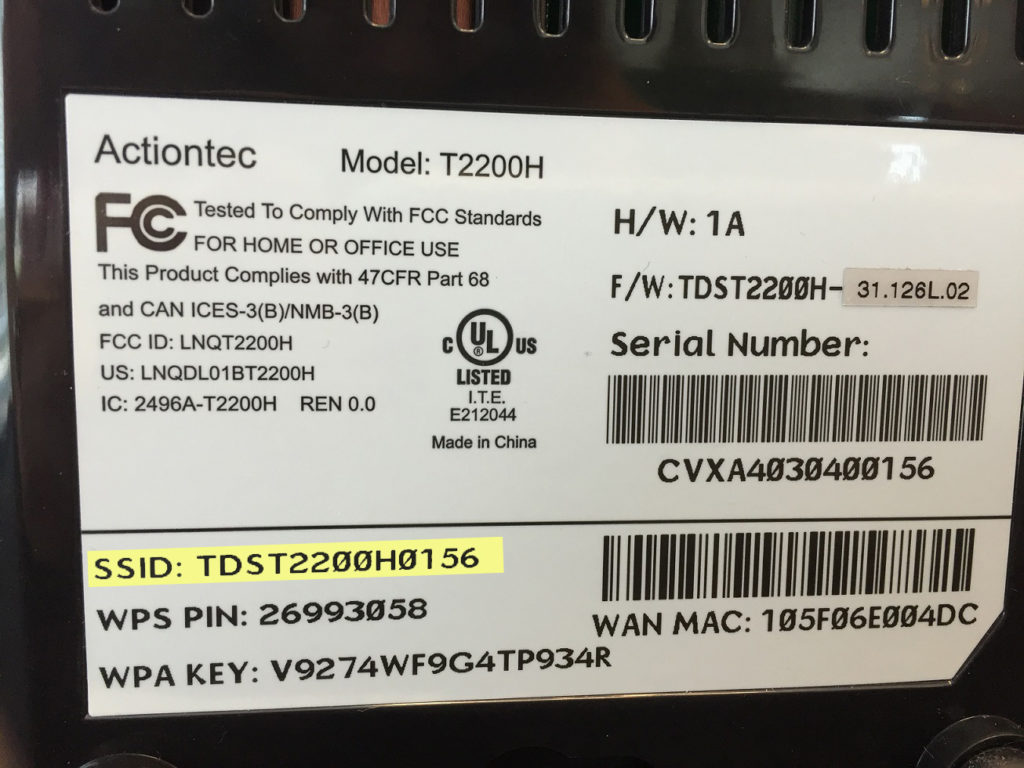
At its core, a router security key is a password, but one specifically designed to secure wireless networks. It acts as the primary defense mechanism against unauthorized access, encrypting the data transmitted between your router and connected devices.
Defining the Wireless Security Key
The term “security key” on a router most commonly refers to the Wi-Fi password or network key you use to connect devices wirelessly to your network. It’s the unique alphanumeric string that authenticates a device to your router, allowing it to join the Wi-Fi network and access the internet. Without the correct security key, a device cannot establish a connection, regardless of its proximity to the router. This key is paramount for establishing a secure, private network, distinguishing your personal space from the public internet.
The Critical Role of Encryption
The security key isn’t just a simple gatekeeper; it’s intricately linked to the encryption protocols employed by your router. When a device connects using the correct key, all data exchanged between that device and the router is encrypted. Encryption transforms readable data into a scrambled format, rendering it unintelligible to anyone who intercepts it without the corresponding decryption key (which is derived from your security key). This means that even if a malicious actor manages to intercept your network traffic, they won’t be able to decipher your personal information, browsing history, or sensitive data. This layer of protection is vital for maintaining privacy and preventing eavesdropping on your digital communications.
Differentiating from Passwords and SSIDs
While often used interchangeably, it’s important to clarify the distinct roles of the security key, standard passwords, and SSIDs.
- Security Key (Wi-Fi Password/Network Key): This is the actual credential required to join the Wi-Fi network. It’s tied to the encryption protocol and secures the wireless communication.
- Router Admin Password: This is a separate password used to access the router’s configuration interface (usually via a web browser). It allows you to change settings, update firmware, and crucially, modify your Wi-Fi security key. It is independent of the Wi-Fi security key itself.
- SSID (Service Set Identifier): This is the “name” of your Wi-Fi network (e.g., “MyHomeNetwork,” “GuestWi-Fi”). It’s broadcasted by your router so devices can identify and attempt to connect to it. The SSID is public; the security key keeps the actual connection private.
Understanding these distinctions is crucial for managing your network security holistically. A strong Wi-Fi security key protects your data in transit, while a strong router admin password prevents unauthorized changes to your network settings.
Types of Wireless Security Keys and Protocols
The effectiveness of your security key is intrinsically tied to the underlying wireless security protocol your router utilizes. Over the years, these protocols have evolved significantly, each offering varying levels of protection.
WEP (Wired Equivalent Privacy): The Legacy Vulnerability
WEP was one of the earliest Wi-Fi security protocols, introduced in 1999. While revolutionary at the time, its design flaws quickly became apparent. WEP uses a relatively simple encryption algorithm and fixed-length keys, making it highly vulnerable to brute-force attacks and other exploitation methods. Malicious actors can often crack a WEP key in a matter of minutes, gaining full access to the network. For this reason, WEP is considered obsolete and highly insecure. Any router still using WEP should be immediately updated or replaced.
WPA/WPA2 (Wi-Fi Protected Access): The Standard Bearers
WPA was introduced in 2003 as an interim solution to WEP’s weaknesses, primarily focusing on improving encryption and user authentication. It brought with it the Temporal Key Integrity Protocol (TKIP), which dynamically changes encryption keys, making it much harder to crack than WEP.
WPA2, launched in 2004, became the industry standard and remained so for over a decade. It replaced TKIP with the more robust Advanced Encryption Standard (AES), which is still used today in many government and enterprise security applications. WPA2 offers two main modes:
- WPA2-PSK (Pre-Shared Key) or WPA2-Personal: This is what most home and small office networks use. It relies on a single shared passphrase (your security key) for all devices to connect.
- WPA2-Enterprise (802.1X): Designed for larger organizations, this mode uses a RADIUS server for individual user authentication, providing a unique encryption key for each user. This offers a much higher level of security and granular control.
WPA2-PSK, when combined with a strong, complex passphrase, provides a very good level of security for typical home use.
WPA3: The Future of Wi-Fi Security
WPA3, introduced in 2018, represents the next generation of Wi-Fi security, addressing some of the remaining vulnerabilities in WPA2 and offering enhanced features. Key improvements include:
- Individualized Data Encryption (Opportunistic Wireless Encryption – OWE): Even on open, public Wi-Fi networks (without a password), WPA3 encrypts traffic between each device and the access point, protecting against passive eavesdropping.
- Stronger Protection Against Offline Dictionary Attacks: WPA3 uses Simultaneous Authentication of Equals (SAE) instead of the WPA2-PSK handshake, making it much harder for attackers to guess passwords by trying endless combinations offline.
- Enhanced Security for IoT Devices: Simplifies the process of configuring devices with limited or no display interface, while maintaining strong security.
While WPA2 remains widely deployed, WPA3 is the most secure protocol available and should be utilized if your router and devices support it.
PSK vs. Enterprise Modes
The distinction between Pre-Shared Key (PSK) and Enterprise modes is crucial for understanding how security keys are managed and applied.
- PSK (Personal Mode): A single, shared security key (your Wi-Fi password) is configured on the router and provided to all devices that wish to connect. It’s simple to set up and manage, ideal for home and small office environments where the number of users is limited and trust levels are high.
- Enterprise Mode (802.1X): In this mode, individual users authenticate with their unique credentials (username/password) against a central authentication server (like RADIUS). The router doesn’t store a single shared key; instead, it mediates the authentication process and dynamically assigns unique encryption keys to each user session. This provides superior security, accountability, and scalability for larger networks.
For the average home user, the focus will be on understanding and securing their PSK.
Locating, Managing, and Changing Your Router’s Security Key
Effectively managing your router’s security key is a cornerstone of maintaining a secure home network. This involves knowing where to find it, how to change it, and what constitutes a strong key.
Finding the Default Security Key
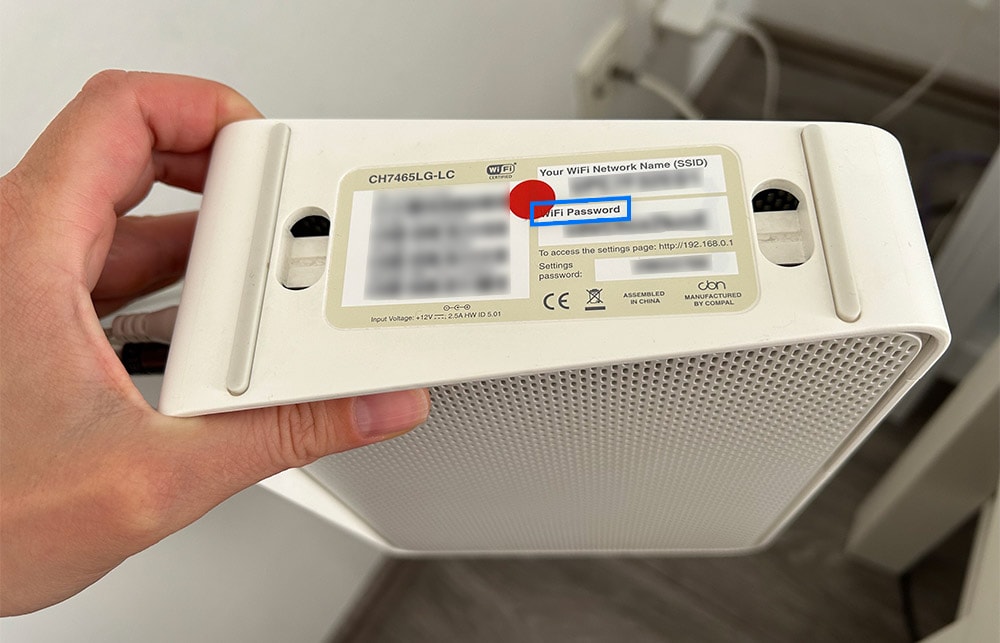
When you first unbox a new router, it typically comes pre-configured with a default SSID and a default security key. This key is often printed on a label on the router itself, usually on the bottom or back. It might be labeled as “Wi-Fi Password,” “Network Key,” “WPA2 Key,” “PSK,” or “Passphrase.” While convenient, these default keys are often generic or easily guessable, making them a significant security risk. It is always recommended to change them immediately after setting up your router.
Accessing Your Router’s Admin Interface
To change your security key, you’ll need to access your router’s web-based administration interface. This is typically done by typing your router’s IP address (often 192.168.1.1 or 192.168.0.1) into a web browser. You’ll then be prompted to enter your router’s administrative username and password (distinct from your Wi-Fi security key). If you haven’t changed them, these default credentials are also usually printed on the router label or found in its manual. Failing to change these default admin credentials leaves your router vulnerable to anyone who knows the common default passwords for your router model.
Steps to Change Your Wireless Security Key
Once logged into your router’s admin interface:
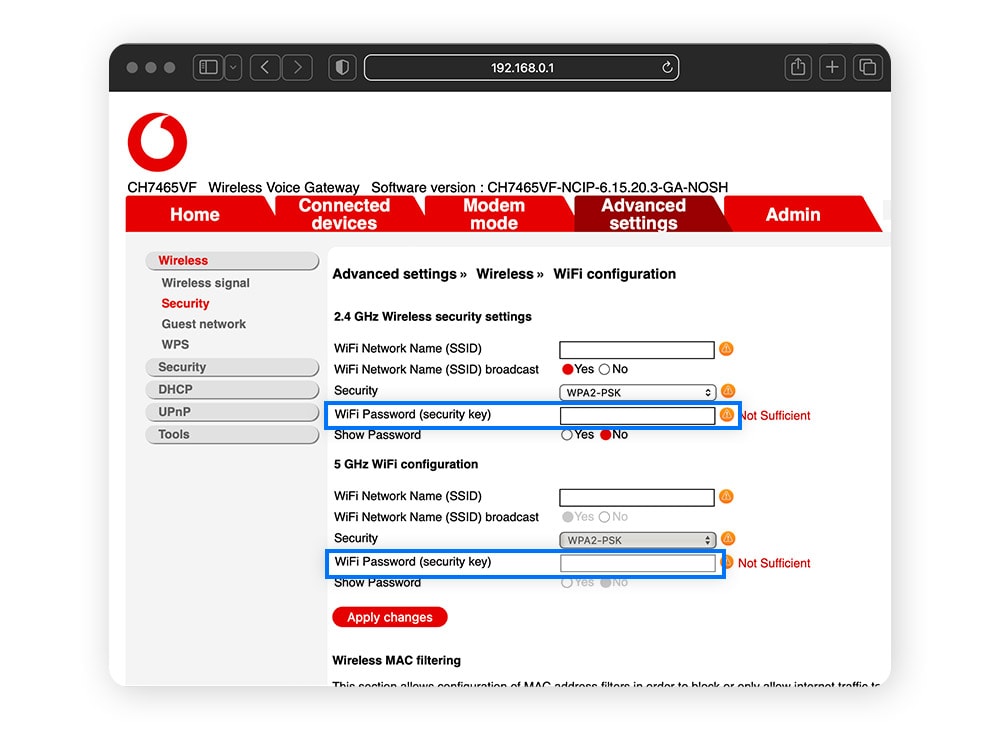
- Navigate to Wireless Settings: Look for sections labeled “Wireless,” “Wi-Fi Settings,” “Security,” or “Wireless Security.”
- Select Security Mode/Protocol: Ensure your router is set to WPA2-PSK (or WPA3, if available and supported by all your devices) as the security protocol. Avoid WEP or WPA.
- Locate the Passphrase/Key Field: Find the field labeled “Passphrase,” “Network Key,” “WPA Key,” or “Security Key.”
- Enter Your New Key: Type in your new, strong security key.
- Save Changes: Apply or save the settings. Your router will likely restart, and all devices will temporarily disconnect. You will then need to reconnect them using the new security key.
Best Practices for Strong Key Creation
Creating a strong security key is paramount. A weak key, even with WPA2/WPA3 encryption, can be cracked relatively easily.
- Length: Aim for at least 12-16 characters, though longer is always better.
- Complexity: Combine uppercase and lowercase letters, numbers, and special characters (e.g., !, @, #, $, %, ^, &, *).
- Uniqueness: Do not use personal information (birthdays, names, addresses), common words, or easily guessable sequences (e.g., “password123”).
- Avoid Dictionary Words: Many attacks leverage dictionaries of common words.
- Consider Passphrases: A series of unrelated words (e.g., “purple-banana-cloud-keyboard”) can be long, strong, and easier to remember than a complex jumble.
Why a Strong Security Key is Non-Negotiable
A robust security key isn’t just a technical recommendation; it’s a fundamental requirement for safeguarding your digital life. The consequences of a weak or compromised key can be far-reaching and severe.
Preventing Unauthorized Network Access
The most immediate benefit of a strong security key is preventing intruders from accessing your network. An open or easily crackable Wi-Fi network is an open invitation for anyone within range to connect. Unauthorized access can lead to several problems:
- Bandwidth Theft: Unwanted users consume your internet bandwidth, slowing down your connection for legitimate users.
- Legal Liability: If someone uses your network to perform illegal activities, the activity could be traced back to your IP address, potentially implicating you.
- A Stepping Stone for Further Attacks: Once on your network, an attacker can more easily scan for vulnerabilities in your connected devices (computers, smart home devices, NAS drives), leading to more direct attacks.
Protecting Your Personal Data and Privacy
Perhaps the most critical reason for a strong security key is the protection of your sensitive data. Without proper encryption (enabled by a strong key), any data you transmit over your Wi-Fi network could potentially be intercepted and read by an attacker. This includes:
- Financial Information: Banking details, credit card numbers.
- Login Credentials: Usernames and passwords for email, social media, online services.
- Personal Communications: Emails, chat messages, video calls.
- Health Information: Any sensitive data you access online.
A strong security key ensures that this data remains encrypted and private, even if an attacker manages to intercept your wireless signals.
Mitigating Cyber Threats (Malware, Phishing, etc.)
A compromised Wi-Fi network can also become a vector for more sophisticated cyber threats. Once an attacker is inside your network, they can:
- Inject Malware: Attempt to inject malware onto your devices (e.g., via drive-by downloads or exploiting software vulnerabilities).
- Perform Man-in-the-Middle Attacks: Intercept and modify your internet traffic, potentially redirecting you to phishing sites or stealing credentials.
- DNS Hijacking: Redirect your domain name requests to malicious servers, leading you to fake websites even when you type in legitimate URLs.
- Access Shared Files: If you have file sharing enabled on your devices, an intruder could access or modify your personal files.
A strong security key acts as the first line of defense, significantly reducing the likelihood of these advanced attacks.
Ensuring Optimal Network Performance
While less directly security-related, unauthorized users on your network can severely degrade its performance. Every connected device consumes bandwidth. If multiple unauthorized users are streaming video, downloading large files, or engaging in other bandwidth-intensive activities, your legitimate devices will experience slower speeds, increased latency, and a generally poor internet experience. By keeping your network secure, you ensure that your bandwidth is reserved for your own legitimate use.
Advanced Tips for Router Security
Beyond simply setting a strong security key, there are several additional steps you can take to harden your router’s defenses and enhance your overall network security.
Regularly Updating Router Firmware
Router manufacturers frequently release firmware updates that include security patches, bug fixes, and performance improvements. Outdated firmware can contain known vulnerabilities that attackers can exploit. Make it a habit to check for and install firmware updates regularly. The process usually involves logging into your router’s admin interface and navigating to a “Firmware Update” or “System” section. Some modern routers can even update automatically.
Disabling WPS (Wi-Fi Protected Setup)
Wi-Fi Protected Setup (WPS) is a feature designed to simplify connecting devices to your Wi-Fi network, often by pressing a button on the router or entering an 8-digit PIN. While convenient, the PIN method of WPS has a known vulnerability that allows attackers to brute-force the PIN in a few hours, even with strong Wi-Fi passwords. It is strongly recommended to disable WPS in your router settings to eliminate this attack vector.
Implementing a Guest Network
Most modern routers offer the ability to set up a separate “guest network.” This creates an isolated Wi-Fi network with its own SSID and security key, distinct from your main network. When guests connect to the guest network, they can access the internet but are typically blocked from accessing your internal devices (computers, printers, network-attached storage). This segregation is a crucial security measure, preventing potential threats from guest devices from affecting your primary network.
Using a VPN for Enhanced Protection
While your router’s security key protects the connection to your local network, a Virtual Private Network (VPN) adds another layer of encryption for your internet traffic beyond your router. When you use a VPN, your data is encrypted from your device to the VPN server, and your IP address is masked. This is particularly useful when connecting to public Wi-Fi networks, but it also provides an extra layer of privacy and security even on your home network, making it more difficult for your Internet Service Provider (ISP) or other entities to monitor your online activities. Some routers even support direct VPN client configuration, encrypting all traffic leaving your network.
In conclusion, the security key on your router is far more than a simple password; it’s the lynchpin of your wireless network’s integrity. By understanding its function, leveraging the most robust security protocols, and adhering to best practices for its management, you empower yourself to build a secure digital environment, safeguarding your data, privacy, and peace of mind in an interconnected world. Neglecting this crucial element is akin to leaving the front door to your home wide open – an unnecessary risk in an era where digital security is paramount.
aViewFromTheCave is a participant in the Amazon Services LLC Associates Program, an affiliate advertising program designed to provide a means for sites to earn advertising fees by advertising and linking to Amazon.com. Amazon, the Amazon logo, AmazonSupply, and the AmazonSupply logo are trademarks of Amazon.com, Inc. or its affiliates. As an Amazon Associate we earn affiliate commissions from qualifying purchases.