
The landscape of media consumption has undergone a radical transformation over the last decade. We have moved from the era of physical discs and linear television to an era dominated by on-demand digital content. At the forefront of this revolution is Amazon Prime Video, a platform that serves not just as a streaming service for subscribers, but as a massive digital marketplace. Understanding how to navigate this ecosystem is essential for any modern tech user who wishes to build a permanent digital library or access the latest cinematic releases that are not included in a standard subscription.
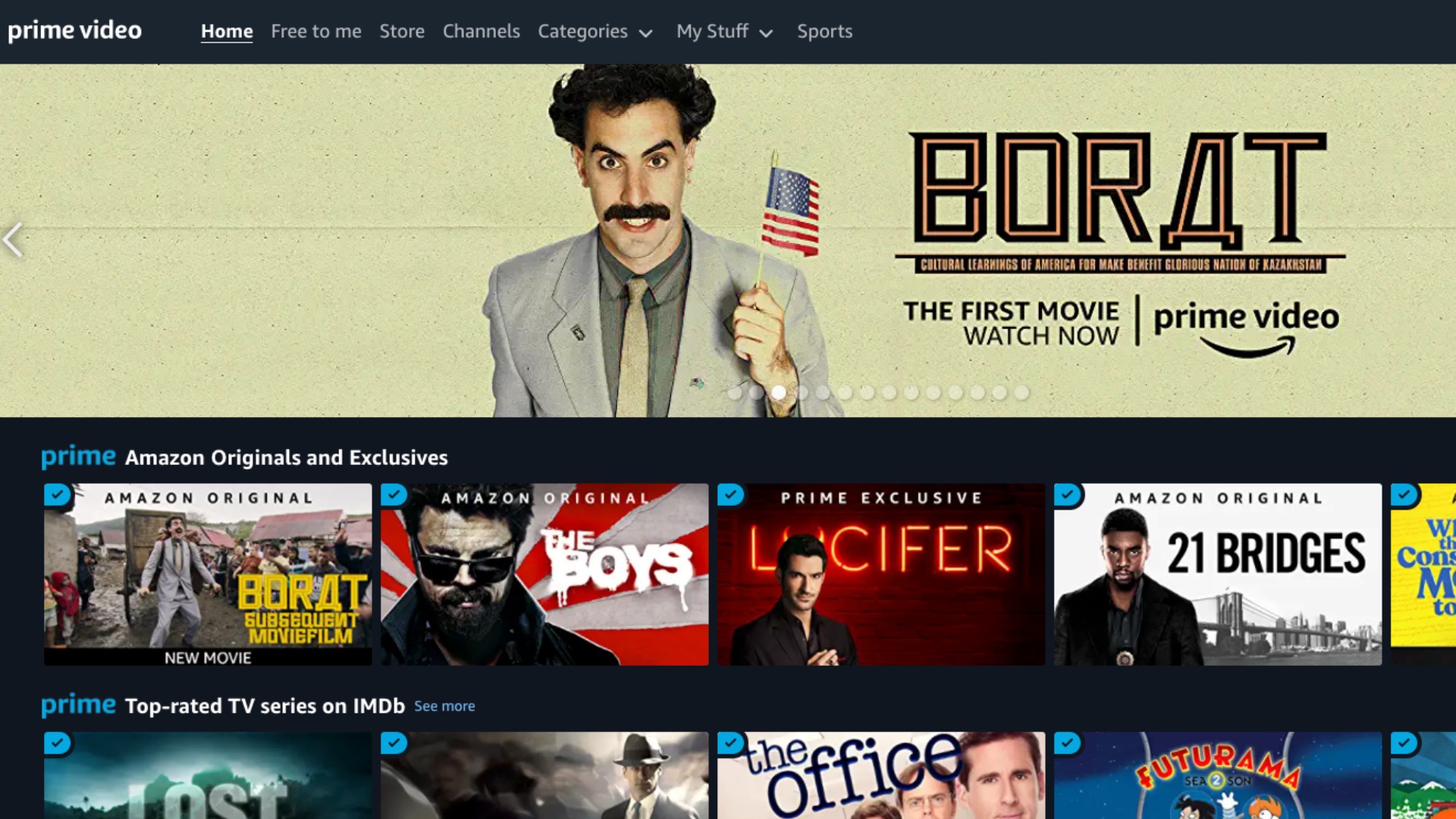
Purchasing a movie on Amazon Prime Video is more than just a transaction; it is an interaction with a complex digital distribution network. Whether you are using a dedicated streaming stick, a mobile device, or a high-end desktop setup, the process involves navigating various software interfaces and understanding the underlying technical requirements that ensure a high-quality viewing experience.
Navigating the Amazon Digital Ecosystem
Before diving into the mechanics of a purchase, it is vital to distinguish between the two primary facets of the Prime Video platform. Amazon Prime Video offers a curated selection of movies and TV shows included with an Amazon Prime membership. However, the broader Amazon Store contains thousands of additional titles available for rent or purchase.
When you purchase a movie, you are acquiring a license to stream and, in many cases, download that content for offline viewing. This differs from renting, where the access is ephemeral, typically lasting 30 days to start watching and 48 hours to finish once playback has begun. From a technical standpoint, buying content adds the title to your “Your Video Library,” which is hosted on Amazon’s cloud servers, allowing for cross-device synchronization and access.
The Role of Digital Rights Management (DRM)
Every movie purchased through Amazon is protected by Digital Rights Management (DRM). This technology ensures that the content is viewed only through authorized applications and devices. When you initiate a purchase, Amazon’s backend systems generate a unique license key tied to your account. This is why you cannot simply move a downloaded file from an Amazon folder to a generic media player; the software must verify the license via an encrypted handshake with Amazon’s servers.
Choosing Your Resolution: SD, HD, and 4K UHD
One of the first technical decisions you must make during the purchase process is selecting the video quality.
-
Standard Definition (SD): Suitable for older devices or users with limited bandwidth. It uses less data but lacks the clarity of modern standards.
-
High Definition (HD): The standard for most modern viewing, offering 1080p resolution and better audio tracks.
-
4K Ultra High Definition (UHD): The premium option for home theaters. It provides four times the resolution of HD and often includes High Dynamic Range (HDR) metadata, such as HDR10+ or Dolby Vision, providing superior contrast and color accuracy.
Step-by-Step Purchase Guide Across Different Platforms
The process of purchasing a movie varies significantly depending on the hardware and operating system you are using. This is largely due to the varying policies of app store providers and the technical architecture of different devices.
Purchasing via Web Browser (PC and Mac)
The most reliable and platform-agnostic way to purchase movies is through a standard web browser like Chrome, Firefox, or Safari. This method bypasses the limitations often found in mobile applications.
-
Access the Store: Navigate to the Amazon website and select the “Prime Video” category, or go directly to the Prime Video homepage.
-
Search and Select: Use the search bar to find the specific movie title. On the product page, you will see buttons for “Rent” and “Buy.”
-
Choose Format: Click on “More Purchase Options” to see the price differences between SD, HD, and 4K UHD.
-
Confirm Transaction: Click “Buy.” If you have “1-Click” ordering enabled, the transaction will process immediately using your default payment method and billing address.
-
Syncing: Once purchased, the movie will instantly appear in the “My Stuff” or “Purchases & Rentals” section across all your linked devices.
Mobile Devices: iOS and Android Technical Nuances
Purchasing content on mobile devices has become more complex due to the “App Store Tax”—the percentage of digital sales that Apple and Google claim from in-app transactions.
-
iOS (iPhone/iPad): For several years, users could not purchase movies directly within the Prime Video app for iOS because Amazon sought to avoid Apple’s 30% commission. While Amazon eventually integrated a payment system in some regions using their own stored payment methods, many users still find the “Purchase” button missing. The solution is to use the Safari browser to complete the purchase on the Amazon website, after which the movie will be available for playback in the app.
-
Android: Similar to iOS, Google Play Store policies have led to variations in how the app functions. If the “Buy” button is unavailable in the Android app, the mobile Chrome browser remains the most efficient workaround.

Smart TVs and Streaming Devices (Fire TV, Roku, Apple TV)
For those using hardware like the Amazon Fire TV Stick, the integration is seamless. Since the device is part of the Amazon ecosystem, your payment information is pre-loaded. On Roku or Apple TV, you simply navigate to the Prime Video app, select the title, and follow the on-screen prompts. Note that on Apple TV hardware, you may still be redirected to a web interface or asked to confirm a purchase via a secondary device for security.
Managing Your Digital Library and Playback Settings
Once a purchase is finalized, the technical focus shifts to optimization and library management. Amazon provides several tools to help users maximize the value of their digital purchases.
Downloading for Offline Viewing
One of the primary benefits of purchasing a movie rather than streaming it is the ability to download it. This is particularly useful for travelers or those with inconsistent internet connections.
-
Storage Management: High-definition movies can take up several gigabytes of space. Most mobile apps allow you to choose between “Good,” “Better,” and “Best” download quality to manage storage constraints.
-
Expiration Rules: Unlike rentals, purchased movies do not have a viewing window expiration. However, you must occasionally connect the device to the internet to allow the app to re-verify the DRM license.
Optimizing Stream Quality and Bandwidth
Amazon uses adaptive bitrate streaming technology. This means the software constantly monitors your internet speed and adjusts the video quality in real-time to prevent buffering. If you have purchased a 4K movie but find the image looks grainy, the issue is likely your network throughput. For a stable 4K experience, a consistent speed of at least 25 Mbps is recommended. Users can also manually adjust data usage settings within the app to prevent exceeding monthly data caps imposed by internet service providers.
Security, Privacy, and Parental Controls
Digital purchases involve sensitive financial data and access to diverse content, making security a paramount concern. Amazon provides several technical layers to protect the user’s account and prevent unauthorized transactions.
Securing the Purchase Process
To prevent accidental purchases—often a concern for households with children—Amazon allows users to set a “Prime Video PIN.” This 5-digit code must be entered before any transaction can be completed on a TV or mobile device.
-
Enabling the PIN: This is done via the “Settings” menu under “Parental Controls.” Once set, the PIN applies to all devices registered to the account.
-
1-Click Settings: Users should regularly review their 1-Click payment settings to ensure that the correct credit card or digital balance is being utilized for movie purchases.
Regional Restrictions and Portability
Digital licenses are often subject to regional licensing agreements. A movie purchased in the United States may not be available for streaming if the user travels to a country where Amazon does not hold the distribution rights for that title. However, downloaded content typically bypasses these geographical checks, provided the device remains offline or the license was verified shortly before travel. Using a VPN to purchase movies from a different region is generally against Amazon’s terms of service and can result in account flags or technical errors during playback.
Troubleshooting Common Technical Issues
Even with a streamlined system, users may encounter technical hurdles when purchasing or viewing movies.
Payment Failures and Declines
If a purchase fails, the most common culprit is an expired payment method or an incorrect billing address. Digital transactions require a “Digital Payment Method” to be set as the default. If you have a gift card balance, Amazon will typically exhaust those funds before charging your primary card, but this must be configured in your account settings under “Payments & Transactions.”

App Synchronization Errors
Occasionally, a movie purchased on a PC may not immediately show up on a Smart TV. This is usually a cache issue.
-
Force Sync: You can often trigger a refresh by signing out and back into the app or by navigating to the “Settings” menu and selecting “Sync Library.”
-
Firmware Updates: Ensure that the Prime Video app and the device’s operating system are up to date. Outdated software can lead to handshake failures between the device and Amazon’s DRM servers, preventing the “Buy” button from appearing or the video from loading.
By understanding these technical frameworks—from DRM and resolution standards to platform-specific limitations and security protocols—users can effectively navigate the Amazon Prime Video marketplace. Purchasing digital movies offers a level of convenience and library longevity that defines the modern home cinema experience, providing instant access to a world of entertainment at the touch of a button.
aViewFromTheCave is a participant in the Amazon Services LLC Associates Program, an affiliate advertising program designed to provide a means for sites to earn advertising fees by advertising and linking to Amazon.com. Amazon, the Amazon logo, AmazonSupply, and the AmazonSupply logo are trademarks of Amazon.com, Inc. or its affiliates. As an Amazon Associate we earn affiliate commissions from qualifying purchases.