
In the rapidly evolving landscape of digital entertainment, Amazon Prime Video has established itself as a cornerstone of the modern streaming ecosystem. While many users associate the platform strictly with its subscription-based “Included with Prime” catalog, it also functions as one of the world’s largest digital storefronts for transactional video on demand (TVOD). Navigating the technical nuances of purchasing digital media requires an understanding of cross-platform compatibility, digital rights management (DRM), and the specific hardware limitations that dictate how and where you can acquire content.
Understanding the Amazon Prime Video Infrastructure
Before diving into the mechanics of a purchase, it is essential to understand the technical architecture of Amazon’s media ecosystem. Amazon Prime Video operates on a hybrid model that blends Subscription Video on Demand (SVOD) with Transactional Video on Demand (TVOD). This means that within a single interface, users encounter content that is free to stream with a membership and content that requires an individual financial transaction.

Renting vs. Buying: The Digital Ownership Model
When you choose to “Buy” a film on Amazon Prime, you are purchasing a non-exclusive, non-transferable license to view that digital content for an indefinite period, subject to the platform’s terms of service. This is technically distinct from physical ownership. The film is stored in your “Digital Locker” (found under the “My Stuff” or “Purchases” tab), allowing you to stream it or download it to compatible devices.
Renting, conversely, operates on a time-restricted license. Typically, you have 30 days to begin watching the film after the transaction is processed. Once you hit play, the technical window shrinks—usually to 48 hours—before the license expires and the file becomes inaccessible. Understanding these time-stamped DRM triggers is vital for managing your digital library effectively.
The Amazon Storefront vs. Prime Video App
A common point of technical confusion for users is the distinction between the Amazon shopping app and the Prime Video dedicated application. While you can browse for movies on the standard Amazon retail site, the playback and library management occur within the Prime Video framework. For the most streamlined experience, users should utilize the Prime Video interface, which is optimized for media metadata, high-bitrate streaming, and resolution selection.
Step-by-Step Guide to Purchasing Digital Titles
The process of buying a film varies significantly depending on the hardware and software environment you are using. This is largely due to the “platform wars” and the commission fees associated with digital ecosystems.
Buying on Desktop and Web Browsers
The most reliable way to purchase a film is through a standard web browser (Chrome, Firefox, Safari, or Edge). This method bypasses the in-app purchase restrictions often found on mobile devices.
-
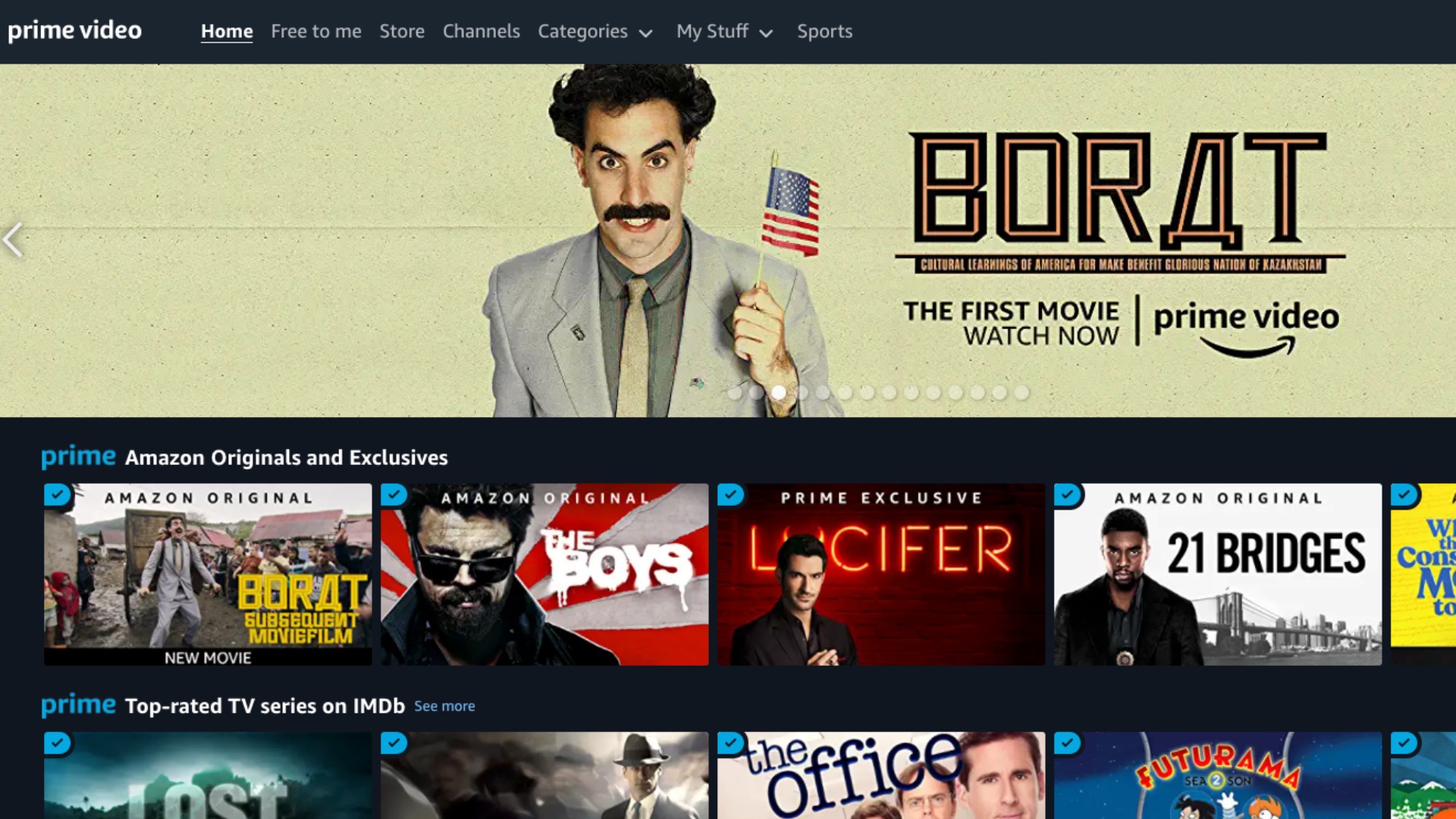
Navigate to the Store: Go to the Amazon website and select the “Prime Video” category, or go directly to
primevideo.com. -
Search and Filter: Use the search bar to locate the specific title. Use the “Store” filter to see only titles available for purchase or rental.
-
Select Format: Most films offer options for SD (Standard Definition), HD (High Definition), and 4K UHD (Ultra High Definition). Selecting a higher resolution will often trigger a prompt ensuring your display hardware supports the necessary encryption (such as HDCP 2.2).
-
Execute Purchase: Click the “Buy” button. If you have “1-Click” settings enabled, the transaction will process immediately using your default payment method.
Navigating the Mobile Experience (iOS and Android)
For several years, Apple and Google enforced strict policies requiring a 30% commission on all in-app digital purchases. Consequently, Amazon removed the “Buy” button from the Prime Video app on many iOS and Android devices to avoid these fees.
To buy a film if the button is missing in your app:
-
The Browser Workaround: Open your mobile browser (Safari or Chrome), log in to Amazon, and complete the purchase there.
-
The Syncing Process: Once the purchase is finalized in the browser, the license is automatically attached to your Amazon account. Open the Prime Video app, navigate to “My Stuff” or “Purchased,” and the film will be ready for streaming or offline download.
Purchasing on Smart TVs and Streaming Sticks
Devices such as the Roku, Apple TV (4K models), and Amazon’s own Fire TV Stick usually allow for direct purchases, provided your account has a verified payment method on file. On Fire TV devices, the integration is seamless, as the OS is built around the Amazon ecosystem. Users simply select a title and use their remote to confirm the purchase via a “Purchase PIN” if one has been configured for security.
Managing Your Digital Library and Playback Settings
Once a film is purchased, it resides in the cloud. Managing this content requires familiarity with the technical settings that govern video quality and account security.
Accessing “My Stuff” and Purchased Content
Every film you buy is archived in a specific section of the interface labeled “My Stuff” (on mobile and web) or “Library” (on smart TVs). This section acts as your digital shelf. From here, you can sort titles by “Recently Purchased” or alphabetically. Crucially, this is also where you manage “Watchlists,” which are lists of films you intend to buy or stream later.
Resolution Options: SD, HD, and 4K UHD
The technical requirements for different resolutions are a frequent hurdle for users.
-
SD (Standard Definition): Best for slow internet connections or older mobile devices. It consumes the least amount of data (approx. 0.8GB per hour).
-
HD (High Definition): The standard for most modern viewing. It requires a stable connection of at least 5 Mbps.
-
4K UHD: Requires a 4K-compatible screen and a robust connection of at least 15-25 Mbps. It is important to note that if you buy a film in 4K, you can still stream it in HD or SD on devices that do not support the higher resolution, but the inverse is not true.
Managing Parental Controls and Purchase PINs
To prevent accidental or unauthorized purchases (a common issue in households with children), Amazon provides a “Purchase PIN” feature. This is a technical barrier found in the “Settings” menu under “Parental Controls.” Once enabled, the system will require a five-digit code before any transaction can be finalized. This is highly recommended for users who have their credit card information linked to their 1-Click settings.
Troubleshooting Common Purchase and Streaming Issues
Even with a streamlined interface, technical glitches can occur. Understanding how to troubleshoot these issues is key to maintaining access to your media.
Payment Method Errors and Geographical Restrictions
Digital media licenses are region-locked. If you are traveling abroad or using a VPN (Virtual Private Network), Amazon’s geo-fencing technology may prevent you from completing a purchase or even viewing your existing library. Ensure your “Country/Region” settings in your Amazon account match your physical location and the billing address of your credit card. If a payment fails, check that your “1-Click” settings are updated, as Prime Video often pulls from this specific data point rather than your general “Wallet.”
In-App Purchase Limitations
As mentioned previously, the absence of a “Buy” button is usually a business-model restriction rather than a software bug. If you see “How do I buy this?” instead of a price tag, it is a signal to switch to a web browser to complete the transaction. This is a persistent architectural reality of the mobile app economy.
Restoring Disappeared Purchases
On rare occasions, a purchased film may not appear in your library. This is typically a sync issue between the local app cache and the Amazon cloud servers.
-
Refresh the App: Force-close the Prime Video app and restart it.
-
Check the Account: Ensure you are logged into the exact same email address used for the purchase. Many users inadvertently create multiple accounts.
-
Hidden Titles: Check if the title was accidentally “hidden” in your account settings via the Amazon website.

The Future of Digital Ownership on Amazon Prime
The technology behind buying films on Amazon Prime continues to shift toward more integrated, high-fidelity experiences. With the advent of the “Movies Anywhere” service, many purchases made on Amazon Prime can now be synced with other digital retailers like Apple TV (iTunes), Vudu, and Google Play, provided the film’s studio participates in the program. This adds a layer of technical redundancy, ensuring that your digital library is not tethered to a single platform.
Furthermore, as Amazon continues to upgrade its backend, we are seeing wider adoption of advanced codecs like HEVC (High Efficiency Video Coding) and AV1, which allow for 4K streaming at lower bitrates without sacrificing visual fidelity. Buying films on the platform today ensures access to these future-proofed formats, allowing your digital library to evolve alongside the hardware you use to view it. By mastering the purchase process, navigating the app-store restrictions, and securing your account with PINs, you can build a robust, high-quality digital cinema collection that is accessible across all your technical devices.
aViewFromTheCave is a participant in the Amazon Services LLC Associates Program, an affiliate advertising program designed to provide a means for sites to earn advertising fees by advertising and linking to Amazon.com. Amazon, the Amazon logo, AmazonSupply, and the AmazonSupply logo are trademarks of Amazon.com, Inc. or its affiliates. As an Amazon Associate we earn affiliate commissions from qualifying purchases.