
The Amazon Prime ecosystem has evolved from a simple delivery service into a massive multi-platform software suite that encompasses video streaming, music, gaming, and cloud storage. For users asking “how do I download Amazon Prime,” the answer is multifaceted, depending entirely on the hardware architecture and operating system you are utilizing. Downloading Amazon Prime doesn’t refer to a single file; it refers to deploying specific applications across various environments to access a centralized cloud-based service.
This guide provides a deep technical dive into the installation, configuration, and optimization of Amazon Prime applications across the modern digital landscape.
Navigating the Amazon Prime Software Ecosystem
Before initiating a download, it is essential to understand the distinction between the Amazon Prime service and its constituent software applications. Amazon Prime is a subscription-based service, while apps like Prime Video, Amazon Music, and Amazon Photos are the software interfaces used to access that service.
The Distinction Between Subscription and Software
When you “download” Amazon Prime, you are typically looking for the Prime Video application. However, the Amazon ecosystem is modular. On mobile devices, these are separate binaries. On desktop environments, you may choose between a native application or a web-based progressive experience. Understanding this modularity ensures you are downloading the correct client for your specific use case, whether that is high-bitrate video playback or lossless audio streaming.
Minimum System Requirements for High-Definition Playback
To ensure a seamless experience after the download, your hardware must meet specific benchmarks. For 4K Ultra HD (UHD) streaming via the Prime Video app, your device must support High-bandwidth Digital Content Protection (HDCP) 2.2.
-
Desktop: Windows 10 or 11 is required for the native app, or a modern browser (Chrome, Firefox, Edge) with Widevine DRM support.
-
Mobile: Android 5.0 (Lollipop) or higher, and iOS 14.0 or later.
-
Network: A minimum download speed of 1 Mbps for SD, 5 Mbps for HD, and 15-25 Mbps for 4K UHD.
Installing Prime Video Across Multiple Platforms
The installation process varies significantly between sandboxed mobile environments and more open desktop or smart TV operating systems.
Mobile Deployment: Android and iOS Environments
On mobile platforms, the download process is handled through centralized package managers.
-
Android Devices: Open the Google Play Store. Use the search vector to locate “Prime Video.” The package is developed by Amazon Mobile LLC. Upon clicking “Install,” the OS handles the APK extraction and permission mapping. Ensure you grant “Storage” permissions if you intend to use the offline download feature.
-
iOS/iPadOS Devices: Navigate to the Apple App Store. Search for “Amazon Prime Video.” Authenticate via FaceID, TouchID, or your Apple ID password to initiate the download. The iOS version is highly optimized for Apple’s Metal graphics API, ensuring efficient hardware acceleration during video decoding.
Desktop Applications: Windows vs. macOS
For years, desktop users were limited to browser-based streaming. However, native applications now offer superior resource management and offline capabilities.
-
Windows 10 & 11: The most stable way to download is via the Microsoft Store. This version supports offline downloads and integrated Windows Hello authentication. Searching for “Amazon Prime Video” in the store and clicking “Get” will register the app within your Windows Universal Platform (UWP) environment.
-
macOS: Users can download the Prime Video app directly from the Mac App Store. It requires macOS 11.4 (Big Sur) or later. The macOS client is particularly useful for MacBook users, as it allows for “Picture in Picture” mode and optimized battery consumption compared to resource-heavy browsers like Chrome.
Home Entertainment Systems: Smart TVs and Streaming Sticks
Most modern Smart TVs (Samsung Tizen, LG webOS, and Sony Android TV) come with Prime Video pre-installed. However, if the app is missing:
-
Navigate to the device’s App Store or Content Store.
-
Search for “Prime Video.”
-
Select “Install” or “Update.”
For external hardware like the Roku, Apple TV, or Chromecast with Google TV, the app is available in their respective channel stores. On Amazon’s own Fire TV hardware, the software is integrated directly into the OS kernel, requiring only an Amazon account login rather than a separate download.
Mastering Offline Content Management
One of the primary technical reasons to download the native application—rather than using a web browser—is the ability to download content for offline viewing. This is critical for users with limited data caps or those traveling in environments without stable connectivity.
The Mechanics of Downloading Video for Offline Use
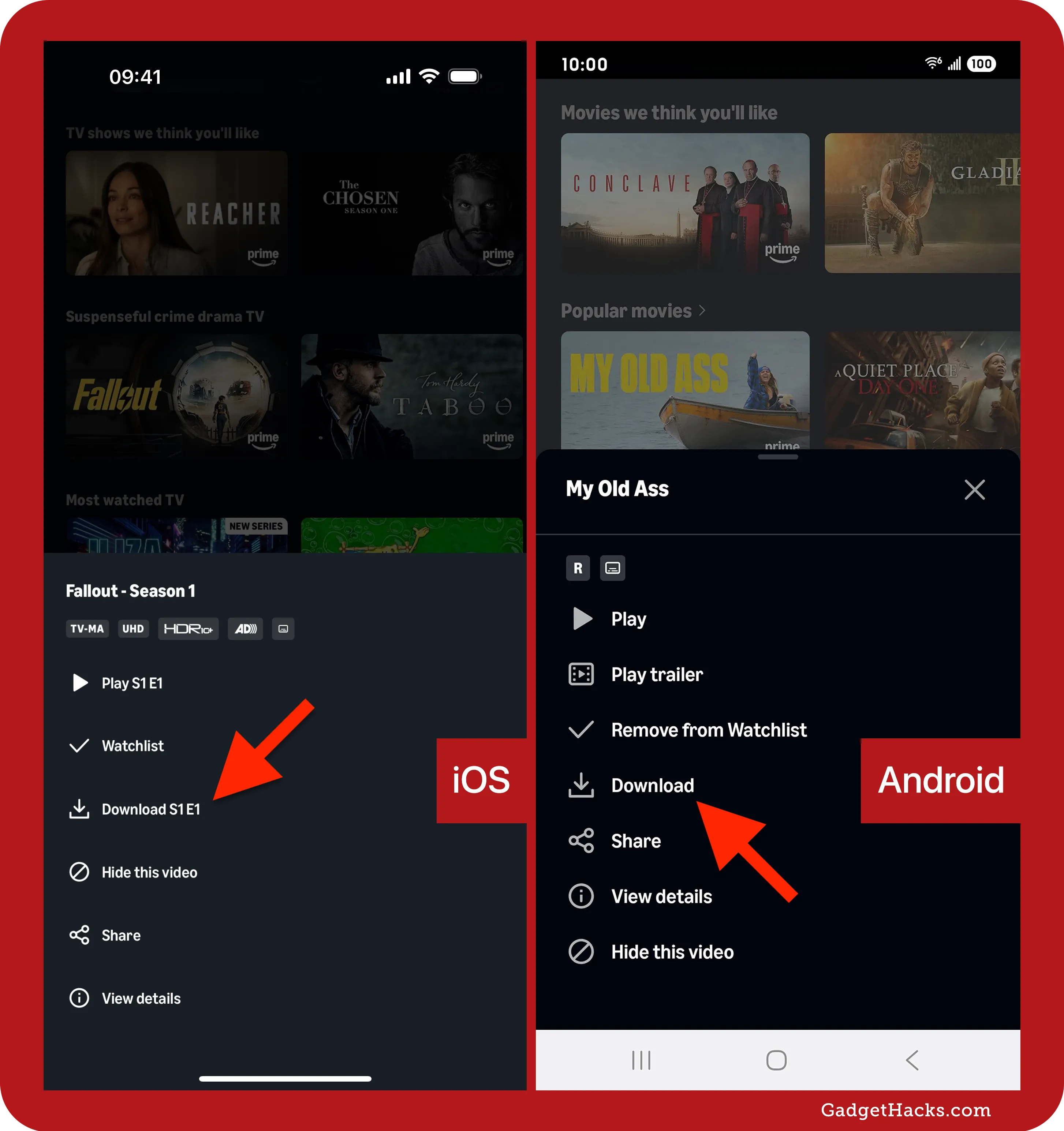
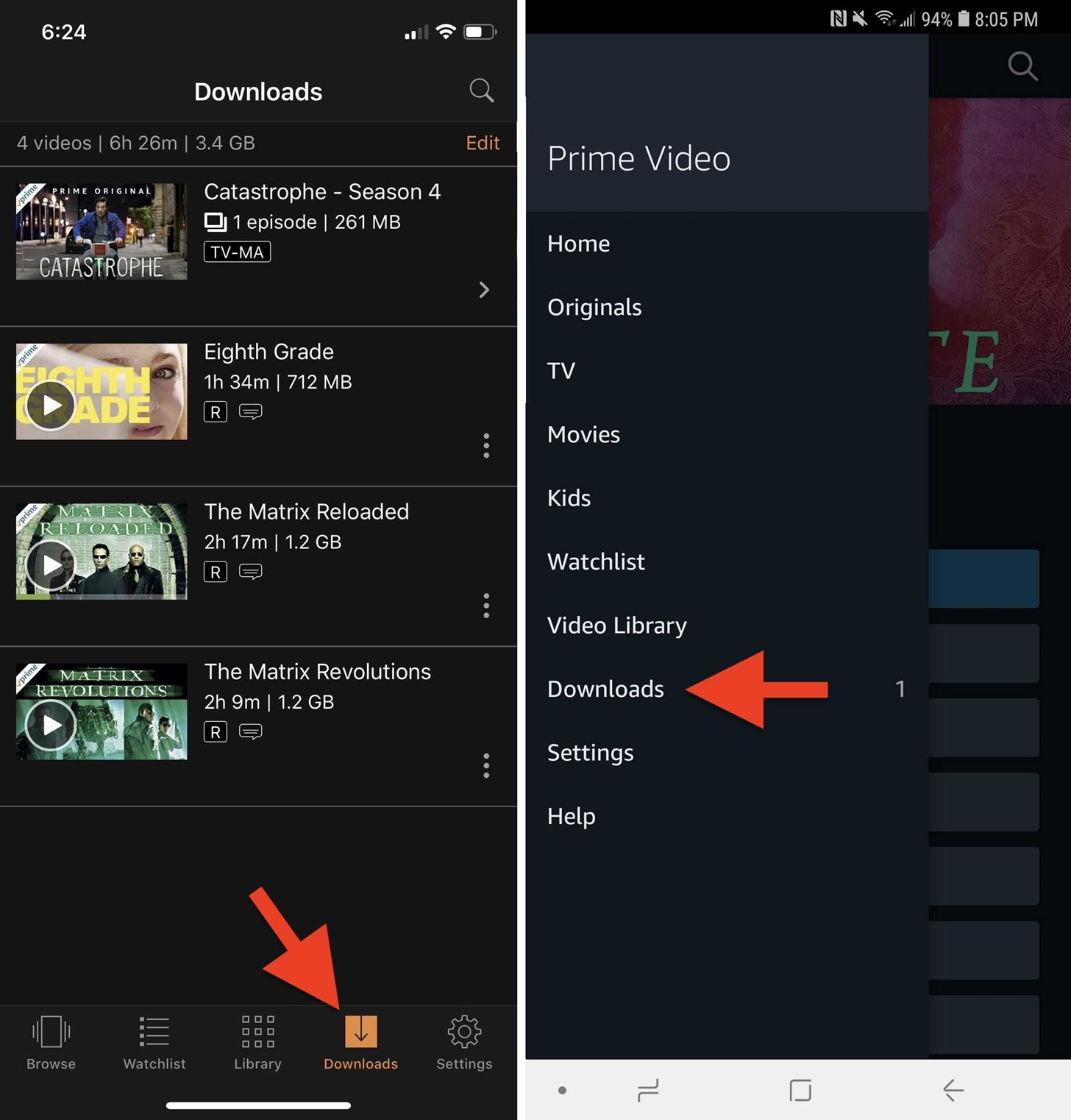
Once the app is installed and you have authenticated your credentials, you will see a “Download” icon (usually a downward-pointing arrow) next to eligible titles. When you trigger this, the app initiates a segmented download of the video file.
-
Encoding Formats: Amazon uses proprietary encoding, often utilizing HEVC (H.265) or AVC (H.264) depending on the device’s hardware decoding capabilities.
-
Quality Tiers: Within the app settings, you can choose between “Data Saver,” “Good,” “Better,” and “Best.” These settings adjust the bitrate and resolution, directly impacting the final file size on your local storage.
Storage Optimization and Data Management
Managing your local storage is vital, especially on mobile devices with limited capacity.
-
SD Card Integration: On Android devices, you can navigate to the “Stream & Download” settings and toggle the “Download videos to SD card” option. This offloads large video binaries from the internal flash memory to external expandable storage.
-
Auto-Download Features: Some versions of the app feature “Smart Downloads.” When enabled, the app will automatically delete an episode you have finished watching and download the next one in the series when you are back on a Wi-Fi network.
Understanding Digital Rights Management (DRM) and Expiration
Downloaded content is not a permanent file on your drive. It is wrapped in a DRM layer that requires periodic “check-ins” with Amazon’s servers. Typically, you have 30 days to begin watching a downloaded title. Once you start watching, the license usually expires within 48 to 51 hours, after which the app will require a brief internet connection to renew the license or the file will become unplayable.
Troubleshooting Technical Issues and Error Codes
Downloading and running Amazon Prime is not always a seamless process. Software conflicts or network configurations can lead to installation failures or playback errors.
Resolving Connectivity and Installation Errors
If the download fails to initialize:
-
Cache Clearance: On Android, go to Settings > Apps > Prime Video > Storage > Clear Cache. This often resolves “Pending” download status in the Play Store.
-
DNS Conflicts: Sometimes ISP-level DNS can block Amazon’s Content Delivery Network (CDN). Switching your router or device to Google DNS (8.8.8.8) or Cloudflare (1.1.1.1) can bypass these bottlenecks.
-
VPN Interference: Amazon employs strict geo-fencing. If you are using a VPN or proxy during the download or login process, the app may flag your account or refuse to fetch the installation package. Disable these services temporarily to ensure a clean installation.
Performance Tuning: Cache and Hardware Acceleration
For desktop users, “stuttering” during playback is a common issue. This is often related to hardware acceleration.
-
GPU Drivers: Ensure your graphics drivers (NVIDIA, AMD, or Intel) are updated to the latest version to support the app’s decoding requirements.
-
Browser-Based Fixes: If you choose not to download the app and use a browser instead, ensure “Hardware Acceleration” is enabled in your browser settings. This shifts the video processing load from the CPU to the GPU, preventing system overheating and frame drops.
Security Protocols and Privacy Settings
Once you have successfully downloaded and installed Amazon Prime, securing the application is paramount to protect your data and payment information.
Implementing Two-Factor Authentication (2FA)
Since your Prime Video app is linked to your Amazon retail account, it contains sensitive financial information. After downloading the app, it is highly recommended to enable 2FA through the “Login & Security” section of your Amazon account settings. This adds a layer of security, requiring a TOTP (Time-based One-Time Password) from an authenticator app whenever a new device attempts to log in to your Prime software.

Managing Authorized Devices and Privacy Controls
The Amazon Prime ecosystem allows a limited number of concurrent streams (usually three). In the “Registered Devices” section of the app or website, you can view every hardware instance that has downloaded and logged into your account.
-
Deregistration: If you lose a device or suspect unauthorized access, you can remotely “Deregister” the device. This forcefully logs the app out and wipes any downloaded offline content from that device.
-
Privacy Settings: The app tracks viewing habits to refine its recommendation algorithms. If you prefer a more private experience, navigate to the “Activity” or “Watch History” settings to clear your history or disable personalized tracking within the software’s telemetry settings.
By following these technical guidelines, you can ensure that your download of Amazon Prime is not only successful but optimized for the specific hardware and network environment you use. Whether you are leveraging the native Windows app for offline travel or configuring a 4K Smart TV for a home theater experience, understanding the underlying software mechanics is key to a superior digital experience.
aViewFromTheCave is a participant in the Amazon Services LLC Associates Program, an affiliate advertising program designed to provide a means for sites to earn advertising fees by advertising and linking to Amazon.com. Amazon, the Amazon logo, AmazonSupply, and the AmazonSupply logo are trademarks of Amazon.com, Inc. or its affiliates. As an Amazon Associate we earn affiliate commissions from qualifying purchases.