
In the vast and ever-evolving landscape of technology, understanding the fundamental components of our operating systems is crucial. For anyone using a Windows computer, a concept as seemingly simple as a “directory” forms the bedrock of how files are organized and accessed. While you might interact with them daily without a second thought, a directory is far more than just a folder; it’s a hierarchical organizational structure that dictates how your digital life is arranged. This article will delve deep into what a directory is in Windows, exploring its significance across various technological domains and touching upon its implications for productivity, digital security, and even how we present ourselves online.
The Foundation: Understanding Directories in Windows
At its core, a directory in Windows is analogous to a physical filing cabinet. Just as you’d place related documents into a specific folder within a cabinet, a directory serves as a container for files and other directories. This nested structure is what gives Windows its ability to manage an enormous amount of data efficiently. Without directories, your entire operating system and all your personal files would be a chaotic jumble, making it impossible to find anything.
The Analogy: Folders, Directories, and Their Relationship
In everyday Windows usage, you’ll most commonly hear the term “folder.” It’s important to understand that in the context of Windows, “folder” and “directory” are largely interchangeable. Historically, “directory” is the more technical term, rooted in the early days of computing when command-line interfaces were prevalent. However, with the advent of graphical user interfaces (GUIs), Microsoft adopted “folder” as the more user-friendly term. So, when you see a blue folder icon in File Explorer, you’re looking at a visual representation of a directory.
The Hierarchy: From Root to Branches
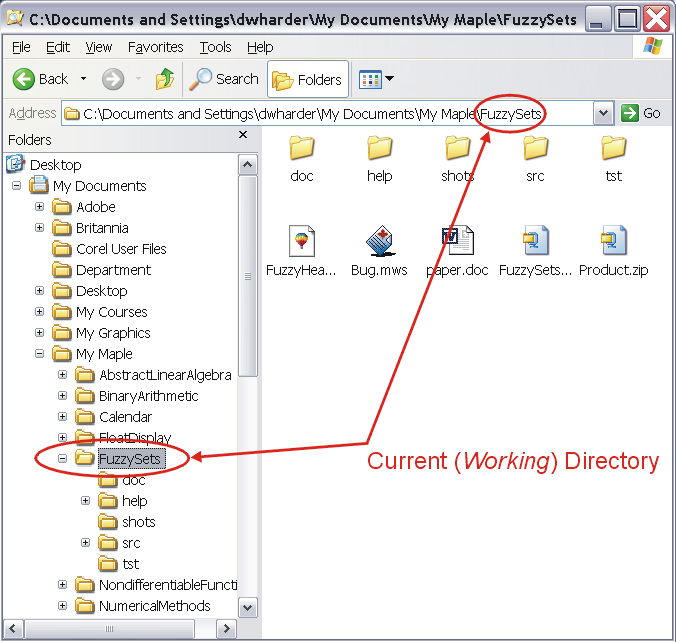
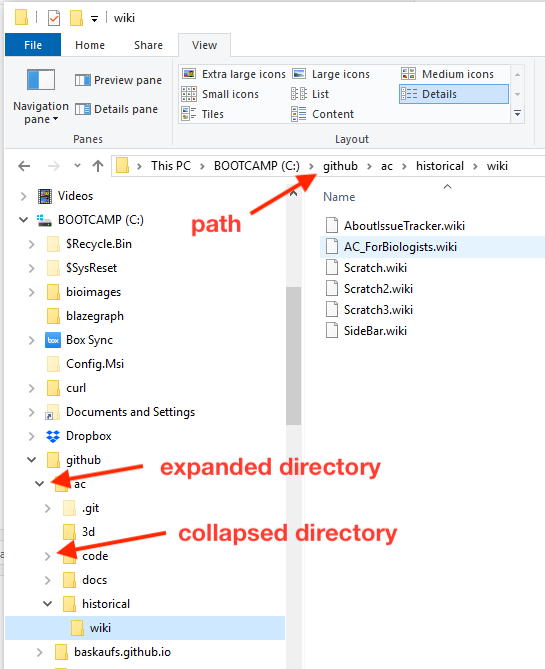
Windows employs a hierarchical file system. This means that directories are organized in a tree-like structure, starting from a root. The primary drives on your computer (like C:, D:, etc.) are the “roots” of this tree. From these roots, you have top-level directories (often called “system directories” or “root directories”). Within these, you can create subdirectories, and within those, you can create further subdirectories, and so on. This creates a clear path to every file and folder on your system.
For example, a typical file path might look like this: C:UsersYourUsernameDocumentsMyProjectReport.docx. Here, C: is the root, Users is a top-level directory, YourUsername is a subdirectory within Users, Documents is a subdirectory within YourUsername, and MyProject is a subdirectory within Documents. Finally, Report.docx is a file located within the MyProject directory. This structured path is essential for the operating system to locate and manage your data.
Key Directory Types in Windows
Windows has several crucial directories that are fundamental to its operation and your user experience:
- System Directories: These are vital for the operating system to function. They contain the core files, drivers, and configurations that Windows needs to run. Examples include
C:WindowsandC:Program Files. Modifying or deleting files in these directories without proper knowledge can lead to system instability or outright failure. - User Directories: These are the personalized spaces for each user account on the computer. They store your documents, pictures, music, videos, desktop files, and application settings. The primary user directory is typically located at
C:UsersYourUsername. This is where most of your personal data resides and where you’ll spend a lot of your time organizing files. - Temporary Directories: Windows and applications use temporary directories to store data that is needed only for a short period. These are often cleared out automatically, but they can sometimes accumulate unnecessary files. Examples include
C:WindowsTemp.
The Practical Impact: Directories and Your Digital Workflow
The way directories are structured and managed has a direct impact on your daily productivity, how you secure your digital assets, and even your personal branding efforts.
Enhancing Productivity Through Effective Directory Management
For anyone aiming for peak productivity, understanding and implementing effective directory management is paramount. A well-organized file system saves you time, reduces frustration, and helps you stay focused on your tasks.
H3: Organizing Your Workspace for Efficiency
The principle of “a place for everything and everything in its place” is nowhere more important than in your digital workspace. When you create a new project, document, or download files, consciously decide where they belong within your directory structure.
- Project-Based Organization: For professionals and students, organizing files by project is a highly effective strategy. Create a top-level directory for each major project (e.g., “Client A,” “Q3 Marketing Campaign,” “Thesis Research”). Within these, create subdirectories for different aspects of the project: “Documents,” “Images,” “Presentations,” “Source Files,” “Notes,” etc. This ensures all related materials are easily accessible and prevents you from hunting through multiple folders for a single piece of information.
- Categorical Organization: For personal use, organizing by category can be more intuitive. Think about broad categories like “Finances,” “Photos,” “Recipes,” “Personal Documents,” and “Software.” Within these, you can further subdivide. For example, under “Photos,” you might have subdirectories for “2023,” “2024,” and then by event (e.g., “Vacation – Italy,” “Birthday Party”).
- Consistent Naming Conventions: Beyond just folders, using consistent naming conventions for your files is crucial. This makes searching and sorting much easier. For instance, instead of
Report.docx, considerYYYY-MM-DD_ProjectName_ReportVersion.docx(e.g.,2024-03-15_ClientA_Q1Review_v2.docx).
H3: The Role of Directories in Software Installation and Management
When you install new software, Windows places its executable files, libraries, and configuration data into specific directories. The default locations are typically within C:Program Files or C:Program Files (x86) for 64-bit and 32-bit applications, respectively. Understanding these locations can be helpful if you ever need to troubleshoot an application, find its configuration settings, or manually back up specific program data.
H3: Leveraging Search and Indexing
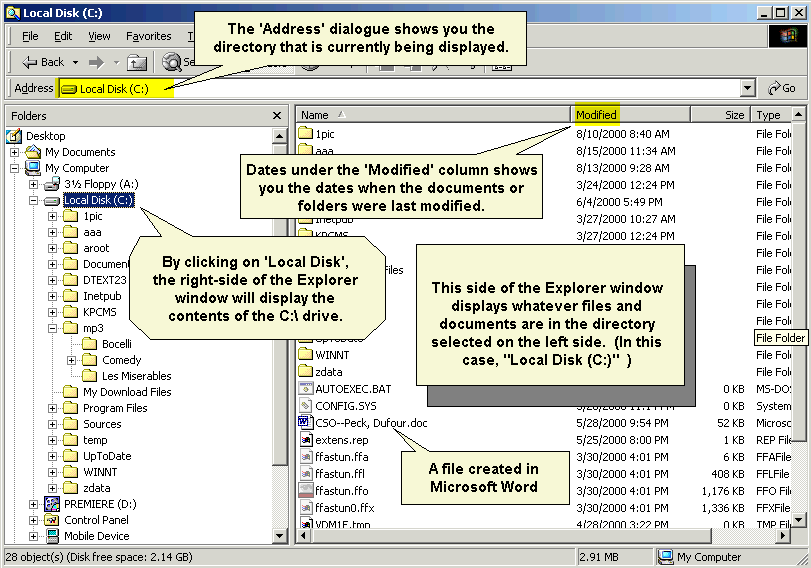
Windows’ built-in search functionality relies heavily on indexing the contents of your directories. By keeping your files organized and within sensible directories, you make it easier for the Windows Search indexer to do its job effectively. This means when you need to find a file, Windows can quickly locate it based on its name, content, and location within the directory hierarchy.
Directories and Digital Security: Protecting Your Assets
The organization of your digital files directly impacts your ability to secure them effectively. Weak directory management can create vulnerabilities.
H3: Access Control and Permissions
Windows allows you to set permissions on directories and files, controlling who can access, modify, or delete them. This is particularly important for shared computers or sensitive data. By placing sensitive information in a dedicated, password-protected directory with strict access controls, you significantly enhance its security. For instance, financial records or personal identification documents should be stored in a secure subdirectory within your user folder, with permissions set to “Read-only” for other users, or even encrypted.
H3: Backup Strategies and Disaster Recovery
A robust backup strategy is essential for protecting your data against hardware failure, accidental deletion, or cyber threats. When you back up your files, you typically choose which directories to include. Having a well-defined directory structure makes it far simpler to identify what needs to be backed up and where to restore it from. Imagine trying to back up your entire digital life if everything was scattered randomly – it would be an overwhelming and error-prone task. By regularly backing up your primary user directories and key project folders, you ensure that your essential data is safe.
H3: Malware and its Path Through Directories
Malware often seeks to infiltrate and spread through specific directories. Understanding where executables and user-generated content reside can help in identifying suspicious activity. For instance, if you notice unusual files appearing in your Downloads folder or unexpected changes in system directories, it could be an indicator of a security breach. Antivirus software actively monitors these critical directories for malicious patterns.
Directories and Personal Branding: The Digital Footprint
In today’s digital age, our online presence is an extension of ourselves. The way we organize and present our digital assets, including the files stored in our directories, can subtly influence our personal brand.
H3: Professionalism in Shared Environments
If you’re collaborating with others or using shared cloud storage, the way your files are organized in your directories reflects on your professionalism. Clearly labeled and logically structured folders for shared projects demonstrate competence and attention to detail. Conversely, a disorganized mess of files can project an image of disarray and unreliability.
H3: Curating Your Digital Portfolio
For creatives, freelancers, and job seekers, directories are the custodians of your portfolio. Well-organized directories containing your best work – design samples, writing pieces, code repositories – are crucial for showcasing your skills. Think of your “Portfolio” directory as your digital storefront. Within it, you might have subdirectories for different types of work or specific projects, each meticulously curated.
Beyond the Basics: Advanced Directory Concepts
As you become more adept with Windows, you’ll encounter more advanced concepts related to directories that can further enhance your control and understanding of your digital environment.
Hidden Directories and System Files
Windows uses hidden directories and system files to store crucial operating system data and application configurations. These are deliberately hidden to prevent accidental modification or deletion by users. While they are usually best left undisturbed, understanding their existence is important for advanced troubleshooting or when using specific system tools. You can choose to display hidden items in File Explorer, but proceed with caution if you decide to interact with them.
Symbolic Links and Junction Points
For more advanced users and system administrators, concepts like symbolic links (symlinks) and junction points offer ways to create shortcuts that behave more like actual directories or files. These can be used to reorganize file structures without physically moving data, which can be useful for managing large applications or complex data sets across different drives.
Conclusion: The Enduring Importance of Directories
In conclusion, a directory in Windows is the fundamental organizational unit that underpins the entire digital experience. From the simple act of saving a document to the complex operations of software installations and digital security, directories play a silent yet critical role. By understanding the hierarchical nature of directories, adopting effective organizational strategies, and being mindful of their security implications, you can significantly improve your productivity, safeguard your valuable data, and even cultivate a stronger personal brand in the digital realm. So, the next time you navigate File Explorer, take a moment to appreciate the intricate, yet essential, world of directories that keeps your digital life in order.
aViewFromTheCave is a participant in the Amazon Services LLC Associates Program, an affiliate advertising program designed to provide a means for sites to earn advertising fees by advertising and linking to Amazon.com. Amazon, the Amazon logo, AmazonSupply, and the AmazonSupply logo are trademarks of Amazon.com, Inc. or its affiliates. As an Amazon Associate we earn affiliate commissions from qualifying purchases.