
The world of PC gaming offers an unparalleled level of customization and longevity, largely thanks to the vibrant modding community. For countless players, the vanilla experience, however polished, is merely a canvas awaiting transformation. Mods—modifications created by dedicated fans—can introduce new content, improve graphics, fix bugs, or entirely overhaul gameplay mechanics, breathing fresh life into beloved titles. At the heart of this transformative power lies Nexus Mods, the internet’s largest repository of game modifications, providing a centralized hub for creators and players alike.
This guide delves into the essential techniques for successfully integrating Nexus Mods into your Steam game library. We’ll navigate the process from initial setup to advanced troubleshooting, ensuring you can unlock the full potential of your favorite games with confidence and ease. By the end, you’ll be equipped to customize your gaming experience in ways you might have only dreamed of, extending playtime and discovering new facets within familiar virtual worlds.
The World of Game Modding: Why & What is Nexus Mods?
Before diving into the technicalities, it’s crucial to understand the “why” and “what” behind game modding and Nexus Mods. This foundational knowledge will not only contextualize the steps but also highlight the immense value these communities bring to the gaming ecosystem.
Unlocking New Dimensions: The Appeal of Modding
Modding is much more than just tweaking game files; it’s a creative collaboration between developers and their most passionate fans. The appeal is multifaceted:
-
Extended Replayability: Mods can introduce new quests, characters, items, or even entire storylines, making games feel fresh long after you’ve completed the main campaign. A single-player RPG, for instance, might gain hundreds of hours of additional content through community-made expansions.
-
Enhanced Graphics and Performance: Texture packs, ENB presets, and lighting overhauls can dramatically improve a game’s visual fidelity, making older titles look stunningly modern. Conversely, performance mods can optimize game code to run smoother on less powerful hardware.
-
Bug Fixes and Quality of Life Improvements: Often, modders address issues that official patches never quite resolve, or implement quality-of-life features that streamline gameplay, making for a more enjoyable and less frustrating experience.
-
Personalization: From changing character appearances to altering game mechanics, mods allow players to tailor games to their precise preferences, crafting a truly bespoke experience.
-
Unique Experiences: Some mods transform games into entirely different genres or introduce bizarre, hilarious elements that developers would never consider, fostering truly unique and memorable playthroughs.
Nexus Mods: Your Gateway to a Vast Modding Community
For PC gamers, Nexus Mods is virtually synonymous with game modding. Launched in 2004, it has grown into an unparalleled resource for downloading, sharing, and managing modifications for thousands of games. Its key features include:
-
Vast Repository: Hosting millions of mods for a colossal library of games, from blockbuster AAA titles like Skyrim and Fallout to niche indie gems.
-
Community Hub: More than just files, Nexus Mods provides forums, articles, and comment sections where modders and players can interact, offer support, and discuss creations.
-
Integrated Mod Managers: Nexus Mods offers its own official mod manager, Vortex, and works seamlessly with other popular managers like Mod Organizer 2 (MO2), simplifying the installation process significantly.
-
Categorization and Search: Mods are meticulously categorized, tagged, and searchable, making it easy to find exactly what you’re looking for, whether it’s a new weapon, a graphics overhaul, or a bug fix.
By providing a stable, organized, and community-driven platform, Nexus Mods has democratized the modding process, making it accessible to a broader audience than ever before.
Essential Preparations: Setting the Stage for Successful Modding
Successful modding isn’t about rushing into downloads; it’s about careful preparation. Laying the groundwork correctly will save you countless headaches and ensure a smoother, more stable gaming experience.
Understanding Your Game’s Directory and Requirements
Before installing any mods, it’s vital to know where your game is installed and understand any specific requirements the game or mod might have.
-
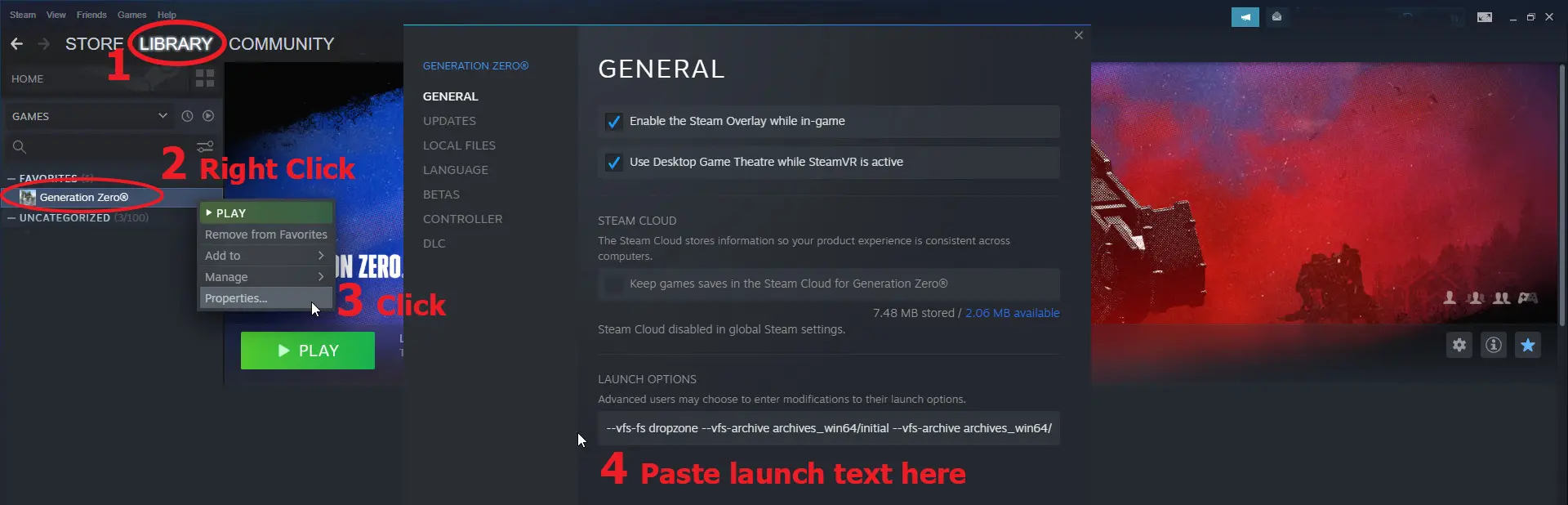
Locating Your Game Directory: For Steam games, this is usually found by right-clicking the game in your Steam library, selecting “Manage,” then “Browse local files.” This takes you directly to the game’s root directory, where most mod files will need to reside or interact with. It’s good practice to create a backup of your vanilla game folder, especially for highly modded titles, before you start.
-
Game-Specific Modding Requirements: Some games, particularly older Bethesda titles, require specific utilities like “SKSE” (Skyrim Script Extender) or “F4SE” (Fallout 4 Script Extender) to enable advanced mod functionality. Always read the “Requirements” section on a mod’s Nexus Mods page carefully. Failing to install these foundational tools is a common cause of mods not working.
-
Disk Space: Mods, especially high-resolution texture packs or new worldspaces, can consume significant disk space. Ensure you have ample room before embarking on an extensive modding spree.
Creating a Nexus Mods Account and Understanding Permissions
To download mods from Nexus Mods, you’ll need a free account. This allows you to track downloads, endorse mods, participate in forums, and utilize their mod manager integration.
-
Account Creation: Simply visit the Nexus Mods website and sign up.
-
File Access and Permissions: Understanding basic file permissions can prevent issues. When using a mod manager, ensure it has the necessary administrative privileges to write files to your game directory. If installing manually, ensure your user account has full control over the game folder.
Choosing Your Mod Manager: Vortex vs. Mod Organizer 2
While manual installation is possible for simple mods, a mod manager is indispensable for serious modding, especially with complex games like Skyrim or Fallout. The two most popular choices are Vortex (Nexus Mods’ official manager) and Mod Organizer 2 (MO2).
-
Vortex:
-
Pros: User-friendly interface, deep integration with Nexus Mods, automatic download and installation, robust profile management, and a guided conflict resolution system. It’s generally recommended for beginners.
-
Cons: Can sometimes be less intuitive for advanced users who prefer granular control, and its staging folder system can be confusing initially.
-
-
Mod Organizer 2 (MO2):
-
Pros: Advanced virtual file system (doesn’t modify game directory directly, making clean uninstallation easy), powerful profile management, highly granular control over load order and file conflicts, excellent for complex mod setups.
-
Cons: Steeper learning curve, less automatic than Vortex, can be intimidating for new modders.
-
For this guide, we’ll focus primarily on the general principles applicable to both, with an emphasis on the streamlined process offered by managers. Most modders, especially those just starting, will find Vortex to be an excellent entry point.
Step-by-Step Installation: From Download to Play
With your preparations complete, it’s time to dive into the actual installation process. We’ll cover both manual methods for simple mods and the highly recommended approach using a mod manager.
Manual Mod Installation: The Basics for Simpler Mods
Some small, standalone mods (e.g., a single texture replacement or an .ini file tweak) can be installed manually. This method is generally not recommended for complex mods or when managing many files.
-
Download the Mod: On the Nexus Mods page, select “Manual Download.”
-
Extract the Files: Mods usually come in a
.zipor.rararchive. Use a tool like 7-Zip or WinRAR to extract the contents. -
Place Files into Game Directory: Read the mod’s description carefully! It will specify where the extracted files should go. This often involves copying files into the game’s
Datafolder or directly into the root directory. -
Activate (If Necessary): For mods with an
.espor.eslfile, you might need to activate them via the game’s built-in launcher or a separate utility.
Warning: Manual installation makes tracking conflicts and uninstalling mods much harder, which is why mod managers are preferred.
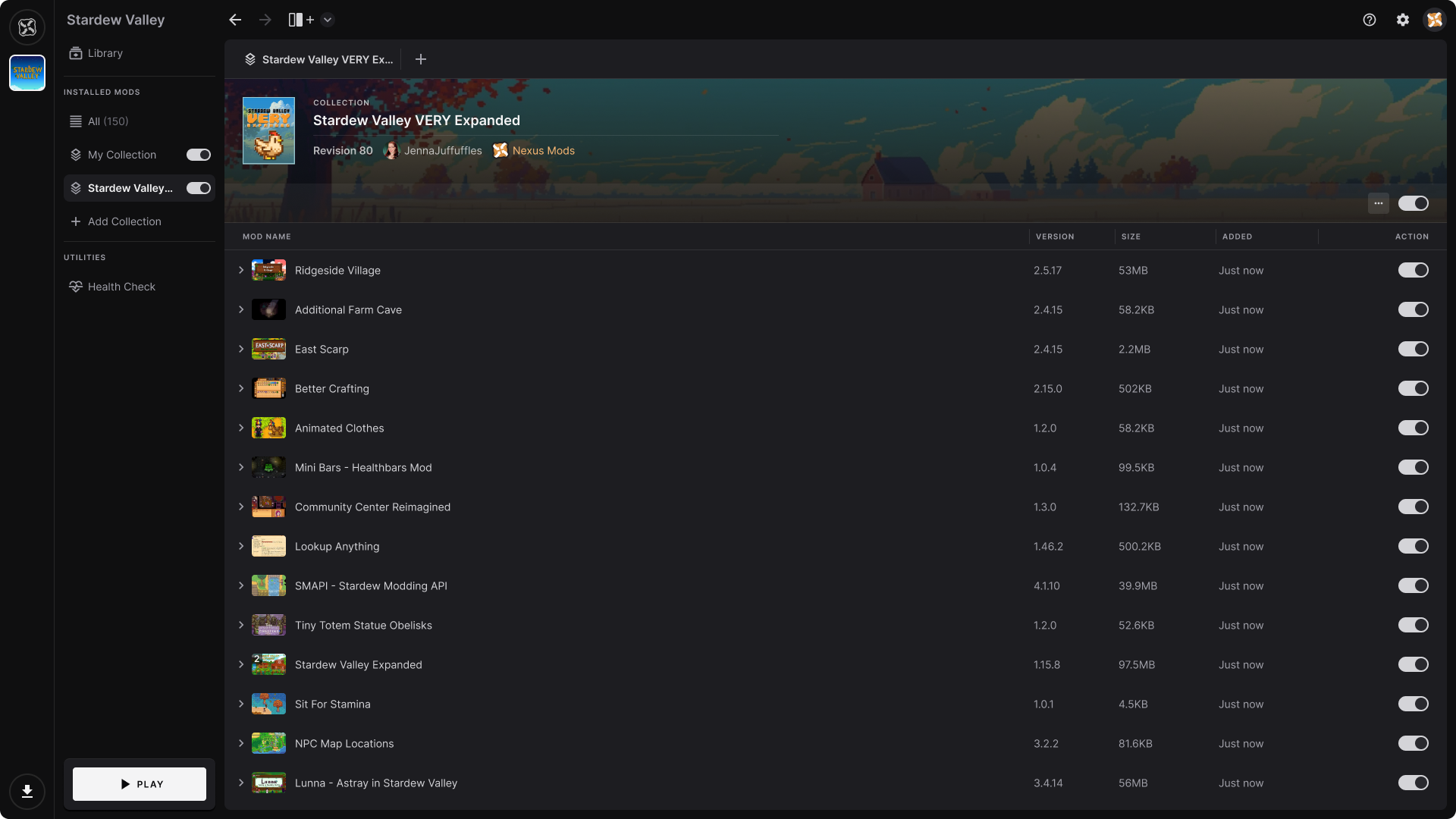
Utilizing a Mod Manager: A Streamlined Approach
Mod managers automate much of the complex work, allowing you to install, enable, disable, and uninstall mods with ease. We’ll outline the general steps, applicable to both Vortex and MO2.
Installing and Configuring Vortex/MO2
-
Download the Manager: Get Vortex from Nexus Mods or MO2 from its official GitHub/Nexus page.
-
Install the Manager: Follow the installer’s instructions. Install it in a separate directory from your game, preferably on the same drive.
-
Initial Setup:
-
Upon first launch, the manager will prompt you to scan for installed games. Select the game you intend to mod.
-
Integrate with Nexus Mods: Log into your Nexus Mods account through the manager’s settings. This enables direct download links.
-
Set up Staging Folder (Vortex): Vortex will ask you to designate a “staging folder” where downloaded mod files will be stored before deployment. This should also be on the same drive as your game.
-
Configure Game Executables: Ensure the manager correctly identifies your game’s primary executable (e.g.,
Fallout4.exe) and any script extenders (e.g.,f4se_loader.exe) you’ve installed.
-
Downloading Mods from Nexus Mods
-
Browse and Select: Find a mod on Nexus Mods you wish to install.
-
Download with Manager: On the mod’s page, click “Mod Manager Download.” This will typically initiate the download directly within Vortex or MO2. If it doesn’t, you might need to associate
.nxmlinks with your manager in its settings. -
Manual Download (Alternative): If “Mod Manager Download” isn’t available or fails, download manually. Then, in your mod manager, there’s usually an option to “Install New Mod from File” (Vortex) or “Install new mod from archive” (MO2), which allows you to point it to the downloaded
.zipor.rar.
Deploying and Enabling Mods
Once downloaded, mods need to be deployed and enabled.
-
Vortex:
-
After download, the mod appears in your “Mods” tab.
-
Click the “Enable” button (a lightning bolt icon) next to the mod.
-
Vortex will automatically “deploy” the mod. If conflicts are detected, it will guide you through resolution.
-
-
MO2:
-
Downloaded mods appear in the left-hand pane.
-
Check the box next to the mod to enable it.
-
MO2 uses a virtual file system; enabling it means MO2 will virtually inject the mod files when you launch the game through MO2.
-
The Critical Role of Load Order and Conflict Resolution
This is arguably the most important aspect of modding.
-
Load Order: The order in which mods are loaded by the game’s engine. If two mods modify the same game record, the one loaded later will “win,” overwriting changes made by earlier mods. Correct load order is crucial for stability. Mod managers help visualize and manage this. Tools like LOOT (Load Order Optimisation Tool) are often integrated or used alongside managers to automatically sort your plugins.
-
Conflict Resolution: When two mods change the exact same files or assets, a conflict occurs.
-
Vortex: Has a built-in conflict resolution system that visually shows conflicting files and allows you to choose which mod’s files “win.”
-
MO2: Its virtual file system excels here, allowing you to drag and drop mods in the left pane to determine which mod’s assets are prioritized.
-
Manual Resolution: Sometimes requires “patching” mods with tools like xEdit (TES5Edit/FO4Edit) to create a merged patch that combines compatible changes from conflicting mods. This is an advanced technique.
-
Always read mod descriptions for specific load order instructions or known conflicts with other popular mods.
Troubleshooting Common Issues and Advanced Tips
Even with the best preparation, modding can sometimes present challenges. Knowing how to diagnose and resolve issues is a key skill for any aspiring modder.
Diagnosing and Resolving Mod Conflicts
Conflicts are the most frequent cause of modding headaches.
-
Symptoms: Crashes on startup, missing textures (pink/purple boxes), incorrect game behavior, or features not working.
-
Diagnosis:
-
Isolate: The easiest way to find the culprit is to enable mods in small batches. Enable 5-10 mods, test the game. If it crashes, disable the last batch one by one until you find the problem mod.
-
Mod Manager Tools: Both Vortex and MO2 have conflict resolution tools that highlight which files are conflicting. Use these to choose which mod should “win” (i.e., load last).
-
LOOT Reports: LOOT (Load Order Optimisation Tool) provides warnings for dirty plugins and potential conflicts, often with suggestions for resolution.
-
-
Resolution:
-
Change Load Order: Adjust the load order to ensure compatible mods load after their requirements.
-
Install Patches: Many modders create “compatibility patches” to resolve conflicts between popular mods. Check the “Files” tab or comments section of conflicting mods.
-
Advanced Patching (xEdit): For complex conflicts, learning to create merged patches with tools like xEdit can combine the best parts of conflicting mods.
-
Dealing with Crashes and Performance Problems
Crashes and performance drops are frustrating but often solvable.
-
Crashes:
-
Identify Last Changes: Did you just install a new mod? Revert it.
-
Check Requirements: Are all mod requirements (script extenders, other foundational mods) installed correctly?
-
Memory Limits: For older 32-bit games, exceeding memory limits can cause crashes. ENBoost or other memory patches can help.
-
Clean Saves: Sometimes a mod introduction or removal corrupts a save game. Test on a fresh save.
-
Corrupt Game Files: Verify game files through Steam (right-click game > Properties > Installed Files > Verify integrity of game files).
-
-
Performance Problems:
-
High-Resolution Assets: Too many 4K textures can overwhelm your GPU VRAM. Consider lower-resolution alternatives.
-
Script-Heavy Mods: Mods that add complex scripting can tax your CPU. Monitor FPS in specific areas.
-
Shadow and Lighting Mods: These are notoriously performance-heavy. Adjust settings or opt for less demanding versions.
-
Mod Count: While not direct, a very high mod count can subtly impact performance due to increased file lookups.
-
Best Practices for Sustainable Modding
To ensure a long and enjoyable modding journey, adopt these habits:
-
Read Everything: Always read the full mod description, installation instructions, requirements, known issues, and comments section. This is your most valuable resource.
-
Back Up Your Saves: Before installing major mods, back up your game saves. Modding can corrupt save files.
-
Install Iteratively: Don’t install 100 mods at once. Install a small batch, test, then add more. This makes troubleshooting infinitely easier.
-
Endorse Mods: If you enjoy a mod, endorse it on Nexus Mods. It’s a free way to thank the creator.
-
Check for Updates: Modders frequently update their creations. Keep an eye on mod pages for newer versions.
-
Learn Your Tools: Invest time in learning your chosen mod manager and supplementary tools like LOOT or xEdit. The more you understand them, the smoother your experience will be.
-
Engage with the Community: The Nexus Mods forums and Discord channels are filled with experienced modders willing to help.
Embracing the Modding Journey: Elevate Your Steam Library
Installing Nexus Mods on your Steam games is more than just a technical process; it’s an entry point into a vast world of creative expression and community collaboration. By following the steps outlined in this guide, you’ve gained the power to transform your favorite games, extending their lifespan, enhancing their aesthetics, and tailoring them precisely to your desires. The meticulous process of preparation, careful installation, and diligent troubleshooting, while demanding, yields immense rewards in terms of personalized and enriched gaming experiences.
The Value of Community and Resources
Remember that you are part of a larger ecosystem. The modding community on Nexus Mods and beyond is a treasure trove of knowledge, support, and continuous innovation. Don’t hesitate to consult forums, read user comments, and even contribute your own insights once you gain experience. Many modders started by seeking help and eventually became experts who gave back.

Continuous Learning and Exploration
The world of modding is constantly evolving. New tools emerge, games are patched, and creative modders push boundaries with incredible new content. Embrace continuous learning, stay curious, and never stop exploring the endless possibilities that mods offer. From fixing minor annoyances to embarking on entirely new adventures, your Steam game library has never been more vibrant and customizable. With a solid understanding of how to install Nexus Mods, you’re not just playing games; you’re actively shaping them.
aViewFromTheCave is a participant in the Amazon Services LLC Associates Program, an affiliate advertising program designed to provide a means for sites to earn advertising fees by advertising and linking to Amazon.com. Amazon, the Amazon logo, AmazonSupply, and the AmazonSupply logo are trademarks of Amazon.com, Inc. or its affiliates. As an Amazon Associate we earn affiliate commissions from qualifying purchases.