
In the complex ecosystem of the World Wide Web, communication between a client—typically your web browser—and a server is governed by a set of protocols known as HTTP (Hypertext Transfer Protocol). When this communication proceeds smoothly, you see the webpage you requested. However, when a hurdle arises, the server responds with a status code to indicate what went wrong. Among the most frequent and frustrating of these is the “403 Forbidden” error.
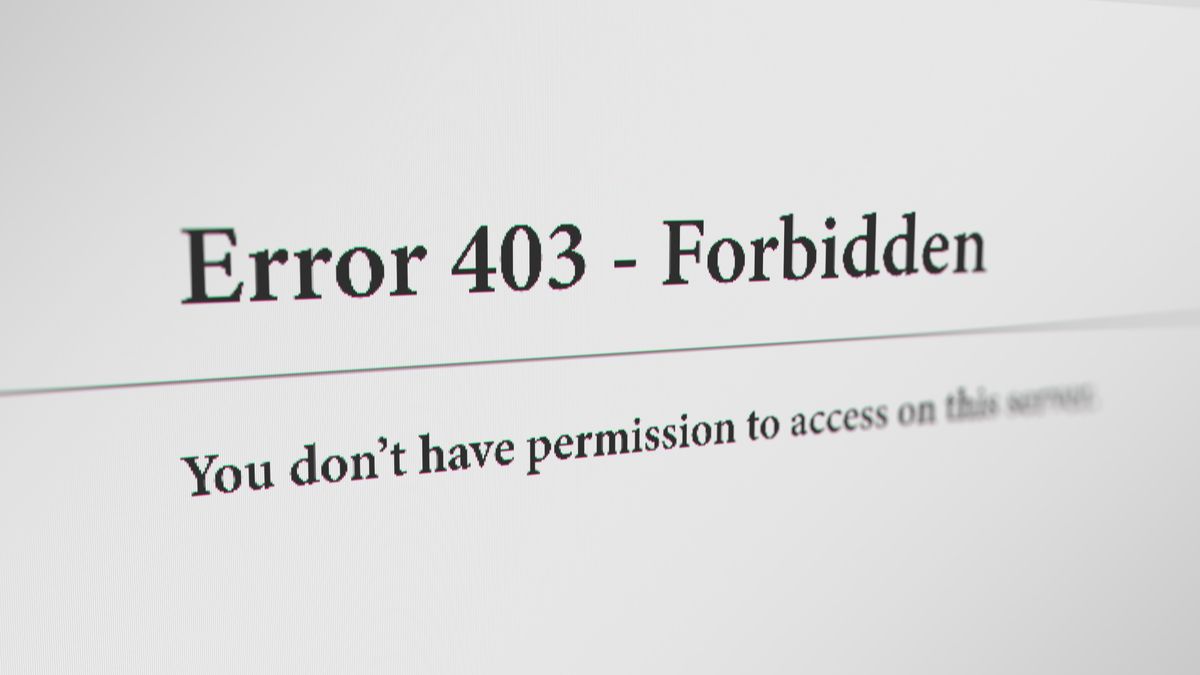
A 403 Forbidden error is a clear signal from a web server that it understands the request the client has made, but it is refusing to fulfill it. Unlike a 404 error, which suggests a resource is missing, a 403 error confirms the resource exists but is intentionally shielded from the user. For developers, IT professionals, and daily internet users, understanding the nuances of this error is essential for maintaining digital security and ensuring a seamless user experience.
The Anatomy of the 403 Forbidden Error
To resolve a 403 error, one must first understand its technical placement within the HTTP status code hierarchy. The “4xx” category of codes refers to client-side errors, implying that the request contains some form of defect or that the client lacks the necessary credentials to proceed.
HTTP Status Codes Explained
HTTP status codes are divided into five distinct classes. The 400-level codes are specifically designated for client errors. While the 403 error is categorized as a client-side issue, the reality is often more nuanced; the “error” frequently stems from server-side configurations that dictate who can and cannot access specific data. When a server issues a 403, it is essentially enforcing a “No Entry” policy based on its internal logic.
403 vs. 401: Knowing the Difference
A common point of confusion in web development is the distinction between a 401 Unauthorized error and a 403 Forbidden error. While they may sound similar, they represent different stages of the access control process.
-
401 Unauthorized: This means the user is not “authenticated.” The server is saying, “I don’t know who you are. Please log in.”
-
403 Forbidden: This means the user is “unauthorized.” The server is saying, “I know who you are (or I don’t care who you are), but you simply do not have permission to access this specific resource.”
In short, 401 is about identity, while 403 is about permission.
Variations of the Forbidden Message
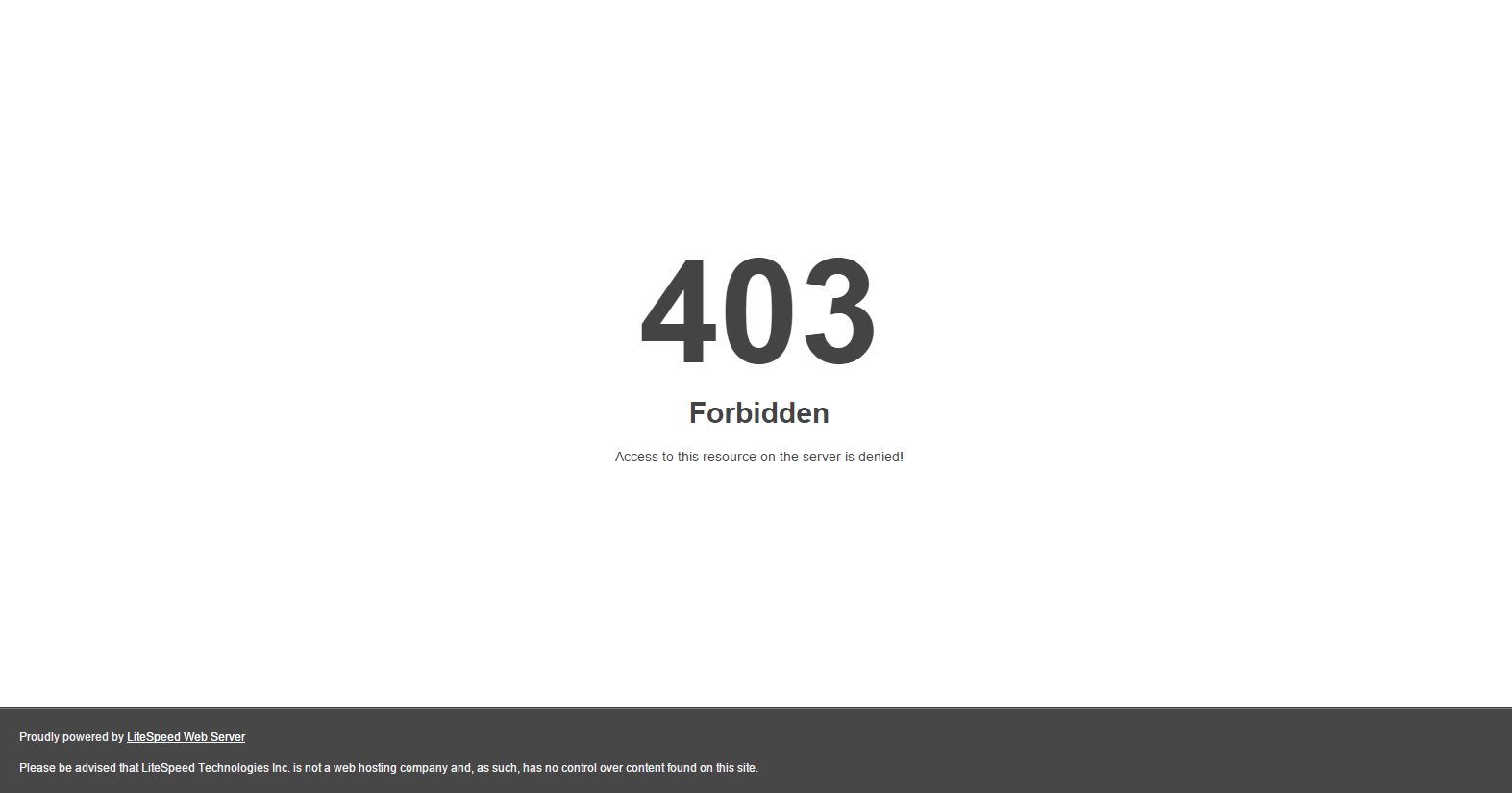
Depending on the server software being used—such as Apache, Nginx, or Microsoft IIS—the error might present itself in various ways. Common variations include “403 Forbidden,” “Access Denied,” “HTTP Error 403.14 – Forbidden,” or “Forbidden: You don’t have permission to access [directory] on this server.” Regardless of the phrasing, the underlying technical obstacle remains the same.
Why 403 Errors Occur: Identifying the Culprits
Identifying the root cause of a 403 error requires a systematic look at the server’s file structure and security protocols. In the majority of cases, the error is triggered by a safeguard intended to protect the server from unauthorized access or malicious activity.
File and Folder Permissions
The most common cause of 403 errors is incorrect file or folder permissions. Every file and folder on a web server has a set of permissions that control who can read, write, or execute them. These permissions are usually represented by numerical codes (e.g., 755 or 644). If a web server is configured to serve a file but the permissions for that file are set to “Restrictive,” the server will be unable to read it, resulting in a 403 error.
The Role of the .htaccess File
For sites running on Apache servers, the .htaccess file is a powerful configuration tool. It allows webmasters to set directory-level security and redirection rules. However, a single syntax error or a conflicting command within this file can lead to a site-wide 403 Forbidden error. Often, security plugins or manual updates to the server’s configuration inadvertently add “Deny from all” rules to the .htaccess file, locking out all visitors.
Plugin Conflicts and Security Software
In modern Content Management Systems (CMS) like WordPress, 403 errors are frequently caused by security plugins. These tools are designed to block suspicious IP addresses or prevent access to sensitive files. If a security plugin misidentifies a legitimate user or a specific script as a threat, it will trigger a 403 error to protect the site. Similarly, a Content Delivery Network (CDN) or a Web Application Firewall (WAF) might block requests based on geographic location or “bot-like” behavior.
Step-by-Step Troubleshooting for Web Administrators
If you are a webmaster or a developer facing a 403 Forbidden error on your own site, the solution usually lies within the server settings. Addressing these issues requires a methodical approach to isolate the problem.
Auditing Server Permissions
The first step is to check the permission levels of your files and folders via FTP (File Transfer Protocol) or a File Manager in your hosting control panel. As a general rule of thumb:
-
Folders should typically be set to 755 or 750.
-
Files should typically be set to 644 or 640.
Setting permissions to 777 (allowing anyone to do anything) should be avoided at all costs, as it creates a significant security vulnerability. If you find a directory set to an overly restrictive code like 700, changing it back to 755 often resolves the 403 error instantly.
Resetting the .htaccess Configuration
If permissions appear correct, the next logical step is to investigate the .htaccess file. To determine if this file is the culprit, you can temporarily rename it to something like .htaccess_old. If the site begins working immediately after the rename, you have confirmed the issue lies within that file. You can then generate a fresh, default .htaccess file or carefully review the old one for “Deny” rules that shouldn’t be there.
Deactivating Problematic Extensions
For CMS users, if the error appeared after installing a new plugin or theme, that extension is the likely cause. If you are locked out of your dashboard, you can manually deactivate plugins by renaming the plugins folder via FTP. By reactivating them one by one, you can pinpoint exactly which software is triggering the 403 Forbidden response and either reconfigure its settings or find a more compatible alternative.
Solving 403 Errors from the Client Side
Sometimes, a 403 Forbidden error has nothing to do with the server’s health and everything to do with the user’s local environment. If you are a visitor encountering this error on a site you don’t own, there are several steps you can take to bypass the block.
Clearing Browser Cache and Cookies
Web browsers store data about the sites you visit to speed up load times. However, if the site’s permissions or login requirements have changed since your last visit, your cached data might conflict with the new server rules. Clearing your browser’s cache and cookies forces the browser to establish a fresh connection with the server, which can often bypass a persistent 403 error.
Verifying the Request URL
A 403 error often occurs when a user tries to access a directory instead of a specific webpage. For security reasons, many servers disable “Directory Browsing.” If you type www.example.com/images/ instead of www.example.com/images/photo.jpg, the server may return a 403 error because it is forbidden to list all the files in that folder. Ensure that the URL is pointing to a specific file (like .html, .php, or .png) rather than a folder path.
Dealing with IP Blacklisting
In some instances, your IP address may have been flagged by the website’s security system. This can happen if you are using a VPN that shares an IP address with a malicious actor, or if you have made too many rapid requests to a server. To test this, try accessing the website using a different network (such as your mobile data) or by disconnecting your VPN. If the error disappears, your original IP address was likely the reason for the 403 Forbidden status.
Best Practices for Preventing Future Access Issues
In the tech world, prevention is always more efficient than troubleshooting. By implementing standard security and configuration practices, web developers can minimize the occurrence of 403 errors and ensure legitimate traffic flows smoothly.
Implementing Robust Security Headers
Instead of relying on broad “Deny” rules that might trigger 403 errors for legitimate users, developers should use specific HTTP security headers. Headers like Content-Security-Policy (CSP) and X-Content-Type-Options allow for granular control over how resources are loaded and executed. This provides a more sophisticated layer of security than simple directory blocking, reducing the likelihood of accidental 403 triggers.
Regular Site Maintenance and Audits
The digital landscape is constantly changing; server software updates, CMS patches, and security database refreshes can all alter how access is managed. Regularly auditing your server’s error logs can provide insight into how often 403 errors are occurring and why. Tools like Google Search Console can also alert webmasters if Google’s bots are being hit with 403 errors, which can negatively impact Search Engine Optimization (SEO).
Proper Directory Indexing
To avoid 403 errors caused by users hitting directory paths, always ensure that every folder contains an index.html or index.php file. Even a blank index file can prevent the server from trying to display a forbidden directory list, instead showing a clean, empty page or redirecting the user back to the homepage. This minor technical adjustment can significantly improve the user journey and decrease the frequency of encounterable errors.
In conclusion, while the 403 Forbidden error can be a major roadblock, it is a vital component of web security. It acts as a digital gatekeeper, protecting sensitive server data from prying eyes. By understanding the technical foundations of this error—from file permissions to .htaccess configurations—users and administrators alike can navigate the web with greater confidence and technical proficiency.
aViewFromTheCave is a participant in the Amazon Services LLC Associates Program, an affiliate advertising program designed to provide a means for sites to earn advertising fees by advertising and linking to Amazon.com. Amazon, the Amazon logo, AmazonSupply, and the AmazonSupply logo are trademarks of Amazon.com, Inc. or its affiliates. As an Amazon Associate we earn affiliate commissions from qualifying purchases.