
In the modern computing landscape, the Graphics Processing Unit (GPU) has evolved from a simple component responsible for rendering basic desktop visuals into the powerhouse of the machine. Whether you are a hardcore gamer pushing the limits of 4K resolution, a creative professional rendering complex 3D models, or an everyday user benefiting from the hardware acceleration provided by Windows 11, your GPU is the heartbeat of your visual experience. However, even the most expensive hardware is only as effective as the software that commands it.
Updating GPU drivers on Windows 11 is not merely a maintenance task; it is a critical optimization process. Windows 11 introduced several architectural changes—such as DirectStorage, Auto HDR, and a refined Windowed Flip Model—that require tight integration between the operating system and the graphics hardware. Keeping your drivers current ensures that you are leveraging these features while maintaining system stability and security.
Why Driver Updates are Essential for Windows 11
The relationship between Windows 11 and your GPU is governed by the Windows Display Driver Model (WDDM). With each major update to Windows, Microsoft refines how the OS interacts with hardware. If your drivers are outdated, you may experience “bottlenecking” where the software is ready to execute advanced instructions, but the driver lacks the vocabulary to communicate those instructions to the GPU.
Performance Optimization and Game Readiness
For gamers, driver updates are often synonymous with “Game Ready” releases. Manufacturers like NVIDIA, AMD, and Intel work closely with game developers before major titles launch. These drivers contain specific optimizations and bug fixes for new releases. Updating your drivers can lead to significant increases in frame rates, reduced latency, and the elimination of visual artifacts. In professional environments, “Studio Drivers” provide similar benefits, focusing on stability and certification for applications like Adobe Premiere Pro, AutoCAD, and Davinci Resolve.
Security and Stability
Beyond performance, security is a paramount concern. GPU drivers are complex pieces of software that operate at a high level of system privilege. Vulnerabilities in driver code can be exploited by malicious actors to gain unauthorized access to your system. Regular updates patch these security holes. Furthermore, outdated drivers are one of the leading causes of the “Blue Screen of Death” (BSOD) and application crashes. Modernizing your driver stack ensures that memory leaks and compatibility conflicts are resolved before they disrupt your workflow.
Support for Modern Features
Windows 11 boasts features that are highly dependent on the GPU. Auto HDR uses machine learning to upgrade Standard Dynamic Range (SDR) games to High Dynamic Range (HDR) on compatible monitors. DirectStorage allows the GPU to decompress data directly from an NVMe SSD, bypassing the CPU to drastically reduce load times. Without the latest WDDM-compliant drivers, these features may function sub-optimally or not at all.
Method 1: Using Windows Update for Basic Compatibility
The most straightforward method for updating GPU drivers is through the built-in Windows Update utility. This method is ideal for general users who prioritize stability over having the absolute latest features.
How Windows Update Handles Drivers
When you check for updates, Windows 11 queries the Microsoft Update Catalog for drivers that have passed Windows Hardware Quality Labs (WHQL) testing. These drivers are vetted by Microsoft for maximum compatibility with the operating system.
To use this method:
-
Press
Windows Key + Ito open Settings. -
Navigate to Windows Update in the left-hand sidebar.
-
Click Check for updates.
-
If a driver is available, it will download and install automatically.
The Limitation of Windows Update
While convenient, Windows Update is often several versions behind the manufacturers’ direct releases. Microsoft prioritizes “proven” stability, which means you might miss out on day-one optimizations for new games or recent performance patches. If you are a power user or a gamer, you should look toward the manufacturer-specific tools.
Method 2: Manufacturer-Specific Software Suites
For the best experience, using the official software provided by your GPU manufacturer—NVIDIA, AMD, or Intel—is the gold standard. These tools monitor your hardware and notify you the moment a new driver version is released.

NVIDIA GeForce Experience and App
NVIDIA users can utilize the “GeForce Experience” or the newly released “NVIDIA App.” These platforms provide an intuitive interface for driver management.
-
Game Ready vs. Studio Drivers: NVIDIA offers two distinct paths. Game Ready drivers are optimized for the latest titles, while Studio drivers are tested against creative applications for maximum uptime.
-
Updating: Inside the app, click the “Drivers” tab and select “Check for Updates.” The software will handle the download and installation, often offering a “Custom Install” option to perform a “Clean Installation,” which resets all settings to factory defaults.
AMD Software: Adrenalin Edition
AMD’s software suite is highly regarded for its deep integration and performance tracking.
-
User Interface: The Adrenalin Edition software allows users to check for updates directly from the Home screen.
-
Recommended vs. Optional: AMD often lists “Recommended” drivers (WHQL certified) and “Optional” drivers (latest features but potentially less tested). For Windows 11 users, the “Recommended” path is usually safest, though “Optional” drivers are necessary for new game launches.
Intel Driver & Support Assistant (DSA)
With the rise of Intel Arc dedicated GPUs and the ubiquity of Intel Iris Xe integrated graphics, Intel has streamlined its update process. The Intel DSA is a web-based tool that scans your system and provides a list of applicable updates for graphics, Wi-Fi, and Bluetooth. It is an essential tool for laptop users who rely on integrated graphics for daily tasks.
Method 3: Manual Installation via Manufacturer Websites
In some scenarios, automated tools may fail to detect your hardware, or you may need a specific older version of a driver for compatibility reasons. In these cases, manual installation is the most reliable route.
Identifying Your GPU
Before downloading a driver, you must know your exact hardware model.
-
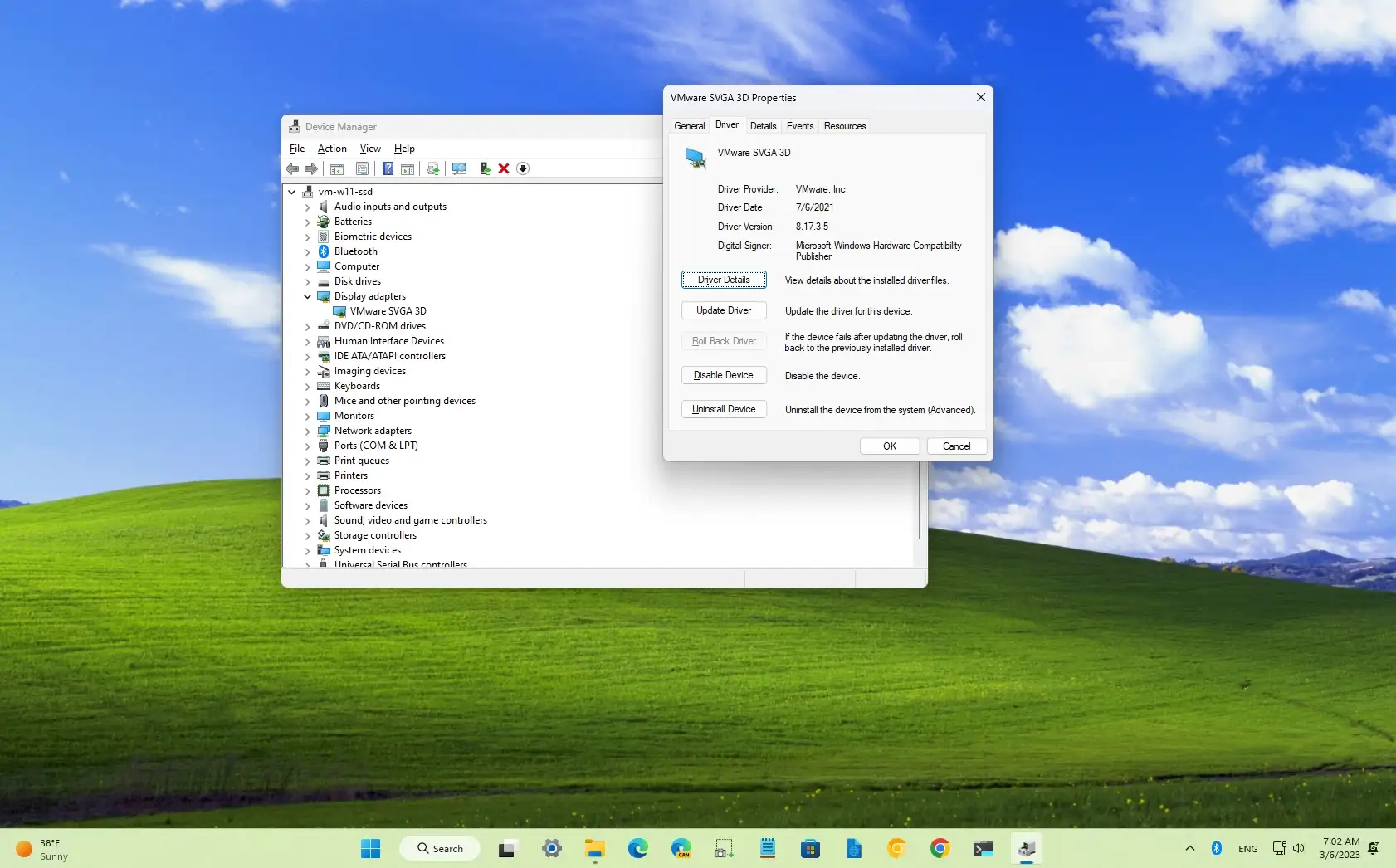
Right-click the Start button and select Device Manager.
-
Expand the Display adapters section.
-
Note the name of your GPU (e.g., “NVIDIA GeForce RTX 3070” or “AMD Radeon RX 6800”).
Downloading the Correct Package
Navigate to the official download page for your manufacturer:
-
NVIDIA: nvidia.com/Download/index.aspx
-
AMD: amd.com/en/support
-
Intel: intel.com/content/www/us/en/download-center/home.html
Fill in the product details, ensuring you select Windows 11 as the operating system. Download the executable (.exe) file. Before running the installer, it is often recommended to close any background applications, especially those that use the GPU, such as web browsers or video editors.
Troubleshooting and Clean Installations
Occasionally, updating a driver can go wrong. You might encounter flickering, a “black screen,” or decreased performance. This usually happens when files from the previous driver version conflict with the new installation.
Using Display Driver Uninstaller (DDU)
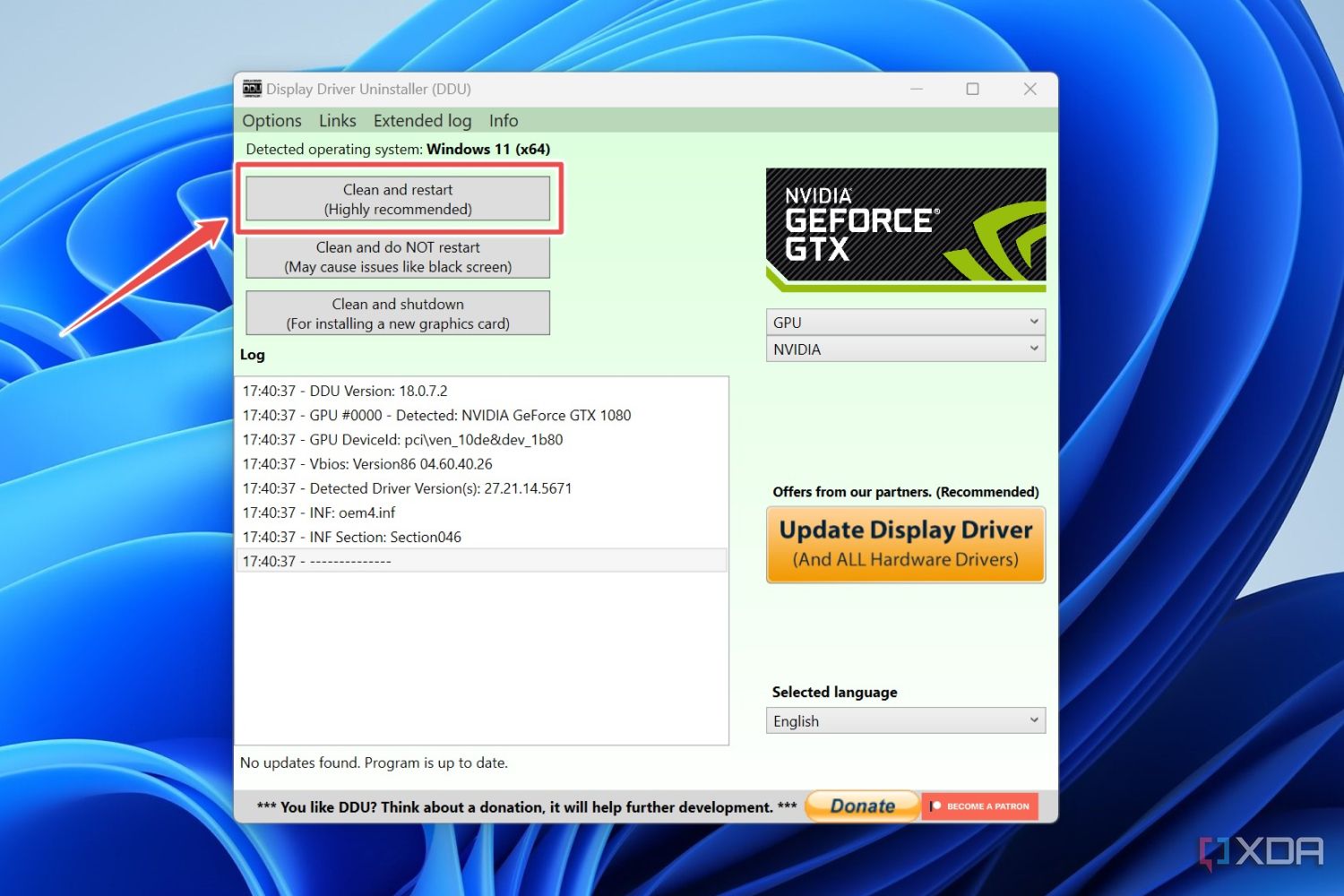
For persistent issues, tech enthusiasts recommend a tool called Display Driver Uninstaller (DDU). DDU is a third-party utility that completely removes all traces of previous driver installations, including registry keys and leftover files that standard uninstallers often miss.
-
Download DDU and boot Windows 11 into Safe Mode.
-
Run DDU to “Clean and restart.”
-
Once back in normal Windows, install the driver package you downloaded manually.
This “clean slate” approach solves the vast majority of driver-related instabilities.
Rolling Back a Driver
If a new update causes immediate problems, Windows 11 allows you to “Roll Back” to the previous version:
-
Open Device Manager.
-
Right-click your GPU under Display adapters and select Properties.
-
Go to the Driver tab.
-
Click Roll Back Driver.
Final Thoughts on GPU Maintenance
Maintaining your GPU drivers on Windows 11 is a fundamental aspect of digital hygiene. While Windows Update provides a safety net for the average user, the true potential of your hardware is unlocked through the dedicated software suites provided by NVIDIA, AMD, and Intel.
By staying updated, you ensure that your system remains compatible with the latest software innovations, stays protected against security vulnerabilities, and delivers the fluid, high-fidelity visual experience that Windows 11 was designed to provide. Whether you choose the convenience of automated tools or the precision of manual installation, a proactive approach to driver management is the best way to safeguard your hardware investment and optimize your computing performance.
aViewFromTheCave is a participant in the Amazon Services LLC Associates Program, an affiliate advertising program designed to provide a means for sites to earn advertising fees by advertising and linking to Amazon.com. Amazon, the Amazon logo, AmazonSupply, and the AmazonSupply logo are trademarks of Amazon.com, Inc. or its affiliates. As an Amazon Associate we earn affiliate commissions from qualifying purchases.