
In an era defined by digital transformation, the ability to seamlessly integrate financial software with banking institutions has become not just a convenience, but a fundamental necessity for businesses of all sizes. QuickBooks, as a dominant player in financial management software, offers robust functionalities to bridge this gap, enabling users to directly connect their bank accounts for automated data flow. This guide delves into the technical intricacies and strategic advantages of connecting QuickBooks to your bank, ensuring you leverage this powerful feature to its fullest potential within a technological framework.

The Imperative of Bank Integration in Modern Financial Software
The digital landscape has fundamentally reshaped how businesses manage their finances. Gone are the days of manual ledger entries and time-consuming reconciliation processes. Today’s expectation is instant access, real-time data, and automated workflows. Integrating your bank account directly with QuickBooks is at the forefront of this technological shift, serving as a critical pillar for efficient financial operations.
Streamlining Data Flow and Minimizing Manual Entry
At its core, bank integration is about automation. By establishing a direct connection between QuickBooks and your bank, transaction data—such as deposits, withdrawals, payments, and transfers—is automatically imported into your accounting software. This eliminates the laborious and error-prone process of manually entering each transaction. For businesses dealing with hundreds or even thousands of transactions monthly, this translates into a monumental saving of time and resources. Beyond simple entry, it ensures that your accounting records are consistently updated with the most current financial activities, providing a dynamic and accurate reflection of your financial position. The underlying technology often involves secure API (Application Programming Interface) calls or direct data feeds, designed to retrieve and format financial data in a way that QuickBooks can interpret and process efficiently.
Enhancing Accuracy and Real-time Financial Visibility
Manual data entry is inherently susceptible to human error—typos, transposed numbers, or missed entries can lead to significant discrepancies. Bank feeds largely mitigate these risks by directly pulling verified data from your bank. This technological safeguard dramatically improves the accuracy of your financial records. Furthermore, with transactions appearing in QuickBooks often within 24-48 hours of occurring, businesses gain unprecedented real-time visibility into their cash flow. This immediate access to up-to-date financial information empowers better decision-making, allowing businesses to react swiftly to cash flow changes, manage expenses more effectively, and identify potential issues before they escalate. The ability to categorize and review transactions as they arrive provides a dynamic snapshot of financial health, a far cry from retrospective monthly or quarterly reviews.
The Technological Backbone of Automated Reconciliation
One of the most profound benefits of bank integration lies in its ability to facilitate automated reconciliation. Instead of manually comparing bank statements line-by-line against your accounting records, QuickBooks leverages the imported bank data to automatically match transactions. This process is not just about speed; it’s about algorithmic efficiency. The software employs sophisticated matching rules and, in newer versions, machine learning algorithms, to identify corresponding entries. For unmatched items, QuickBooks provides intuitive interfaces for users to categorize and reconcile them swiftly. This technological capability drastically reduces the time spent on reconciliation, allowing accounting professionals and business owners to focus on analysis rather than data entry and verification. It transforms reconciliation from a dreaded chore into a streamlined, almost effortless process, ensuring that your books are always in sync with your bank’s records.
Preparing for a Seamless QuickBooks Bank Connection
Before initiating the connection between QuickBooks and your bank, a few preparatory steps are crucial to ensure a smooth and secure integration process. Addressing these technical and procedural prerequisites can save significant time and prevent potential headaches down the line.
Verifying Account Credentials and Online Banking Access
The most fundamental prerequisite is having active online banking access for the accounts you wish to connect. This means knowing your username and password for your bank’s online portal. QuickBooks uses these credentials (or secure token-based authentication) to establish a secure link with your bank. It’s essential to verify these credentials by successfully logging into your bank’s website independently before attempting to connect via QuickBooks. Ensure that there are no pending security alerts, two-factor authentication requirements (beyond what QuickBooks’s integration can handle), or temporary account locks that might impede the connection process. If you share banking access with others, confirm that your specific login has the necessary permissions to access transaction history.
Understanding Supported Connection Types and Security Protocols
QuickBooks supports various connection methods, and understanding them is vital for both security and functionality. The most common and secure method today is OAuth 2.0, which allows you to grant QuickBooks permission to access your bank data without directly sharing your bank login credentials with Intuit (the maker of QuickBooks). Instead, you’re redirected to your bank’s secure portal to authorize the connection. Many financial institutions also use direct data feeds, which are secure, encrypted connections. Less commonly, some older or smaller banks might still require direct credential entry within QuickBooks, though this is being phased out in favor of more secure methods.
Regardless of the method, QuickBooks (and Intuit) employs robust encryption protocols (e.g., 128-bit SSL) and multi-layered security measures to protect your financial data in transit and at rest. Familiarizing yourself with these protocols and your bank’s specific security practices for third-party connections can help alleviate security concerns. Always ensure you are connecting through the official QuickBooks interface to avoid phishing attempts.
Choosing the Right QuickBooks Version for Optimal Integration (Online vs. Desktop)
The method and experience of connecting your bank account can vary slightly depending on whether you’re using QuickBooks Online (QBO) or QuickBooks Desktop.
-
QuickBooks Online (QBO): As a cloud-based service, QBO is designed for seamless integration. The bank feed functionality is deeply embedded, offering an intuitive, browser-based experience. Connections are generally more stable, and updates to banking integrations are rolled out continuously, supporting a vast number of financial institutions. QBO often leverages advanced AI for transaction categorization and matching.
-
QuickBooks Desktop: While robust, the bank feed feature in QuickBooks Desktop typically requires a separate “Bank Feeds” center. The connection process might involve downloading specific web connect files from your bank or using direct connect services which may sometimes require additional setup or fees from your bank. Updates to banking integration for Desktop versions are usually tied to software releases, meaning you might not always have access to the latest connection protocols as quickly as QBO users.
Understanding these differences helps in setting expectations and troubleshooting. For most modern businesses seeking maximum automation and flexibility, QuickBooks Online’s integration capabilities are often superior due to its cloud-native architecture and continuous updates.
Step-by-Step Guide to Connecting Your Bank Account to QuickBooks
Connecting your bank account to QuickBooks is a straightforward process, but it requires careful attention to detail to ensure a secure and successful integration. While the exact steps might vary slightly between QuickBooks Online and Desktop, the core principles remain the same.
Initiating the Connection from Within QuickBooks (Online and Desktop Variants)
QuickBooks Online (QBO):
-
Log in to your QuickBooks Online account.
-
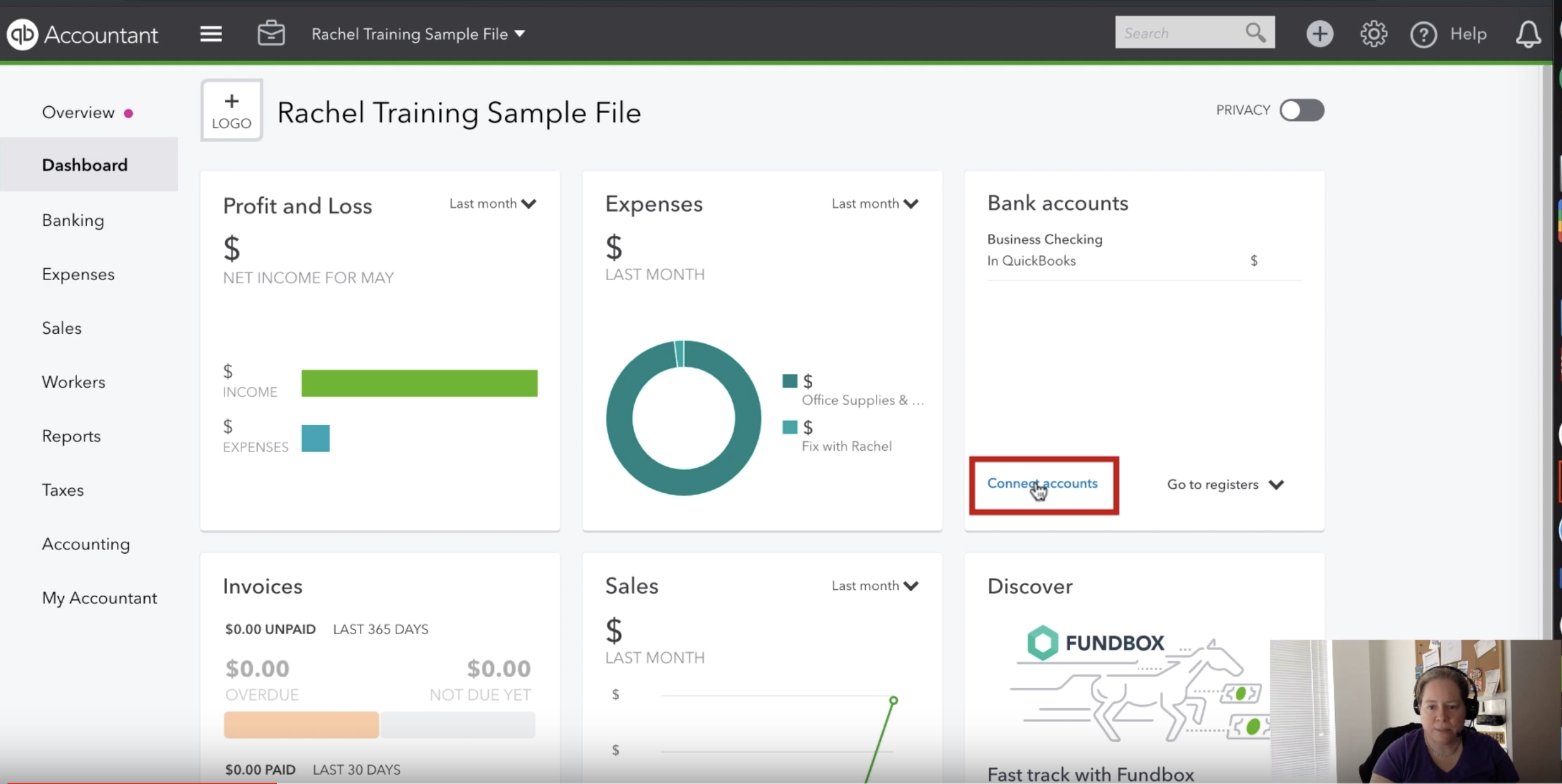
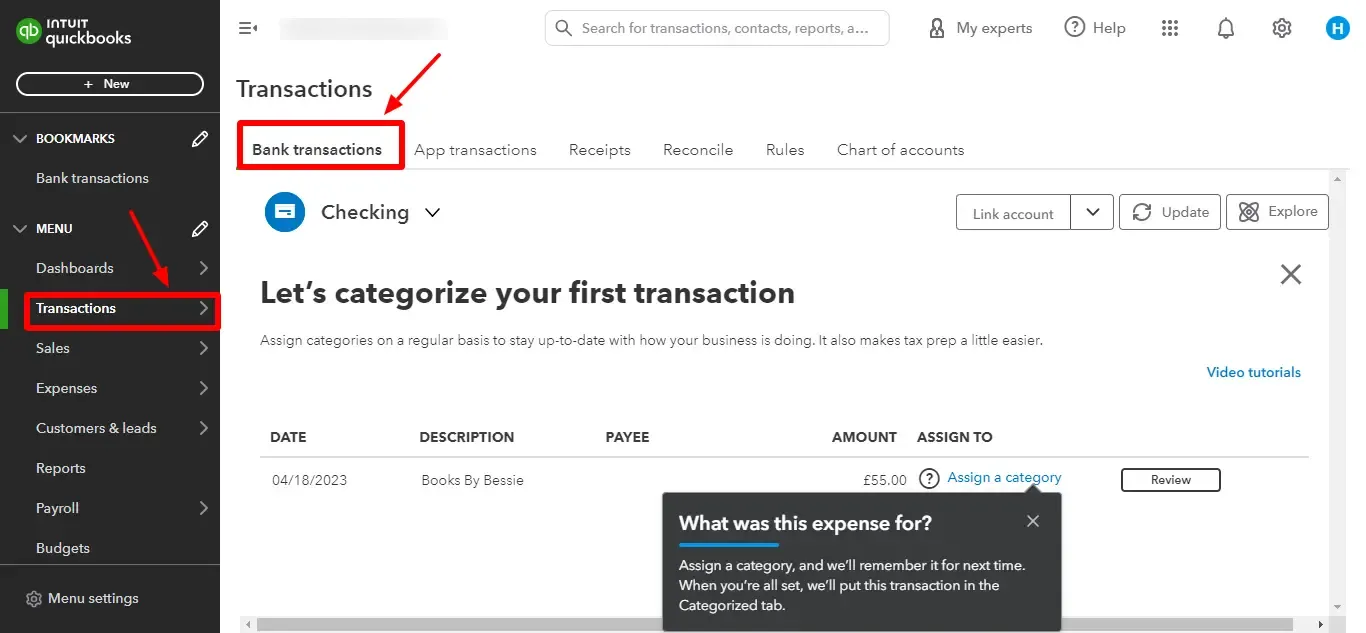
Navigate to the Banking tab (or Transactions > Bank transactions in some newer interfaces) on the left-hand navigation bar.
-
Click the “Connect account” button or “Add account” if you’re adding additional accounts.
-
You’ll be prompted to search for your bank by name. Start typing your bank’s name into the search bar.
QuickBooks Desktop:
-
Open your QuickBooks Desktop company file.
-
Go to the Banking menu at the top.
-
Select Bank Feeds > Set Up Bank Feeds for an Account (or Set Up Bank Feeds for a new account).
-
Choose the bank account from your Chart of Accounts you wish to connect.
-
QuickBooks will then prompt you to find your financial institution.
Navigating Bank Selection and Credential Entry
After initiating the connection:
-
Select Your Bank: From the list of search results, choose your specific bank. Ensure you pick the correct entity, as some banks might have multiple listings (e.g., different regional branches or legacy connections).
-
Enter Credentials: QuickBooks will then redirect you to a secure page, either within QuickBooks or, more commonly, to your bank’s secure login portal (especially with OAuth 2.0).
-
OAuth 2.0 (Recommended): If your bank supports OAuth, you’ll be securely redirected to your bank’s website. Enter your online banking username and password directly on your bank’s site. Your credentials are never stored by QuickBooks or Intuit in this method.
-
Direct Connect/Manual Entry: If OAuth is not available, you might be prompted to enter your bank’s online banking username and password directly into QuickBooks. In such cases, QuickBooks encrypts and stores these credentials securely to maintain the connection.
-
-
Multi-Factor Authentication (MFA): Many banks require MFA (e.g., a code sent to your phone or email, or a security question). Be prepared to enter these codes when prompted during the connection process.
Authorizing Data Sharing and Consent Mechanisms
Once your login is successful on your bank’s platform (or within QuickBooks for direct entry), you’ll typically be presented with an authorization screen. This is a critical step where you grant QuickBooks permission to access your account data.
-
Select Accounts: You might have multiple accounts with the same bank (checking, savings, credit card). You will usually be asked which specific accounts you want to connect to QuickBooks. Select only the relevant ones.
-
Review Permissions: Carefully review the permissions you are granting. These usually include access to transaction history, account balances, and sometimes account details. Ensure you understand what data will be shared.
-
Confirm Authorization: Click “Authorize,” “Connect,” or “Allow” to finalize the data sharing agreement. This establishes the secure link between your bank and QuickBooks.
Initial Data Download and Categorization Best Practices
Immediately after successful authorization, QuickBooks will begin its initial download of historical transactions.
-
Historical Data: QuickBooks usually imports the last 90 days (or sometimes up to 12-24 months for some banks) of transactions. Ensure this covers the period you need to reconcile.
-
Mapping Accounts: For QuickBooks Desktop users, you might need to map the connected bank account to an existing account in your QuickBooks Chart of Accounts. For QBO, this is often done automatically or with a simple selection.
-
Categorization: Once transactions are downloaded, they will appear in the “For Review” section (QBO) or “Bank Feeds Center” (Desktop). This is where you’ll categorize each transaction.
-
Rules: Create bank rules to automatically categorize recurring transactions (e.g., rent, utility payments). This is a powerful feature that leverages AI and user-defined logic to streamline the process.
-
Matching: Match imported transactions to existing entries in QuickBooks (e.g., invoices paid, bills paid).
-
Adding: For new transactions not already in QuickBooks, add them to the appropriate expense or income categories.
-
Managing and Troubleshooting Your QuickBooks Bank Feed
While bank integration is largely automated, proactive management and troubleshooting are essential for maintaining a reliable data flow. Technical issues can arise, but most can be resolved with systematic steps.
Handling Disconnections and Re-authentications
Bank connections are not always permanent. For security reasons, banks sometimes require periodic re-authentication, especially if using OAuth.
-
Signs of Disconnection: You might see an error message in QuickBooks, a “needs attention” notification, or simply notice that no new transactions are downloading.
-
Re-authentication Steps: Typically, you’ll need to go back to the Banking section in QuickBooks and click on the “Update” or “Re-connect” button next to the affected account. This will usually prompt you to re-enter your online banking credentials directly on your bank’s website (for OAuth) or within QuickBooks. Always complete any multi-factor authentication steps requested.
-
Frequency: Be prepared to re-authenticate every 90 days for some banks, or as needed if there are changes to your online banking password or security settings.
Resolving Common Sync Errors and Data Mismatches
Despite robust systems, errors can occur.
-
Error Codes: QuickBooks often provides specific error codes. Search the Intuit help database or QuickBooks community forums for solutions related to that code.
-
“Something Isn’t Working” / Generic Errors:
-
Check Bank Website Directly: Log into your bank’s online portal outside of QuickBooks. Are there any messages, alerts, or pending actions required? Can you access your transaction history without issue?
-
Update Connection: Try updating the bank feed manually from within QuickBooks.
-
Clear Browser Cache (QBO): For QuickBooks Online, sometimes browser cache or cookies can interfere. Try clearing them or using an incognito/private browsing window.
-
Reset Connection: If other steps fail, you might need to disconnect the bank account in QuickBooks and then reconnect it from scratch. Caution: Ensure you have reconciled up to the point of disconnection to avoid duplicate entries when reconnecting.
-
Contact Support: If the issue persists, contact QuickBooks Support or your bank’s online banking support. The problem might be on the bank’s end (e.g., a system outage or change in their API).
-
-
Data Mismatches: If transactions appear incorrect, ensure the correct bank account is mapped in QuickBooks. Check the date ranges and consider if any transactions were manually entered before the bank feed started.
Optimizing Transaction Rules for Automated Categorization
The true power of bank feeds lies in automation.
-
Create Robust Rules: As you categorize transactions, identify recurring patterns. For example, “Amazon.com” purchases can be automatically categorized as “Office Supplies” or “Shipping Expenses” depending on your business. Use keywords, amounts, and payee names to define precise rules.
-
Order of Rules: In QuickBooks, the order of rules can matter. Ensure more specific rules are placed above broader ones.
-
Review and Refine: Periodically review your transaction rules. As your business evolves or new vendors emerge, you’ll need to update or create new rules to maintain high automation levels. This continuous optimization enhances the AI’s learning and reduces manual intervention over time.
Understanding Data Privacy and Security in Bank Feeds
Data security is paramount.
-
Encryption: All data exchanged between QuickBooks and your bank is heavily encrypted using industry-standard protocols (e.g., 128-bit SSL/TLS).
-
Intuit’s Security Measures: Intuit employs sophisticated physical, electronic, and procedural safeguards to protect your data, including firewalls, intrusion detection systems, and regular security audits.
-
No Funds Movement: QuickBooks only has read-only access to your transaction data. It cannot initiate transfers, withdrawals, or any other financial transactions from your bank account. Your funds remain entirely secure.
-
User Responsibility: Always use strong, unique passwords for both your bank and QuickBooks accounts. Enable multi-factor authentication wherever possible. Be wary of phishing emails that ask for your credentials. Your diligence is the first line of defense in digital security.
Maximizing the Technological Advantages of Bank Integration
Beyond mere transaction importing, the intelligent integration of bank feeds opens doors to advanced technological capabilities that can fundamentally transform how businesses perceive and manage their finances. Leveraging these features moves financial management from a reactive task to a proactive, insightful function.
Leveraging AI and Machine Learning for Smart Categorization
Modern versions of QuickBooks Online, in particular, harness the power of Artificial Intelligence (AI) and Machine Learning (ML) to make bank feeds even smarter.
-
Predictive Categorization: QuickBooks learns from your past categorization patterns. When a new, similar transaction comes in, it suggests the most likely category, often with high accuracy. The more you use it and refine your categorizations, the smarter it becomes.
-
Smart Matching: AI algorithms enhance the ability to match bank transactions with existing entries in QuickBooks, even if there are slight discrepancies in amounts or dates, reducing the number of manual matches required.
-
Automated Rule Generation: While users can manually create rules, QuickBooks can also suggest rules based on frequently categorized transactions, effectively automating the automation process. This significantly reduces the setup time for new users and continuously improves efficiency for established ones. The underlying technology analyses vast datasets to identify recurring patterns, making intelligent suggestions that adapt over time.
Integrating with Third-Party Apps for Expanded Functionality
The open API architecture of QuickBooks Online allows for seamless integration with hundreds of third-party applications, creating a powerful ecosystem of interconnected tools.
-
Expense Management: Connect apps like Expensify or Receipt Bank to automatically capture receipts, categorize expenses, and push them directly into QuickBooks, further automating the expense reporting cycle.
-
Payment Processing: Integrate with payment gateways like Stripe or Square to ensure that sales data and associated fees are accurately and automatically reflected in your books.
-
CRM and Project Management: Sync with customer relationship management (CRM) software or project management tools to link financial data to customer interactions or project budgets, providing a holistic view of business operations.
-
Inventory Management: Connect inventory solutions to track costs of goods sold in real-time as sales transactions come through your bank feeds.
This interconnectedness transforms QuickBooks from a standalone accounting tool into the central nervous system of a comprehensive business management platform, facilitated by robust technological integrations.
Future-Proofing Your Financial Management with Robust Data Pipelines
The continuous flow of accurate, real-time data from bank accounts into QuickBooks is not just about current efficiency; it’s about building a future-proof foundation for financial management.
-
Enhanced Reporting and Analytics: With clean, consistently updated data, businesses can generate more accurate and insightful reports, from cash flow statements to profit and loss reports. This data can then be exported or directly accessed by business intelligence (BI) tools for deeper analytical insights, predicting trends, and identifying growth opportunities.
-
Scalability: As a business grows, the volume of transactions increases exponentially. Automated bank feeds scale effortlessly, handling increased data loads without requiring proportional increases in manual effort. This scalability is critical for sustained growth without overwhelming administrative capacity.
-
Compliance and Audit Readiness: The digital audit trail created by bank integration—where every transaction is directly linked to its source—significantly simplifies compliance and prepares businesses for audits. Auditors can easily verify transactions against bank records, demonstrating a high level of financial integrity.
-
Adoption of Emerging Technologies: A robust data pipeline ensures that businesses are well-positioned to adopt future financial technologies, such as advanced predictive analytics, blockchain-based accounting, or more sophisticated AI-driven financial advisors, as these innovations rely on structured and real-time data inputs.
By embracing and optimizing the technological capabilities of QuickBooks bank integration, businesses not only streamline their current financial processes but also build a resilient, intelligent, and adaptable financial infrastructure ready for the challenges and opportunities of tomorrow.
aViewFromTheCave is a participant in the Amazon Services LLC Associates Program, an affiliate advertising program designed to provide a means for sites to earn advertising fees by advertising and linking to Amazon.com. Amazon, the Amazon logo, AmazonSupply, and the AmazonSupply logo are trademarks of Amazon.com, Inc. or its affiliates. As an Amazon Associate we earn affiliate commissions from qualifying purchases.