
Amazon Prime has become an indispensable part of modern digital life for millions, offering a vast array of benefits from expedited shipping and exclusive deals to an extensive library of streaming content, music, and digital books. However, accessing these benefits hinges on a fundamental, yet sometimes nuanced, process: signing into your account. For both new members and long-time subscribers navigating a new device, understanding the intricacies of the Amazon Prime sign-in mechanism is crucial for an uninterrupted and secure experience.
This guide delves into the technical journey of signing into Amazon Prime, exploring the various platforms, essential security measures, and common troubleshooting tips. We will demystify the login process, ensuring that you can effortlessly unlock the full potential of your Prime membership, whether you’re on a desktop, mobile device, or smart TV.

Understanding the Amazon Prime Ecosystem and Your Digital Identity
Before diving into the step-by-step sign-in process, it’s vital to grasp the foundational concepts that underpin Amazon Prime access. Your digital identity within Amazon’s ecosystem is the key, and knowing how it operates across different touchpoints will streamline your experience.
The Ubiquity of Amazon Prime Across Devices
Amazon Prime isn’t just a single website or app; it’s a comprehensive suite of services integrated across a multitude of platforms and devices. This pervasive presence means your sign-in experience might vary slightly depending on where you’re trying to access Prime. You might be signing in to:
-
Amazon.com: The primary e-commerce hub for managing your account, shopping, and accessing various Prime benefits.
-
Amazon Shopping App: The mobile application for purchasing items and managing orders on smartphones and tablets.
-
Prime Video App: A dedicated application for streaming movies and TV shows on mobile devices, smart TVs, streaming sticks (Roku, Fire TV Stick, Apple TV), game consoles, and web browsers.
-
Amazon Music App: For accessing Prime Music benefits on various devices.
-
Kindle Reading App/Devices: For Prime Reading and other digital book benefits.
-
Twitch Prime/Prime Gaming: For gaming-related perks.
-
Amazon Photos App: For cloud storage of photos.
Each of these platforms, while offering distinct services, generally funnels back to a single, unified sign-in credential, simplifying access considerably once you understand the core mechanism.
Your Amazon Account as the Gateway to Prime
At the heart of your Prime membership lies your standard Amazon account. Your Prime subscription is not a separate login; rather, it’s an enhancement or attribute attached to your existing Amazon customer account. This means that if you have an Amazon account (even if you’ve never purchased anything), you already have the foundational digital identity needed to sign in.
To sign into Amazon Prime, you will always use the email address or mobile number and password associated with your Amazon account. If you don’t have an Amazon account yet, the first step would be to create one, which is typically a quick and free process that asks for your name, email/mobile number, and a new password. Once created, you can then subscribe to Prime or sign in if you already have a membership.
Distinguishing Between Prime Membership and Account Login
A common point of confusion can be distinguishing between having an Amazon account and having an active Prime membership. You can sign into your Amazon account without necessarily being a Prime member. The sign-in process is identical whether you’re a Prime member or not. The system simply checks your account status after you’ve successfully logged in.
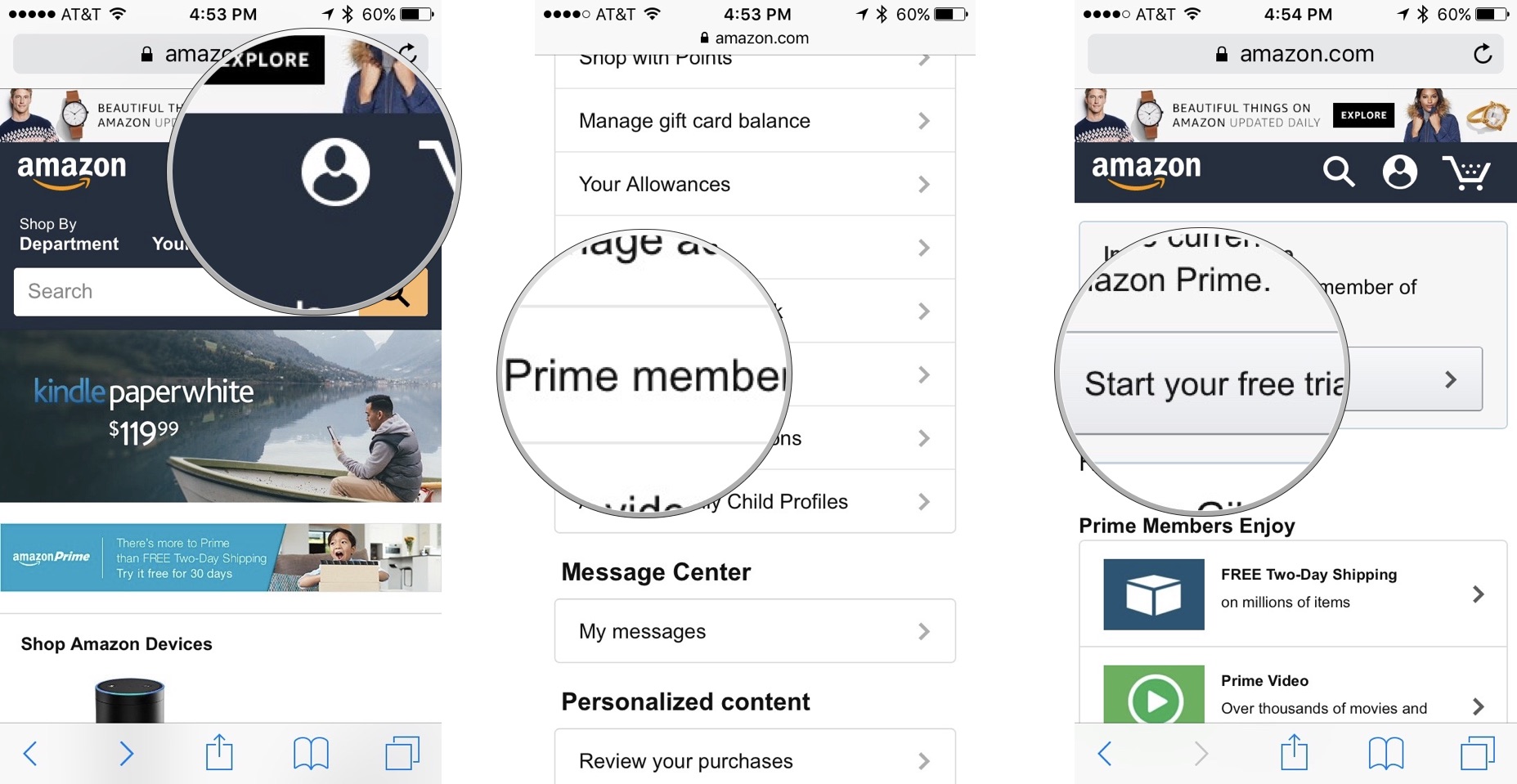
If you sign in and are not a Prime member, you’ll typically be prompted with an option to start a free trial or subscribe. If you are a Prime member, the system recognizes this upon login and grants you immediate access to all associated benefits. This distinction is crucial for troubleshooting – if you can sign in but can’t access Prime benefits, the issue is likely with your membership status rather than your login credentials.
The Core Sign-In Process: Step-by-Step Navigation
The fundamental steps for signing into Amazon Prime remain largely consistent across platforms, leveraging your unified Amazon account credentials. However, the exact interface and minor procedural details can vary.
Signing In via Web Browser (Desktop/Laptop)
This is perhaps the most common method for managing your Prime account and accessing general Amazon services.
-
Navigate to Amazon.com: Open your preferred web browser (Chrome, Firefox, Edge, Safari, etc.) and type “amazon.com” into the address bar.
-
Locate the “Account & Lists” Menu: In the top right corner of the Amazon homepage, hover your mouse over “Account & Lists.”
-
Click “Sign In”: From the dropdown menu, click the prominent “Sign In” button.
-
Enter Credentials: You’ll be directed to a dedicated sign-in page. Enter the email address or mobile number associated with your Amazon account. Click “Continue.”
-
Enter Password: On the next screen, enter your password. Ensure your Caps Lock key is not accidentally on.
-
Click “Sign In”: Click the “Sign In” button to complete the process.
Upon successful login, you’ll be redirected to the Amazon homepage, where you’ll see your name displayed under “Account & Lists,” indicating you’re logged in.
Accessing Prime Through Mobile Applications
Amazon offers several dedicated mobile apps that provide specific Prime services, such as the Amazon Shopping app, Prime Video app, and Amazon Music app.
-
Download the App: If you haven’t already, download the relevant Amazon app from your device’s app store (Google Play Store for Android, Apple App Store for iOS).
-
Open the App: Launch the Amazon app.
-
Initiate Sign-In: The app will typically prompt you to sign in immediately upon first launch, or you can find a “Sign In” option within the app’s settings or menu (often represented by three horizontal lines or “Profile” icon).
-
Enter Credentials: Use the same email/mobile number and password as your main Amazon account.
-
Complete Login: Follow any on-screen prompts, which may include a captcha or two-factor authentication (2FA) if enabled.
Once logged into one Amazon app on your device, many other Amazon apps may automatically recognize your login, providing a seamless “single sign-on” experience for the Amazon ecosystem on that particular device.
Logging In on Smart TVs and Streaming Devices
Signing into Prime Video on a smart TV, gaming console (PlayStation, Xbox), or streaming stick (Amazon Fire TV, Roku, Apple TV, Chromecast) often involves a slightly different, more secure method to avoid typing long credentials with a remote control.
-
Open the Prime Video App: Launch the Prime Video app on your device.
-
Select “Sign In”: The app will usually present two options: “Sign In and Start Watching” or “Register Your Device.” Select the “Sign In” option.
-
Note the Activation Code: The app will display a unique 5-6 character alphanumeric code and instruct you to visit a specific URL on a web browser (e.g., “amazon.com/mytv” or “primevideo.com/ontv”).
-
Navigate to the Activation URL: On a computer or mobile phone, open a web browser and go to the URL provided by your TV/device.
-
Enter Your Amazon Credentials: Sign in to your Amazon account on the web page using your email/mobile number and password.
-
Enter the Activation Code: Once logged in on the web, you’ll be prompted to enter the activation code displayed on your TV/device screen.
-
Complete Registration: After entering the code, click “Register Device” or “Continue.” Your TV/device should then automatically sign in to Prime Video.
This method enhances security by ensuring that sensitive login details are entered on a more secure, familiar device rather than directly into a public-facing smart TV app.
Leveraging Single Sign-On (SSO) for Prime Services
Amazon effectively uses a form of Single Sign-On (SSO) within its ecosystem. Once you sign into your primary Amazon account on a specific device (be it through the main Amazon.com website or a core Amazon app), many other related Amazon services or apps on that same device will automatically detect your authenticated session. For instance, logging into the Amazon Shopping app on your phone will often automatically log you into the Prime Video app or Amazon Music app, provided they are installed on the same device. This convenience eliminates the need to re-enter credentials repeatedly, streamlining access to your Prime benefits across various applications.
Enhancing Your Digital Security and Troubleshooting Common Sign-In Issues
While the sign-in process is designed for convenience, digital security remains paramount. Protecting your Amazon account is crucial, as it holds personal information, payment details, and access to numerous Prime benefits. Furthermore, encountering occasional sign-in hurdles is common, but most can be resolved with simple troubleshooting steps.

Implementing Two-Factor Authentication (2FA) for Account Protection
Two-Factor Authentication (2FA), also known as Multi-Factor Authentication (MFA), adds a critical layer of security to your Amazon account. With 2FA enabled, even if someone obtains your password, they cannot access your account without the second factor – typically a temporary code sent to your registered mobile phone or generated by an authenticator app.
How to set up 2FA for your Amazon account:
-
Go to Amazon.com: Sign in to your Amazon account.
-
Navigate to Account Settings: Hover over “Account & Lists” and click “Account.”
-
Security & Login: Under “Login & Security,” click “Edit.”
-
Two-Step Verification: Find the “Two-Step Verification” section and click “Turn On.”
-
Choose Verification Method: You can choose to receive codes via text message (SMS) to your phone or use an authenticator app (like Google Authenticator or Authy). Authenticator apps are generally considered more secure than SMS.
-
Follow Prompts: Amazon will guide you through verifying your phone number or setting up the authenticator app.
-
Backup Method: Ensure you set up a backup verification method (e.g., a secondary phone number or an alternative authenticator app) in case you lose access to your primary method.
Enabling 2FA significantly reduces the risk of unauthorized access to your Prime account and all associated services.
Managing Passwords and Account Recovery
Strong password practices are foundational to digital security:
-
Unique and Complex Passwords: Use a unique password for your Amazon account that is not used for any other service. It should be a mix of uppercase and lowercase letters, numbers, and symbols, and at least 12-16 characters long.
-
Password Managers: Consider using a reputable password manager (e.g., LastPass, 1Password, Bitwarden) to securely generate, store, and auto-fill complex passwords.
-
Regular Updates: While not strictly necessary with strong, unique passwords, changing your password periodically can add an extra layer of caution.
Account Recovery: If you forget your password or suspect your account has been compromised:
-
Click “Forgot your password?”: This link is available on the sign-in page.
-
Verify Identity: Amazon will prompt you to enter the email address or mobile number associated with your account.
-
Password Reset: You will receive a one-time password (OTP) or a password reset link via email or SMS. Follow the instructions to create a new, strong password.
-
Customer Service: If you lose access to your email or phone number, or face more complex issues, contact Amazon customer service directly for assistance with account recovery.
Addressing Common Sign-In Roadblocks
Even with correct credentials, you might occasionally encounter issues. Here are common problems and solutions:
-
Incorrect Credentials/Typos: The most frequent culprit. Double-check your email address/mobile number and password for any typos. Ensure Caps Lock is off.
-
Internet Connection Issues: Verify your device is connected to the internet. Try loading another website to confirm connectivity.
-
Browser Cache and Cookies: Old data in your browser’s cache or corrupted cookies can interfere with login. Try clearing your browser’s cache and cookies or using an “incognito” or “private” browsing window.
-
Outdated Apps or Software: Ensure your Amazon apps and device operating system are up to date. Updates often include bug fixes that resolve login issues.
-
Account Suspension Warnings: If your account has been temporarily locked or suspended due to suspicious activity, Amazon will usually provide specific instructions or require you to contact customer service.
-
VPN Interference: Some VPNs might interfere with Amazon’s geo-location services, especially for streaming content. Try temporarily disabling your VPN if you’re having trouble.
Recognizing and Avoiding Phishing Scams
Cybercriminals frequently target Amazon users with phishing attempts designed to steal login credentials.
-
Fake Emails/SMS: Be wary of emails or text messages that appear to be from Amazon but contain suspicious links, urgent demands, or unusual grammar. Amazon will never ask for your password via email.
-
Malicious Websites: Always check the URL of the sign-in page. It should start with “https://” and be “amazon.com” (or your local Amazon domain like “amazon.co.uk”, “amazon.de”, etc.). Fraudulent sites often have slight misspellings or extra domains.
-
Report Suspicious Activity: If you receive a suspicious communication, do not click any links. Instead, forward it to Amazon’s dedicated phishing reporting email (stop-spoofing@amazon.com) and delete it.
Vigilance is your best defense against such sophisticated digital threats.
Optimizing Your Amazon Prime Experience Post-Login
Once successfully signed in, your journey into the world of Amazon Prime truly begins. However, there are still technical aspects to consider to ensure a smooth, personalized, and secure experience.
Personalizing Your Prime Profile and Preferences
After logging in, take advantage of the various settings to tailor Prime to your needs:
-
Account Settings: Access your “Account & Lists” menu to update payment methods, shipping addresses, security settings, and digital content preferences.
-
Prime Video Watchlists and Profiles: Create multiple user profiles within Prime Video to ensure personalized recommendations and watch histories for each family member. Build watchlists to keep track of content you want to see.
-
Amazon Music Playlists: Curate playlists based on your taste for a tailored listening experience.
-
Delivery Preferences: Specify preferences for Prime shipping, such as preferred delivery days or locations for Amazon Locker services.
These customizations, while not directly related to sign-in, optimize the user experience that your successful login grants access to.
Exploring Prime Benefits Beyond Login
A successful sign-in is merely the first step. Once authenticated, explore the breadth of benefits:
-
Prime Video: Stream movies, TV shows, and Amazon Originals.
-
Prime Music: Access a vast library of songs and ad-free listening.
-
Prime Reading: Borrow books, magazines, and comics from a rotating selection.
-
Amazon Photos: Unlimited full-resolution photo storage.
-
Prime Gaming: Free games, in-game content, and a Twitch channel subscription.
-
Early Access Deals: Exclusive access to Lightning Deals.
-
Free Grubhub+ Membership: Recent addition for US Prime members.
Navigating these benefits effectively means understanding how each integrated service leverages your central Prime login.
Ensuring Device Management and Session Security
Finally, managing your active login sessions and devices is a crucial aspect of post-login security:
-
Sign Out on Public/Shared Devices: Always remember to sign out of your Amazon account on public computers or shared devices (like a family TV or library computer) to prevent unauthorized access.
-
Review Authorized Devices: Within your Amazon account settings, you can often view and manage the devices currently logged into your account. If you see an unfamiliar device, you can remotely de-authorize it, forcing a sign-out.
-
Regular Security Checks: Periodically review your purchase history, Prime Video watch history, and account activity for anything suspicious, especially if you share your Prime benefits with others.
By proactively managing your digital footprint and active sessions, you maintain greater control over your Amazon Prime account and enhance overall security.
Conclusion
Signing into Amazon Prime, while seemingly a straightforward task, involves a series of interconnected technical processes designed to grant you secure and seamless access to a wealth of digital services. From understanding your unified Amazon account to navigating diverse platforms like web browsers, mobile apps, and smart TVs, the principles remain consistent. By prioritizing digital security measures like two-factor authentication, practicing diligent password management, and staying informed about common troubleshooting steps and phishing threats, you can ensure your Prime experience is not only convenient but also safe.
With this comprehensive guide, you are now equipped to confidently sign into Amazon Prime on any device, unlock its full potential, and enjoy all the benefits your membership offers, secure in the knowledge that your digital identity is protected.
aViewFromTheCave is a participant in the Amazon Services LLC Associates Program, an affiliate advertising program designed to provide a means for sites to earn advertising fees by advertising and linking to Amazon.com. Amazon, the Amazon logo, AmazonSupply, and the AmazonSupply logo are trademarks of Amazon.com, Inc. or its affiliates. As an Amazon Associate we earn affiliate commissions from qualifying purchases.