
In the rapidly evolving landscape of digital entertainment, Amazon Prime Video stands as a colossal pillar, offering an expansive library of movies, TV shows, and exclusive originals. For many, it’s a primary source of high-quality content, accessible with a simple subscription. Yet, navigating the myriad ways to access and optimize this service can sometimes be daunting. This comprehensive guide serves as your ultimate tutorial, delving deep into the technological facets of “how to watch Amazon Prime Video” across all compatible platforms, ensuring you can unlock its full potential with ease and efficiency. As a quintessential application of modern streaming technology, understanding its operational nuances is key to a seamless entertainment experience.
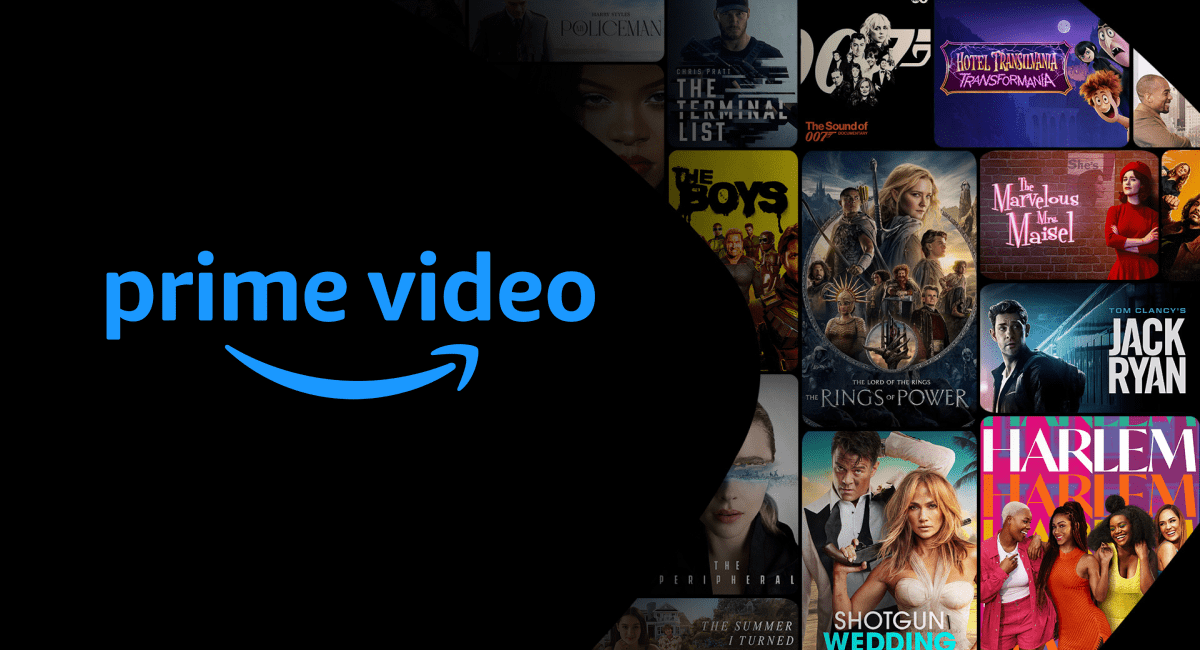
Understanding Your Gateway: What is Amazon Prime Video?
At its core, Amazon Prime Video is a sophisticated video-on-demand service developed and operated by Amazon. It’s not just a content provider; it’s an intricate piece of software designed to deliver high-quality digital media to a global audience. The service integrates various technological components, from content delivery networks (CDNs) to advanced user interfaces, all working in concert to provide a smooth viewing experience.
The Core Offering: Content Library
The true value of Prime Video lies in its vast and diverse content library. This digital vault houses thousands of titles, ranging from classic films and popular TV series to award-winning Amazon Originals like “The Marvelous Mrs. Maisel,” “The Boys,” and “The Lord of the Rings: The Rings of Power.” The platform also offers a robust selection of documentaries, live sports (in some regions), and a growing collection of 4K UHD and HDR content. This extensive catalog is continuously updated, leveraging data analytics and AI to curate recommendations and acquire new, relevant programming that appeals to a wide demographic.
Prime Membership vs. Standalone Subscription
One of the most common points of confusion for new users revolves around how Prime Video is bundled. Typically, Prime Video is included as a core benefit of an Amazon Prime membership. This all-encompassing subscription offers a suite of services beyond streaming, including expedited shipping, Prime Music, Prime Reading, and more. For users primarily interested in video content without the other Prime perks, Amazon also offers a standalone Prime Video subscription. This flexibility in subscription models demonstrates Amazon’s understanding of diverse user needs and provides different entry points into its digital ecosystem. Both options grant full access to the streaming library, with the primary difference lying in the accompanying benefits.
Device Compatibility: A Quick Overview
A hallmark of any successful streaming platform in the tech landscape is its ubiquitous accessibility. Amazon Prime Video excels in this regard, boasting compatibility with an impressive array of devices. From smart televisions and dedicated streaming sticks to personal computers, mobile phones, and gaming consoles, the Prime Video application is meticulously designed to adapt its interface and functionality to each hardware type. This cross-platform integration is a testament to the robust software architecture underlying the service, ensuring users can pick up their viewing experience seamlessly from one device to another, a feature critical for modern digital consumption habits.
Setting Up for Seamless Streaming: Initial Steps
Embarking on your Amazon Prime Video journey requires a few foundational steps. These initial configurations ensure your account is properly established and you can navigate the platform’s interface with ease. Think of this as the installation and configuration phase for your personal entertainment hub.
Subscribing to Amazon Prime or Prime Video
The first step is securing your subscription. If you’re not already an Amazon Prime member, you can sign up for a free trial or a full membership via the Amazon website. This process typically involves providing payment information and confirming your desire to join. Alternatively, if your sole interest is the video content, you can opt for the standalone Prime Video subscription. Amazon’s payment processing systems are secure and streamlined, ensuring a smooth sign-up experience. During this stage, you are essentially activating your digital license to access the content.
Creating or Logging into Your Amazon Account
An Amazon account is the cornerstone of your Prime Video access. If you’re new to Amazon, the subscription process will guide you through creating an account, which involves setting up an email and password. For existing Amazon customers, it’s a simple matter of logging in with your credentials. This account serves as your digital identity within Amazon’s ecosystem, tracking your viewing history, preferences, and managing your subscriptions. Secure account management, including strong passwords and two-factor authentication, is highly recommended to protect your digital privacy and viewing data.
Navigating the Prime Video Interface (Web and App)
Once subscribed and logged in, familiarizing yourself with the Prime Video interface is crucial. Whether you’re accessing it through a web browser on a computer or a dedicated app on a smart device, the interface is designed for intuitive navigation.
-
Web Browser: On a computer, simply visit primevideo.com. The homepage typically features carousels of trending titles, new releases, and personalized recommendations. Categories, a search bar, and your watchlist are usually prominently displayed.
-
App Interface: Mobile apps and smart TV apps often feature a more visually driven layout, optimized for touchscreens or remote controls. Sections like “Home,” “Store,” “Find,” and “My Stuff” (for downloads and watchlist) are common. Understanding the layout allows for efficient content discovery and management, leveraging the app’s internal search algorithms and categorization logic.
Your Screens, Your Way: Accessing Prime Video Across Devices
One of the greatest strengths of Amazon Prime Video lies in its cross-platform compatibility. Modern tech users demand flexibility, and Prime Video delivers, allowing you to seamlessly transition your viewing experience from the living room TV to a tablet on the go. This section details how to get the app running on your preferred gadgets.
Smart TVs and Streaming Devices (Roku, Fire TV, Apple TV, Chromecast)
For the quintessential home entertainment experience, streaming on a large screen is paramount.
-
Smart TVs: Most modern smart TVs (Samsung, LG, Sony, Vizio, etc.) come with the Prime Video app pre-installed or available for download from their respective app stores. Simply search for “Prime Video,” download, and log in with your Amazon account.
-
Amazon Fire TV Devices: Unsurprisingly, Amazon’s own Fire TV Sticks and Fire TV Cubes offer the most integrated experience. The Prime Video app is built directly into the Fire OS interface, often with a dedicated button on the remote. Login is usually automatic if you’re signed into your Amazon account on the device.
-
Roku, Apple TV, Chromecast, and Other Streaming Devices: These popular devices also feature dedicated Prime Video apps. Visit the device’s app store (e.g., Roku Channel Store, Apple App Store) to download the “Amazon Prime Video” app. Once installed, launch it and log in. For Chromecast, you’ll typically “cast” content from the Prime Video app on your mobile device or browser. This process involves your mobile device acting as a remote control, sending the video stream to the Chromecast dongle, which then displays it on your TV.
Computers and Laptops (Web Browsers)
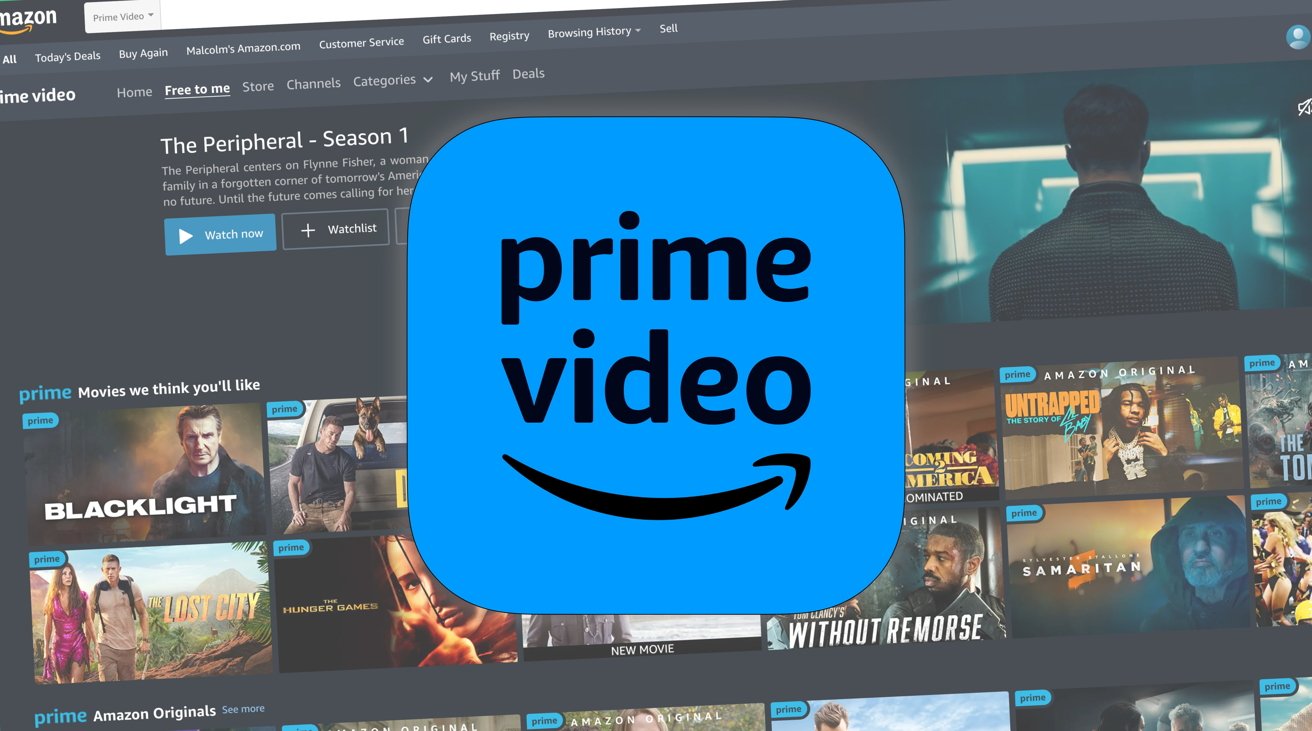
For desktop and laptop users, Prime Video is readily available through any modern web browser.
-
Access: Open your preferred browser (Chrome, Firefox, Edge, Safari) and navigate to primevideo.com.
-
Login: Enter your Amazon account credentials.
-
Viewing: You can then browse the library, select a title, and begin streaming directly within the browser window. While browser-based, the platform still leverages HTML5 and various web technologies to deliver a high-quality, adaptive streaming experience, adjusting resolution based on your internet speed and screen size.
Mobile Devices (Smartphones and Tablets)
Watching Prime Video on the go is incredibly convenient thanks to its dedicated mobile apps.
-
Download the App: For iOS devices (iPhones, iPads), download “Amazon Prime Video” from the Apple App Store. For Android devices, download it from the Google Play Store.
-
Login: Open the app and sign in with your Amazon account.
-
Features: Mobile apps offer full streaming capabilities, including the crucial feature of downloading content for offline viewing, which is a godsend for travel or areas with limited internet access. The app’s interface is optimized for touch interaction, making navigation intuitive.
Gaming Consoles (PlayStation, Xbox)
Gaming consoles have evolved into comprehensive entertainment hubs, and Prime Video is a standard offering.
-
Download the App: On PlayStation (PS4, PS5) or Xbox (Xbox One, Xbox Series X/S), navigate to their respective digital storefronts (PlayStation Store, Microsoft Store). Search for “Amazon Prime Video” and download the application.
-
Login and Stream: Launch the app and log in using your Amazon credentials. The console’s powerful hardware ensures smooth playback, often supporting 4K UHD where available.
Elevating Your Viewing: Advanced Features and Optimization
Beyond merely “watching,” Amazon Prime Video offers a suite of advanced features designed to enhance your entertainment experience. These tools and settings empower you to personalize playback, manage content, and access a wider range of media options. Understanding these functionalities ensures you maximize the technological capabilities of the platform.
Customizing Playback Settings (Quality, Subtitles, Audio)
Tailoring your viewing environment is crucial for optimal enjoyment.
-
Video Quality: Prime Video automatically adjusts video quality based on your internet speed to prevent buffering. However, in the playback settings (often accessible via a gear icon during streaming), you can manually select quality options, from standard definition (SD) to high definition (HD) and even 4K Ultra HD (UHD) if your device and internet connection support it. Bandwidth management is a key aspect of this feature, allowing users to control data consumption.
-
Subtitles and Closed Captions: For accessibility or preference, Prime Video offers extensive subtitle options. During playback, you can usually toggle subtitles on/off, select different languages, and even customize their appearance (font size, color, background) through the settings menu. This utilizes advanced text rendering and synchronization technologies.
-
Audio Tracks: Many titles come with multiple audio tracks, offering different languages or even descriptive audio for the visually impaired. These can be selected from the audio settings during streaming.
Utilizing Watchlists and User Profiles
Organization and personalization are key to managing a large content library.
-
Watchlist: This feature allows you to bookmark titles you intend to watch later. Simply click the “Add to Watchlist” button on any movie or show’s detail page. It acts as your personal queue, keeping track of your interests and allowing for easy access to your desired content without having to search for it repeatedly. This leverages user data to provide a personalized content curation tool.
-
User Profiles: For households with multiple viewers, user profiles (similar to Netflix) allow each individual to maintain their own watchlist, viewing history, and receive personalized recommendations. This compartmentalizes viewing data, ensuring that a child’s viewing habits don’t skew an adult’s recommendations, for example. Creating and switching between profiles is typically straightforward within the app settings.
Downloading Content for Offline Viewing
One of the most valuable tech features for mobile users is the ability to download content.
-
How it Works: On the Prime Video mobile app (smartphones and tablets), you can select eligible movies and TV show episodes and download them directly to your device’s internal storage.
-
Benefits: This allows you to watch content without an internet connection, perfect for flights, commutes, or areas with unreliable Wi-Fi. The app manages digital rights management (DRM) to ensure secure playback of downloaded content for a limited time or until the subscription is active. Downloads can be managed within the “Downloads” section of the app, where you can view remaining storage and delete content once watched.
Renting, Buying, and Subscribing to Channels
Prime Video extends beyond its subscription library, acting as a digital storefront.
-
Renting/Buying: Many new release movies and TV seasons that are not included with Prime are available for rent or purchase. This offers a pay-per-view model, allowing access to premium content. Once purchased, the content is typically available in your “Video Library” indefinitely.
-
Prime Video Channels: This innovative feature allows Prime members to subscribe to third-party streaming services (like HBO Max, Showtime, Starz, etc.) directly through the Prime Video interface. This consolidates billing and access, streamlining your multiple subscriptions into one platform. It’s essentially a content aggregation model, simplifying the user experience by reducing the need to jump between different apps.
Troubleshooting Common Issues for Uninterrupted Streaming
Even with the most robust technology, occasional hiccups can occur. Understanding how to troubleshoot common Amazon Prime Video issues is essential for maintaining an uninterrupted and enjoyable streaming experience. These solutions often involve basic diagnostics and adjustments to your device or network settings.
Resolving Playback and Buffering Problems
Playback interruptions, stuttering, or constant buffering are among the most frustrating issues for streamers.
-
Internet Connection: The most frequent culprit. Ensure your Wi-Fi signal is strong or, ideally, connect via an Ethernet cable. Run a speed test (e.g., fast.com or speedtest.net) to confirm your internet speed meets Prime Video’s recommendations (typically 3-5 Mbps for SD, 5-10 Mbps for HD, and 15-25+ Mbps for 4K UHD).
-
Router/Modem Reset: A simple power cycle of your internet router and modem can often resolve network congestion or minor glitches. Unplug them for 30 seconds, then plug them back in.
-
Device Performance: Close other applications running in the background on your streaming device, computer, or phone that might be consuming bandwidth or processing power. Clear your browser cache and cookies if streaming via a web browser.
-
App/Software Update: Ensure the Prime Video app or your web browser is updated to the latest version. Software updates often include bug fixes and performance improvements.
-
Server Status: Occasionally, Amazon’s servers might experience temporary outages. While rare, checking social media or services like DownDetector can confirm if it’s a widespread issue.
Addressing Login and Account Access Difficulties
Issues with logging in can prevent access to your entire library.
-
Incorrect Credentials: Double-check your Amazon email and password. Remember, these are case-sensitive.
-
Password Reset: If you’ve forgotten your password, use the “Forgot Password” link on the Amazon login page. Follow the instructions to reset it, typically involving an email or SMS verification.
-
Two-Factor Authentication (2FA): If you have 2FA enabled, ensure you have access to your verification method (phone, authenticator app) to input the code.
-
Account Hold/Suspension: In rare cases, an account might be temporarily held due to payment issues or suspicious activity. Contact Amazon customer support if you suspect this is the case.
-
Regional Restrictions (VPNs): If you’re using a Virtual Private Network (VPN), Prime Video’s geo-blocking technology might detect it and restrict access to content or even block your login. Try disabling your VPN and see if the issue resolves.

Ensuring Optimal Internet Connection and Device Updates
Proactive maintenance of your network and devices can prevent many streaming problems.
-
Stable Internet: Invest in a reliable internet service provider (ISP) and ensure your home network setup is optimized. Position your Wi-Fi router centrally, away from obstructions, and consider mesh Wi-Fi systems for larger homes.
-
Regular Software Updates: Keep your streaming devices (Smart TV, Fire TV, Roku, gaming consoles, mobile phones, web browsers) updated. Manufacturers and software developers regularly release updates that improve performance, enhance security, and fix bugs that could affect app functionality. These updates are critical for maintaining compatibility with Prime Video’s evolving platform.
-
Device Restart: Just like a router, periodically restarting your streaming device can clear temporary glitches and free up system resources, leading to smoother performance.
By understanding these common troubleshooting steps, you empower yourself to quickly resolve issues and return to enjoying your Amazon Prime Video content with minimal disruption, truly mastering the technological aspects of your digital entertainment.
aViewFromTheCave is a participant in the Amazon Services LLC Associates Program, an affiliate advertising program designed to provide a means for sites to earn advertising fees by advertising and linking to Amazon.com. Amazon, the Amazon logo, AmazonSupply, and the AmazonSupply logo are trademarks of Amazon.com, Inc. or its affiliates. As an Amazon Associate we earn affiliate commissions from qualifying purchases.