
In the landscape of digital storage and software distribution, the .IMG file extension occupies a unique and vital niche. While a casual user might mistake it for a standard photographic image format like JPEG or PNG due to its name, an IMG file is a sophisticated container that serves as a precise, bit-for-bit replica of a storage medium. Whether you are flashing an operating system onto a Raspberry Pi, setting up a virtual machine, or creating a comprehensive backup of a failing hard drive, understanding the mechanics, utility, and management of IMG files is essential for any modern tech enthusiast or IT professional.
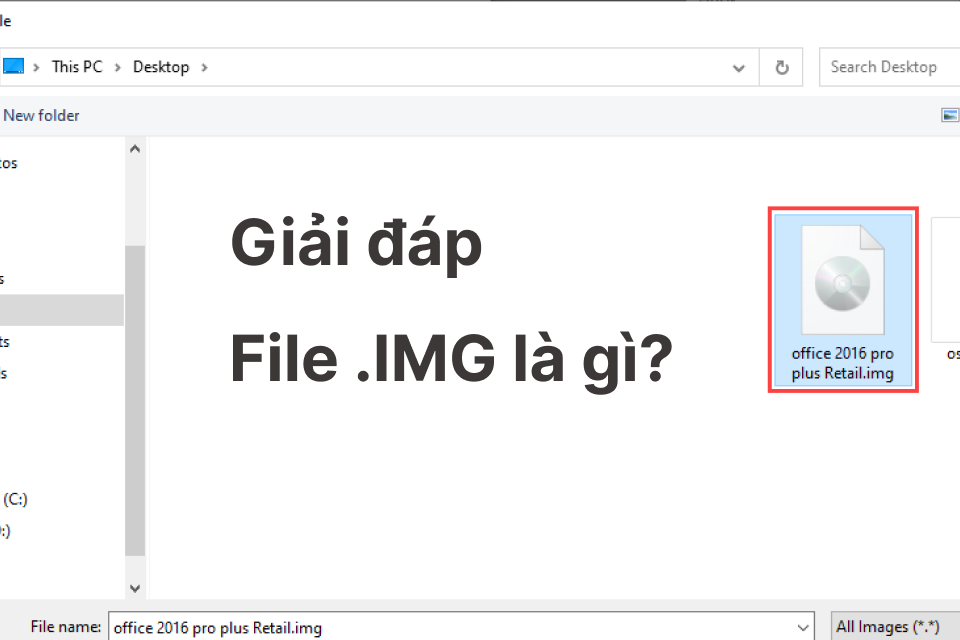
An IMG file is essentially a disk image. It captures the entire contents and structure of a source drive—including the file system, metadata, partition tables, and every individual sector of data—and wraps it into a single binary file. This allows for the seamless transfer of complex storage environments across different platforms and hardware.
Understanding the Core Mechanics of IMG Files
The fundamental concept behind an IMG file is “sector-by-sector” copying. Unlike a traditional file-level backup, which simply copies folders and files from one location to another, a disk image clones the physical structure of the disk. To understand why this matters, one must look at how data is organized on a hardware level.
When a storage device (like an SD card, USB flash drive, or hard disk) is formatted, it is divided into sectors. These sectors hold the actual data, but they also hold the instructions for the operating system on how to boot, where the file system starts, and how the data is indexed. A standard file copy ignores these structural elements. An IMG file, however, starts at sector zero and records every bit of information until it reaches the end of the volume.
The Raw Data Format
Most IMG files are “raw” images. This means they do not contain any header information or compression by default; they are a direct dump of the binary data found on the source media. Because of this raw nature, the size of an IMG file is typically identical to the capacity of the partition or disk it represents. For example, if you create an IMG file of a 16GB SD card that is only half full of data, the resulting IMG file will still be 16GB in size because it accounts for the empty space and the underlying structure of the disk.
Evolution from Floppy Disks to Virtualization
Historically, the .IMG extension became prominent during the era of floppy disks. Since floppy disks had very specific boot sectors and required precise physical mapping to function, a raw image was the only way to “copy” a disk effectively for distribution. As technology evolved, the format adapted. Today, it is used for everything from mobile device firmware updates to the deployment of massive cloud server instances.
Key Applications and Use Cases in Modern Computing
The versatility of the IMG format makes it a staple in several high-tech sectors. Its ability to act as a “digital clone” makes it indispensable for tasks where structural integrity is just as important as the data itself.
Operating System Deployment and Embedded Systems
Perhaps the most common encounter a modern hobbyist has with an IMG file is when working with single-board computers (SBCs) like the Raspberry Pi or BeagleBone. These devices typically boot from a microSD card. To set them up, users download an IMG file of a Linux distribution (like Raspberry Pi OS or Ubuntu) and “flash” it onto the card.
During this flashing process, the utility doesn’t just copy a file; it overwrites the SD card’s entire structure with the structure contained in the IMG file. This ensures that the bootloader is in the exact physical location required by the hardware to initiate the startup sequence.
Virtualization and Cloud Infrastructure
In the world of enterprise IT and software development, virtual machines (VMs) are the backbone of testing and deployment. Platforms like QEMU and various hypervisors often use IMG files as virtual hard disks. By using a raw disk image, a virtual machine can interact with the file as if it were a physical SATA or NVMe drive. This allows developers to move entire server environments between physical hosts by simply moving a single IMG file.
Data Recovery and Digital Forensics
For data recovery specialists, the IMG file is a primary tool for preservation. When a hard drive begins to fail due to mechanical issues or bad sectors, the first step is often to create a “forensic image” of the drive. By creating an IMG file, the specialist can work on a digital copy of the data without putting further physical stress on the failing hardware. If a mistake is made during the recovery process, the original hardware remains untouched, and a new copy of the IMG can be generated.
IMG vs. ISO: Distinguishing the Differences

One of the most frequent points of confusion in digital storage is the difference between an .IMG file and an .ISO file. While both are disk images, they serve different purposes and adhere to different standards.
The ISO Standard
An ISO file is specifically a disk image of an optical disc (CD, DVD, or Blu-ray) based on the ISO 9660 or UDF file system standards. ISO files are designed to represent the logical structure of these discs. They are widely used for distributing operating system installers (like Windows 10 or 11) because they are recognized by almost every modern operating system as a “virtual disc.”
The IMG Versatility
While an ISO is restricted to the standards governing optical media, an IMG file is agnostic. It can represent a floppy disk, a hard drive, an SD card, or even an optical disc. In many cases, if an IMG file contains a backup of an optical disc, it is functionally identical to an ISO file—so much so that renaming the extension from .IMG to .ISO sometimes allows it to be opened by standard disc mounting software.
However, the reverse is not always true. An ISO cannot easily represent the complex multi-partition structure of a modern hard drive with a GUID Partition Table (GPT) in the same way a raw IMG file can. Therefore, IMG is generally considered the more flexible, albeit more “primitive,” format.
How to Manage IMG Files: Mounting, Burning, and Converting
Interacting with an IMG file requires specific software tools, as you cannot simply “open” it like a document. The method you choose depends on whether you want to access the files inside or write the image to physical hardware.
Mounting an IMG File
Mounting is the process of making the operating system treat the IMG file as if it were a plugged-in drive.
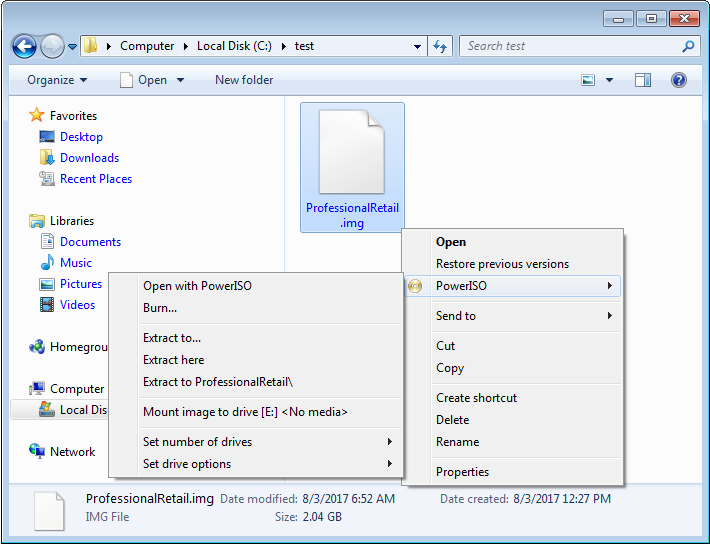
- Windows: Modern versions of Windows (8, 10, and 11) can mount some IMG files natively by right-clicking and selecting “Mount.” However, if the IMG file uses a file system Windows doesn’t recognize (like the Ext4 system used by Linux), the drive will appear but will not be accessible without third-party drivers.
- macOS: Disk Utility can often mount IMG files, and the
hdiutilcommand-line tool is a powerful way to manage them. - Linux: Linux users have the most native support, using the
mountcommand with the “loop” option to map the image file to a loop device.
Writing (Flashing) an IMG File
When you want to turn an IMG file back into a physical disk, you “burn” or “flash” it. Simple drag-and-drop will not work. You need a utility that can write to the physical sectors of the destination drive.
- Rufus: A popular, lightweight Windows utility used primarily for creating bootable USB drives.
- BalenaEtcher: A cross-platform, user-friendly tool that is the gold standard for writing IMG files to SD cards for Raspberry Pi projects.
- Win32 Disk Imager: A classic, no-frills utility for reading and writing raw disk images.
Conversion and Compression
Because raw IMG files are often quite large (due to including empty space), they are frequently distributed in compressed formats like .IMG.GZ or .ZIP. Before flashing, these must usually be decompressed. Furthermore, in virtualization, users often convert raw .IMG files into formats like .VDI (VirtualBox) or .VMDK (VMware) to take advantage of dynamic resizing features that raw images lack.
Security Considerations and Best Practices
As with any powerful technical tool, IMG files come with specific security risks. Because an IMG file is a sector-by-sector copy, it can contain boot-level malware that is difficult for standard antivirus software to detect while the file is “cold” (not mounted).
Verifying File Integrity
When downloading an IMG file—especially an operating system or a firmware update—it is critical to verify its integrity using a checksum (typically SHA-256). This ensures that the file was not corrupted during download and, more importantly, that it has not been tampered with by a malicious third party.
The Risk of Mounting Untrusted Images
Mounting an IMG file from an unknown source is equivalent to plugging an unknown USB drive into your computer. If the image contains an autorun script or exploits a vulnerability in the operating system’s file system driver, your system could be compromised. Always use a sandboxed environment or a dedicated virtual machine when inspecting suspicious disk images.
Digital Privacy in IMG Backups
Because IMG files capture “empty” space, they may also capture data that was previously deleted but not yet overwritten on the source drive. If you are creating an IMG of a drive to share with someone else, be aware that sensitive remnants of old files could theoretically be recovered from the “empty” sectors of that image. Proper data sanitization of the source drive before imaging is essential if privacy is a concern.
By mastering the use of IMG files, tech professionals gain a high level of control over data portability and system deployment. Whether it is preserving a legacy system or pioneering a new build on a micro-controller, the disk image remains one of the most reliable and precise tools in the digital toolkit.
aViewFromTheCave is a participant in the Amazon Services LLC Associates Program, an affiliate advertising program designed to provide a means for sites to earn advertising fees by advertising and linking to Amazon.com. Amazon, the Amazon logo, AmazonSupply, and the AmazonSupply logo are trademarks of Amazon.com, Inc. or its affiliates. As an Amazon Associate we earn affiliate commissions from qualifying purchases.