
YouTube TV has revolutionized the way millions of households consume live television, successfully bridging the gap between traditional cable and the flexibility of digital streaming. However, as with any sophisticated software-as-a-service (SaaS) platform, technical friction is inevitable. When you find yourself asking, “Why is YouTube TV not working?” the answer rarely lies in a single point of failure. Instead, it is usually a breakdown in one of several layers: the service’s server-side infrastructure, your local network environment, or the hardware/software stack of your playback device.
In this professional technical guide, we will dissect the common failure points of YouTube TV and provide actionable, high-level troubleshooting steps to restore your service.
Understanding the Infrastructure: Why YouTube TV Encounters Glitches
To effectively troubleshoot YouTube TV, one must first understand that streaming live content is significantly more complex than playing a static video on standard YouTube. Live streaming requires real-time encoding, minimal latency, and massive bandwidth distribution across global Content Delivery Networks (CDNs).
Server-Side Outages vs. Local Network Instability
The first step in any technical diagnostic process is isolation. You must determine if the problem is “global” or “local.” Google operates one of the most robust server infrastructures in the world, but even they are not immune to downtime. Massive surges in traffic—such as during the Super Bowl or a major political event—can strain authentication servers or video feed ingest points.
Before diving into your own settings, utilize tools like Downdetector or the official @TeamYouTube Twitter/X account to see if a widespread outage is occurring. If the service is down globally, no amount of router resetting will fix the issue. However, if the service status is “green,” the bottleneck is likely within your specific digital ecosystem.
Device Compatibility and Software Fragmentation
YouTube TV supports a wide array of devices, from Apple TV and Roku to integrated Smart TV operating systems like Tizen (Samsung) and WebOS (LG). This fragmentation creates a challenge. Each device runs a specific version of the YouTube TV app tailored to its hardware capabilities. When Google pushes a server-side update to the YouTube TV interface, it can occasionally create a mismatch with older firmware on specific devices. This often manifests as the app failing to launch, stuck loading screens, or frequent crashes upon opening.
Common Software-Level Barriers to Streaming
Software is the intermediary between your intent and the content. When software components become corrupted or outdated, the handshake between the YouTube TV app and Google’s servers fails.
Cache Corruption and App Data Overload
Every time you use the YouTube TV app, it stores “cache” data—temporary files intended to speed up load times and remember your preferences. Over time, these files can become corrupted due to improper shutdowns or interrupted updates. A corrupted cache is one of the leading causes of the “spinning wheel of death.”
For users on Android TV, Fire Stick, or mobile devices, clearing the app cache is a high-priority fix. This essentially “refreshes” the app’s memory without deleting your login credentials. If clearing the cache fails, the next logical step is a clean reinstallation. This ensures that any corrupted binary files within the application itself are replaced with a fresh, verified copy from the app store.
The Role of Digital Rights Management (DRM) and Geographic Restrictions
YouTube TV relies heavily on Digital Rights Management (DRM) to protect the copyrighted material of its broadcast partners. A common technical error is the “HDCP Error” (High-bandwidth Digital Content Protection). This occurs when the encrypted signal cannot be verified between your streaming device and your TV over the HDMI cable.
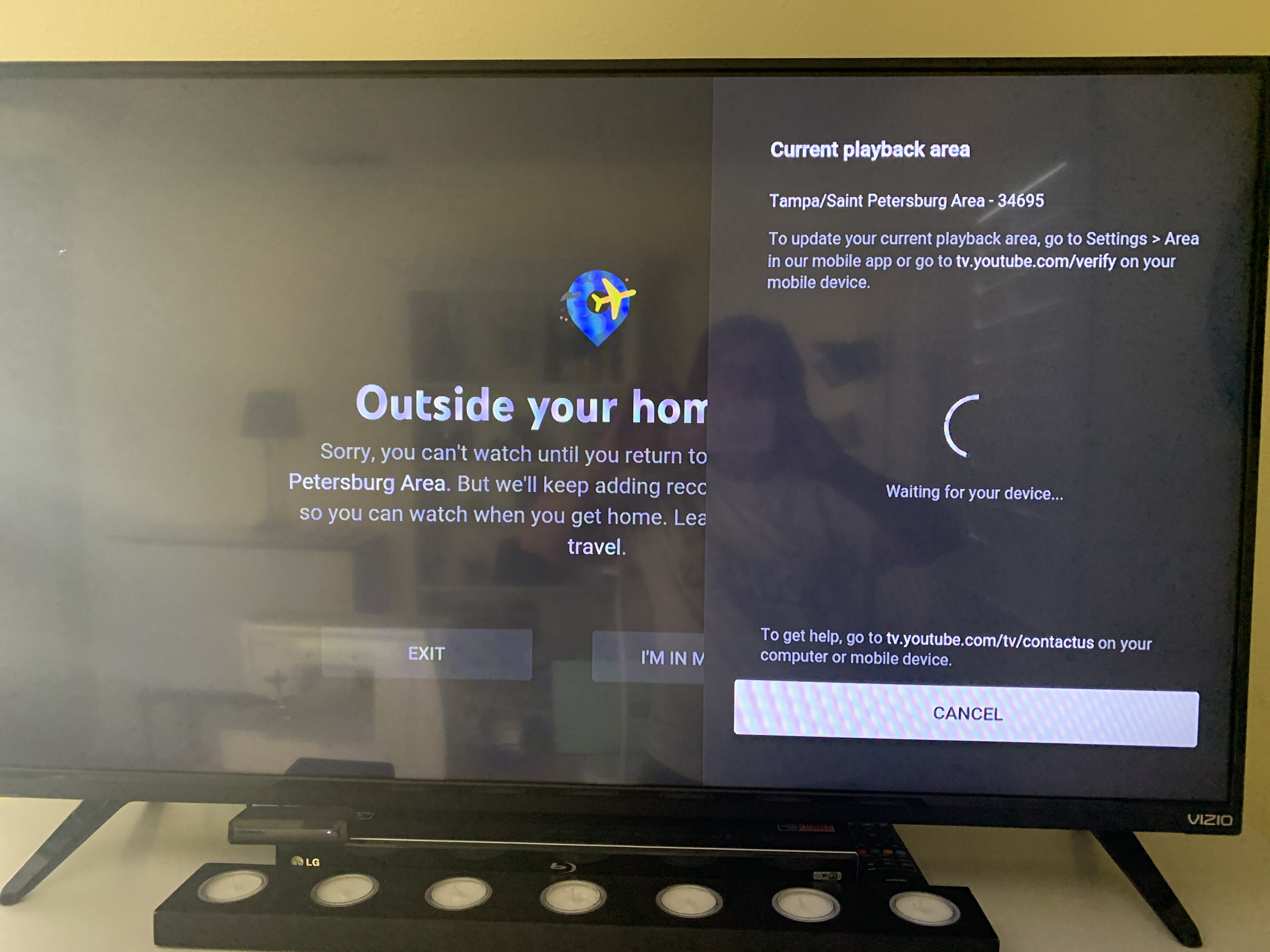
Furthermore, YouTube TV is hyper-dependent on location services. Because local affiliate rights (ABC, NBC, CBS, FOX) are tied to your specific ZIP code, the app must constantly verify your location. If you are using a VPN, or if your ISP has assigned you an IP address that places you outside your “Home Area,” the app may refuse to stream live content to prevent a violation of licensing agreements. Ensuring that location permissions are enabled on your mobile device or TV is a critical technical requirement.
Network Optimization for High-Definition Streaming

YouTube TV requires a stable, high-speed internet connection to function. While a standard 1080p stream might only require 7–10 Mbps, the overhead required for a “buffer-free” experience—especially in 4K—is much higher.
Bandwidth Requirements and ISP Throttling
For a seamless experience, Google recommends a minimum of 3 Mbps for SD, 7 Mbps for a single HD stream, and at least 25 Mbps for 4K content. However, these are “clean” numbers. In a modern household where multiple devices are connected, network congestion is a major factor.
Moreover, some Internet Service Providers (ISPs) engage in “throttling”—intentionally slowing down traffic from high-bandwidth services like YouTube TV during peak hours to manage network load. If you find that YouTube TV works perfectly in the morning but fails at 8:00 PM, your ISP’s traffic management policies may be the culprit. Running a speed test specifically on the device you are using for streaming (not just your phone) will provide a realistic view of the available throughput.
Optimizing Router Settings and DNS Configurations
For power users, the issue often lies in the router’s configuration. Modern streaming devices benefit significantly from being on the 5GHz Wi-Fi band rather than the 2.4GHz band, which is prone to interference from microwaves and older electronics.
Additionally, the Domain Name System (DNS) provided by your ISP can sometimes be sluggish. Switching your router’s DNS settings to a faster, more reliable provider—such as Google Public DNS (8.8.8.8) or Cloudflare (1.1.1.1)—can drastically reduce the time it takes for the YouTube TV app to “resolve” the video stream addresses, leading to faster channel switching and reduced buffering.
Device-Specific Troubleshooting Procedures
Not all streaming hardware is created equal. The way you fix YouTube TV on a Roku differs significantly from how you fix it on a web browser.
Smart TVs and Dedicated Streaming Hardware
Smart TVs often have underpowered processors compared to dedicated units like the Nvidia Shield or Apple TV 4K. If your Smart TV app is sluggish, it may be struggling with “system resources.” A “soft reset” of a TV—unplugging it from the wall for 60 seconds—forces the internal RAM to clear, which often solves app-hanging issues that a simple remote power-off cannot.
For dedicated streaming sticks (Fire Stick, Roku), ensure the device is powered by a wall outlet rather than a USB port on the TV. USB ports on many TVs do not provide enough amperage to keep the Wi-Fi chip and processor running at full capacity, leading to intermittent connectivity drops during high-action scenes.
Mobile Platforms and Web Browser Constraints
On desktop environments, YouTube TV failures are frequently linked to browser extensions. Ad-blockers, while useful, can inadvertently strip out the scripts required for YouTube TV’s player to function. If you are experiencing issues on Chrome or Firefox, try opening the service in an “Incognito” or “Private” window. This disables all extensions and provides a “clean room” environment to test the service. If it works in Incognito, you know an extension is the culprit.
Advanced Solutions and When to Contact Support
If basic troubleshooting fails, the issue may be rooted in deeper firmware or account-level synchronization errors.
System Updates and Firmware Patches
Operating systems like tvOS, Fire OS, and Roku OS receive frequent updates to patch security vulnerabilities and improve API compatibility. An outdated OS can lead to “API handshake failures” where the YouTube TV app requests data in a format the OS no longer supports. Always ensure your hardware is running the latest available firmware. This is particularly important for 4K streaming, as newer firmware often includes better HEVC (High-Efficiency Video Coding) decoding support.

Navigating the YouTube TV Help Center
If you have cleared your cache, verified your bandwidth, checked your HDCP cables, and confirmed that no global outage exists, the problem may be specific to your account’s “entitlements.” Sometimes, a subscription billing error or a “Family Sharing” conflict can cause the app to lock you out.
At this stage, contacting YouTube TV support is necessary. Use the “Send Feedback” tool within the app; this attaches a “system log” to your message, which provides Google’s engineers with a snapshot of your device’s state at the time of the error. This technical data is far more valuable to them than a general description of the problem, as it allows them to see exactly which line of code or network request failed.
By systematically addressing these technical layers—from the physical HDMI connection to the intricacies of DNS and DRM—you can resolve the vast majority of YouTube TV issues and return to a high-quality, uninterrupted viewing experience.
aViewFromTheCave is a participant in the Amazon Services LLC Associates Program, an affiliate advertising program designed to provide a means for sites to earn advertising fees by advertising and linking to Amazon.com. Amazon, the Amazon logo, AmazonSupply, and the AmazonSupply logo are trademarks of Amazon.com, Inc. or its affiliates. As an Amazon Associate we earn affiliate commissions from qualifying purchases.