
Venmo has become an indispensable tool for millions, simplifying peer-to-peer payments and making group expenses a breeze. Its seamless integration into daily life means that when it falters, even for a moment, the disruption can be frustrating. “Why is Venmo not working?” is a question many users suddenly find themselves asking. This guide delves deep into the technical underpinnings of Venmo’s functionality, offering a comprehensive troubleshooting framework rooted strictly in the realm of technology. From server outages to app-specific glitches and device compatibility issues, we’ll equip you with the knowledge to diagnose and resolve most technical roadblocks, ensuring your digital wallet stays operational.

The First Steps: Checking System-Wide and Connectivity Issues
Before diving into app-specific fixes, it’s crucial to rule out broader technical issues that might be affecting Venmo, your device, or your network. These foundational checks often pinpoint the problem quickly.
Venmo’s Server Status: Is the Problem Systemic?
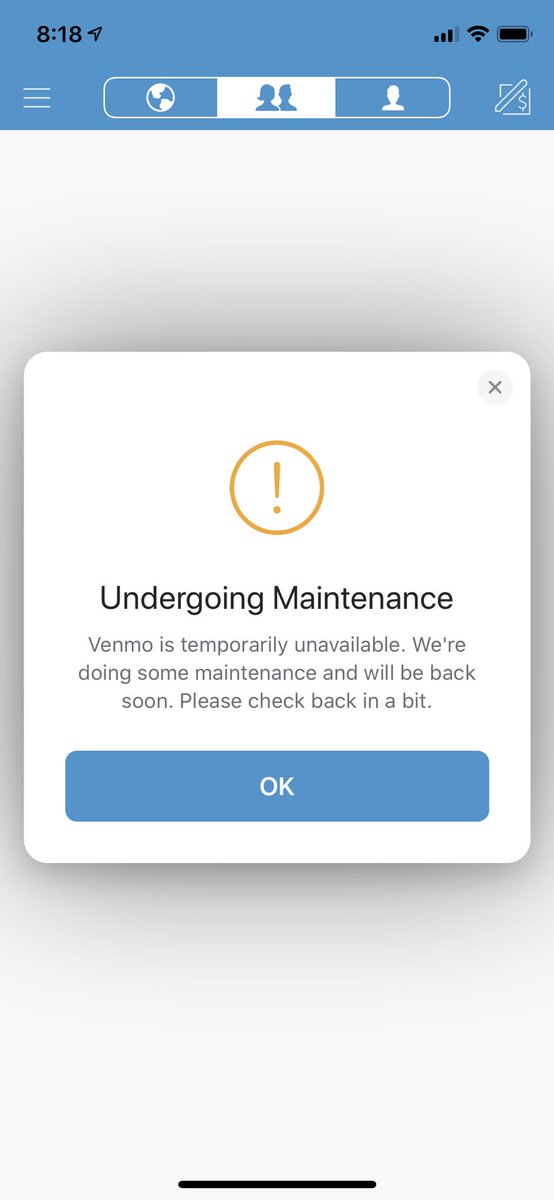
One of the most common reasons Venmo might not be working is due to an outage or maintenance on their servers. When Venmo’s infrastructure experiences issues, it can affect all users globally or within specific regions. This is a system-wide technical problem beyond your individual control.
To check for a systemic outage:
- Official Channels: Your first stop should be Venmo’s official Twitter account (@VenmoSupport) or their dedicated status page (if available). Companies often post real-time updates about service disruptions here.
- Third-Party Monitors: Websites like DownDetector.com aggregate user reports of outages for various services, including Venmo. A sudden spike in reported issues often indicates a widespread problem.
- Impact: If Venmo’s servers are down, you might experience issues logging in, sending/receiving payments, viewing transaction history, or even getting the app to load beyond a splash screen.
- Resolution: In these cases, patience is key. The issue lies with Venmo’s engineering team, and they will typically work to resolve it as quickly as possible. Regularly check the status channels for updates.
Your Internet Connection: The Foundation of App Functionality
Venmo, like virtually all modern apps, requires a stable and robust internet connection to function correctly. Even minor connectivity hiccups can lead to transaction failures, slow loading times, or an inability to log in.
- Diagnosing Connectivity:
- Switch Networks: If you’re on Wi-Fi, try switching to mobile data (and vice-versa). If Venmo works on one but not the other, the problem lies with the specific network.
- Test Other Apps: Open other internet-dependent apps (e.g., a web browser, social media) to see if they are also experiencing connectivity issues.
- Restart Router/Modem: For Wi-Fi issues, a simple restart of your internet router or modem can often resolve underlying network glitches.
- Toggle Airplane Mode: On your mobile device, toggling Airplane Mode on and off can reset your network connection and resolve temporary cellular data issues.
- Impact: A weak or intermittent signal can cause transaction timeouts, data synchronization failures, and error messages indicating a lack of connection.
Device Health: Restarting and Resource Management
Sometimes, the issue isn’t with Venmo’s servers or your internet, but with your device itself. Mobile devices, like any computer, can accumulate temporary glitches, run low on resources, or experience software conflicts that impede app performance.
- The Classic Restart: The age-old advice “turn it off and on again” is incredibly effective because it clears temporary memory (RAM), restarts all system processes, and can resolve minor software conflicts. Perform a full device restart.
- Check Storage and RAM: Ensure your device has sufficient free storage space and available RAM. A device running low on resources can struggle to run complex apps like Venmo efficiently, leading to crashes or slow performance. Delete unnecessary files or apps if storage is critically low.
- Background Processes: Too many apps running in the background can consume valuable resources. Close unnecessary apps that might be competing for memory or network bandwidth.
App-Specific Diagnostics: Addressing Software and Configuration Issues
Once you’ve ruled out broader system and connectivity problems, the next step is to focus on the Venmo app itself. Many “not working” scenarios stem from the app’s software state or its configuration on your device.
Outdated Venmo App or Operating System
Software developers constantly release updates to fix bugs, improve security, and introduce new features. Running an outdated version of Venmo or your device’s operating system (OS) can lead to compatibility issues and malfunctions.
- Venmo App Updates:
- Why they matter: Updates often contain critical bug fixes that address known issues preventing the app from functioning correctly. They also include security patches to protect your financial data.
- How to check: Visit the App Store (iOS) or Google Play Store (Android) and search for “Venmo.” If an update is available, install it.
- Operating System Updates:
- Why they matter: Venmo is designed to work best with the latest stable versions of iOS or Android. Outdated OS versions can lead to conflicts, performance degradation, and an inability for the app to leverage necessary system resources.
- How to check: Go to your device’s Settings > General > Software Update (iOS) or Settings > System > System Update (Android). Install any pending updates.
Clearing Venmo’s Cache and Data
Apps store temporary files (cache) to speed up loading times and improve user experience. Over time, this cache can become corrupted or grow excessively large, leading to unexpected behavior.
- What is Cache? It’s a collection of temporary data stored on your device that the app uses for quick access.
- Impact of Corrupted Cache: A corrupted cache can manifest as the app crashing, failing to load content, displaying old information, or simply refusing to work.
- How to Clear Cache (Android):
- Go to your device’s Settings.
- Tap on “Apps” or “Apps & Notifications.”
- Find and tap on “Venmo.”
- Tap on “Storage & Cache.”
- Select “Clear Cache.”
- How to Clear Cache/Reinstall (iOS): iOS doesn’t offer a direct “clear cache” option for individual apps in the same way Android does. The most effective method is to “Offload App” or “Delete App”:
- Go to Settings > General > iPhone Storage.
- Find and tap on “Venmo.”
- Select “Offload App” (this frees up storage but keeps documents and data) or “Delete App” (this removes the app and all its data, requiring a fresh install). Reinstalling after either option is often the best solution for persistent issues.
- Clearing Data (Android): While “Clear Cache” is generally safe, “Clear Data” (also found under “Storage & Cache” on Android) will reset the app to its factory state, effectively logging you out and deleting all user data associated with the app. This is a more drastic step but can resolve deeper software issues. Be cautious and ensure you remember your login credentials before doing this.
App Permissions and Settings
For Venmo to function correctly, it needs specific permissions to access certain features of your device, such as network access, location services, or contacts. Incorrectly configured permissions can block core functionalities.
- Review Permissions:
- Go to your device’s Settings.
- Navigate to “Apps” or “Apps & Notifications,” then find “Venmo.”
- Tap on “Permissions” and ensure that necessary permissions (e.g., Storage, Location, Contacts, Camera) are granted. Denying network access, for instance, would completely disable the app.
- Background App Refresh: Ensure Venmo is allowed to refresh in the background, especially if you expect to receive notifications or updates without actively opening the app.
- VPNs and Security Software: If you use a Virtual Private Network (VPN) or other third-party security software, it might be interfering with Venmo’s connection. Try disabling them temporarily to see if the problem resolves. Some financial apps have built-in security features that conflict with external VPNs.
Account & Security Protocols: User-End Technical Roadblocks
Beyond general app and device issues, problems with your Venmo account itself, often related to security protocols or payment methods, can prevent the app from functioning as expected. These are technical blocks designed to protect your finances.
Authentication Failures: Passwords, PINs, and Biometrics
An inability to log into your Venmo account is a common “not working” scenario, often linked to authentication issues.
- Incorrect Credentials: Double-check your username (usually email or phone number) and password. A simple typo is a frequent culprit.
- Forgotten Passwords: Use Venmo’s “Forgot Password” feature on the login screen. This is a technical process involving email or SMS verification to reset your access.
- Biometric Issues: If you use Touch ID or Face ID, ensure your biometrics are properly registered on your device and that Venmo has permission to use them. Issues can arise from dirty sensors, recent changes to biometrics, or software glitches. Try disabling and re-enabling biometric login within Venmo’s settings.
- Account Lockouts: Multiple failed login attempts can trigger Venmo’s security system to temporarily lock your account to prevent unauthorized access. You’ll typically receive instructions on how to unlock it, which may involve contacting support or waiting a specific period. This is a deliberate technical safeguard.
Payment Method Verification and Limits
Venmo relies on linked bank accounts and debit/credit cards. Problems with these financial tools, or with Venmo’s own system limits, can cause transactions to fail.
- Expired or Invalid Payment Methods: Ensure all linked bank accounts and cards are current, active, and haven’t expired. Update details if necessary. This technical verification is crucial for every transaction.
- Unverified Bank Accounts: Venmo often requires bank accounts to be verified through micro-deposits or instant verification. If your bank isn’t fully verified, certain transactions might be blocked.
- Transaction Limits: Venmo imposes technical limits on how much money you can send, receive, and withdraw over specific periods (e.g., weekly sending limits for unverified users). Exceeding these limits will result in transaction failures. These limits are algorithmically enforced.
- Insufficient Funds: While seemingly a “money” issue, the technical response from Venmo (e.g., an error message, transaction denial) is a direct result of the system checking your linked payment method and finding insufficient balance.
Enhanced Security Measures and Fraud Prevention
Venmo employs sophisticated algorithms and protocols to detect and prevent fraudulent activity. Sometimes, these measures can inadvertently flag legitimate transactions or activities, temporarily blocking your account or specific functions.
- Unusual Activity: Logging in from a new device, an unfamiliar location, or attempting unusually large transactions can trigger Venmo’s fraud detection systems.
- Identity Verification (KYC): For higher limits or certain features, Venmo might require you to complete identity verification (Know Your Customer) by providing personal information and sometimes photo ID. Failing to complete or passing this technical verification can restrict account functionality.
- Temporary Holds/Freezes: If Venmo’s systems detect suspicious behavior, they might place a temporary hold on your account or a specific transaction, requiring manual review. This is a technical intervention designed to protect you.
Proactive Maintenance and Advanced Troubleshooting
To minimize future disruptions and ensure optimal performance, a proactive approach to managing your Venmo app and device is beneficial.
Regular Tech Hygiene for Financial Apps
- Automate Updates: Enable automatic updates for Venmo and your device’s operating system to ensure you always have the latest bug fixes and security enhancements.
- Periodic Cache Clearing: Make it a habit to clear Venmo’s cache (on Android) or offload/reinstall (on iOS) every few months, especially if you notice performance degradation.
- Strong Authentication: Always use a strong, unique password for Venmo and enable two-factor authentication (2FA) for an added layer of security. This uses cryptographic tokens or codes to verify your identity.
Reinstallation as a Last Resort
If you’ve tried all other troubleshooting steps and Venmo still isn’t working, a complete reinstallation of the app can often resolve deeply embedded software issues.
- Process: Delete the Venmo app from your device, restart your device, and then download and install the app fresh from your device’s app store.
- Precautions: Ensure you remember your login credentials as you’ll need to re-enter them. This step effectively gives you a brand-new copy of the application.
Seeking Direct Technical Assistance
When all self-troubleshooting efforts have been exhausted, it’s time to engage Venmo’s official support channels. Providing them with detailed technical information will expedite the resolution process.
Navigating Venmo’s Support Resources
- In-App Help: Venmo’s app often has a “Help” or “Contact Us” section with FAQs, articles, and sometimes direct messaging options.
- Online Knowledge Base: Visit Venmo’s official support website for an extensive library of articles addressing common issues.
- Direct Contact: Look for options to email or chat with customer support. Be prepared to provide them with specifics about your issue.

Documenting Your Issue for Efficient Resolution
When contacting support, be as detailed as possible with your technical description:
- Specific Error Messages: Note down the exact wording of any error messages you receive.
- Steps to Reproduce: List the precise steps you took before the problem occurred.
- Device Information: Provide your device model, operating system version (e.g., iOS 17.4, Android 14), and the Venmo app version (found in Venmo settings or your app store).
- Screenshots/Screen Recordings: Visual evidence can be incredibly helpful for support agents to understand the technical problem.
In conclusion, encountering issues with an app as vital as Venmo can be vexing. However, by systematically approaching the problem through a tech-focused lens—checking server status, ensuring network stability, optimizing app and device performance, and understanding security protocols—most “not working” scenarios can be diagnosed and resolved. Remember that most digital tools are complex systems, and a methodical troubleshooting approach is often the quickest path to getting them back on track.
aViewFromTheCave is a participant in the Amazon Services LLC Associates Program, an affiliate advertising program designed to provide a means for sites to earn advertising fees by advertising and linking to Amazon.com. Amazon, the Amazon logo, AmazonSupply, and the AmazonSupply logo are trademarks of Amazon.com, Inc. or its affiliates. As an Amazon Associate we earn affiliate commissions from qualifying purchases.