
The silent spin of a loading wheel or the dreaded “buffering” message can quickly turn a relaxing evening into a frustrating tech support session. For many, YouTube TV has become a primary gateway to live television, sports, and on-demand content, offering a compelling alternative to traditional cable. But like any complex streaming service, it’s not immune to glitches. When your YouTube TV isn’t working, it can feel like being cut off from the world of entertainment. This comprehensive guide is designed to systematically walk you through the most common reasons and solutions for YouTube TV woes, helping you get back to your favorite shows with minimal fuss.

Initial Checks and Common Culprits
Before diving into complex diagnostics, it’s always wise to start with the simplest explanations. Often, the solution is right under your nose, or even entirely out of your control.
Is It Just You? Check YouTube TV’s Server Status
One of the most overlooked first steps is determining if the problem is localized to your setup or if it’s a widespread outage. YouTube TV, like any major online service, relies on vast server infrastructure. Occasionally, these servers can experience issues, leading to service interruptions for all users.
To check if YouTube TV itself is having problems:
- Official YouTube TV Status Page: While Google doesn’t always have a public, real-time “status page” for YouTube TV specifically, they often post updates on their official support Twitter accounts or within the YouTube TV app if there’s a known widespread issue.
- Third-Party Down Detector Websites: Sites like DownDetector.com aggregate user reports of service outages. A quick search for “YouTube TV” on such a site can show you if there’s a surge of problems reported by other users in your area or globally.
- Social Media: A quick search on Twitter for “#YouTubeTVdown” or similar phrases can often reveal real-time discussions among users experiencing the same issues.
If it turns out to be a widespread server issue, the best course of action is patience. Google’s engineers are likely already aware and working diligently to restore service. There’s little you can do on your end until they resolve the backend problem.
Internet Connection: The Foundation of Streaming
Streaming quality and even basic functionality are entirely dependent on a stable and sufficiently fast internet connection. Without it, YouTube TV simply can’t deliver content.
- Verify Wi-Fi/Ethernet Connection: First, ensure your streaming device (Smart TV, Roku, Fire Stick, computer, mobile device) is actually connected to the internet. Look for the Wi-Fi or Ethernet icon on your device’s interface. If you’re on Wi-Fi, ensure the signal strength is adequate, especially if you’re far from your router.
- Perform a Speed Test: YouTube TV recommends a minimum of 3 Mbps for standard definition, 7 Mbps for a single stream of high definition, and 13 Mbps for reliable 1080p streaming. For 4K streams, significantly higher speeds (25+ Mbps) are required. Use a service like Speedtest.net or Google’s own speed test (just type “internet speed test” into Google) on the device you’re trying to watch YouTube TV on, or on a device connected to the same network.
- Reboot Your Router and Modem: This is a classic IT solution because it often works. Unplug both your internet modem and Wi-Fi router from power. Wait 30 seconds to a minute, then plug the modem back in. Once its indicator lights stabilize (usually a minute or two), plug your router back in. Give it another couple of minutes to fully boot up and establish network connections. This process can clear temporary glitches, refresh IP addresses, and improve network performance.
- Consider Other Devices on Your Network: Are multiple people streaming, gaming, or downloading large files simultaneously? High network traffic can hog bandwidth, leaving insufficient resources for smooth YouTube TV playback. Try temporarily disconnecting other devices or pausing heavy downloads to see if performance improves.
Device Specific Issues: Power Cycle and Updates
Sometimes, the problem isn’t the internet or YouTube TV’s servers, but the device you’re using to access the service.
- Restart Your Streaming Device: Just like your computer or phone, streaming devices can benefit from a simple restart. This clears temporary memory issues and can resolve many minor software hiccups.
- Smart TV: Unplug the TV from the wall socket for 60 seconds, then plug it back in.
- Streaming Sticks/Boxes (Roku, Fire TV, Apple TV, Chromecast): Unplug the device from its power source for 30 seconds and then plug it back in.
- Gaming Consoles (Xbox, PlayStation): Perform a full power cycle through the system settings.
- Mobile Devices/Computers: A simple restart of the device often suffices.
- Check for System Software Updates: Ensure your streaming device’s operating system is up to date. Outdated firmware can lead to compatibility issues with newer app versions. Navigate to the system settings on your device and look for a “Software Update” or “System Update” option.
- Ensure the YouTube TV App Is Updated: Similarly, an outdated YouTube TV app can be a source of problems. Go to your device’s app store (Google Play Store, Apple App Store, Roku Channel Store, Amazon Appstore) and check for any pending updates for the YouTube TV app. Install them if available.
Deeper Dive into App and Account Troubleshooting
If the initial checks don’t resolve the issue, it’s time to focus on the YouTube TV app itself and your account status.
Clearing App Cache and Data
Over time, apps accumulate cached data to speed up performance. However, this cache can become corrupted, leading to various issues like freezing, loading errors, or playback problems. Clearing it is a safe and often effective troubleshooting step.
- On Android TV/Google TV: Go to Settings > Apps > See all apps > YouTube TV > Clear cache and Clear data.
- On Roku: Highlight the YouTube TV channel on your home screen, press the asterisk (*) button, then select “Remove channel.” Restart your Roku, then reinstall YouTube TV from the Channel Store. This effectively clears cache and data.
- On Amazon Fire TV/Fire Stick: Go to Settings > Applications > Manage Installed Applications > YouTube TV > Clear cache and Clear data.
- On Apple TV: There isn’t a direct “clear cache” option. The best approach is to uninstall and reinstall the app (see next section).
- On iOS/Android Mobile: Go to your device’s Settings > Apps (or App & Notifications) > YouTube TV > Storage > Clear cache. On Android, you might also have a “Clear data” option; use this if clearing cache doesn’t work. On iOS, you generally need to offload or delete and reinstall the app.
Clearing data (sometimes called “storage”) will log you out of the app and reset its settings to default, requiring you to sign in again. Only do this if clearing cache doesn’t help.
Reinstalling the YouTube TV App
If clearing cache and data doesn’t work, a complete reinstallation can resolve deeper software corruption issues. This ensures you have a fresh, clean copy of the app.
- How to Uninstall:
- Roku/Fire TV: Highlight the app, press the asterisk (*) or menu button, and select “Remove channel/app.”
- Smart TV (Android TV/Google TV): Go to Settings > Apps > YouTube TV > Uninstall. For other smart TV platforms (LG webOS, Samsung Tizen), refer to your TV’s manual for uninstalling apps.
- Apple TV: Highlight the app, press and hold the touch surface until the icon jiggles, then press the Play/Pause button and select “Delete.”
- Mobile/Computer: Long-press the app icon and select “Uninstall” or drag it to the trash/uninstall option.
- How to Reinstall:
- Once uninstalled, go to your device’s app store (Google Play Store, Apple App Store, Roku Channel Store, Amazon Appstore) and search for “YouTube TV.” Download and install it again.
- After installation, open the app and sign in with your Google account credentials.
Account and Subscription Verification
Sometimes, the problem isn’t technical, but administrative. Ensure your YouTube TV account is in good standing.
- Ensure Active Subscription: Log in to your Google account that manages your YouTube TV subscription (account.google.com, then navigate to Subscriptions or directly to tv.youtube.com/settings/membership). Verify that your membership is active and not paused or canceled.
- Check Payment Methods: If your subscription is showing as inactive or paused, it might be due to a failed payment. Update your payment information if necessary.
- Verify Sign-in Credentials: Double-check that you’re signing into YouTube TV with the correct Google account that holds the active subscription. If you have multiple Google accounts, it’s easy to accidentally use the wrong one.
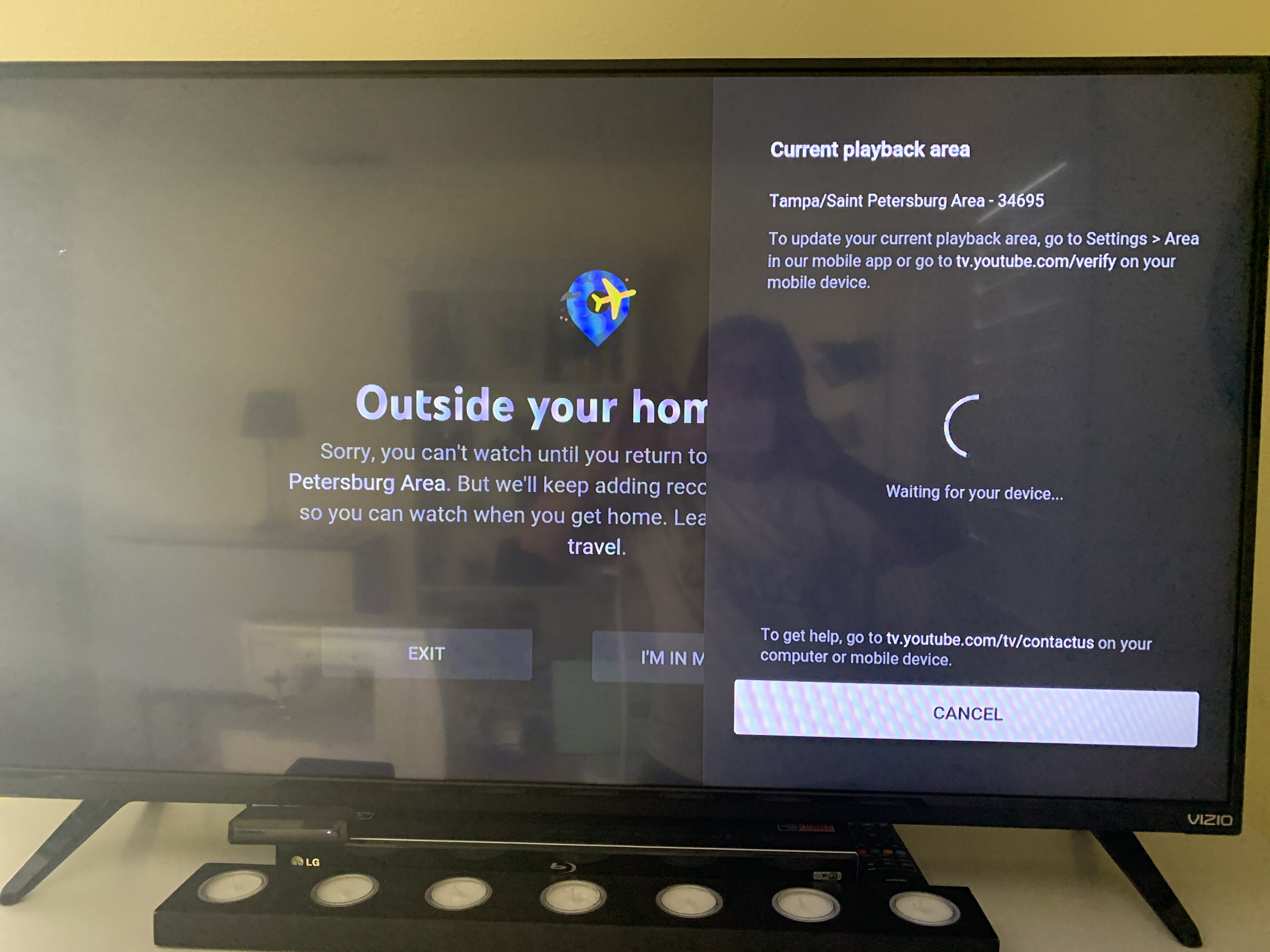
- Geographic Restrictions and VPN Usage: YouTube TV is a location-based service, meaning you can only access local channels relevant to your home area. If you’re traveling outside your designated home area for an extended period, or if you’re using a Virtual Private Network (VPN), YouTube TV might restrict access or display errors. YouTube TV generally detects and blocks VPN usage, as it violates their terms of service regarding location. Ensure your VPN is disabled when trying to watch.
Network and Advanced Connectivity Solutions
While we touched on basic internet checks, sometimes network issues run deeper than a simple router reboot.
DNS Server Issues
The Domain Name System (DNS) is like the internet’s phonebook, translating website names (like youtube.com) into IP addresses that computers can understand. If your DNS server is slow or experiencing issues, it can impact loading times and connectivity for streaming services.
- Switch to Public DNS: You can try switching your device or router’s DNS settings to a public DNS server, such as Google DNS (8.8.8.8 and 8.8.4.4) or Cloudflare DNS (1.1.1.1 and 1.0.0.1). This can sometimes provide faster and more reliable resolution than your internet service provider’s default DNS.
- Router Settings: The most effective way is to change it in your router’s settings, so all devices connected to it benefit.
- Device Settings: Alternatively, you can change DNS settings on individual devices (e.g., computer, some smart TVs, streaming boxes), but this only affects that specific device.
Firewall and Antivirus Interference
If you’re watching YouTube TV on a computer, your firewall or antivirus software could be inadvertently blocking the connection to YouTube TV’s servers.
- Temporarily Disable for Testing: As a test, try temporarily disabling your computer’s firewall or antivirus software. If YouTube TV starts working, you’ve identified the culprit. Remember to re-enable them immediately after testing for security reasons. You’ll then need to add an exception for YouTube TV or your browser in your security software’s settings.
IPv6 vs. IPv4 Considerations
Most modern internet operates on IPv6, but some older devices or network configurations might still primarily use IPv4. If there’s a mismatch or a faulty implementation of one, it can cause connectivity problems.
- Try Disabling IPv6 (Router): If your router has the option, you could try temporarily disabling IPv6 and see if YouTube TV performance improves. This is a more advanced step and should only be done if you’re comfortable navigating your router’s settings. Remember to re-enable it if it doesn’t help, as IPv6 is the future of the internet.
Testing with a Different Network or Hotspot
To definitively rule out your home network as the source of the problem, try accessing YouTube TV from a different network.
- Use a Mobile Hotspot: If you have a smartphone with cellular data, create a Wi-Fi hotspot and connect your streaming device (or simply watch on your phone via cellular) to it. If YouTube TV works flawlessly on the mobile hotspot, then the issue is almost certainly with your home internet connection or router setup. This helps you narrow down your troubleshooting efforts.
Device-Specific Performance Optimizations
Beyond basic restarts, sometimes device performance itself can be a limiting factor.
Device Memory and Storage
Streaming devices, especially older or lower-end models, can struggle with limited RAM and storage.
- Close Other Apps: On smart TVs, computers, and mobile devices, ensure there aren’t too many other applications running in the background, consuming valuable memory and processing power.
- Free Up Storage Space: While YouTube TV primarily streams, some devices might use local storage for temporary files. If your mobile device or smart TV is critically low on storage, it can impact overall performance. Delete unnecessary apps, photos, or videos.
Display and Audio Settings
Less common but still possible, incorrect display or audio settings can sometimes manifest as “not working” (e.g., black screen, no sound).
- Check HDMI Cables and Input Sources: Ensure your HDMI cables are securely connected and that your TV is on the correct input source for your streaming device. Try a different HDMI port or cable if you suspect a faulty connection.
- Ensure Correct Audio Output Settings: Check your TV or sound system’s audio settings. If it’s set to an unsupported format (e.g., a specific surround sound codec your device can’t handle), you might get no sound. Try a basic stereo output.
- HDR/SDR Compatibility Issues: If you’re using a 4K HDR-capable TV and device, sometimes conflicts with HDR settings can cause a black screen or unusual colors. Try disabling HDR temporarily in your device or TV settings to see if it resolves the issue.
When All Else Fails: Contacting Support
If you’ve systematically worked through all the common troubleshooting steps and YouTube TV is still not working, it’s time to reach out to professional support.
Gathering Information Before Contacting
To make the support process as efficient as possible, have the following information ready:
- Troubleshooting Steps Taken: List all the steps you’ve already tried (e.g., “I’ve rebooted my router, cleared app cache, and reinstalled the app”). This prevents the support agent from suggesting steps you’ve already performed.
- Device Model and OS Version: Specify the exact model of your streaming device (e.g., “Roku Ultra 2022,” “Samsung QN65Q80A 2021 model,” “iPhone 14 Pro,” “Windows 11 PC”) and its operating system version.
- YouTube TV App Version: You can usually find this in the app’s settings or “About” section.
- Specific Error Messages or Codes: Note down any exact error messages or numerical codes you receive. These are invaluable clues for support staff.
- When the Issue Started: Did it suddenly stop working, or has it been intermittent? Were there any changes to your setup (new router, new device) around that time?
- Affected Content: Is it all content, or just specific channels/shows?

How to Reach YouTube TV Support
YouTube TV offers several channels for customer support:
- Live Chat: This is often the quickest and most effective way to get real-time help. Access it through the “Help” section on the YouTube TV website or app.
- Email Support: If the issue isn’t urgent, you can send an email outlining your problem. Response times may be longer.
- Twitter: Occasionally, support teams monitor social media for issues, though this is usually for general inquiries rather than in-depth technical support.
Be clear, concise, and patient when explaining your issue to the support agent. The more information you provide, the better they can assist you.
Experiencing issues with YouTube TV can be frustrating, but with a systematic approach to troubleshooting, most problems can be resolved. By following the steps outlined in this guide, from checking your internet connection to delving into app and network settings, you significantly increase your chances of getting your YouTube TV service back up and running smoothly. Remember, technology sometimes needs a little nudge, and understanding the common failure points empowers you to be your own tech support guru.
aViewFromTheCave is a participant in the Amazon Services LLC Associates Program, an affiliate advertising program designed to provide a means for sites to earn advertising fees by advertising and linking to Amazon.com. Amazon, the Amazon logo, AmazonSupply, and the AmazonSupply logo are trademarks of Amazon.com, Inc. or its affiliates. As an Amazon Associate we earn affiliate commissions from qualifying purchases.