
The iconic life simulation game, The Sims 2, continues to hold a special place in the hearts of many gamers. While officially discontinued by EA, its enduring appeal has led to a dedicated community of players who are eager to revisit or experience its charm on modern hardware. For Mac users, this often involves navigating the nuances of installing older software, and when it comes to enhancing gameplay, tools like Sim Blender become indispensable. This guide will delve into the intricacies of installing Sim Blender for The Sims 2 on macOS, addressing potential challenges and providing clear, step-by-step instructions.

The Sims 2, with its deep gameplay mechanics and extensive customization options, was a beloved title. However, its age means that direct installation on contemporary operating systems, especially macOS, can present hurdles. Fortunately, the passionate Sims 2 community has developed workarounds and essential tools that breathe new life into the game. One such powerful tool is Sim Blender, a third-party utility that allows for extensive modification of Sim attributes, careers, relationships, and more, offering a level of control that greatly enhances the player’s experience.
This article aims to demystify the process of getting Sim Blender up and running on your Mac, ensuring you can leverage its full potential for an even richer Sims 2 playthrough. We will cover everything from acquiring the game itself to understanding the necessary preparatory steps for Sim Blender, and finally, the installation and utilization of this vital modding tool.
Understanding the Sims 2 Installation Landscape on Mac
Before we can even think about installing Sim Blender, the foundational step is to have The Sims 2 itself installed and functional on your Mac. This is where many Mac users encounter their first significant challenge. Unlike Windows, where finding and installing older games is often more straightforward, macOS has undergone substantial changes over the years, particularly concerning its architecture and compatibility with 32-bit applications.
The Challenge of 32-Bit vs. 64-Bit
A crucial point to understand is that The Sims 2, in its original retail form, is a 32-bit application. macOS, starting with Catalina (10.15), completely dropped support for 32-bit applications. This means that if you have a Mac running macOS Catalina or later, you cannot directly run the original Sims 2 installer or the game itself.
This limitation has necessitated community-driven solutions. The most common and recommended approach is to obtain a “clean” digital copy of The Sims 2 Ultimate Collection. This collection, which was once offered for free by EA during a limited promotion, contains all the expansion packs and stuff packs, offering the most complete Sims 2 experience. Many dedicated Sims 2 fans have preserved these digital copies and made them available through community forums and dedicated websites. It is imperative to source your game files from reputable community sources to avoid malware or corrupted installations.
Essential Preparations for a Smooth Installation
Once you have a reliable source for The Sims 2 Ultimate Collection, the next step is ensuring a proper installation. This typically involves downloading and extracting the game files. Depending on the source, these might be distributed as .dmg files or zipped archives.
Important Considerations for Mac Installation:
- Disk Space: The Sims 2 Ultimate Collection, with all its expansions, requires a considerable amount of disk space. Ensure you have at least 20-30 GB of free space on your Mac.
- Permissions: When installing or running older applications on macOS, you might encounter permission issues. It’s often a good practice to ensure the game folder and its contents have appropriate read/write permissions. This can usually be managed through the Finder’s “Get Info” panel.
- Game Launchers: For Macs running newer macOS versions that lack 32-bit support, the community has developed unofficial game launchers or wrappers. These are essential for getting the game to run. These launchers often handle compatibility issues and ensure the game can launch correctly. You will need to identify and download the appropriate launcher for your macOS version. Websites dedicated to The Sims 2 on Mac will usually provide links and instructions for these launchers.
Locating Your Sims 2 Installation Folder
The exact location where The Sims 2 is installed on your Mac can vary depending on how you obtained and installed it. However, a common structure for community-provided installations is as follows:
- Default Location: Often, the game will be installed within your
Applicationsfolder, or a subfolder within it, such asThe Sims 2 Ultimate Collection. - User Folders: Crucially, Sim Blender and many other mods interact with your game’s user data. This data is typically located within your
Documentsfolder, under a path likeDocuments/EA Games/The Sims 2 [Your Game Name/Version]. The specific name of the Sims 2 folder might differ slightly depending on the installation method. It’s vital to locate thisEA Gamesfolder, as this is where yourDownloadsfolder for custom content (including Sim Blender) will reside.
It is highly recommended to meticulously note down the exact path to both your game’s executable and the EA Games folder. This information will be critical when it comes time to install Sim Blender.
Installing Sim Blender: Unlocking Advanced Gameplay
Sim Blender is a powerful tool developed by the community that essentially acts as an in-game editor. It allows you to make significant changes to your Sims without resorting to complex external hacks or console commands. This includes altering their age, skills, aspirations, relationships, career levels, and even their genetic makeup. For anyone serious about storytelling or fine-tuning their Sims’ lives, Sim Blender is a must-have.
The installation process for Sim Blender itself is relatively straightforward, but it requires understanding where it needs to be placed. Unlike the game itself, Sim Blender is not a program you “run” in the traditional sense to install; rather, it’s a file that your game needs to recognize and load.
Acquiring Sim Blender
First, you’ll need to download Sim Blender. The most reliable sources are dedicated Sims 2 modding websites and forums. Search for “Sim Blender download Sims 2” and prioritize well-known community hubs. Always download from trusted sources to avoid potential security risks. Sim Blender is typically distributed as a .package file or a .sims2pack file. For newer installations and Sim Blender versions, .package files are more common and generally preferred.
The Crucial “Downloads” Folder
Sim Blender, like most custom content and mods for The Sims 2, needs to be placed in a specific folder within your game’s user data to be recognized by the game. This is the Downloads folder.
The standard path for this folder on macOS is:
~/Documents/EA Games/The Sims 2 [Your Game Name/Version]/Downloads
- The
~symbol represents your user home directory. EA Gamesis the main folder for your Sims 2 installation’s user data.The Sims 2 [Your Game Name/Version]will be the specific folder name for your installation. It might be “The Sims 2 Ultimate Collection,” “The Sims 2,” or something similar. You need to identify this folder in yourDocumentsdirectory.Downloadsis the essential subfolder where you will place Sim Blender.
If the Downloads folder does not exist: Don’t worry. Simply create a new folder named Downloads within your The Sims 2 [Your Game Name/Version] folder.
Placing the Sim Blender File
- Locate the downloaded Sim Blender file: This will likely be a
.packagefile. - Navigate to your Sims 2
Downloadsfolder: As described above, this is usually in~/Documents/EA Games/The Sims 2 [Your Game Name/Version]/Downloads. - Copy or move the Sim Blender
.packagefile directly into theDownloadsfolder. Do not put it in a subfolder withinDownloads. It needs to be at the top level of theDownloadsdirectory.
If you downloaded a .sims2pack file, the installation process is slightly different. .sims2pack files are usually associated with a package installer that comes with The Sims 2 or is available from community sites. You would typically double-click this file, and it would prompt you to install the content into your game. However, .package files are more common for Sim Blender and generally simpler to manage.
Activating Sim Blender in-Game
Once Sim Blender is placed in the correct Downloads folder, you don’t need to “run” anything separately to activate it. The game will automatically detect the .package file upon launching.
To use Sim Blender:
- Launch The Sims 2: Use your Mac’s game launcher or method to start the game.
- Load a Household: Enter a household you wish to modify.
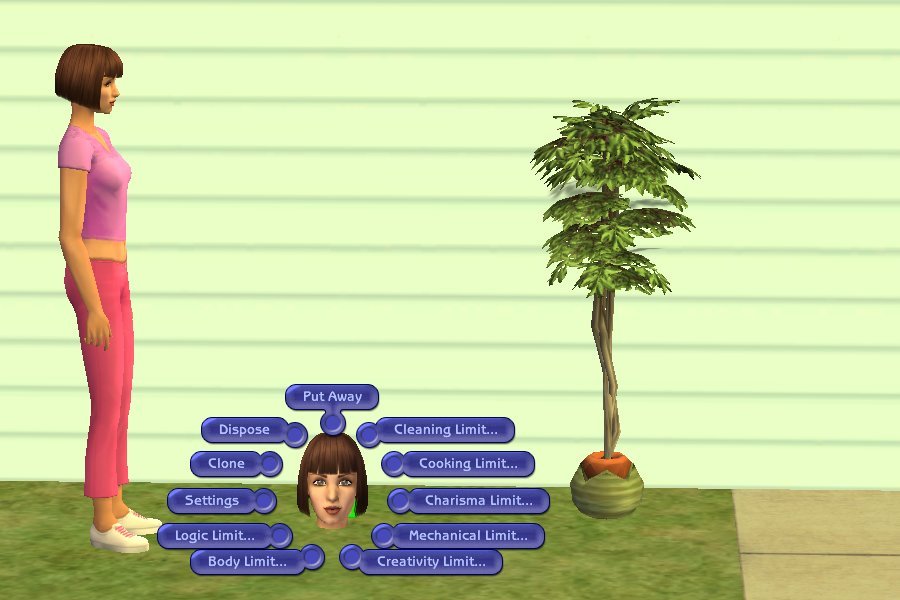
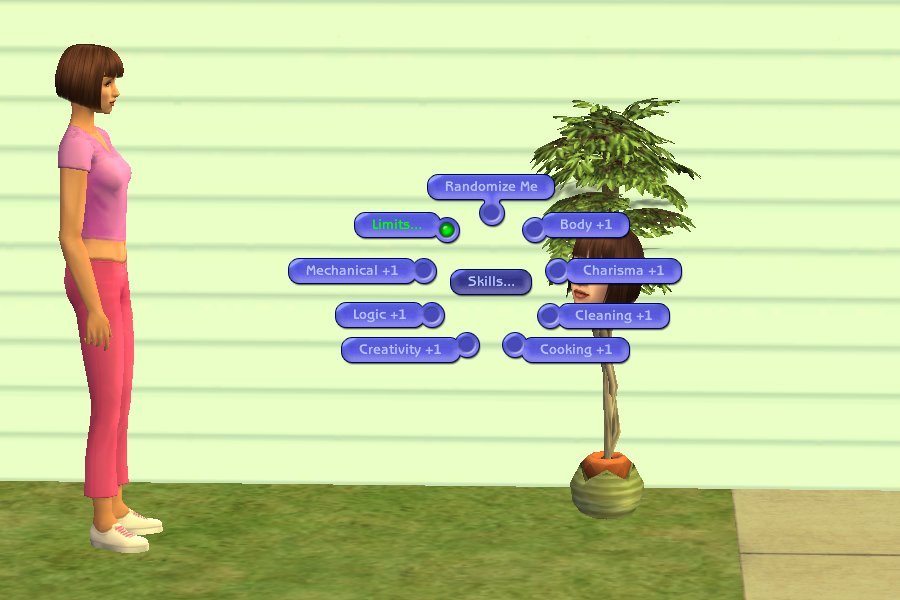
- Access the Sim Blender: In the game, click on any Sim. You should see a new pie menu option appear, often labeled “Sim Blender” or similar. Clicking on this will open the Sim Blender interface.
- Explore the Options: Within the Sim Blender menu, you will find various categories for modifications (e.g., “Change Sim,” “Change Career,” “Change Relationships”). Click through these to discover the extensive options available.
Troubleshooting Sim Blender Installation:
- Sim Blender Not Appearing:
- Incorrect Folder: Double-check that the Sim Blender
.packagefile is directly inside theDownloadsfolder located within yourEA Gamesdirectory. - Corrupt Download: Try downloading Sim Blender again from a reputable source.
- Game Version Compatibility: Ensure the Sim Blender version you downloaded is compatible with The Sims 2 Ultimate Collection and your specific game version.
- Launcher Issues: If you’re using an unofficial launcher, ensure it’s configured correctly to load custom content.
- Incorrect Folder: Double-check that the Sim Blender
Leveraging Sim Blender for Enhanced Mac Gameplay
With Sim Blender successfully installed and recognized by your Sims 2 game on Mac, you unlock a new dimension of control and creative freedom. This tool isn’t just about fixing mistakes; it’s about empowering your storytelling and gameplay in ways previously unimaginable.
Fine-Tuning Sim Attributes and Aspirations
One of Sim Blender’s most powerful features is its ability to modify a Sim’s core attributes.
- Skills: Instantly raise or lower any skill level for a Sim. This is incredibly useful for quickly advancing careers, ensuring a Sim has the necessary skills for a specific challenge, or even for roleplaying purposes where a Sim might have natural talent or struggle with certain abilities.
- Aspirations: Change a Sim’s aspiration at any time. This is a game-changer for players who want to explore different life paths for their Sims or who find their Sim’s current aspiration no longer suits their evolving story. You can even change their aspiration points.
- Traits: In later versions of Sim Blender, you might even find options to adjust personality points or aspiration traits, offering granular control over your Sims’ personalities.
Manipulating Relationships and Social Dynamics
Sim Blender excels at managing the intricate web of relationships within The Sims 2.
- Friendship/Romance Levels: Instantly set friendship or romance levels between Sims. Want to quickly establish a strong bond between two newly introduced Sims? Or perhaps create a rival? Sim Blender allows you to do this with a few clicks.
- Family Tree: You can even use Sim Blender to modify family relationships, though this should be done with caution to avoid breaking the game’s internal logic.
Career and Life Stage Management
- Career Advancement: Jump your Sims up career ladders, change their current careers entirely, or even assign them to careers that don’t exist in the base game (if you have custom careers installed). This is invaluable for players who want to see their Sims achieve rapid professional success or experiment with different career paths.
- Age Manipulation: While directly changing a Sim’s age can sometimes be tricky and should be done with care, Sim Blender offers options to influence lifespan and aging, allowing for more control over how your Sims progress through life.
Essential Considerations for Modding
- Backups: Before installing Sim Blender or any other major mods, it is highly recommended to back up your entire
Documents/EA Games/The Sims 2folder. This is your save data, custom content, and configuration files. If something goes wrong, you can restore your game to its previous state. - Mod Conflicts: While Sim Blender is generally stable, complex modding can sometimes lead to conflicts between different custom files. If you encounter issues after installing multiple mods, try removing them one by one to identify the culprit.
- Community Support: The Sims 2 modding community is incredibly active and helpful. If you run into persistent problems, don’t hesitate to seek assistance on dedicated Sims 2 forums and Discord servers. Often, experienced players can offer solutions and insights.
By following this guide, Mac users can successfully install and utilize Sim Blender to elevate their Sims 2 experience, overcoming the technical challenges of running an older game on a modern operating system and unlocking a wealth of creative possibilities.
Conclusion
Navigating the installation of legacy software like The Sims 2 on a modern macOS can seem daunting, especially when aiming to enhance the experience with powerful tools like Sim Blender. However, the vibrant and dedicated Sims 2 community has created robust solutions that allow Mac users to enjoy this timeless simulation game to its fullest.
The process hinges on obtaining a compatible version of The Sims 2 Ultimate Collection, understanding the 32-bit to 64-bit transition in macOS, and correctly placing essential tools like Sim Blender within the game’s user data structure. By meticulously following the steps outlined in this guide – from locating the correct installation directory and the crucial Downloads folder to placing the Sim Blender .package file – you can ensure this invaluable modding tool is recognized and functional.
Sim Blender opens up a world of possibilities, allowing for unparalleled control over your Sims’ lives, relationships, careers, and aspirations. Whether you’re a seasoned player looking to revisit old favorites with new capabilities or a newcomer eager to experience the depth of The Sims 2, Sim Blender is an essential component for a truly customized and engaging gameplay experience on your Mac. Remember the importance of backups and leveraging community resources, and embark on your enhanced Sims 2 adventures with confidence.
aViewFromTheCave is a participant in the Amazon Services LLC Associates Program, an affiliate advertising program designed to provide a means for sites to earn advertising fees by advertising and linking to Amazon.com. Amazon, the Amazon logo, AmazonSupply, and the AmazonSupply logo are trademarks of Amazon.com, Inc. or its affiliates. As an Amazon Associate we earn affiliate commissions from qualifying purchases.