
In the modern digital landscape, typography is far more than just a choice of lettering; it is a critical intersection of technology, brand identity, and commercial value. Whether you are a developer looking to optimize a user interface, a brand strategist crafting a corporate identity, or an entrepreneur seeking to monetize digital assets, knowing where and how to install fonts is a fundamental skill.
The process of installing fonts varies significantly across different operating systems and software environments. Furthermore, understanding the strategic importance of where these files live can streamline your workflow and protect your business from licensing pitfalls. This guide provides a deep dive into the technical “where” of font installation while exploring the broader implications for your brand and bottom line.
1. Technical Implementation: Where to Install Fonts on Major Operating Systems
From a purely technical standpoint, “installing” a font means placing a font file (typically .TTF or .OTF) into a specific directory that your operating system’s font engine monitors. When a font is placed in these directories, it becomes available to all compatible software installed on that machine.
Windows 10 and 11
On Windows, the process has become increasingly user-friendly, but the “where” remains consistent. The primary system directory for fonts is C:WindowsFonts.
- The Direct Method: You can simply drag and drop your font files into this folder.
- The Right-Click Method: In modern Windows iterations, you can right-click a font file and select “Install” or “Install for all users.” Selecting “Install for all users” requires administrator privileges and places the file in the system-wide directory mentioned above.
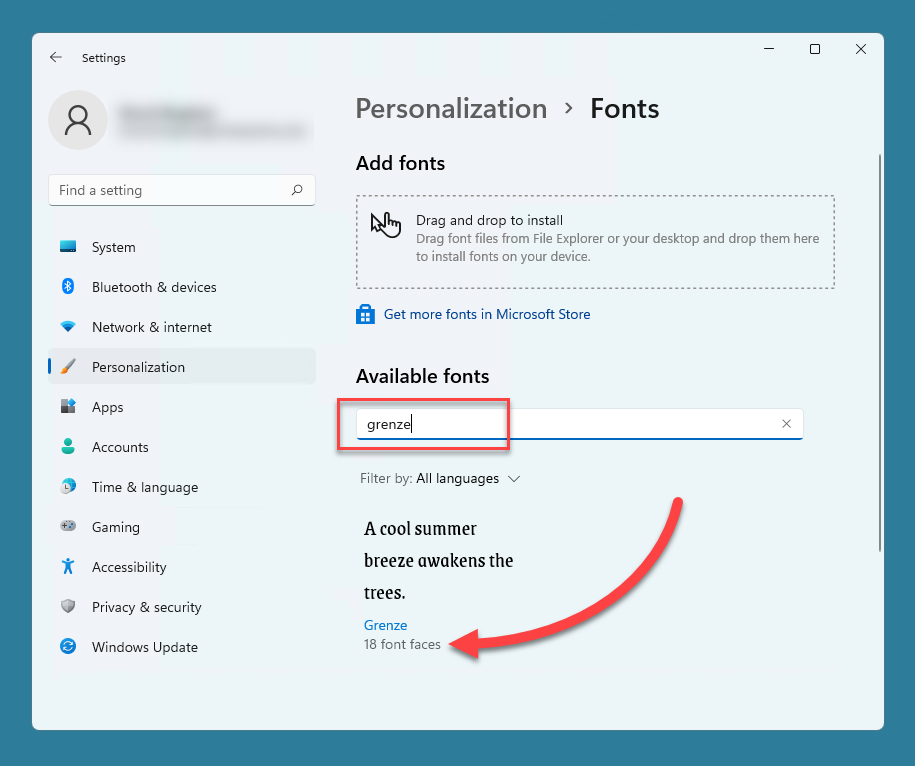
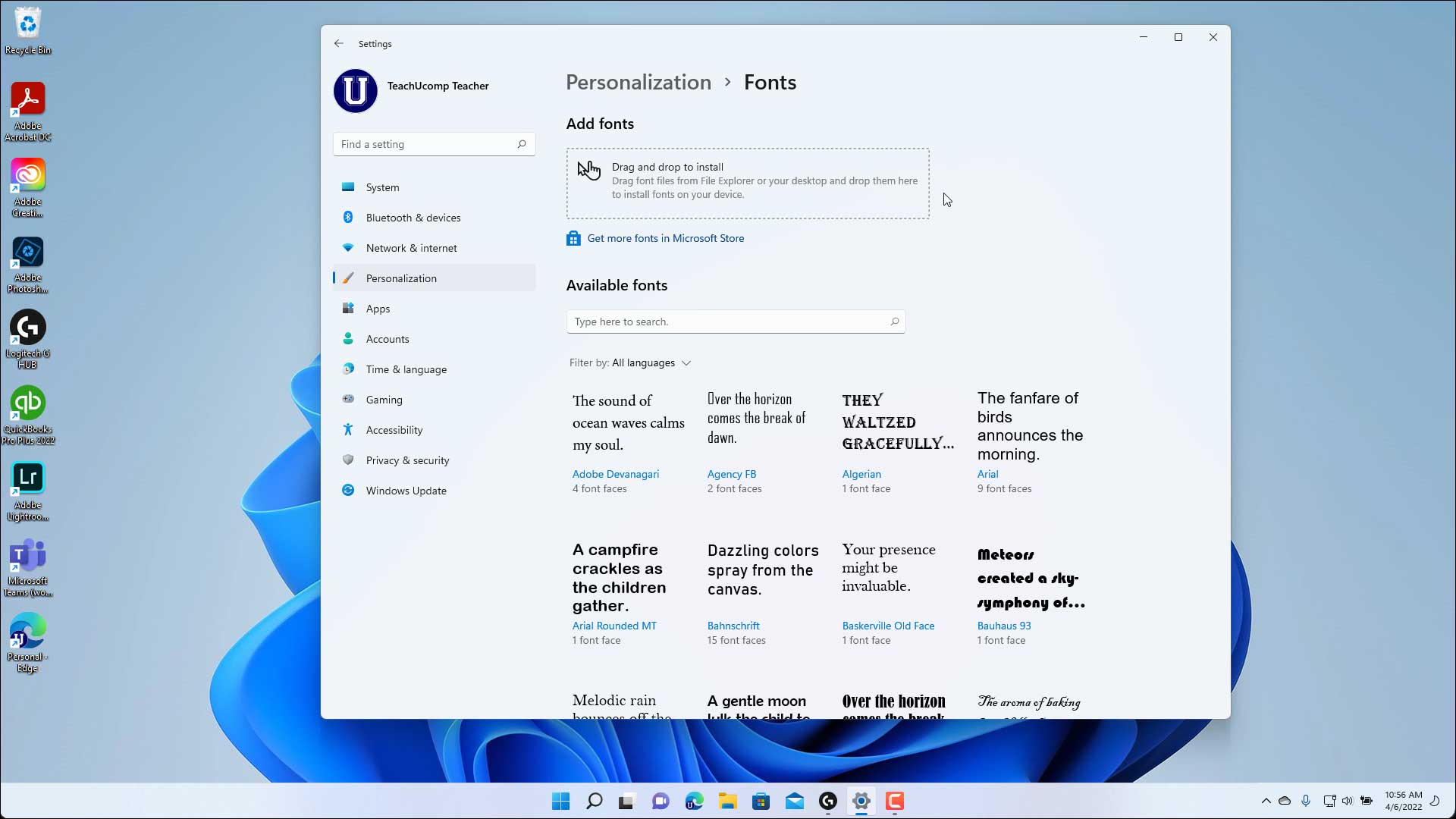
- The Settings App: You can also navigate to Settings > Personalization > Fonts and drag files into the upload box. This is particularly useful for managing variable fonts or viewing font metadata before installation.
macOS
Apple’s macOS handles fonts through a built-in management tool called Font Book.
- The System Location: Fonts used by the system are located in
/System/Library/Fonts, while user-installed fonts are typically stored in/Library/Fonts(available to all users) or~/Library/Fonts(available only to the specific user). - Installation: The most efficient way to install a font on a Mac is to double-click the file. This opens Font Book and provides an “Install Font” button. This utility validates the font file, ensuring it isn’t corrupt and won’t cause system instability—a key factor for those prioritizing tech reliability and digital security.
Linux and Mobile Platforms
For the tech-savvy crowd or developers working in Linux environments, fonts are usually placed in /usr/share/fonts or ~/.local/share/fonts. On mobile platforms like iOS and Android, font installation is more restricted. For iOS, you typically need a configuration profile or a third-party app like “AnyFont” to install fonts that can be used in productivity apps like Pages or Keynote.
2. Integrating Fonts into Professional Software and Productivity Tools
Once a font is installed at the OS level, it should automatically appear in your software’s dropdown menus. However, certain professional environments require specific “where” knowledge to ensure fonts render correctly across different devices and platforms.
Adobe Creative Cloud
For designers focused on brand strategy and corporate identity, Adobe Creative Cloud offers a unique “where.” While you can use system fonts, Adobe Fonts (formerly Typekit) allows you to sync fonts directly through the Creative Cloud Desktop app. These aren’t “installed” in the traditional folder but are managed via a cloud-based cache. This is a massive productivity booster, as it allows teams to stay synced on the same typeface without manually sharing files—which also helps in maintaining legal compliance.
Google Docs and Web-Based Tools
In the world of online income and remote work, Google Workspace is king. However, you cannot “install” a local font into Google Docs. Instead, Google uses its own library (Google Fonts). To use a specific font, you must click the “More fonts” option in the font menu and select from their web-based repository. For brands that require a custom, non-Google font, the solution often involves creating assets (like headers or logos) in a local design tool and importing them as images, or using web-font embedding (CSS @font-face) for websites.
Microsoft Office and Embedding
A common frustration in business finance and corporate reporting is when a beautifully designed PowerPoint looks like a mess on a client’s computer. This happens because the font wasn’t installed on the recipient’s “where.” To solve this, you must navigate to File > Options > Save and check “Embed fonts in the file.” This technically “installs” a temporary version of the font within the document itself, ensuring your brand identity remains intact during high-stakes presentations.

3. Typography as a Brand Strategy and Corporate Identity
In the realm of branding, choosing “where” to install and use fonts is a strategic decision. Typography is the visual voice of a brand. A tech startup might opt for a clean, sans-serif like Inter or Roboto to convey efficiency and modernity, while a luxury finance firm might use a high-contrast serif to evoke tradition and stability.
Creating a Unified Brand Identity
When establishing a personal brand or corporate identity, you must define a primary and secondary typeface. These fonts should be installed across every machine in your marketing department. Consistency is the hallmark of a professional brand. If your Instagram graphics use one font and your investor pitch decks use another, you dilute your brand equity.
Custom Fonts and Proprietary Tech
Many tech giants (Apple, Google, Netflix) have moved away from third-party fonts to create their own (San Francisco, Product Sans, and Netflix Sans). By creating and “installing” their own proprietary fonts, these companies save millions of dollars in licensing fees and gain total control over their visual identity. For smaller businesses, commissioning a custom font can be a unique way to stand out in a crowded market, though it requires a significant initial investment.
4. The Business of Fonts: Licensing, Money, and Side Hustles
Understanding where to install fonts also involves understanding the legal “where”—the license agreement. In the “Money” niche, typography is an asset class. Using a font without the proper license can lead to expensive lawsuits, which is a major risk for any business.
Licensing and Digital Security
When you download a font, you aren’t usually buying the font itself; you are buying a license to use it. There are different licenses for:
- Desktop Use: Installing on your computer for print or static images.
- Web Use: Embedding the font on a website.
- App Use: Embedding the font in mobile software.
For those focused on digital security and business finance, keeping a “License Log” alongside your font installation folder is a best practice. It ensures that if your company is audited, you can prove you have the right to use every character in your marketing materials.
Monetizing Typography (Side Hustles and Online Income)
If you are looking for new ways to generate online income, font creation is a lucrative side hustle. Designers can create their own typefaces using software like Glyphs or FontLab and sell them on marketplaces like Creative Market, MyFonts, or Gumroad.
- Passive Income: Once a font is designed and uploaded, it can generate sales for years.
- Freemium Models: Many designers offer a “Personal Use Only” version for free on sites like DaFont. When a corporate brand wants to use that font for their identity, they must purchase a commercial license, often ranging from $50 to $5,000+.
5. Optimizing Productivity with Font Management Software
As your collection grows, your system’s font folder can become cluttered, slowing down your computer’s performance. Professional designers and tech-focused entrepreneurs use Font Managers to handle the “where” more efficiently.
Apps like FontBase, Suitcase Fusion, or RightFont allow you to:
- Activate/Deactivate Fonts: You can keep fonts on your hard drive but only “install” (activate) them when you are working on a specific project. This keeps your system memory (RAM) clear and your software menus snappy.
- Organize by Project: Group fonts by client or brand identity. This ensures that when you switch from a “Money” project (like a financial report) to a “Tech” project (like a software UI), you have the right tools ready at a click.
- Syncing: Cloud-based managers allow you to install a font on your office iMac and have it automatically appear on your home MacBook, maintaining a seamless workflow.
Conclusion
Knowing where to install fonts is a basic technical requirement, but mastering the nuances of font management is a professional superpower. Whether you are navigating the system folders of Windows and macOS, ensuring brand consistency across a global team, or turning font design into a profitable side hustle, the humble typeface remains one of the most powerful tools in your digital arsenal.
By treating fonts not just as files, but as brand assets and technological components, you can improve your productivity, protect your business legally, and craft a visual identity that resonates with your audience. Remember: the next time you “install” a font, you aren’t just adding a file to a folder—you are adding a voice to your brand.
aViewFromTheCave is a participant in the Amazon Services LLC Associates Program, an affiliate advertising program designed to provide a means for sites to earn advertising fees by advertising and linking to Amazon.com. Amazon, the Amazon logo, AmazonSupply, and the AmazonSupply logo are trademarks of Amazon.com, Inc. or its affiliates. As an Amazon Associate we earn affiliate commissions from qualifying purchases.