
The iPhone has evolved from a simple communication device into a sophisticated pocket computer capable of handling complex computational tasks. At the heart of this utility is the Calculator app, a staple of the iOS ecosystem since its inception. Despite its ubiquity, many users occasionally find themselves searching for the app after a software update, a reorganization of their home screen, or simply because they are new to the Apple ecosystem. Understanding where the calculator resides, how to access it instantly, and how to unlock its advanced features is essential for maximizing the efficiency of your device.

Locating the Calculator: Navigating the iOS Interface
Apple provides multiple pathways to access its native applications, ensuring that users can reach the tools they need regardless of their current workflow. If the Calculator icon is not immediately visible on your primary home screen, there are several high-efficiency methods to locate it.
The App Library and Home Screen Folders
Since the introduction of iOS 14, the App Library has served as a centralized repository for every application installed on an iPhone. If you have removed the Calculator from your Home Screen but haven’t deleted it, you will find it in the App Library. Swipe left through all your Home Screen pages until you reach the final screen. You can either look in the “Utilities” folder or use the search bar at the top of the App Library to type “Calculator.”
Many users also inadvertently tuck the app away into folders. Check common groupings like “Extras,” “Productivity,” or “Utilities.” If you prefer to have it back on your main screen, simply long-press the icon in the App Library and drag it back to your preferred location.
Spotlight Search: The Power User’s Shortcut
Spotlight Search is perhaps the fastest way to launch any app on iOS. By swiping down from the middle of the Home Screen or Lock Screen, you trigger the search interface. Typing even the first few letters—”Calc”—will bring the app to the top of the results. Beyond just launching the app, Spotlight itself functions as a basic calculator. You can type a mathematical equation directly into the search bar, such as “15% of 850” or “125 * 4,” and the result will appear instantly without you ever needing to open the dedicated app.
The Control Center: Instant Access from Any Screen
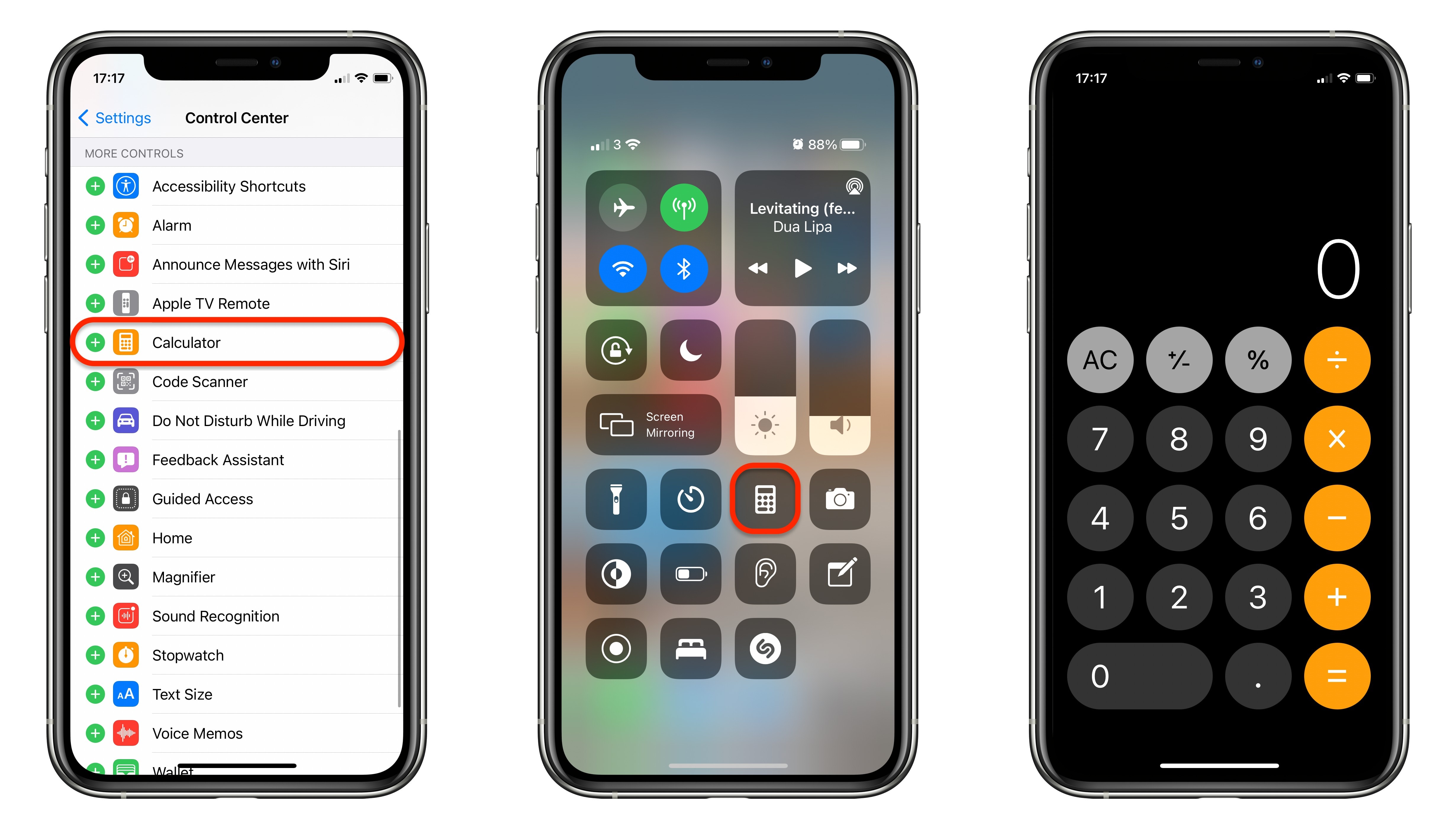
The Control Center is designed for immediate access to frequently used tools, including the flashlight, camera, and calculator. By swiping down from the top-right corner of the screen (on iPhones with Face ID) or up from the bottom (on iPhones with a Home button), you can access the Calculator icon.
If the icon is missing from your Control Center, you can add it by navigating to Settings > Control Center. Scroll down to “More Controls” and tap the green plus icon next to Calculator. Once added, you can reposition it to suit your muscle memory. A professional tip: long-pressing the Calculator icon within the Control Center allows you to copy your last calculation result without even opening the application.
Siri: Hands-Free Computation
For users who require hands-free assistance, Siri is an invaluable tool for locating and using the calculator. By triggering the assistant with “Hey Siri” or the side button, you can simply say, “Open Calculator.” Furthermore, Siri can perform calculations directly. Commands like “What is 74 divided by 3?” or “Convert 100 dollars to Euros” provide instant auditory and visual feedback, bypassing the need to navigate the touch interface entirely.
Advanced Features and Hidden Functions of the iOS Calculator
The iOS Calculator is often perceived as a basic four-function tool, but it contains sophisticated capabilities that cater to students, engineers, and professionals. To unlock the full potential of the app, one must look beyond the standard vertical interface.
The Scientific Calculator Mode
The most transformative feature of the native Calculator app is hidden behind a simple orientation change. By disabling the “Portrait Orientation Lock” in the Control Center and rotating the iPhone into landscape mode, the interface expands from a basic layout into a comprehensive scientific calculator. This mode includes logarithmic functions, square roots, trigonometric ratios (sine, cosine, tangent), and memory storage keys (MR, M+, M-). This functionality makes the iPhone a viable tool for complex academic and professional mathematics without requiring third-party software.
Gestures and Backspacing
A common frustration for users is entering a long string of numbers only to make a typo at the very end. Many assume they must press the “C” (Clear) button and start over. However, iOS supports a hidden “swipe to delete” gesture. By swiping left or right across the numbers at the top of the display, you can delete the last digit entered. This gesture-based backspace is a significant time-saver and is one of the most overlooked features in the iOS utility suite.
Copy and Paste Integration
The Calculator app is fully integrated with the iOS clipboard. If you have a figure in an email or a web browser that you need to compute, you can long-press the result field in the Calculator to paste the number. Conversely, once a calculation is complete, a long-press on the result allows you to copy it for use in another application, such as Notes, Messages, or a spreadsheet.
Troubleshooting: What to Do if the Calculator App Is Missing
In rare instances, the Calculator app may seem to have vanished entirely. This is usually due to one of three scenarios: accidental deletion, Screen Time restrictions, or a software glitch.
Restoring a Deleted Native App
Since iOS 10, Apple has allowed users to delete many stock applications to save space or reduce clutter. If you have searched the App Library and Spotlight and still cannot find the app, it may have been deleted. To restore it, navigate to the App Store, search for “Apple Calculator,” and tap the cloud icon to re-download it. Ensure you are downloading the official version developed by Apple to maintain the native integration and ad-free experience.
Checking Screen Time Restrictions
If the app is installed but cannot be found or opened, it might be subject to Screen Time restrictions. This is common on devices managed by an organization or used by minors. Go to Settings > Screen Time > Content & Privacy Restrictions. If restrictions are enabled, check “Allowed Apps” to ensure the Calculator hasn’t been toggled off. Additionally, check “App Limits” to see if a daily usage limit has been reached, which would grey out the app icon.
Resetting the Home Screen Layout
If your device has become cluttered and you simply cannot find where the app was moved, you can reset the Home Screen layout. This will return all native Apple apps to their original positions. Navigate to Settings > General > Transfer or Reset iPhone > Reset > Reset Home Screen Layout. Note that this will also remove any custom folders you have created, so use this as a last resort.
The Evolution of the Calculator in iOS 18 and Beyond
With the release of iOS 18, Apple has introduced the most significant update to the Calculator app in over a decade. These changes elevate the app from a simple utility to a powerful productivity hub, integrating deeply with Apple Intelligence and the Notes ecosystem.
Math Notes: A Paradigm Shift
The most groundbreaking addition is “Math Notes.” This feature allows users to type or write (via the keyboard or Apple Pencil on compatible iPads) mathematical expressions, and the app solves them instantly in the user’s own handwriting style or text. In the iPhone Calculator app, this is accessed via a dedicated button that looks like a mathematical grid. It allows for variable assignments—such as “height = 10” and “width = 20″—so that when you type “height * width,” the app provides the answer. If you change the value of a variable, the result updates in real-time.
History Log and Unit Conversion
For years, iPhone users requested a history feature to track previous calculations. iOS 18 finally delivers a comprehensive History Log, accessible by swiping or tapping the sidebar icon. This allows users to review past work and copy results from previous sessions.
Additionally, the new Calculator integrates unit conversions directly into the main interface. Users can now convert currencies, lengths, weights, and temperatures without leaving the app. This eliminates the need for separate conversion apps or web searches, streamlining the workflow for international travelers and professionals alike.

The Role of the Calculator in the Modern Tech Ecosystem
The Calculator app is more than just a digital version of a plastic handheld device; it is a testament to the iPhone’s philosophy of convergence. By consolidating scientific computation, unit conversion, and real-time math solving into a single, pre-installed tool, Apple ensures that every user has access to high-level productivity tools out of the box.
As we move toward an era defined by artificial intelligence and more intuitive human-computer interfaces, the Calculator continues to adapt. Whether you are using it for a quick tip calculation at a restaurant or utilizing Math Notes to model a complex physics problem, the Calculator remains one of the most vital components of the iOS software suite. Understanding its location, its hidden gestures, and its new AI-driven capabilities ensures that you are utilizing your iPhone to its fullest technical potential.
aViewFromTheCave is a participant in the Amazon Services LLC Associates Program, an affiliate advertising program designed to provide a means for sites to earn advertising fees by advertising and linking to Amazon.com. Amazon, the Amazon logo, AmazonSupply, and the AmazonSupply logo are trademarks of Amazon.com, Inc. or its affiliates. As an Amazon Associate we earn affiliate commissions from qualifying purchases.