
Navigating the intricacies of software installations on Windows can sometimes feel like deciphering a cryptic map. For developers and aspiring coders alike, understanding the precise location of their Python installation is a fundamental step, yet it can be surprisingly elusive. This article aims to demystify the process, guiding you through the common locations where Python resides on your Windows system and providing practical methods to pinpoint it, regardless of how you installed it. Whether you’re troubleshooting PATH issues, looking to manage multiple Python versions, or simply curious about your system’s inner workings, this guide has you covered.
The world of technology is constantly evolving, with software tools like Python playing an increasingly central role in everything from data analysis and artificial intelligence to web development and automation. For those venturing into these fields, a solid grasp of the foundational elements is crucial. This includes knowing precisely where your development tools are located. Misplacing your Python installation or not understanding how your system references it can lead to frustrating errors, stalled projects, and a steep learning curve. This guide will equip you with the knowledge to overcome these hurdles.
Uncovering the Default Python Installation Paths
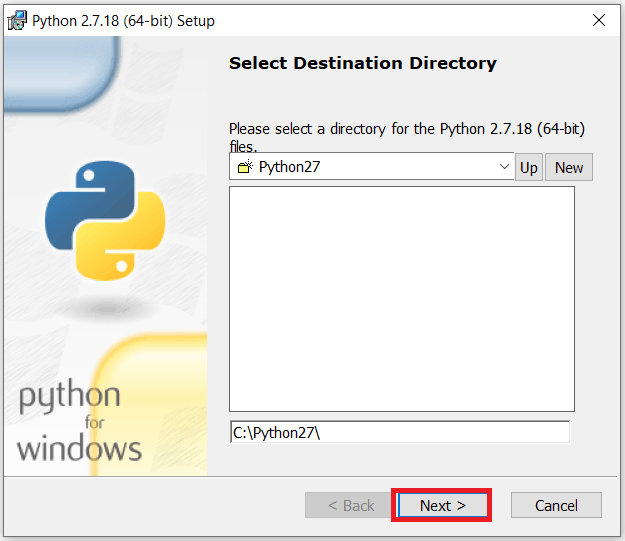
When you install Python on Windows, the installer typically places the core executables and libraries in predictable locations. However, these defaults can vary slightly depending on the Python version and the specific choices made during the installation process. Understanding these common paths is the first step to locating your Python interpreter.
Default Installation Locations for Standard Python Installations
For most standard installations of Python downloaded directly from the official Python website (python.org), you’ll find Python installed within your user profile or the system’s program files directory.
-
For User-Specific Installations: If you chose to install Python for just your user account (a common and often recommended option for personal projects), the installation will likely reside within your user profile directory. The typical path looks something like this:
C:Users<YourUsername>AppDataLocalProgramsPythonPythonXXHere,
<YourUsername>is your Windows login name, andPythonXXrepresents the specific version of Python you installed (e.g.,Python310for Python 3.10,Python311for Python 3.11, etc.). TheAppDatafolder is hidden by default, so you might need to enable “Show hidden items” in File Explorer’s View tab to see it. -
For All Users Installations: If you opted to install Python for all users on your computer, the installation will typically be found in the Program Files directory. The path would then resemble:
C:Program FilesPythonXXor
C:Program Files (x86)PythonXXThe
(x86)in the path indicates a 32-bit installation on a 64-bit Windows system. Again,PythonXXdenotes the specific version. -
The
ScriptsDirectory: Within the main Python installation folder (e.g.,C:Users<YourUsername>AppDataLocalProgramsPythonPython310), you’ll find a crucial subdirectory namedScripts. This folder contains essential command-line utilities and package management tools likepip,pip3, andpython.exeitself, along with various scripts installed by third-party packages. Ensuring thisScriptsdirectory is included in your system’s PATH environment variable is critical for running Python commands and installed packages from any command prompt.
Variations with Different Installers and Environments
It’s important to note that not all Python installations follow these standard paths. The way Python is installed can significantly alter its location.
-
Python Launcher for Windows (
py.exe): When you install Python from python.org, the installer usually includes the Python Launcher for Windows (py.exe). This utility is designed to help manage multiple Python versions installed on your system and is typically installed inC:Windows. The launcher itself is a small executable that can then intelligently locate and run the appropriate Python interpreter based on your command-line arguments (e.g.,py -3.10 script.pyto run a script with Python 3.10). -
Microsoft Store Installation: If you installed Python directly from the Microsoft Store, its location will be managed by the Store’s own system. You won’t find it in typical Program Files or user profile directories. Instead, it resides within a protected WindowsApps folder, and you generally don’t need to interact with its physical location directly. For most practical purposes, you can simply type
pythonorpython3into your command prompt to launch it. -
Anaconda/Miniconda Installations: For data science and machine learning enthusiasts, distributions like Anaconda or Miniconda are very popular. These package managers install Python along with a vast ecosystem of scientific libraries. Their installation paths are distinct and typically reside in a user-created directory. For example, a common path for an Anaconda installation might be:
C:Users<YourUsername>anaconda3or
C:Users<YourUsername>miniconda3Within these directories, you’ll find separate Python environments, each with its own Python interpreter and installed packages. This allows for robust project isolation, preventing conflicts between different library versions.
-
Virtual Environments: When you create virtual environments (using
venvorconda env), these create self-contained Python installations within your project directories. For instance, a project might have a.venvfolder containing a specific Python interpreter and installed packages, entirely separate from your global Python installation.
Practical Methods to Locate Your Python Installation
While knowing the default paths is helpful, it’s not always the most reliable method, especially if you have multiple Python versions or have used custom installation options. Fortunately, Windows provides several straightforward ways to dynamically discover where your Python executable is located.
Using the Command Prompt or PowerShell
The command line is your most powerful ally in locating Python on Windows.
-
Using
where python:
Open either the Command Prompt or PowerShell. Type the following command and press Enter:where pythonThis command searches your system’s PATH environment variable and lists all executables named
pythonthat it finds. It will output the full path(s) to eachpython.exefile discovered. If you have multiple Python installations and they are all correctly added to your PATH, you’ll see multiple entries. The first one listed is usually the one that will be executed by default when you simply typepython.- Example Output:
C:UsersYourUsernameAppDataLocalProgramsPythonPython310python.exe

C:Program FilesPython39python.exe
- Example Output:
-
Using
py -0p(Python Launcher):
If you have the Python Launcher for Windows (py.exe) installed (which is typical for standard installations from python.org), you can use it to list all installed Python versions and their locations. Open your command prompt and type:py -0pThis command will list the Python interpreters that the launcher is aware of, along with their associated versions and full paths. This is particularly useful when you have multiple Python versions and want to know which
pywill execute what.- Example Output:
 -V:3.10 *        C:UsersYourUsernameAppDataLocalProgramsPythonPython310python.exe

 -V:3.9           C:Program FilesPython39python.exe
The asterisk (*) indicates the default version.
- Example Output:

Leveraging Python Itself
Once you have access to a Python interpreter (even if you don’t know its exact path yet), you can ask it to reveal its own location.
-
Within an Interactive Python Session:
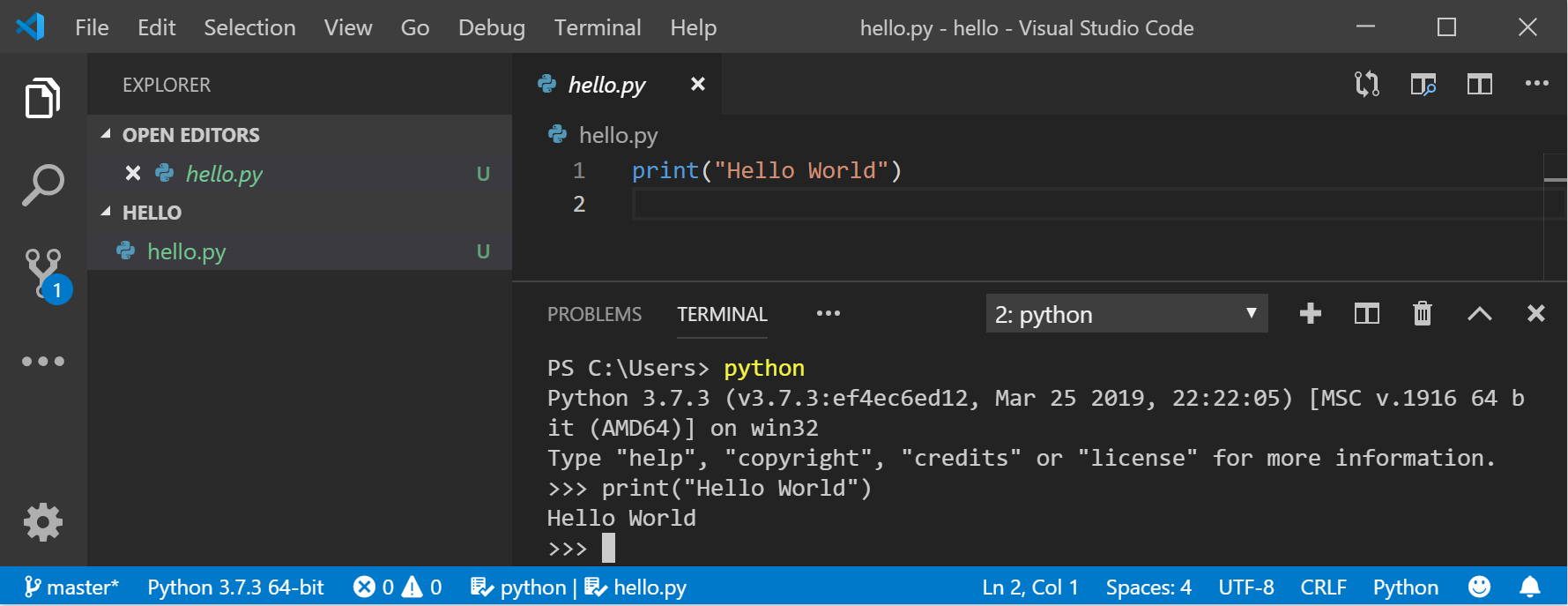
Open your command prompt and typepythonorpyto start an interactive Python session. Once the Python interpreter is running (you’ll see the>>>prompt), type the following code:import sys print(sys.executable)Press Enter. The output will be the absolute path to the Python executable that is currently running. This is a very reliable way to confirm which Python interpreter is being invoked.
- Example Output:
C:UsersYourUsernameAppDataLocalProgramsPythonPython310python.exe
- Example Output:
-
From a Python Script:
If you have a Python script, you can add these lines to it to print the executable path when the script is run:import sys import os print(f"Python executable path: {sys.executable}") print(f"Python version: {sys.version}") print(f"Python installation directory: {os.path.dirname(sys.executable)}")Run this script using
python your_script_name.pyorpy your_script_name.py. The output will clearly show where the Python interpreter being used to run the script is located.
Understanding the Importance of the PATH Environment Variable
The ability to run Python commands like python, pip, or py from any directory in your command prompt is thanks to the PATH environment variable. This is a system-level setting that tells Windows where to look for executable files.
How the PATH Variable Works
When you type a command in the command prompt, Windows doesn’t just know where to find it. It consults a list of directories specified in the PATH variable. It searches each directory in the PATH sequentially until it finds an executable file with the name you typed.
For Python to be easily accessible, its installation directory (specifically, the Scripts subdirectory where pip and other tools reside) needs to be added to your system’s PATH.
-
Default Inclusion: Standard Python installers for Windows usually prompt you to “Add Python to PATH” during installation. If you checked this option, the installer automatically configures the PATH variable for you.
-
Manual Addition: If you didn’t check the option during installation, or if you’re using a custom setup, you might need to add Python to your PATH manually. This is a common troubleshooting step when commands like
pipare not recognized.
Checking and Modifying the PATH Variable
You can view and modify your PATH variable through Windows settings.
-
Accessing Environment Variables:
- Search for “environment variables” in the Windows search bar and select “Edit the system environment variables.”
- In the System Properties window, click the “Environment Variables…” button.
-
Viewing User and System Variables:
You’ll see two sections: “User variables for<YourUsername>” and “System variables.”- User Variables: Changes here affect only your user account.
- System Variables: Changes here affect all users on the computer.
- Locate the
Pathvariable in either section (usually in System Variables for a system-wide installation, or User Variables for a user-specific one). Select it and click “Edit…”.
-
Editing the PATH:
- A new window will appear showing a list of directories.
- To add Python, click “New” and paste the full path to your Python installation’s
Scriptsfolder (e.g.,C:Users<YourUsername>AppDataLocalProgramsPythonPython310Scripts). - You can also add the main Python directory itself if needed.
- Use the “Move Up” and “Move Down” buttons to control the order in which directories are searched. Generally, you want your Python directories listed before other potentially conflicting executables.
- Click “OK” on all open windows to save your changes.
Important Note: After modifying the PATH variable, you must close and reopen any command prompt or PowerShell windows for the changes to take effect.
Troubleshooting Common Python Location Issues
Understanding where Python is installed and how your system finds it is key to resolving many common development problems.
“Python is not recognized as an internal or external command”
This is the most frequent error encountered by beginners. It almost always means that the directory containing python.exe (and crucially, the Scripts directory containing pip) is not in your system’s PATH environment variable, or it’s in the wrong order.
- Solution: Use the methods described above (
where python,py -0p, orsys.executable) to locate your Python installation first. Then, manually add the relevant directories to your PATH. Ensure you restart your command prompt after making changes.
Multiple Python Versions Conflicting
If you have several Python versions installed, your system might be picking up the wrong one by default. This can happen if multiple Python installations are present in your PATH, or if the Python Launcher (py.exe) isn’t configured correctly.
- Solution:
- Use the Python Launcher (
py.exe): Explicitly specify the version you want to use. For example, instead ofpython your_script.py, usepy -3.10 your_script.pyto run it with Python 3.10, orpy -3.9 your_script.pyfor Python 3.9. - Manage PATH Order: Ensure the desired Python version’s
Scriptsdirectory appears higher in the PATH variable than other versions. - Virtual Environments: The best practice for managing dependencies and avoiding version conflicts is to use virtual environments for each project. This isolates project-specific Python interpreters and packages, ensuring they don’t interfere with your global installations or other projects.
- Use the Python Launcher (
Locating Specific Packages
Sometimes, you might need to know where a specific Python package is installed.
-
Solution: Use
pip show <package_name>in your command prompt. This command will display information about the installed package, including its location.pip show requestsThe output will include a “Location:” field, indicating the directory where the package’s files are stored. This is typically within the
site-packagesfolder of your Python installation or virtual environment.
Conclusion
Pinpointing your Python installation on Windows might seem like a minor detail, but it’s a crucial piece of knowledge for any developer. By understanding the default installation locations, utilizing command-line tools effectively, and appreciating the role of the PATH environment variable, you can confidently navigate your Python setup. Whether you’re a seasoned programmer or just starting your coding journey, mastering these fundamentals ensures a smoother, more productive development experience, allowing you to focus on building amazing things with Python. Remember that for more complex projects and to maintain a clean development environment, embracing virtual environments is always the recommended approach.
aViewFromTheCave is a participant in the Amazon Services LLC Associates Program, an affiliate advertising program designed to provide a means for sites to earn advertising fees by advertising and linking to Amazon.com. Amazon, the Amazon logo, AmazonSupply, and the AmazonSupply logo are trademarks of Amazon.com, Inc. or its affiliates. As an Amazon Associate we earn affiliate commissions from qualifying purchases.