
The phrase “where can I watch Zoom” has become a cornerstone of the modern digital lexicon. Whether you are a remote professional trying to catch up on a missed departmental meeting, a student looking for a lecture recording, or a participant joining a global webinar, understanding the technical landscape of Zoom’s viewing platforms is essential. Zoom is no longer just a simple video conferencing tool; it is a sophisticated ecosystem of cloud-based communication that spans desktop applications, mobile devices, web browsers, and integrated hardware.
To effectively “watch” Zoom, one must distinguish between three primary modes of consumption: joining a live interactive meeting, attending a high-capacity webinar, and accessing recorded content stored either locally or in the cloud. Each of these modes requires specific technical configurations, permissions, and software environments.

Accessing Live Zoom Sessions: Platforms and Hardware
The primary way most users interact with Zoom is through live sessions. Depending on your hardware and your need for interactive features, the “where” of your viewing experience can vary significantly.
The Desktop Client: Windows and macOS
For the most robust viewing experience, the Zoom Desktop Client is the gold standard. It provides the highest video resolution (up to 1080p for qualified accounts) and the full suite of interactive tools. When watching a presentation on the desktop client, users can utilize “Side-by-Side Mode,” which allows them to see both the shared screen and the participants’ video feeds simultaneously. This is the optimal way to watch Zoom if you require multi-monitor support or advanced audio settings, such as original sound for musicians or high-fidelity music mode.
Mobile Applications: iOS and Android
Watching Zoom on a mobile device is the preferred method for users on the go. The mobile app is optimized for ARM processors and cellular data consumption. While the screen real estate is smaller, Zoom’s mobile interface uses a “Safe Driving Mode” and “Gallery View” optimizations to ensure the viewing experience is fluid. To watch a Zoom meeting on mobile, you simply need the Meeting ID or a “join” link, which will trigger the app to open automatically via deep-linking technology.
The Web Browser and PWA
If you are using a device where software installation is restricted—such as a corporate laptop or a Chromebook—you can watch Zoom directly in a web browser. Zoom supports Chrome, Firefox, Edge, and Safari. While the browser version previously lacked some features, the development of the Zoom Progressive Web App (PWA) has bridged the gap. Watching via a browser uses WebRTC (Web Real-Time Communication) technology, which eliminates the need for plugins but may slightly limit the number of participants you can see on screen at once compared to the native desktop app.
Watching Recorded Content: Finding and Viewing Stored Meetings
The question of “where to watch Zoom” often refers to recordings of sessions that have already concluded. Accessing these files depends entirely on how the host chose to save the data: locally or to the Zoom Cloud.
Local Recordings: Navigating Your Hard Drive
If a host records a meeting locally, the file is converted into an MP4 format once the meeting ends. On a Windows machine, these are typically found in the C:UsersUserDocumentsZoom directory. On macOS, they reside in /Users/User/Documents/Zoom. If you are the host, this is where you “watch” your Zoom content. These files are standard video formats and can be played using VLC Media Player, QuickTime, or Windows Media Player. If you are a participant looking for a local recording, the host must manually upload this file to a service like Google Drive, Dropbox, or YouTube for you to watch it.
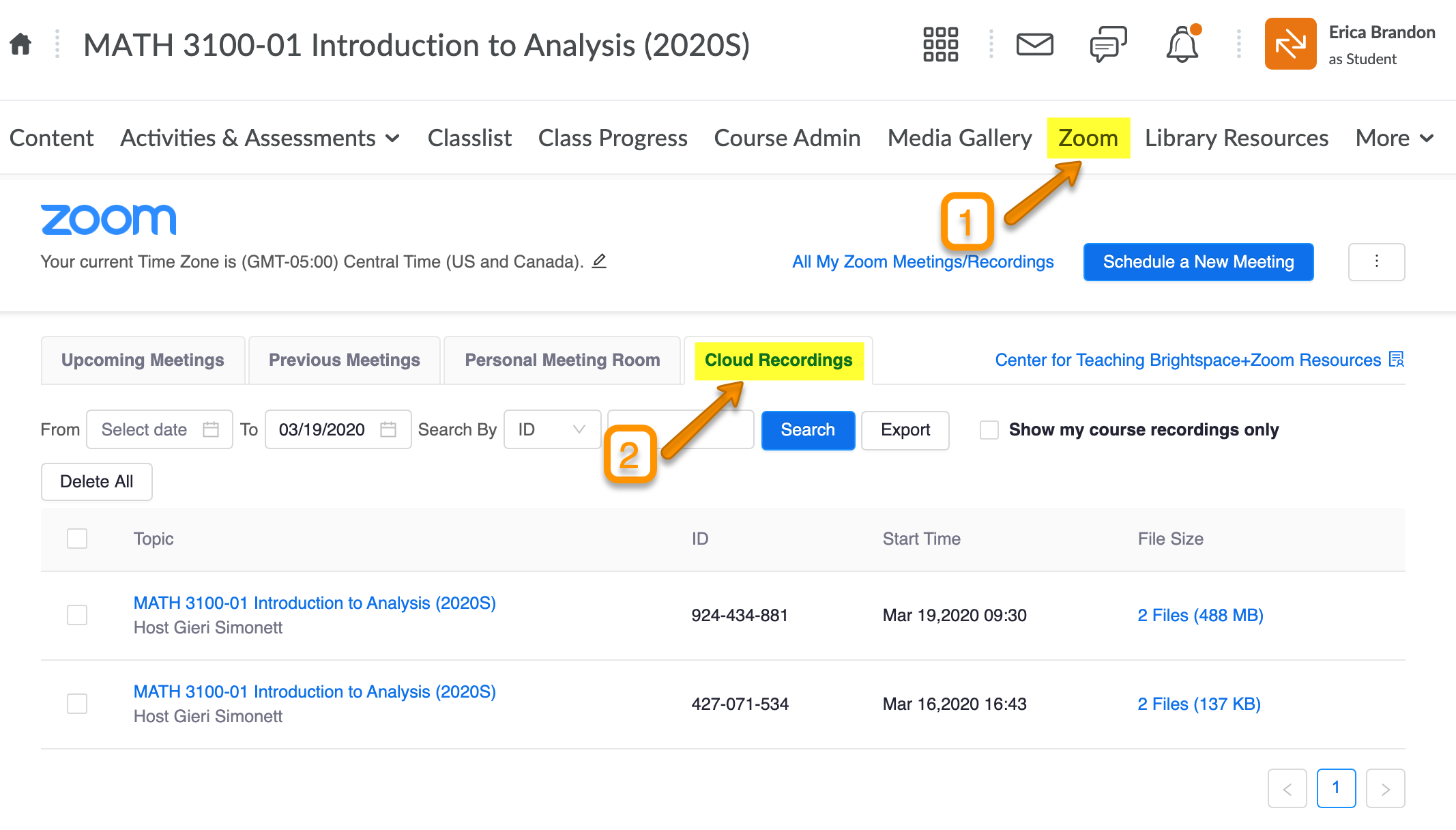
Cloud Recordings: The Zoom Web Portal
For licensed users, the Zoom Cloud is the primary repository for recorded content. To watch these, you must log in to the Zoom web portal (zoom.us/recording). The cloud interface offers a sophisticated viewing experience, including:
-
Audio Transcripts: You can watch the video while a searchable text transcript scrolls alongside it.
-
Smart Chapters: AI-driven markers that segment the video based on topic changes.
-
Speaker View vs. Shared Screen: The cloud player often allows you to toggle between seeing just the speaker or just the presentation.
Shared Links and Permissions
Frequently, you will be sent a “Recording Link.” To watch Zoom via a shared link, you may encounter security hurdles. These can include passcode protection, “Only Authenticated Users Can View” (requiring you to sign in), or registration requirements. From a technical standpoint, these links use an embedded HTML5 player, meaning you can watch them on almost any device with an internet connection without needing the Zoom app installed.
Advanced Viewing: Webinars, Events, and Live Streams

Zoom’s architecture allows for massive scale, moving beyond small meetings into the realm of broadcasting. Knowing where to watch these larger events involves understanding Zoom’s integration with third-party streaming platforms.
Zoom Webinars and Zoom Events
A Zoom Webinar is a “view-only” experience for most participants. Unlike a meeting where you are a square in a grid, in a webinar, you are an audience member. You watch the “panelists.” Zoom Events takes this further, offering a virtual lobby where you can choose which “session” to watch, mimicking a physical conference. These are typically accessed via a unique ticket link sent to your email.
Integration with YouTube Live, Facebook, and Twitch
For public-facing content, many organizations stream their Zoom sessions to social media. In this case, you don’t watch Zoom on Zoom; you watch it on YouTube or Facebook. This is achieved through an RTMP (Real-Time Messaging Protocol) stream. The host connects their Zoom client to the streaming platform’s servers, and the video is broadcast with a slight latency (usually 10–20 seconds). This is the best way to watch a Zoom session if you want to use features like YouTube’s “picture-in-picture” on mobile or watch on a smart TV.
On-Demand Platforms
Many tech companies use Zoom to record “On-Demand” webinars. These are hosted on platforms like ON24 or Brightcove, but the source material was recorded via Zoom. To watch these, you usually fill out a lead generation form, after which the Zoom MP4 is delivered via a specialized content delivery network (CDN).
Troubleshooting and Optimizing the Viewing Experience
Nothing ruins the experience of watching a Zoom session like lag, stuttering audio, or “screen freeze.” High-quality viewing requires a combination of stable bandwidth and proper software configuration.
Bandwidth and Data Rates
To watch Zoom in High Definition (720p), you need a minimum upload and download speed of 2.6 Mbps. For 1080p, this requirement jumps to 3.8 Mbps. If your connection is unstable, Zoom’s adaptive bitrate streaming will kick in, lowering the resolution to prioritize audio. If you are watching a recording and it keeps buffering, check if your browser’s hardware acceleration is turned on in the settings, as this offloads video decoding from the CPU to the GPU.
Resolving Audio and Video Sync Issues
If the audio doesn’t match the video when watching a Zoom recording, it is often a codec issue. This happens most frequently with local recordings on older hardware. Re-encoding the file through a tool like Handbrake can fix these sync issues. For live sessions, “watching” effectively often means selecting the correct output device. Ensure your “Speaker” settings in Zoom match your hardware to avoid the common “I can see them, but I can’t hear them” scenario.
Security and Safe Viewing
When looking for “where to watch Zoom,” users must be wary of “Zoom-bombing” or malicious links. Always ensure you are accessing Zoom content through official channels—either the zoom.us domain or a verified organization portal. Avoid downloading “Zoom viewers” from third-party sites, as these are often masked malware. The only official way to watch Zoom is through their verified apps or web portal.
The Future of Zoom Consumption: AI and Specialized Hardware
The technical definition of “watching” Zoom is evolving. We are moving away from passive viewing toward an AI-augmented experience.
Zoom Rooms and Native Hardware
In corporate environments, “watching” Zoom happens on dedicated hardware like Neat bars, Polycom systems, or Logitech Rally cameras. These systems use “Zoom Rooms” software, a specialized version of the app designed for large displays. They feature “Director Mode,” which uses AI to crop and frame the speaker, making the viewing experience more cinematic and less like a static CCTV feed.
The Zoom AI Companion
A revolutionary shift in how we “watch” Zoom is the introduction of the AI Companion. Instead of watching a two-hour recording, users can now “watch” a summary. The AI processes the video and provides a condensed version of what happened, who spoke, and what the action items are. Furthermore, “Smart Gallery” views use AI to pull individual faces out of a crowded conference room and place them in their own frames, making it easier for remote viewers to see facial expressions.
Virtual and Augmented Reality
With the release of the Zoom app for the Apple Vision Pro and other VR headsets, “where” you watch Zoom can now be a three-dimensional space. “Persona” technology allows you to watch a spatial representation of a participant rather than a flat 2D video. This immersive tech is the next frontier, turning Zoom viewing from a screen-based activity into a spatial experience.
In conclusion, knowing where to watch Zoom depends on whether you are seeking live engagement, a stored resource, or a public broadcast. By mastering the various platforms—from the desktop client to the cloud portal and integrated AI tools—users can ensure they never miss a critical moment of communication in an increasingly digital world.
aViewFromTheCave is a participant in the Amazon Services LLC Associates Program, an affiliate advertising program designed to provide a means for sites to earn advertising fees by advertising and linking to Amazon.com. Amazon, the Amazon logo, AmazonSupply, and the AmazonSupply logo are trademarks of Amazon.com, Inc. or its affiliates. As an Amazon Associate we earn affiliate commissions from qualifying purchases.