
In the ever-evolving landscape of digital technology, where high-resolution displays, lightning-fast refresh rates, and immersive multi-monitor setups have become the norm, the humble display cable plays a more critical role than ever. Among the various contenders vying for supremacy in digital video and audio transmission, DisplayPort has firmly established itself as a robust and high-performance standard, particularly within the PC and professional workstation sectors. But what exactly is a DisplayPort cable, and why has it become the preferred choice for many tech enthusiasts, gamers, and creative professionals? This article delves deep into the essence of DisplayPort, dissecting its technical underpinnings, exploring its distinct advantages, tracing its evolution, and providing a clear understanding of its place in the modern tech ecosystem.

Understanding DisplayPort: The Digital Interface for Modern Displays
At its core, a DisplayPort cable is a digital display interface developed by a consortium of PC and chip manufacturers and standardized by the Video Electronics Standards Association (VESA). Its primary function is to transmit high-definition digital video and audio signals from a source device (like a computer graphics card or a laptop) to a display device (such as a monitor, projector, or TV). While often compared to HDMI, DisplayPort was initially designed with PC applications in mind, offering a suite of features tailored to the demands of computer users rather than consumer electronics.
The Genesis of a Digital Interface
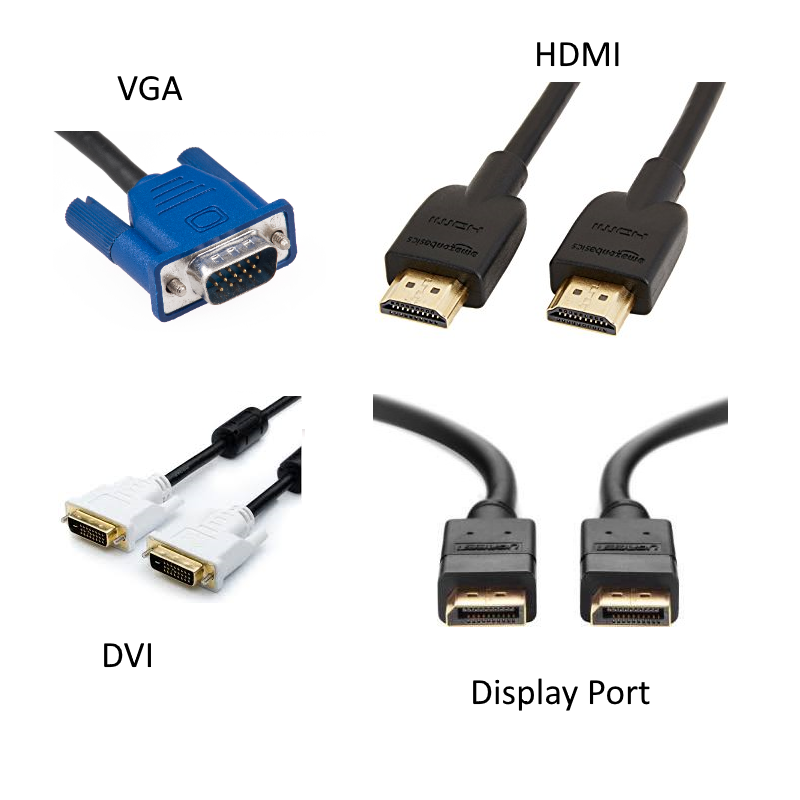
The development of DisplayPort began in the mid-2000s, driven by the need for a royalty-free, high-performance interface that could supersede older standards like VGA and DVI. These legacy interfaces, while functional, were reaching their bandwidth limitations and lacked the advanced features required for emerging display technologies such as ultra-high resolutions (4K, 8K), high refresh rates, and support for multiple monitors from a single port. VESA’s objective was to create an open standard that would not only meet current requirements but also offer a clear upgrade path for future innovations, fostering broader adoption and competition in the display market.
Purpose and Core Functionality
The fundamental purpose of a DisplayPort cable is to deliver uncompressed digital video and, optionally, compressed or uncompressed digital audio. Unlike HDMI, which often has a tighter integration with consumer electronics features, DisplayPort prioritizes raw bandwidth and flexibility. It utilizes micro-packet architecture, which allows for greater scalability and feature integration, making it exceptionally versatile. This packetized data transfer is similar to how Ethernet or USB works, offering a more efficient and extensible way to transmit information. This architecture facilitates advanced features like Multi-Stream Transport (MST) and daisy-chaining, which are hallmarks of the DisplayPort standard.
Target Audience and Applications
DisplayPort’s design makes it particularly appealing to specific user segments. Gamers benefit immensely from its high bandwidth, enabling support for high refresh rates (144Hz, 240Hz, or even higher) at high resolutions, along with Adaptive Sync technologies like AMD FreeSync and NVIDIA G-Sync, which virtually eliminate screen tearing and stuttering. Professional users, including graphic designers, video editors, and CAD engineers, appreciate the ability to drive multiple high-resolution monitors from a single DisplayPort output, often without the need for additional graphics cards or complex setups. Its presence is ubiquitous on modern graphics cards, high-end monitors, and professional laptops, solidifying its position as a key interface in the high-performance computing domain.
Unpacking DisplayPort’s Core Advantages
DisplayPort’s rise to prominence is not accidental; it’s a direct result of its superior technical features and the significant advantages it offers over competing standards, particularly in the PC ecosystem. These benefits cater directly to the needs of users demanding top-tier visual performance and system flexibility.
Bandwidth Superiority
One of DisplayPort’s most significant advantages lies in its impressive bandwidth capabilities. From its earlier versions to the latest iterations, DisplayPort has consistently pushed the boundaries of data transfer rates, allowing for higher resolutions, higher refresh rates, and greater color depth. This superior bandwidth is critical for driving demanding display scenarios, such as 4K resolution at 120Hz or 8K resolution, which require a massive amount of data to be transmitted per second. The ability to handle this data overhead efficiently ensures a smooth, artifact-free visual experience, even in graphically intensive applications.
Multi-Stream Transport (MST)
MST is arguably one of DisplayPort’s most innovative features. It allows a single DisplayPort output on a source device to drive multiple independent displays. This is achieved by transmitting multiple video streams over a single cable, which are then split by an MST hub, a compatible monitor with a DisplayPort output, or a daisy-chained monitor. This capability simplifies cabling, reduces the number of ports required on a source device, and makes setting up complex multi-monitor workstations significantly easier. For professionals and gamers who often rely on extended desktop environments, MST offers an elegant and efficient solution.
Adaptive Sync (FreeSync/G-Sync)
For gamers, the integration of Adaptive Sync technology is a game-changer. DisplayPort was the first widely adopted digital display interface to incorporate a variable refresh rate (VRR) standard, known as Adaptive Sync. This technology allows the display’s refresh rate to dynamically synchronize with the frame rate output by the graphics card. The result is the elimination of screen tearing (where different frames are displayed simultaneously) and stuttering (when the frame rate drops below the display’s fixed refresh rate), leading to a much smoother and more fluid gaming experience. AMD FreeSync is based on VESA’s Adaptive Sync standard, while NVIDIA’s G-Sync, though proprietary, also leverages DisplayPort’s capabilities for VRR.
Audio Capabilities
While primarily known for video, DisplayPort also supports digital audio transmission, including multi-channel surround sound formats. It can carry high-quality audio alongside video signals, simplifying cable management and ensuring a complete multimedia experience. While not as heavily marketed for its audio prowess as HDMI, its audio capabilities are more than sufficient for most PC users, supporting various formats and configurations.
Daisy-Chaining Monitors
Expanding on MST, DisplayPort enables direct daisy-chaining of monitors. If a monitor has both a DisplayPort input and a DisplayPort output, it can be connected to a computer, and then another monitor can be connected from the first monitor’s output. This significantly reduces cable clutter and simplifies the setup for multiple displays, as only one cable needs to run from the PC to the first monitor in the chain. This feature is particularly valuable in office environments or for users with limited access to ports on their graphics card.
Open Standard Benefits
DisplayPort is an open and royalty-free standard, managed by VESA. This open nature encourages innovation and competition among manufacturers, often leading to faster adoption of new features and more affordable hardware. Unlike proprietary standards that might involve licensing fees, DisplayPort’s open access ensures that its development is community-driven and broadly accessible, benefiting both manufacturers and end-users.
The Evolution of DisplayPort: Versions and Their Capabilities
Like any successful technology, DisplayPort has undergone several revisions, each building upon its predecessor to introduce higher bandwidth, enhanced features, and support for emerging display technologies. Understanding these versions is crucial for ensuring compatibility and maximizing performance.
DisplayPort 1.0 – 1.2a: Early Innovations
The initial versions of DisplayPort laid the groundwork for its future success. DisplayPort 1.0 (2006) offered a maximum bandwidth of 8.64 Gbit/s, supporting 1080p at 60Hz. Subsequent updates, particularly DisplayPort 1.1 (2007) and 1.2 (2009), dramatically increased bandwidth to 17.28 Gbit/s, enabling support for 4K resolutions at 30Hz or 1440p at 120Hz. DisplayPort 1.2a (2010) was particularly significant as it introduced the Adaptive Sync standard, paving the way for technologies like AMD FreeSync. These early versions established DisplayPort as a viable alternative to HDMI for high-performance PC displays.
DisplayPort 1.3 – 1.4a: High Refresh Rates and HDR
DisplayPort 1.3 (2014) marked a significant leap, boosting total bandwidth to 25.92 Gbit/s. This enabled support for 4K resolutions at 120Hz or 5K at 60Hz. It also introduced support for 8K resolution at 30Hz. However, DisplayPort 1.4 (2016) and 1.4a (2018) became the standard for many years, offering a more practical set of features for emerging technologies. While maintaining the same total bandwidth as 1.3, DP 1.4 introduced Display Stream Compression (DSC) 1.2. DSC is a visually lossless compression technology that effectively allows for much higher resolutions and refresh rates without requiring a physical increase in bandwidth. With DSC, DisplayPort 1.4 can support 8K resolution at 60Hz with HDR, or 4K at 120Hz with HDR, using a single cable. It also added Forward Error Correction (FEC) for more reliable transmission and expanded support for HDR metadata.
DisplayPort 2.0 – 2.1: The Future of Ultra-High Resolutions

The latest major revision, DisplayPort 2.0 (2019), and its refinement, DisplayPort 2.1 (2022), represent a monumental leap in capabilities. These versions dramatically increased the total available bandwidth to an unprecedented 77.37 Gbit/s (utilizing UHBR20 – Ultra-High Bit Rate 20 Gbit/s per lane). This immense bandwidth allows for truly groundbreaking display configurations:
-
Single display: 16K (15360×8640) at 60Hz with HDR, or 10K (10240×4320) at 80Hz without compression.
-
Dual displays: Two 8K (7680×4320) displays at 120Hz with HDR, or two 4K (3840×2160) displays at 144Hz with HDR.
-
Triple displays: Three 4K (3840×2160) displays at 90Hz with HDR.
DisplayPort 2.1 further refines cable and link training for better interoperability and robustness. These versions are crucial for the next generation of ultra-high-resolution monitors, virtual reality (VR) headsets, and professional displays, ensuring DisplayPort remains at the forefront of display technology.
Understanding Data Rates (HBR, UHBR)
DisplayPort defines various data rates for its main link, which consists of multiple data lanes.
-
HBR (High Bit Rate): Includes HBR (1.62 Gbit/s per lane), HBR2 (5.4 Gbit/s per lane), and HBR3 (8.1 Gbit/s per lane). These were used in DP 1.0 through 1.4.
-
UHBR (Ultra-High Bit Rate): Introduced with DP 2.0, this includes UHBR10 (10 Gbit/s per lane), UHBR13.5 (13.5 Gbit/s per lane), and UHBR20 (20 Gbit/s per lane). These significantly higher rates allow for the massive bandwidth of DP 2.0/2.1.
A cable rated for a specific DisplayPort version (e.g., “DP 1.4 certified”) indicates its ability to reliably carry the maximum data rate specified for that version.
Connecting with DisplayPort: Practical Setup and Considerations
While the technical specifications of DisplayPort are impressive, understanding how to practically implement and connect devices using DisplayPort cables is equally important for users. From connector types to multi-monitor setups, there are several key considerations.
Types of DisplayPort Connectors
DisplayPort cables primarily come in three connector types:
-
Standard DisplayPort (DP): This is the full-size connector, featuring a distinctive asymmetrical shape with a locking mechanism that prevents accidental disconnections. It’s the most common type found on graphics cards and monitors.
-
Mini DisplayPort (mDP): A smaller, more compact version of the standard connector, often found on laptops (especially older Apple MacBooks and some Microsoft Surface Pro models) and smaller form-factor devices. Electrically, it’s identical to the standard DisplayPort.
-
USB-C with DisplayPort Alt Mode: Many modern laptops, smartphones, and tablets feature USB-C ports that support “DisplayPort Alternate Mode.” This allows a single USB-C port to output DisplayPort video and audio signals, often alongside USB data and power delivery, using a simple USB-C to DisplayPort cable or adapter. This has significantly streamlined connectivity for portable devices.
Setting Up a Single Monitor
Connecting a single monitor via DisplayPort is straightforward: simply plug one end of the DisplayPort cable into the DisplayPort output on your computer’s graphics card and the other end into the DisplayPort input on your monitor. Most modern operating systems will automatically detect the display and configure the optimal resolution and refresh rate. However, you may need to go into your display settings (e.g., Windows Display Settings, NVIDIA Control Panel, AMD Radeon Software) to manually set higher refresh rates or enable specific features like HDR.
Utilizing MST for Multiple Displays
For multiple displays from a single DisplayPort output, MST is the key. You can achieve this in a few ways:
-
Daisy-Chaining: If your monitors support DisplayPort 1.2 or higher and have both an input and an output port, you can connect your PC to the first monitor’s input, and then run a DisplayPort cable from the first monitor’s output to the second monitor’s input, and so on.
-
MST Hubs: For monitors without a DisplayPort output, an external MST hub can be used. This device connects to a single DisplayPort output on your PC and then provides multiple DisplayPort outputs to connect individual monitors.
-
USB-C MST Docks: For laptops with USB-C DisplayPort Alt Mode, specialized USB-C docking stations often include MST capabilities, allowing a single USB-C connection to drive multiple external displays.
Adapters and Converters: When and How
While native DisplayPort connections are always ideal, adapters and converters allow for broader compatibility:
-
DisplayPort to HDMI/DVI/VGA: These adapters convert the DisplayPort signal to another format. Passive adapters are common for single-link DVI or HDMI (up to 1080p), while active adapters are required for dual-link DVI, 4K HDMI, or VGA, as they involve more complex signal conversion. Active adapters are often necessary when daisy-chaining or using MST with mixed display types.
-
USB-C to DisplayPort: As mentioned, this is a common and simple solution for laptops and devices that support DisplayPort Alt Mode over USB-C.
-
Bi-directional cables: Be aware that most DisplayPort to HDMI/DVI/VGA adapters are uni-directional (from DP source to other display type). True bi-directional DisplayPort to HDMI is rare and typically requires active conversion at both ends.
Troubleshooting Common Issues
Common DisplayPort issues often relate to cable quality, version compatibility, or driver issues.
-
No Signal: Check if the cable is securely plugged in, ensure the monitor input is set to DisplayPort, and try updating graphics drivers.
-
Flickering/Artifacts: This can often be due to a poor-quality cable, especially at high resolutions and refresh rates. Invest in VESA-certified DisplayPort cables for optimal performance.
-
Resolution/Refresh Rate Limits: Ensure both your graphics card and monitor support the desired resolution/refresh rate, and that your DisplayPort cable is rated for the necessary bandwidth (e.g., a DP 1.4 cable for 4K 120Hz HDR).
-
MST Issues: Confirm your graphics card and monitors support MST, enable it in your monitor settings (if applicable), and ensure you are using compatible cables and/or hubs.
DisplayPort vs. HDMI: Making the Right Choice
The perennial debate between DisplayPort and HDMI often boils down to intended use and ecosystem. While both are excellent digital interfaces, they were developed with slightly different priorities and target markets.
Bandwidth and Resolution Support
Historically, DisplayPort has often led in raw bandwidth capabilities, allowing it to support higher resolutions and refresh rates sooner than HDMI, particularly in the PC space.
-
DisplayPort 2.1: Offers 77.37 Gbit/s of bandwidth, enabling up to 16K at 60Hz HDR (with DSC).
-
HDMI 2.1: Offers 48 Gbit/s of bandwidth, enabling up to 8K at 60Hz HDR or 4K at 120Hz HDR.
For extreme PC gaming or professional multi-monitor setups, DisplayPort generally offers a higher ceiling for raw performance, especially with DSC.
Refresh Rates and Gaming Features
DisplayPort is the undisputed champion for high refresh rate gaming on PCs.
-
DisplayPort: Introduced Adaptive Sync (FreeSync, G-Sync compatible) and supports extremely high refresh rates (e.g., 4K at 144Hz, 1440p at 240Hz, 1080p at 360Hz+) on PC monitors, along with DSC for even higher numbers.
-
HDMI: HDMI 2.1 introduced support for Variable Refresh Rate (VRR), similar to Adaptive Sync, which is crucial for modern consoles (PS5, Xbox Series X) and some PC monitors. While it supports high refresh rates, DisplayPort often has the edge for the highest refresh rates on PC displays.
Audio Standards
Both interfaces support multi-channel digital audio, including advanced formats.
-
DisplayPort: Supports up to 8 channels of uncompressed audio.
-
HDMI: Supports up to 32 channels of uncompressed audio, and is more commonly associated with advanced audio features like Audio Return Channel (ARC) and Enhanced Audio Return Channel (eARC) for home theater systems. While DisplayPort’s audio is excellent for PC, HDMI is generally preferred for dedicated AV setups.
Connector Types and Locking Mechanisms
-
DisplayPort: Features a robust locking mechanism on its standard connector, providing a secure connection that’s less prone to accidental dislodgment. The Mini DisplayPort is smaller, and USB-C Alt Mode is increasingly popular.
-
HDMI: Uses a friction-fit connector. While generally reliable, it can come loose more easily than a locked DisplayPort connector. Mini and Micro HDMI variants exist for smaller devices.
Licensing and Ecosystem Differences
-
DisplayPort: Royalty-free, open standard by VESA, predominantly focused on PC, workstation, and professional displays.
-
HDMI: Licensed standard by HDMI Forum, with associated fees. It has a stronger foothold in consumer electronics, including TVs, Blu-ray players, soundbars, and gaming consoles.
When to Choose Which
-
Choose DisplayPort if: You are connecting a PC to a high-refresh-rate gaming monitor, a professional multi-monitor setup, or a monitor with Adaptive Sync (FreeSync/G-Sync). It’s the standard for PC graphics cards and high-end displays.
-
Choose HDMI if: You are connecting a gaming console, Blu-ray player, streaming device, or AV receiver to a TV or projector. It’s the standard for home theater and consumer electronics.
In many scenarios, particularly with modern devices, both ports might be available, offering flexibility. However, understanding their core strengths helps in making an informed decision to optimize your setup for performance and compatibility.
In conclusion, the DisplayPort cable is a cornerstone of modern digital display technology, particularly within the PC and professional domains. Its relentless pursuit of higher bandwidth, innovative features like MST and Adaptive Sync, and its open-standard philosophy have ensured its place at the cutting edge of visual fidelity. As resolutions climb higher and refresh rates become even more extreme, DisplayPort continues to evolve, promising to drive the next generation of immersive and high-performance display experiences.
aViewFromTheCave is a participant in the Amazon Services LLC Associates Program, an affiliate advertising program designed to provide a means for sites to earn advertising fees by advertising and linking to Amazon.com. Amazon, the Amazon logo, AmazonSupply, and the AmazonSupply logo are trademarks of Amazon.com, Inc. or its affiliates. As an Amazon Associate we earn affiliate commissions from qualifying purchases.