
In the intricate world of computing, understanding the core components that power your device is crucial for troubleshooting, upgrading, and ensuring optimal performance. Among these fundamental elements, the BIOS (Basic Input/Output System) plays a pivotal role. Often lurking in the background, the BIOS is the first piece of software that runs when you power on your computer. It initializes and tests your system hardware components and then loads the operating system. Knowing your BIOS version is not merely an academic pursuit; it can be vital for a variety of technical tasks, from updating drivers to enabling new hardware or resolving compatibility issues. This article will guide you through the process of identifying your BIOS version across different operating systems and hardware, explaining why this information is important and what to do with it once you have it.

Why Knowing Your BIOS Version Matters
The BIOS is a firmware, a type of software permanently etched onto a chip on your motherboard. It acts as the intermediary between your hardware and your operating system, providing essential low-level instructions for booting up and managing hardware. Over time, motherboard manufacturers release updated BIOS versions to address various issues, improve stability, enhance performance, and add support for newer hardware. Therefore, understanding your current BIOS version is the first step in determining if an update might be beneficial or necessary.
Hardware Compatibility and Support
Newer hardware components, such as advanced graphics cards, faster storage devices (NVMe SSDs), or certain processors, may require a more recent BIOS version to be recognized and function correctly. If you’re planning an upgrade or experiencing issues with newly installed hardware, checking your BIOS version and comparing it to the manufacturer’s specifications for the new component is a critical diagnostic step. An outdated BIOS might prevent the system from booting altogether or lead to erratic behavior.
Performance Enhancements and Stability Fixes
BIOS updates aren’t just about new hardware; they often include crucial performance optimizations and bug fixes. These updates can improve system boot times, enhance memory management, fix power management issues, and resolve rare but disruptive hardware conflicts. For users experiencing system instability, random crashes, or unexpected behavior, a BIOS update can sometimes be the most effective solution. However, it’s important to note that not all BIOS updates are beneficial for every system, and caution is always advised.
Security Vulnerabilities
Like any software, BIOS firmware can sometimes contain security vulnerabilities. Manufacturers periodically release updates to patch these security holes, protecting your system from potential threats. While BIOS-level exploits are less common for typical users than operating system-level vulnerabilities, they can be more severe, potentially allowing attackers to gain deep control over your hardware. Keeping your BIOS updated can be an important, albeit often overlooked, aspect of comprehensive digital security.
Identifying Your BIOS Version in Windows
Windows offers several straightforward methods to discover your BIOS version, catering to users of varying technical expertise. These methods leverage built-in system tools that provide detailed information about your hardware and software configuration.
Using System Information
The System Information tool in Windows is a comprehensive utility that provides an in-depth look at your system’s hardware and software components. It’s a graphical interface that makes it easy to locate the BIOS version without needing to delve into command-line interfaces.
-
Accessing System Information:
- Press the
Windows key + Rto open the Run dialog box. - Type
msinfo32and press Enter, or click OK. - The System Information window will open, displaying a tree-like structure of system components.
- Press the
-
Locating BIOS Version Information:
- In the left-hand pane, ensure that “System Summary” is selected.
- In the right-hand pane, scroll down until you find the “BIOS Version/Date” entry. This will clearly display the version number and the release date of your BIOS.
This method is generally the quickest and most user-friendly for most Windows users.
Using the Command Prompt
For those who prefer or are more comfortable with command-line interfaces, the Command Prompt offers another efficient way to retrieve BIOS version information. This method is particularly useful for scripting or remote administration tasks.
-
Opening the Command Prompt:
- Press the
Windows key + Xand select “Command Prompt” or “Windows PowerShell” (depending on your Windows version). Alternatively, search for “Command Prompt” in the Start menu and run it.
- Press the
-
Executing the WMI Command:
-
In the Command Prompt window, type the following command and press Enter:
wmic bios get smbiosbiosversion -
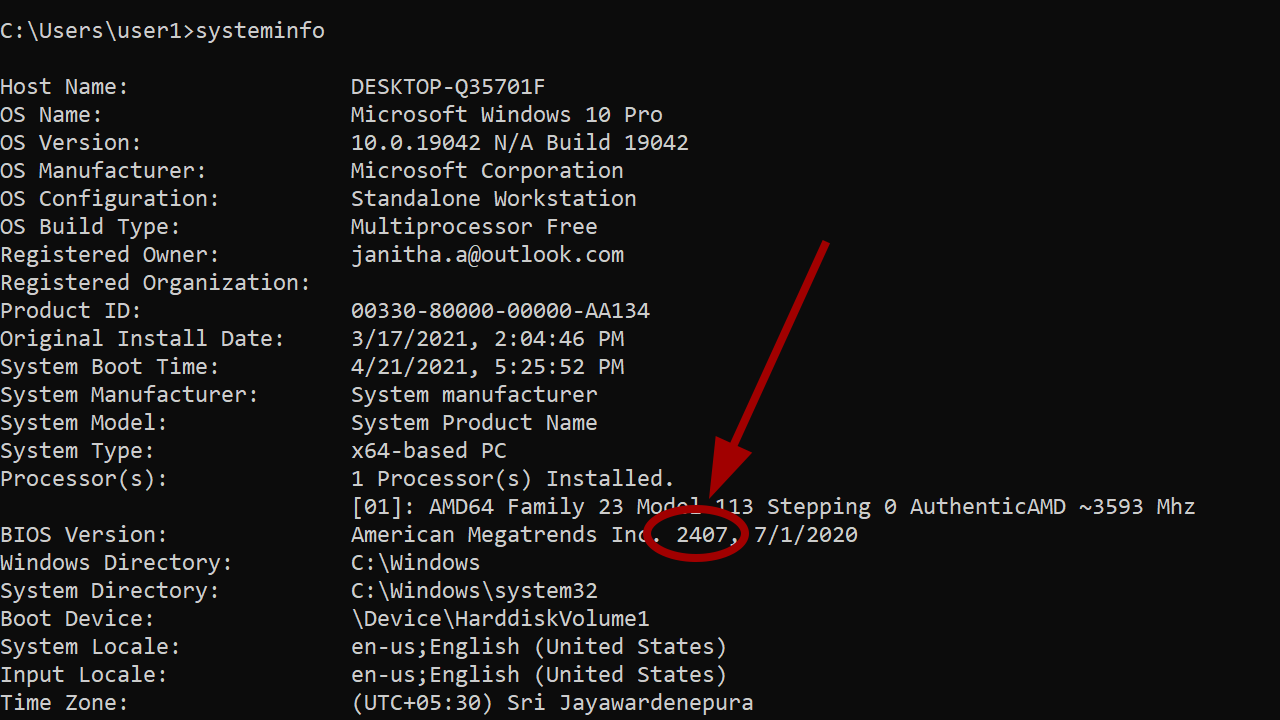
This command utilizes Windows Management Instrumentation (WMI) to query the BIOS for its SMBIOS version. The output will be a single line showing your BIOS version.
-
You can also use a slightly different command to get more information, including the manufacturer:
wmic baseboard get product,Manufacturer,version
wmic bios get caption, description
-
These command-line methods are powerful and quick, providing the essential information with minimal interaction.
Identifying Your BIOS Version in macOS and Linux
While BIOS is a term most commonly associated with PCs, Macs use a similar firmware called EFI (Extensible Firmware Interface), and Linux systems also have ways to access this low-level information. The process differs significantly from Windows.
macOS: System Information
Apple’s macOS operates on a Unix-based foundation and uses EFI. The way to access firmware information is integrated into its comprehensive system reporting tool, similar to Windows’ System Information.
-
Accessing System Information:
- Click the Apple menu () in the top-left corner of your screen.
- Hold down the
Option (⌥)key. The “About This Mac” option will change to “System Information…”. - Click “System Information…”.
-
Locating Firmware Version Information:
- In the System Information window, navigate to “Hardware” in the left-hand sidebar.
- Select “System Report.”
- Look for an entry like “Boot ROM Version” or “SMC Version.” While not directly “BIOS version,” these are the closest equivalents and represent your system’s firmware. The specific naming might vary slightly depending on the Mac model and macOS version.
Linux: Terminal Commands
Linux, being a highly customizable operating system, offers several command-line utilities to inspect the system’s firmware. The most common and effective methods involve using dmidecode or accessing /sys/firmware/efi.
-
Using
dmidecode:-
Open your terminal application.
-
Type the following command and press Enter:
sudo dmidecode -s bios-version -
You will likely be prompted for your user password due to the
sudocommand, which grants administrative privileges. -
This command directly queries the DMI (Desktop Management Interface) table, which contains BIOS information.
-
To get more comprehensive BIOS details, you can run
sudo dmidecode --type bios. This will display a wealth of information including the vendor, version, release date, and capabilities.
-
-
Accessing
/sys/firmware/efi(for UEFI systems):- Many modern Linux systems boot using UEFI, which replaces traditional BIOS. You can often find UEFI firmware information in the
/sys/firmwaredirectory. - Navigate to this directory in your terminal.
- You might find subdirectories like
efi. Inside, you can often find files containing version information. For example,cat /sys/firmware/efi/vars/PlatformInfo-GUID/PlatformInfomight contain relevant data, though this can be highly system-dependent.
- Many modern Linux systems boot using UEFI, which replaces traditional BIOS. You can often find UEFI firmware information in the
Using dmidecode is generally the most reliable and universally applicable method for finding BIOS/UEFI information in Linux.
Updating Your BIOS: A Word of Caution
Once you know your BIOS version, the next logical step might be to consider updating it, especially if you’re experiencing issues or planning hardware upgrades. However, BIOS updates are a sensitive operation and should not be undertaken lightly. An improperly executed BIOS update can render your motherboard unusable, a problem often referred to as “bricking” your system.
When to Consider a BIOS Update
- Hardware Compatibility: As mentioned, if you’re installing new hardware that requires a newer BIOS version for support.
- Bug Fixes: If you’re encountering specific, well-documented bugs or instability issues that a BIOS update is known to address.
- Performance Improvements: Occasionally, updates offer noticeable performance gains.
- Security Patches: To address known security vulnerabilities.
The Risks Involved
- System Instability: A buggy BIOS update can introduce new problems or exacerbate existing ones.
- Data Loss: While rare, an interruption during the update process could potentially lead to data corruption.
- Bricking the Motherboard: The most severe risk is rendering your motherboard inoperable, requiring replacement.
How to Update (General Guidelines)
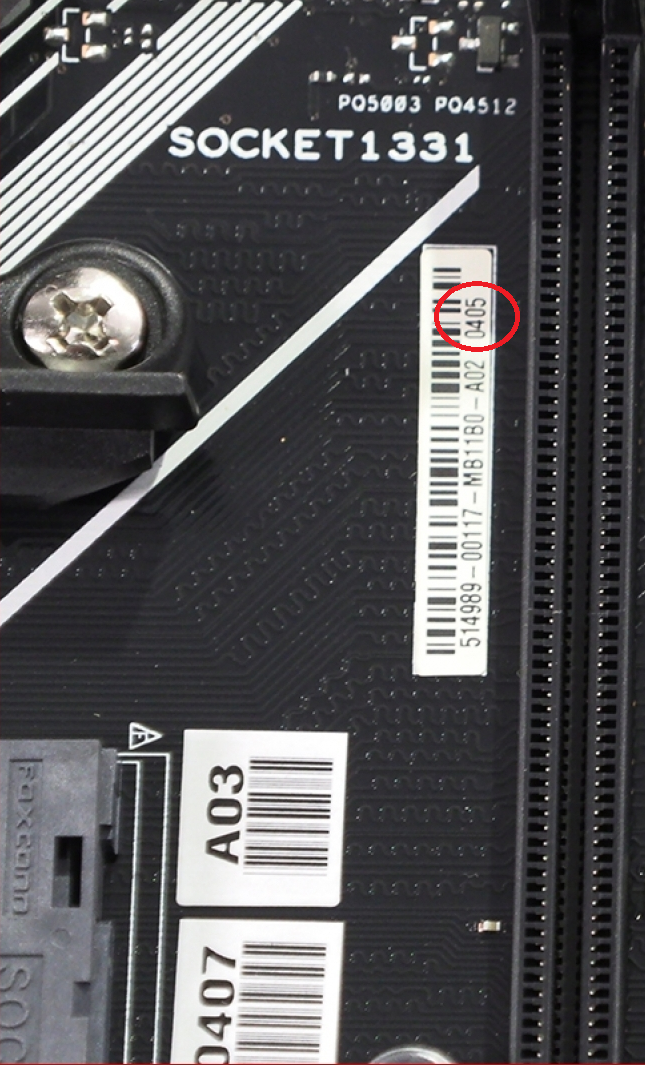
- Identify Your Motherboard: The BIOS is specific to your motherboard. You need to know the exact make and model of your motherboard. This information is often printed on the motherboard itself or can be found using system information tools.
- Visit Manufacturer’s Website: Go to the support section of your motherboard manufacturer’s website.
- Download the Correct BIOS: Find the latest BIOS version for your specific motherboard model. Crucially, ensure you download the correct file for your exact motherboard revision.
- Read the Instructions: Motherboard manufacturers provide detailed instructions for updating the BIOS. These often involve using a USB drive and a utility within the BIOS itself (often called EZ Flash, Q-Flash, M-Flash, etc.).
- Ensure Stable Power: Never update your BIOS during a thunderstorm or when your power supply is unreliable. A power outage during the update can be disastrous. Consider using a UPS (Uninterruptible Power Supply).
- Follow Manufacturer Instructions Precisely: Do not deviate from the manufacturer’s recommended procedure.
In summary, knowing your BIOS version is a fundamental aspect of PC maintenance and troubleshooting. By understanding how to find this information across different operating systems and recognizing when and how to approach BIOS updates, you can ensure your system is running optimally, securely, and is ready for any future hardware expansions.
aViewFromTheCave is a participant in the Amazon Services LLC Associates Program, an affiliate advertising program designed to provide a means for sites to earn advertising fees by advertising and linking to Amazon.com. Amazon, the Amazon logo, AmazonSupply, and the AmazonSupply logo are trademarks of Amazon.com, Inc. or its affiliates. As an Amazon Associate we earn affiliate commissions from qualifying purchases.