
In the rapidly evolving landscape of wearable technology, Fitbit has remained a dominant force for over a decade. Since its inception, the company has released dozens of iterations of its fitness trackers and smartwatches, ranging from the minimalist clips of the early 2010s to the high-tech health sensors of today. Because Fitbit maintains a consistent design language across many of its product lines, it is surprisingly easy to lose track of exactly which model is currently strapped to your wrist.
Identifying your specific Fitbit model is not just a matter of curiosity. It is a technical necessity for several reasons: purchasing the correct replacement charging cable, finding compatible third-party wristbands, troubleshooting software glitches, or determining if your device supports specific features like ECG (Electrocardiogram) readings or built-in GPS. If you have inherited a device, bought one second-hand, or simply forgotten your model name over the years, this guide will provide the technical breakdown needed to identify your hardware with precision.
Digital Detection: Identifying Your Device via Software and Settings
The most accurate and efficient way to identify a Fitbit is through its digital footprint. Because the device must communicate with a smartphone or computer to function, the model information is stored within the ecosystem’s firmware and application data.
Checking the Fitbit Mobile App
For most users, the Fitbit app (available on iOS and Android) is the quickest repository of information. To find your model:
- Open the Fitbit app on your paired smartphone.
- Tap the Devices icon (usually located in the top-left corner or under your profile picture).
- The app will display a list of all synced devices. The name listed here—such as “Charge 6” or “Sense 2″—is your specific model.
If you have multiple devices paired to one account, the app will distinguish between them. This method is foolproof as long as the device is currently synced to your account. However, if the device is not yet set up or you are trying to help a friend identify theirs, you may need to look deeper into the hardware settings.
Using the On-Device “About” Menu
Most modern Fitbit devices with a screen allow you to view regulatory information and device details directly on the hardware.
- Swipe across the screen to find the Settings app (look for the gear icon).
- Scroll down until you see About or Device Info.
- Within this menu, look for Regulatory Info.
While this screen may not always state the marketing name (like “Luxe”), it will often provide a model number (e.g., FB422). You can perform a quick search for this alphanumeric code on the official Fitbit help site to confirm the commercial name of the device.
Physical Identification: Visual Markers and Design Cues
If the battery is dead or the screen is unresponsive, you must rely on physical inspection. Fitbit designs generally fall into three categories: Smartwatches, Performance Trackers, and Minimalist Trackers. By looking at the sensor array, screen shape, and charging pin configuration, you can narrow down the identity of your tech.
Distinguishing Between the Smartwatch Lines (Versa vs. Sense)
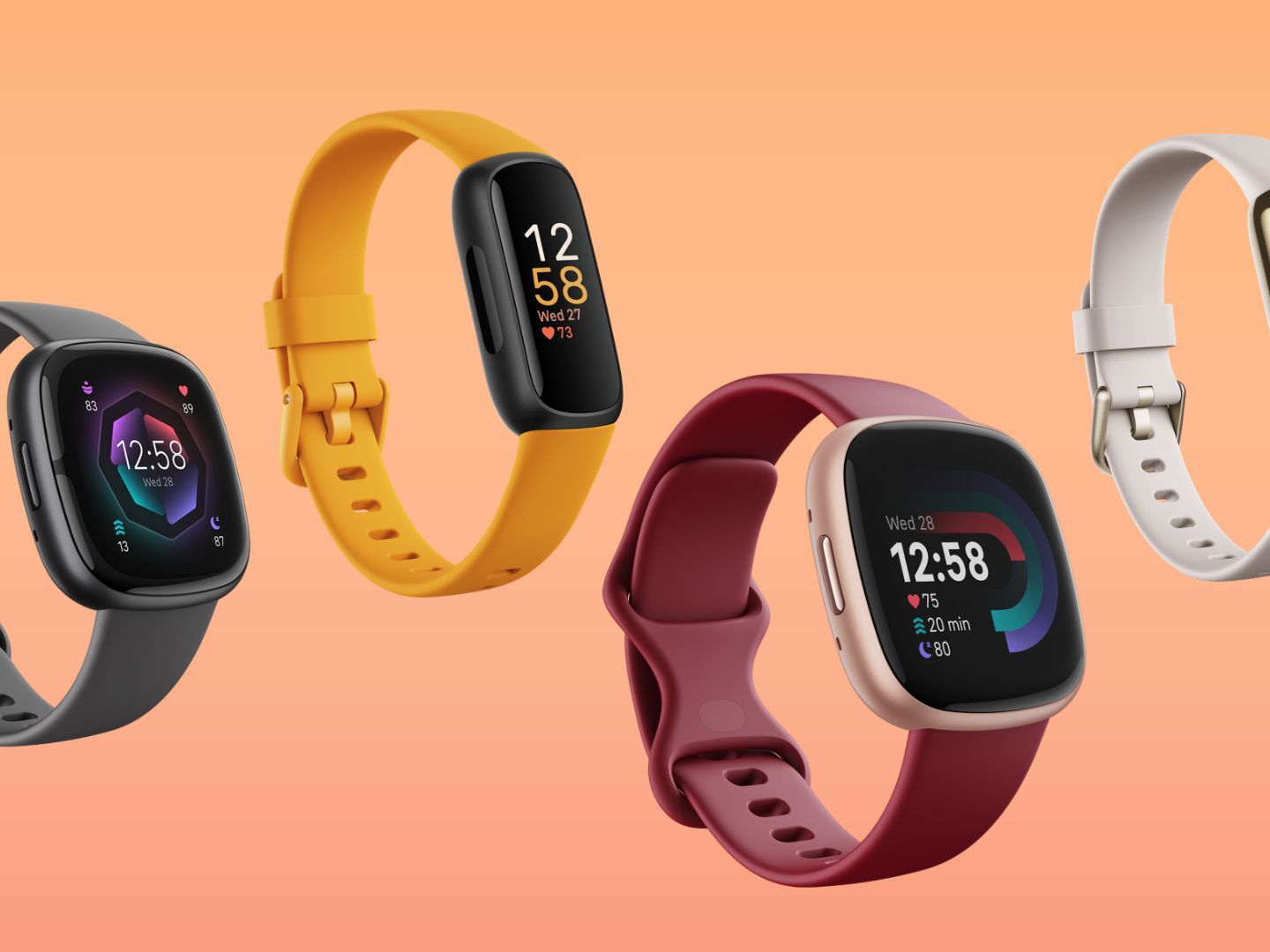
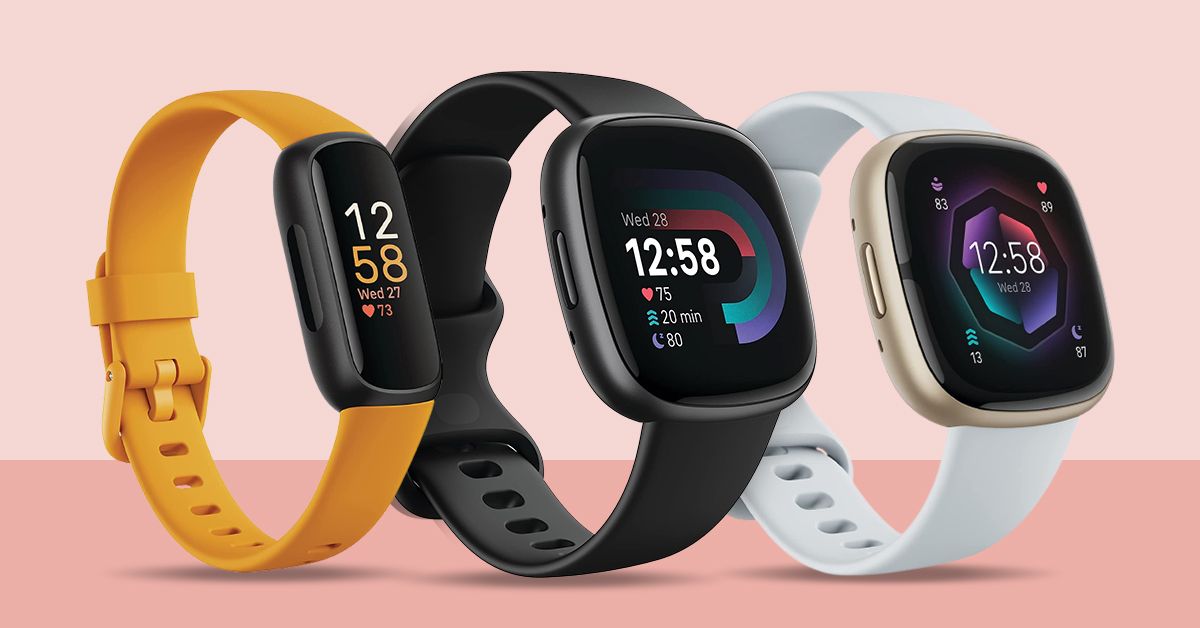
Fitbit’s smartwatches feature a “squircle” (rounded square) design. Identifying the difference between the Versa and Sense lines requires a keen eye for detail:
- The Sense Series: The original Fitbit Sense and Sense 2 are characterized by a solid metal ring around the perimeter of the watch face. This is the ECG and EDA sensor. If your watch has a distinct, continuous metal frame that you can touch to take a heart rhythm reading, it is likely a Sense model.
- The Versa Series: The Versa 3 and 4 look almost identical to the Sense models but lack the continuous metal ring for EDA. The Versa 2 is easily identified because it features a physical button on the left side, whereas the Versa 3 and Sense use an inductive (haptic) “button” that is a small indentation rather than a moving part. The original Versa and Versa Lite feature three physical buttons (one on the left, two on the right).
Categorizing the Tracker Series (Charge, Inspire, and Luxe)
Trackers are narrower and more rectangular than smartwatches.
- The Charge Series: The Charge is Fitbit’s most popular performance tracker. The Charge 5 and 6 are distinguished by their bright, color AMOLED screens and stainless steel side panels used for ECG readings. Older models, like the Charge 3 and 4, have grayscale screens and a more angular, plastic/aluminum body. The Charge 4 includes a “GPS” logo on the back casing near the sensors.
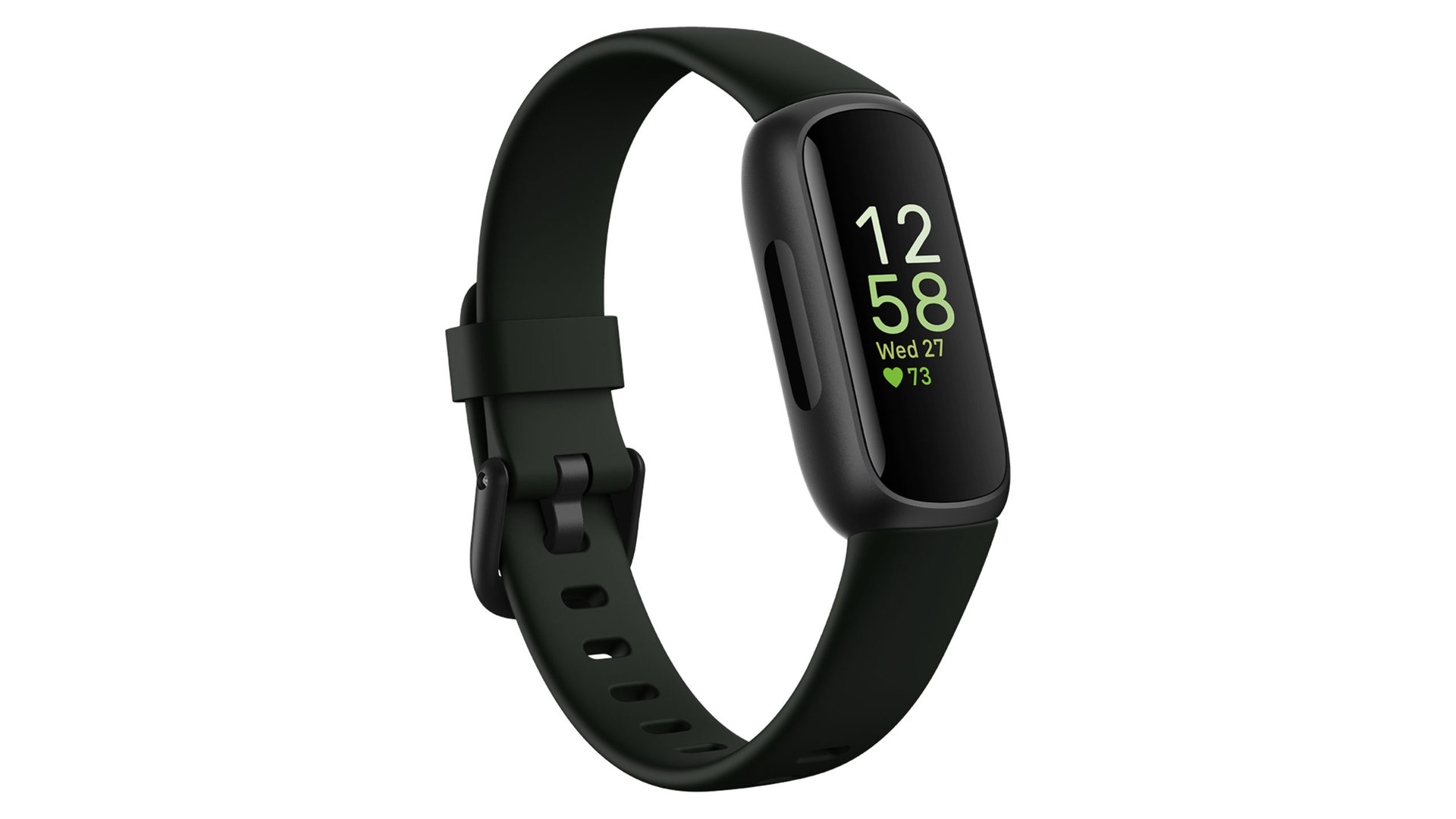
- The Inspire Series: These are slimmer and generally more budget-friendly. The Inspire 3 has a color screen and a rounded, pebble-like appearance. The Inspire 2 is narrower with a black-and-white screen and lacks the “vibrant” finish of the Luxe.
- The Luxe: This is Fitbit’s “fashion” tracker. It is notably smaller than the Charge and is made of polished stainless steel, giving it a jewelry-like appearance. If your device looks more like a slim silver or gold bracelet than a piece of plastic tech, it is likely a Fitbit Luxe.
Technical Specifications and Charging Port Geometry
If visual cues are still leaving you uncertain, the “underbelly” of the device—the sensor array and charging pins—provides the most definitive evidence. Every generation of Fitbit typically utilizes a unique charging configuration, a technical decision that, while often frustrating for consumers, makes identification easier.
Sensor Arrays and Heart Rate Technology
The configuration of the green and red lights on the back of the device can tell you its age.
- PurePulse 1.0: Found in legacy devices like the Charge HR or Alta HR, these feature two distinct green LED dots on either side of a central sensor.
- PurePulse 2.0 and Beyond: Modern devices like the Sense 2 or Charge 6 feature a more complex, multi-path sensor array. These often have a “plus” or “cross” pattern of lights and may include red and infrared sensors for SpO2 (blood oxygen) monitoring. If your device has no lights on the back, it is either an extremely old model (like the original Flex) or a specialized child’s tracker (like the Ace series).
Analyzing Charging Pin Layouts
Because Fitbit does not use a universal charging standard like USB-C for its wearables, the pins are a hardware signature:
- Two-Pin Magnetic: Common on the Inspire 2 and some older Luxe models.
- Three-Pin Magnetic: Found on the Versa 3, Versa 4, Sense, and Sense 2.
- Four-Pin Magnetic/Clip: The Charge series has evolved through several four-pin iterations. The Charge 5 and 6 use a specific magnetic dock, while the Charge 3 and 4 use a “clamp” style charger.
- Pogo Pins in a Cradle: If your device requires you to pop the “brain” out of the strap and place it into a small plastic cradle, you likely have a legacy device like the Fitbit Flex 2 or the original Alta.
Why Model Identification is Crucial for Performance and Security
Knowing “what type of Fitbit you have” extends beyond buying the right strap; it impacts the digital health of your device. In the realm of personal technology, hardware and software are inextricably linked.
Software Updates and Feature Parity
Fitbit frequently rolls out firmware updates that add features like irregular heart rhythm notifications or improved sleep tracking algorithms. However, these updates are hardware-dependent. For instance, if you identify your device as a Charge 4, you can utilize the built-in GPS for runs without your phone. If you discover you have a Charge 3, you must rely on “Connected GPS,” which requires your phone to be nearby. Identifying your model allows you to manage your expectations regarding what the tech can actually do.
Battery Longevity and Maintenance
Different models have different battery profiles. A Fitbit Inspire 3 can last up to 10 days, whereas a Sense 2 might only last 6 days due to its advanced sensor suite and Always-On Display (AOD). If you know your model, you can research the specific battery-saving settings tailored to that hardware. Furthermore, if you are experiencing rapid battery drain, knowing the model helps you determine if the device is simply reaching the end of its lithium-ion lifecycle (usually 2–4 years) or if a recent software patch is to blame.
Digital Security and Data Privacy
From a digital security perspective, older Fitbit models may no longer receive critical security patches. As Google continues to integrate Fitbit into its broader ecosystem, older devices may eventually lose support for certain syncing protocols. By identifying your device, you can check the manufacturer’s “End of Life” (EOL) documentation to ensure your health data is being transmitted over the most secure, up-to-date channels possible.
In conclusion, while the variety of Fitbit models can be overwhelming, the combination of the mobile app’s “Device” tab, the on-device “Regulatory Info” menu, and a physical inspection of the sensors and charging pins will provide you with a definitive answer. Whether you are troubleshooting a technical glitch or simply looking to refresh your style with a new band, knowing your hardware is the first step to mastering your wearable tech.
aViewFromTheCave is a participant in the Amazon Services LLC Associates Program, an affiliate advertising program designed to provide a means for sites to earn advertising fees by advertising and linking to Amazon.com. Amazon, the Amazon logo, AmazonSupply, and the AmazonSupply logo are trademarks of Amazon.com, Inc. or its affiliates. As an Amazon Associate we earn affiliate commissions from qualifying purchases.