
Understanding MacBook Screen Technology and Its Vulnerabilities
Maintaining the pristine condition of a MacBook screen is not merely about aesthetics; it’s about preserving the integrity of sophisticated display technology. Unlike generic computer monitors, MacBooks, particularly those featuring Retina, Liquid Retina XDR, or ProMotion displays, incorporate advanced layers designed for optical brilliance and user interaction. Understanding these technologies is crucial before attempting any cleaning.
Retina Displays and Oleophobic Coatings: Why “Any Cleaner” Won’t Do
Modern MacBook screens are characterized by their high pixel density, anti-reflective coatings, and often, an oleophobic (oil-repellent) coating. The anti-reflective coating significantly reduces glare, enhancing visual comfort and clarity. The oleophobic coating, a microscopic layer applied to the glass, helps repel skin oils and fingerprints, making the screen smoother to the touch and easier to clean.

These coatings are incredibly delicate. The use of harsh chemicals, abrasive materials, or improper cleaning techniques can strip or damage these layers, leading to permanent blemishes, increased glare, and a screen that attracts smudges more readily. Once compromised, these coatings cannot be easily restored. Therefore, the selection of cleaning agents and methods must be precise and gentle, aligning with Apple’s recommendations to avoid irreversible damage that could affect both the visual experience and the device’s resale value.
Common Screen Contaminants: Fingerprints, Dust, and Smudges
MacBook screens are magnets for various contaminants through everyday use. The most common culprits include:
- Fingerprints and skin oils: Transferred from touching the screen, especially prevalent on touch-enabled devices or during gestures.
- Dust and airborne particles: These settle on the screen surface, particularly in dry environments or after prolonged periods of inactivity.
- Smudges and streaks: Often a result of microscopic debris, moisture, or residue from less-than-ideal cleaning attempts.
- Spills: Accidental splashes from drinks or food, which require immediate and careful attention.
Each type of contaminant may necessitate a slightly different approach, but the underlying principle remains the same: use only approved materials and methods to protect the screen’s delicate surface and coatings.
The Approved Arsenal: Safe and Effective Cleaning Solutions
To effectively and safely clean a MacBook screen, a select few items form the core of your cleaning kit. These are chosen for their non-abrasive properties and their compatibility with sensitive electronic displays.
Microfiber Cloths: The Unsung Hero
A high-quality microfiber cloth is arguably the most important tool in your screen-cleaning arsenal. Not all microfiber cloths are created equal; look for those specifically designed for electronics or optics. They should be:
- Soft and lint-free: Crucial to avoid scratching the screen or leaving behind fibers.
- Non-abrasive: Standard paper towels, tissues, or rough cloths can leave micro-scratches due to their wood pulp content.
- Clean: Always use a fresh, clean cloth. A dirty cloth can introduce new smudges or scratches.
For light dust and smudges, a dry microfiber cloth is often sufficient. For more stubborn marks, it serves as the applicator for cleaning solutions. Always use a separate clean section of the cloth for wiping any dampness.
Distilled Water: The Purest Solvent
When a dry wipe isn’t enough, distilled water is the safest and most recommended liquid for MacBook screens. Unlike tap water, distilled water has no minerals, chlorine, or other impurities that can leave streaks or mineral deposits on the screen as it dries. These impurities can also potentially interact negatively with the screen’s coatings over time.
To use distilled water, never spray it directly onto the screen. Instead, lightly dampen a corner of a clean microfiber cloth. The cloth should be just barely moist, not dripping wet. Excess moisture can seep into the display assembly, potentially causing internal damage.
Apple-Approved Cleaning Solutions: When Water Isn’t Enough
For very stubborn grime that distilled water can’t tackle, Apple provides specific guidelines. Historically, Apple has advised against most solvents, but their recommendations have evolved, particularly for certain devices and specific scenarios. For MacBook screens, the general advice is to avoid window cleaners, household cleaners, aerosol sprays, solvents, ammonia, abrasives, or cleaners containing hydrogen peroxide.
However, Apple’s support pages currently state that a 70% isopropyl alcohol (IPA) solution can be used to gently wipe the hard, nonporous surfaces of your Apple product, such as the display, keyboard, or other exterior surfaces. It is crucial to check the specific Apple support document for your MacBook model, as recommendations can vary. If using IPA, ensure it’s 70% concentration, never spray it directly, and always apply it to a microfiber cloth first, then wipe gently. Non-alcohol, ammonia-free cleaning solutions explicitly designed for electronic screens are also available and can be a safer alternative for those wary of IPA on delicate coatings, provided they are explicitly stated as safe for display screens.
Avoiding the Pitfalls: What NOT to Use
Equally important as knowing what to use is understanding what to absolutely avoid:
- Harsh chemicals: Window cleaners (Windex, etc.), ammonia-based cleaners, bleach, hydrogen peroxide, acetone, paint thinners, benzene, or any abrasive cleaners will irrevocably damage the anti-reflective and oleophobic coatings.
- Rough materials: Paper towels, facial tissues, napkins, or any cloth not specifically labeled as microfiber for electronics can scratch the screen.
- Direct spraying: Never spray any liquid directly onto the screen. This risk of liquid seeping into gaps and damaging internal components is high.
- Abrasive sponges or cloths: These will physically scratch the screen surface.
- Compressed air (for screens): While useful for keyboards, direct blasts of compressed air on the screen surface can be too strong or contain propellants that leave residues.
A Step-by-Step Guide to a Spotless MacBook Screen
With the right tools in hand, cleaning your MacBook screen becomes a simple, safe, and effective process. Following these steps will ensure a streak-free and damage-free result.
Preparation: Power Down and Disconnect
Before starting, it is paramount to properly prepare your MacBook:
- Shut down your MacBook: Go to the Apple menu and select “Shut Down.” This prevents accidental inputs and protects the internal components.
- Unplug all peripherals: Disconnect the power adapter, external monitors, USB devices, and any other accessories.
- Ensure the MacBook is cool: If you’ve been using it intensively, allow it to cool down to room temperature.
These steps minimize electrical risks and make it easier to clean the entire screen surface without interruption.
Initial Dust Removal (Dry Method)
For general dust and light smudges, a dry cleaning method is usually sufficient and always the safest first step.
- Fold your microfiber cloth: Fold it into a manageable size, giving you several clean surfaces to work with.
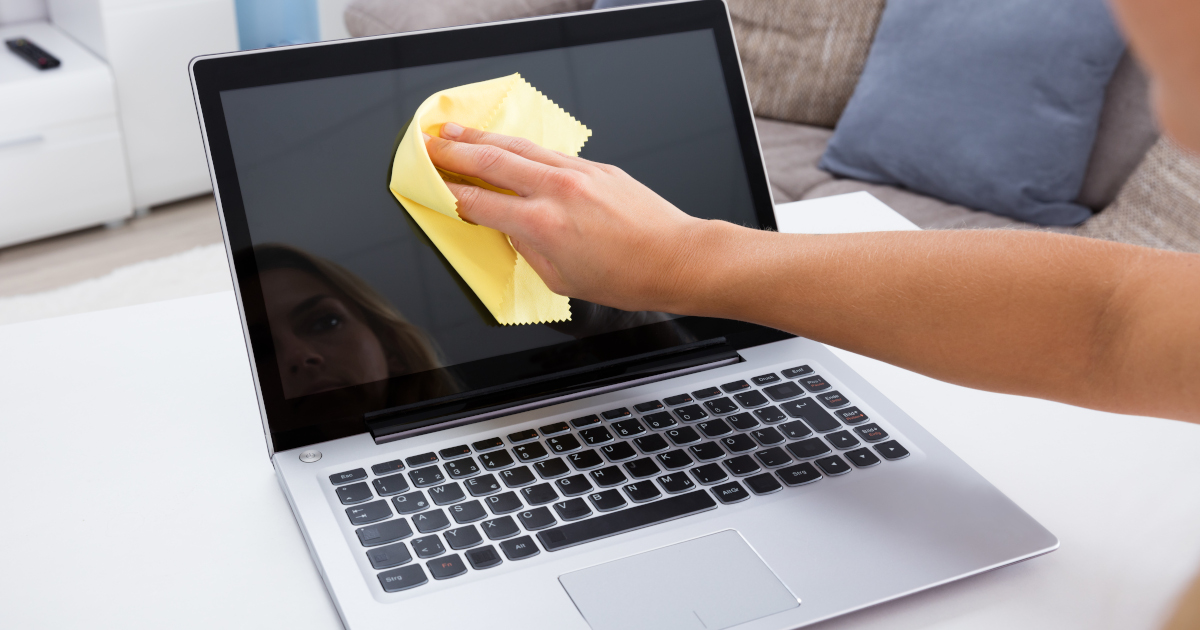
- Gently wipe the screen: Starting from one corner, lightly wipe the screen in a gentle, circular, or horizontal/vertical motion. Do not apply pressure. The goal is to lift dust and loose particles, not to rub them into the screen.
- Inspect: After a full pass, hold the screen at an angle to a light source to check for remaining dust or any new streaks.
This dry pass often resolves most minor issues without introducing any moisture.
Tackling Stubborn Smudges (Damp Method)
If dry wiping doesn’t remove all smudges, it’s time to use a lightly dampened cloth.
- Prepare your liquid: If using distilled water, pour a small amount into a clean cup. If using an Apple-approved screen cleaner (e.g., 70% IPA or a specialized electronic screen cleaner), prepare it according to its instructions.
- Dampen the microfiber cloth: Dip a small corner of your clean microfiber cloth into the liquid, or apply a small amount of cleaner to the cloth.
- Wring out excess liquid: The cloth should be barely damp, not wet. If you can see or feel excess moisture, wring it out further.
- Wipe the screen gently: Using the dampened part of the cloth, wipe the screen gently in smooth, consistent strokes. Avoid scrubbing or applying excessive pressure. Focus on the smudged areas, but wipe the entire screen to ensure an even finish.
- Immediately follow with a dry section: As soon as you’ve wiped an area with the damp cloth, use a clean, dry section of the same microfiber cloth to wipe away any residual moisture. This prevents streaks and ensures no liquid lingers on the screen.
Drying and Inspection
After cleaning, a final check is essential.
- Ensure no moisture remains: Visually inspect the screen from different angles to confirm it is completely dry. Any lingering moisture can evaporate and leave streaks.
- Check for streaks or missed spots: With the screen still off, look for any remaining smudges or streaks. If necessary, repeat the damp-then-dry wiping process on any persistent marks, ensuring to use a fresh, clean section of the microfiber cloth each time.
Once satisfied, you can close your MacBook and power it back on.
Maintaining Screen Hygiene and Longevity
Regular care extends beyond just cleaning; it involves adopting habits that minimize screen contamination and prolong the life of its delicate coatings.
Best Practices for Regular Cleaning
Consistent, gentle cleaning is more beneficial than infrequent, aggressive sessions.
- Daily dry wipe: If your MacBook is used heavily, a quick dry wipe with a clean microfiber cloth at the end of each day can prevent dust and minor smudges from building up and becoming harder to remove.
- Weekly deeper clean: For most users, a more thorough clean using the damp method once a week or bi-weekly will keep the screen in excellent condition.
- As needed for spills: For any accidental spills, act immediately. Gently blot the liquid with a dry, clean microfiber cloth, then proceed with a careful damp clean if residue remains.
Protective Measures: Screen Protectors vs. Proper Handling
While some users opt for screen protectors, they are generally not necessary for MacBooks with oleophobic coatings if the device is handled correctly. Many screen protectors can alter the display’s optical properties or interfere with the precise closure of the lid, potentially causing damage.
Instead, focus on:
- Avoiding direct contact: Try not to touch the screen with your fingers.
- Closing carefully: Ensure no objects (e.g., pens, papers, crumbs) are on the keyboard before closing the lid, as these can press against and damage the screen.
- Clean hands: Wash your hands before using your MacBook to minimize oil transfer.
- Protective sleeves/cases: Use a sleeve or case when transporting your MacBook to protect against dust and physical damage.

The Long-Term Impact of Proper Care
Adhering to proper cleaning and maintenance protocols for your MacBook screen yields significant long-term benefits. Beyond ensuring a consistently clear and vibrant display for your daily tasks, it preserves the integrity of the sophisticated anti-reflective and oleophobic coatings. This not only enhances your user experience by minimizing glare and smudges but also protects the device’s aesthetic and functional value. A well-maintained screen is a hallmark of a cared-for device, contributing positively to its potential resale value and overall longevity as a high-performance technological asset.
aViewFromTheCave is a participant in the Amazon Services LLC Associates Program, an affiliate advertising program designed to provide a means for sites to earn advertising fees by advertising and linking to Amazon.com. Amazon, the Amazon logo, AmazonSupply, and the AmazonSupply logo are trademarks of Amazon.com, Inc. or its affiliates. As an Amazon Associate we earn affiliate commissions from qualifying purchases.