
The iPhone, a cornerstone of modern personal technology, is equipped with a sophisticated array of indicators and features designed to enhance user experience, privacy, and accessibility. While many users are familiar with the green and orange dots that signify camera and microphone usage, the appearance of a “yellow dot” can sometimes cause confusion, often leading users to question its purpose and implications for their device’s security or functionality. Unlike the privacy indicators, a persistent yellow dot or a yellow-tinged on-screen element is typically related to the iPhone’s comprehensive suite of accessibility features, designed to make the device more usable for individuals with diverse needs. Understanding its origin requires a dive into iOS’s privacy safeguards and its powerful accessibility toolkit.

Demystifying iPhone’s Privacy Indicators: Orange and Green Dots
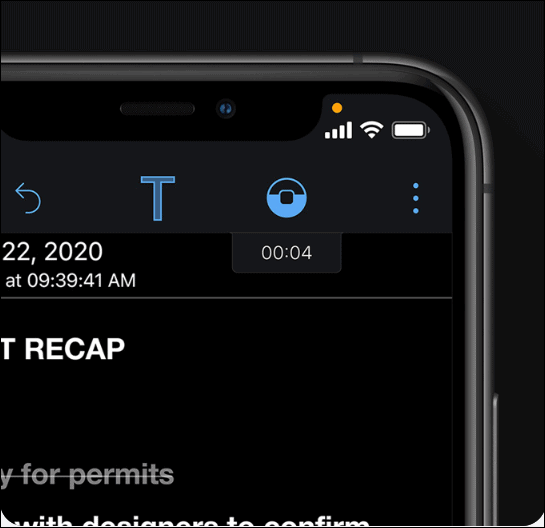
Before delving into the “yellow dot,” it’s crucial to distinguish it from the standard privacy indicators Apple introduced to iOS. These small, colored dots appear in the status bar at the top of your iPhone’s screen and serve as transparent warnings about active hardware access. They are a direct response to growing concerns over digital privacy and an integral part of Apple’s commitment to user control.
The Orange Dot: Microphone Activity
A small orange dot appearing in the status bar signifies that an app is actively using your iPhone’s microphone. This indicator is dynamic; it appears only when the microphone is engaged. For instance, if you’re making a phone call, recording a voice memo, or using a third-party app that requires voice input, the orange dot will be visible. Its purpose is to provide immediate visual confirmation that an app has access to audio input, allowing users to be aware and, if necessary, take action by closing the app or reviewing its permissions.
The Green Dot: Camera and Microphone Activity
Similarly, a green dot in the status bar indicates that an app is actively using either your iPhone’s camera, or both the camera and microphone simultaneously. This appears when you open the Camera app, participate in a video call, or use an app that requires visual input. Like the orange dot, the green dot is a real-time privacy alert, empowering users to monitor which applications are accessing sensitive hardware. If you see the green dot and are not actively using an app that should require camera access, it’s a clear signal to investigate.
Why These Indicators Matter for Digital Security
These privacy indicators are vital components of digital security. They prevent malicious or intrusive applications from secretly accessing your microphone or camera, which could potentially lead to unauthorized surveillance. By making these actions visible, Apple places power back in the hands of the user, enabling them to make informed decisions about app permissions and overall device security. They are system-level features that cannot be disabled by apps, ensuring their reliability as a privacy safeguard.
Unpacking the “Yellow Dot”: Understanding Accessibility Features
When users report seeing a “yellow dot” on their iPhone, they are almost universally referring to an element of an accessibility feature, not a privacy indicator. Unlike the fixed-color privacy dots in the status bar, an accessibility-related “yellow dot” is typically a customizable on-screen button or a visual cue from a more advanced interaction mode. The most common culprits are AssistiveTouch and Switch Control.
AssistiveTouch: Your Customizable On-Screen Button
AssistiveTouch is one of the most widely used accessibility features on the iPhone. It provides an on-screen button that can perform gestures, open menus, or activate hardware buttons with a single tap. It’s particularly useful for users who might have difficulty pressing physical buttons, performing multi-finger gestures, or accessing certain screen areas.
How AssistiveTouch Can Appear Yellow
By default, the AssistiveTouch button is a semi-transparent gray circle. However, iOS allows extensive customization of its appearance. Users can adjust its opacity, size, and crucially, its color. Within the Accessibility settings, users can navigate to AssistiveTouch and modify its ‘Idle Opacity’ and ‘Color.’ If a user has inadvertently or intentionally set the color of their AssistiveTouch button to yellow, or a shade of yellow (e.g., gold, amber), this is the most probable explanation for a “yellow dot.” It floats above all other app content, making it highly visible and easily mistaken for a system indicator.
Common Uses and Customization Options
Beyond color, AssistiveTouch offers a wealth of customization. Users can define custom actions for single-tap, double-tap, and long-press of the button. This allows for quick access to actions like taking screenshots, locking the screen, invoking Siri, adjusting volume, or opening the App Switcher. The menu that appears when the AssistiveTouch button is tapped can also be customized with various functions, making it a powerful tool for streamlining interactions.
Switch Control: Advanced Navigation for Adaptive Needs
Another powerful accessibility feature that could potentially manifest as a “yellow dot” or yellow visual cues is Switch Control. This feature is designed for users who cannot interact with their device directly using touch, instead relying on adaptive accessories (switches) or existing peripherals to navigate the iPhone.
Visual Cues and Their Appearance
Switch Control operates by scanning items on the screen, highlighting them sequentially. When an item is highlighted, the user can activate it using their switch. These highlights can be customized in terms of color, thickness, and style. If a user has configured their Switch Control highlight to be yellow, the moving yellow box or border around UI elements could be perceived as a “yellow dot” by some, especially if they are new to the feature or activated it accidentally.
How Switch Control Enhances Accessibility
Switch Control provides comprehensive control over the iPhone without direct touch. Users can navigate apps, type, play games, and perform complex gestures through a series of switch actions. It’s a critical tool for individuals with significant motor impairments, enabling them to harness the full power of their iOS device through alternative input methods.
Locating and Managing Accessibility Features on iOS
Understanding where to find and how to manage these features is key to addressing any unexpected “yellow dot” or simply tailoring your iPhone experience.
Navigating to Accessibility Settings
All accessibility features, including AssistiveTouch and Switch Control, are housed within the iPhone’s Settings app. To access them:
- Open the Settings app.
- Scroll down and tap on Accessibility.
This section serves as the hub for all adaptive features, covering vision, hearing, motor, and cognitive categories.
Configuring AssistiveTouch: From Color to Opacity
Within the Accessibility settings, tap on Touch, then AssistiveTouch. Here you will find a toggle to turn AssistiveTouch on or off. Below that, you’ll see options to:
- Customize Top Level Menu: Add or remove icons from the AssistiveTouch menu.
- Single-Tap, Double-Tap, Long Press: Assign custom actions to these gestures.
- Idle Opacity: Adjust how transparent the button becomes when not in use.
- Color: This is the crucial setting for a “yellow dot.” Tap on “Color” and select your preferred hue. If it’s currently yellow or a similar shade, changing it will alter the appearance of your AssistiveTouch button.
- Size: Adjust the size of the button.
If you find AssistiveTouch enabled and its color set to yellow, simply toggling the feature off or changing its color will resolve the “yellow dot” mystery.
Exploring Other Accessibility Options
While AssistiveTouch and Switch Control are the primary candidates for a “yellow dot,” the Accessibility menu is rich with other tools. Features like VoiceOver, Zoom, Magnifier, and Display & Text Size options can also alter the visual presentation of your iPhone, though they are less likely to produce a persistent, dot-like yellow element. Familiarizing yourself with these options can unlock new ways to interact with your device and ensure no unwanted features are enabled.
Quick Toggles: Accessibility Shortcut and Back Tap
For quick access to frequently used accessibility features, Apple provides the Accessibility Shortcut. You can configure it to activate AssistiveTouch (or other features) by triple-clicking the Side button (or Home button on older models).
Additionally, the Back Tap feature (found under Accessibility > Touch) allows users to assign actions to a double or triple tap on the back of the iPhone. While it doesn’t create a “dot,” an accidental Back Tap could activate a feature like AssistiveTouch if configured to do so.
Differentiating Indicators and Troubleshooting Unexpected Dots
It’s essential to clearly differentiate between the system’s privacy indicators and user-activated accessibility features.
Privacy vs. Accessibility: Key Visual and Functional Differences
- Location: Privacy indicators (orange/green) always appear in the very top right of the status bar. Accessibility elements (like AssistiveTouch) can float anywhere on the screen, often customizable, and can be moved by dragging.
- Color: Privacy indicators are strictly orange or green. An accessibility “dot” can be any color the user chooses, including yellow.
- Persistence: Privacy indicators appear only when the microphone or camera is actively in use and disappear instantly when access ceases. Accessibility features like AssistiveTouch remain on screen until manually disabled or hidden.
- Function: Privacy dots are passive warnings. Accessibility elements are interactive tools designed to assist navigation and control.
When an Unexpected Yellow Element Appears
If you see a yellow element on your screen and haven’t intentionally enabled an accessibility feature:
- Check AssistiveTouch: Go to Settings > Accessibility > Touch > AssistiveTouch. Toggle it off if it’s enabled and you don’t need it. If you wish to keep it, change its color.
- Check Switch Control: Go to Settings > Accessibility > Motor > Switch Control. Toggle it off if it’s enabled.
- Review Accessibility Shortcut: Go to Settings > Accessibility > Accessibility Shortcut. See if any features are selected that might create a yellow visual, and deselect them if unnecessary.
- Restart Your iPhone: A simple restart can often resolve minor software glitches that might cause unexpected visual elements.
Best Practices for iPhone Privacy and Security
While the “yellow dot” typically points to accessibility, maintaining good digital hygiene is always crucial.
- Regularly Review App Permissions: In Settings > Privacy & Security, check which apps have access to your microphone, camera, photos, etc. Revoke access for apps that don’t genuinely need it.
- Keep iOS Updated: Apple frequently releases security patches and feature enhancements. Keeping your iPhone updated ensures you have the latest protections.
- Be Mindful of Downloads: Only download apps from the App Store and exercise caution with unfamiliar links or attachments.
The Evolution of iOS Indicators and Future Implications
The introduction of privacy indicators, alongside the continuous refinement of accessibility features, showcases Apple’s dual commitment to user autonomy and inclusive design. These elements are not static but evolve with each iOS update, reflecting advancements in technology and shifts in user needs.
Apple’s Commitment to User Privacy and Accessibility
Apple has consistently positioned itself as a leader in user privacy, implementing system-level features that give users unprecedented control and transparency over their data and hardware. The orange and green dots are prime examples of this philosophy. Concurrently, the accessibility suite, which includes the customizable AssistiveTouch (and thus the potential “yellow dot”), demonstrates a deep understanding of diverse user requirements, ensuring that the iPhone remains a powerful tool for everyone.
Keeping Your Device Updated
Staying current with iOS updates is critical not only for security but also for accessing the latest improvements in privacy controls and accessibility features. New versions of iOS often bring enhanced visual indicators, more granular permissions, and innovative ways to customize the user experience.

The Role of User Education in Tech Adoption
The occasional confusion surrounding indicators like the “yellow dot” highlights the importance of user education in the rapidly evolving tech landscape. As devices become more sophisticated, understanding their nuanced features and indicators is paramount for effective use, personal security, and fully leveraging the powerful tools they offer. The “yellow dot” serves as a perfect case study: not a malicious threat, but a configurable feature waiting to be understood and utilized.
aViewFromTheCave is a participant in the Amazon Services LLC Associates Program, an affiliate advertising program designed to provide a means for sites to earn advertising fees by advertising and linking to Amazon.com. Amazon, the Amazon logo, AmazonSupply, and the AmazonSupply logo are trademarks of Amazon.com, Inc. or its affiliates. As an Amazon Associate we earn affiliate commissions from qualifying purchases.