
In the vast ecosystem of Microsoft Windows, countless applications are installed, updated, and removed daily. Behind this seemingly simple act lies a sophisticated and often misunderstood technology: Windows Installer. Far more than just a setup wizard, Windows Installer is a robust application programming interface (API) and a set of services that manage the installation, maintenance, and removal of software on Windows operating systems. It standardizes the installation process, ensuring reliability, consistency, and a predictable user experience, while also providing powerful tools for IT professionals to manage software deployment across an enterprise.
At its heart, Windows Installer aims to achieve transactional installations, meaning an installation either fully succeeds or completely reverts the system to its prior state if an error occurs. This crucial capability prevents the common problem of “half-installed” software that can destabilize a system. Understanding Windows Installer is fundamental for anyone looking to delve deeper into Windows administration, software development, or simply to troubleshoot persistent installation issues.
The Architecture of Software Deployment
To truly appreciate Windows Installer, one must first grasp its underlying architecture and the components that work in concert to deliver a seamless software experience. It’s a layered system designed for both flexibility and resilience.
MSI Files: The Heart of Windows Installer
The cornerstone of the Windows Installer technology is the MSI file. MSI stands for Microsoft Software Installer, and these files are essentially relational databases that contain all the necessary instructions and data for an application’s installation. Unlike older, script-based installers that executed a series of commands sequentially, MSI files describe the desired state of the system after installation.
An MSI package encapsulates a wide range of information:
-
Files: The actual application files, libraries, and executables to be placed on the system.
-
Registry Entries: Modifications to the Windows Registry, including application settings, file associations, and component registrations.
-
Shortcuts: Links to applications in the Start Menu, on the Desktop, or in other locations.
-
Services: Information about Windows services to be installed, started, or stopped.
-
Permissions: Access control lists (ACLs) for files and registry keys.
-
Custom Actions: Executable code or scripts that perform specific tasks not natively supported by Windows Installer (e.g., configuring a database).
This database structure allows Windows Installer to understand exactly what changes are being made to the system and, crucially, how to undo them if necessary. It also enables features like repair and self-healing, as the installer knows the “correct” state of all its installed components.
The Windows Installer Service (msiexec.exe)
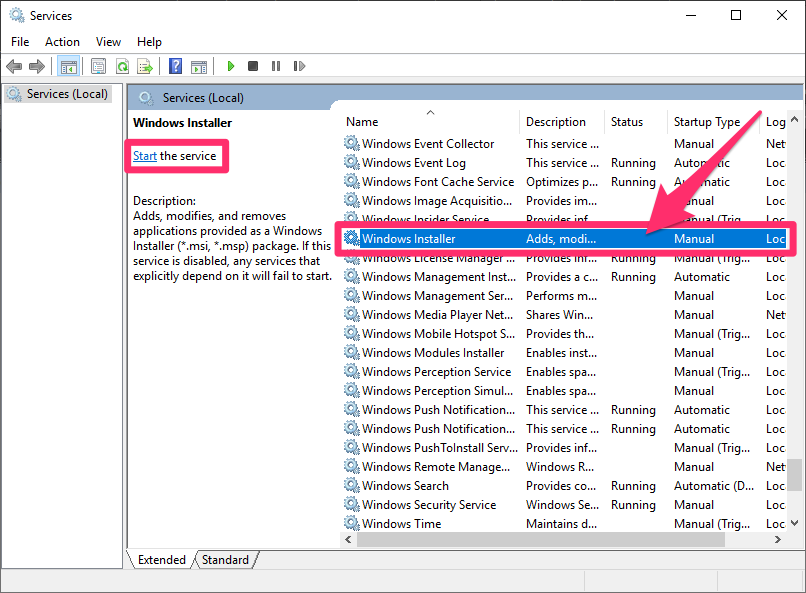
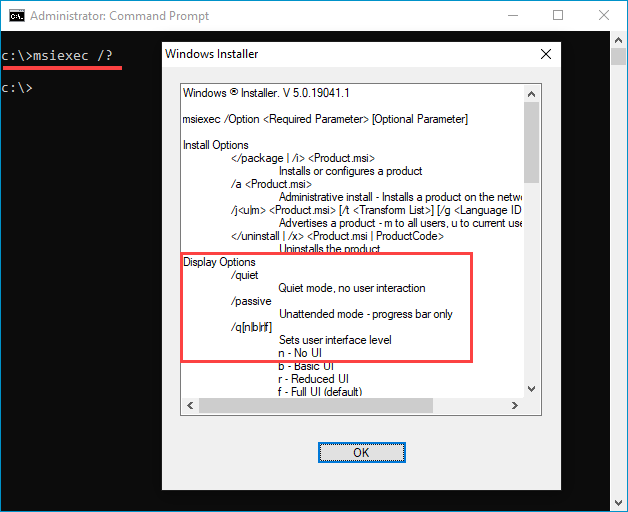
While the MSI file describes the installation, the msiexec.exe process (the Windows Installer service) is the engine that executes it. This service runs in the background, often with elevated privileges, to interpret the instructions within an MSI file and apply them to the system.
When you double-click an MSI file, it doesn’t directly install the software. Instead, it invokes the Windows Installer service, passing the MSI file as an argument. The service then:
-
Validates the package: Checks the integrity and structure of the MSI file.
-
Determines installation sequence: Builds an execution script based on the MSI’s tables, ordering actions logically.
-
Executes actions: Performs file copies, registry writes, service installations, and custom actions.
-
Manages transactional operations: Creates a rollback script and saves system state information before making changes, ensuring that if any step fails, the system can be restored.
The service’s ability to run with system-level privileges is critical for installing software that requires access to protected areas of the operating system, but it also necessitates robust security measures and careful package authoring.
Key Concepts: Components, Features, and Products
Windows Installer organizes software into a hierarchical structure that allows for modularity and flexibility:
-
Product: Represents the entire application or suite being installed. Each product has a unique
ProductCodeGUID (Globally Unique Identifier) and aProductVersion. -
Features: Are logical groupings of related components that a user or administrator can choose to install or not install. For example, a word processor might have “Core Application,” “Spell Checker,” and “Clip Art Gallery” as separate features. This allows for customized installations.
-
Components: Are the smallest installable units of a product, each with a unique
ComponentCodeGUID. A component typically consists of a single file, a group of related files, a registry key, or a shortcut. Crucially, components are versioned and shared; if two different applications require the same component (e.g., a common DLL), Windows Installer ensures only one copy is installed and correctly managed, preventing “DLL hell.”
This structured approach is fundamental to Windows Installer’s ability to manage shared resources, perform intelligent repairs, and ensure reliable uninstallation without leaving behind orphaned files or registry entries.
Beyond Simple Installation: Advanced Capabilities
Windows Installer’s power extends far beyond merely copying files. It provides sophisticated mechanisms for managing software over its entire lifecycle, from initial deployment to maintenance and eventual removal.
Repair and Self-Healing
One of the most praised features of Windows Installer is its ability to repair corrupted applications. If an essential file is accidentally deleted, a registry entry is tampered with, or a critical component becomes corrupted, Windows Installer can detect this inconsistency. Upon detection (which can happen automatically when an application tries to start, or manually by the user/admin), it consults the original MSI package to restore the affected components to their correct state. This “self-healing” capability significantly reduces the burden on support staff and improves application reliability.
Updates and Patches (MSPs)
Software rarely remains static, and updates are a common occurrence. Windows Installer handles updates through MSP files (Microsoft Software Patch). An MSP file contains only the differences between two versions of an MSI package, making patches smaller and more efficient than a full reinstallation.
There are different types of upgrades:
-
Minor Upgrades: Apply small changes, like bug fixes, without altering the
ProductCode. -
Major Upgrades: Involve significant changes, often requiring a new
ProductCode. Windows Installer typically handles major upgrades by uninstalling the old version and then installing the new one, ensuring a clean transition.
The patching mechanism is crucial for security updates and feature enhancements, allowing administrators to deploy changes efficiently without disrupting user workflows extensively.
Rollback Functionality
The transactional nature of Windows Installer installations is underpinned by its robust rollback functionality. If any part of an installation fails—due to insufficient disk space, an access denied error, or a custom action failure—Windows Installer can undo all changes made up to that point. It achieves this by creating a detailed rollback script and saving copies of files and registry states before modifying them. This ensures that the system is never left in an unstable, partially installed state, a common frustration with older installer technologies.
Customization and Transformation (MSTs)
For IT administrators deploying software across an enterprise, direct modification of original MSI files is undesirable and often impossible. This is where MST files (Microsoft Transform) come into play. An MST file is a small database that specifies changes or customizations to be applied to an MSI package at installation time.
Transforms allow administrators to:
-
Pre-configure application settings (e.g., default server names, licensing keys).
-
Add or remove features from the default installation.
-
Modify installation paths.
-
Suppress user interface elements for silent installations.
This capability is invaluable for standardizing software deployments across a network, ensuring that every user receives an application configured precisely to organizational requirements without altering the vendor-supplied MSI.
The Benefits and Challenges of Windows Installer
While Windows Installer has been a cornerstone of Windows software management for decades, it comes with its own set of advantages and challenges that developers and IT professionals must navigate.
Advantages for Users and Administrators
-
Standardization: Provides a consistent, predictable installation experience across different applications.
-
Reliable Uninstallation: Ensures thorough removal of all application components, preventing system clutter.
-
Robustness: Features like transactional installations, rollback, repair, and self-healing improve system stability and reduce support calls.
-
Centralized Management: Integrates well with enterprise deployment tools like Microsoft Endpoint Configuration Manager (SCCM) and Group Policy, facilitating large-scale software distribution.
-
Modularity: The component-feature structure allows for flexible installations and efficient management of shared resources.
-
Security: Enforces stricter security permissions compared to older script-based installers, reducing the risk of malicious installations.
Common Issues and Troubleshooting
Despite its robustness, users and administrators occasionally encounter issues with Windows Installer. Common problems include:
-
Error 1603: A generic error often indicating insufficient permissions, conflicts with other processes, or a corrupted MSI package.
-
Installer Service Not Running: The core
msiexec.exeservice may be stopped or disabled, preventing any installation. -
Corrupted Packages: Downloaded MSI files can sometimes be incomplete or damaged.
-
Incompatible Custom Actions: Poorly written custom actions within an MSI can cause installations to fail.
-
Missing Prerequisites: The application might require specific runtime libraries or frameworks that are not present.
Troubleshooting often involves checking Windows Event Logs, examining detailed installer logs (generated with the /L*v command-line switch), ensuring the Windows Installer service is running, and verifying system permissions.
Evolution and Alternatives
Windows Installer, while mature and widely used, is not without its historical complexities for developers trying to author packages. Its declarative nature and database-centric approach require a different mindset than traditional coding.
In recent years, Microsoft has introduced newer application deployment technologies that offer alternative paradigms:
-
MSIX: A modern packaging format designed for Universal Windows Platform (UWP) and Win32 applications, offering containerization benefits, reliable installations/uninstallations, and integration with the Microsoft Store. It aims to combine the best features of MSI, AppX, App-V, and ClickOnce.
-
Microsoft Store: Provides a centralized, secure distribution channel for applications, simplifying discovery and updates for end-users.
-
Winget: The Windows Package Manager, a command-line tool that allows users to quickly discover, install, upgrade, remove, and configure applications on Windows 10 and 11. It’s often used for installing third-party tools.
While these newer technologies gain traction, Windows Installer remains the dominant method for deploying traditional Win32 desktop applications and will continue to be relevant for the foreseeable future, especially in enterprise environments with legacy software.
Best Practices for Developers and IT Professionals
To leverage Windows Installer effectively, both software developers who create packages and IT professionals who deploy them must adhere to certain best practices.
For Software Developers
-
Author Robust MSI Packages: Use authoring tools (like WiX Toolset, InstallShield) to create well-structured and compliant MSI packages. Avoid manual editing of MSI tables unless absolutely necessary.
-
Adherence to Best Practices: Follow Windows Installer guidelines for component rules, shared components, versioning, and using
ProductCode/UpgradeCodecorrectly to ensure reliable upgrades and uninstallation. -
Thorough Testing: Rigorously test installation, uninstallation, upgrades (minor and major), repairs, and custom actions on various Windows versions and architectures.
-
Minimize Custom Actions: Use standard Windows Installer actions whenever possible. Custom actions can be brittle and difficult to troubleshoot. If custom actions are necessary, write them robustly and log their execution details.
-
Utilize Logging: Provide a verbose logging mechanism within the installer to help diagnose issues if they arise in deployment.
For IT Administrators
-
Leverage Transforms (MSTs): Always use MST files to customize vendor-supplied MSIs instead of repacking or directly modifying them. This ensures compatibility and simplifies maintenance.
-
Test Deployments Extensively: Before wide-scale deployment, test customized MSI/MST packages in a controlled environment that mimics the production setting.
-
Understand Logging: Familiarize yourself with how to generate and interpret Windows Installer logs (
msiexec /i package.msi /L*v logfile.txt) to diagnose installation failures. -
Utilize Group Policy and Configuration Manager: For enterprise deployments, use tools like Group Policy Objects (GPO) for simpler scenarios or Microsoft Endpoint Configuration Manager (formerly SCCM) for complex, large-scale software distribution, patching, and inventory management.
-
Maintain a Clean Environment: Regularly clear temporary files and ensure the Windows Installer service is functioning correctly on client machines.
Conclusion
Windows Installer, despite its age, remains a foundational technology in the Windows operating system, silently working behind the scenes to manage the lifecycle of countless applications. Its sophisticated architecture, built around transactional installations, reliable repair mechanisms, and robust update capabilities, has provided a stable platform for software deployment for decades. While newer technologies like MSIX and winget are emerging, the principles and functionalities introduced by Windows Installer continue to influence how we think about application management. Understanding its intricacies is not just a technical detail; it’s a key to unlocking more stable systems, more efficient IT operations, and a smoother experience for users interacting with Windows software.
aViewFromTheCave is a participant in the Amazon Services LLC Associates Program, an affiliate advertising program designed to provide a means for sites to earn advertising fees by advertising and linking to Amazon.com. Amazon, the Amazon logo, AmazonSupply, and the AmazonSupply logo are trademarks of Amazon.com, Inc. or its affiliates. As an Amazon Associate we earn affiliate commissions from qualifying purchases.