
In the modern technological landscape, data is the primary currency. Whether you are a software developer tracking sprint velocities, a systems administrator monitoring server uptimes, or a data analyst processing vast datasets, the ability to aggregate information efficiently is a non-negotiable skill. At the heart of this data manipulation lies Microsoft Excel, a tool that has remained a cornerstone of productivity software for decades. Among its hundreds of functions, the SUM formula is arguably the most fundamental. It is the “Hello World” of the spreadsheet world—a gateway into the powerful realm of computational logic and automated data processing. Understanding the SUM formula is not just about adding numbers; it is about understanding how software handles variables, ranges, and algorithmic efficiency.
Understanding the Anatomy and Syntax of the SUM Function
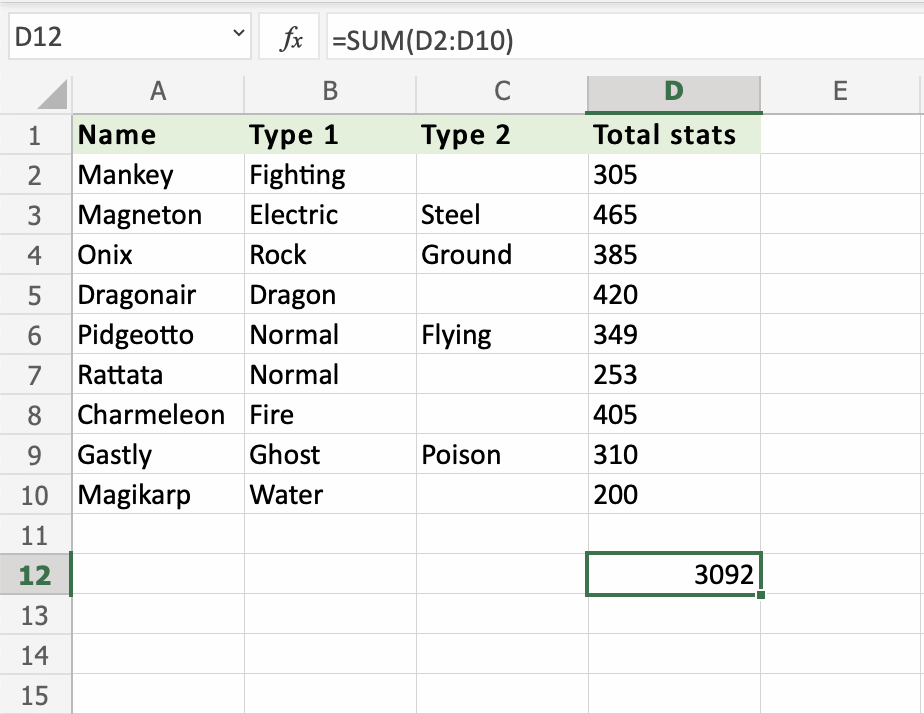
To master any software tool, one must first understand its syntax. In Excel, a formula is a mathematical relationship defined by the user, while a function is a built-in command that performs a specific calculation. The SUM function is designed to take a series of arguments and return their total. This eliminates the tedious process of manual addition and reduces the margin for human error, which is a critical priority in any tech-driven environment.
The Basic Syntax and Arguments
The technical syntax for the SUM function is: =SUM(number1, [number2], ...).
- The Equals Sign (=): This signals to Excel’s calculation engine that a formula is being initiated. Without it, the software treats the input as simple text.
- The Function Name (SUM): This tells the program which specific algorithm to run.
- Arguments (Parentheses): Everything inside the parentheses is what the function acts upon. These can be individual numbers, cell references (like A1), or ranges (like A1:A10).
In a professional tech workflow, we rarely use hard-coded numbers (e.g., =SUM(5, 10, 15)). Instead, we utilize cell references. This allows for dynamic updates; if the value in cell A1 changes, the result of the SUM formula updates automatically. This reactivity is the basis of reactive programming principles found in modern software frameworks.
Cell References vs. Range References
Understanding the difference between a comma and a colon is vital for spreadsheet integrity.
- The Colon (A1:A10): This defines a range. It tells Excel to sum every cell from A1 through A10. This is highly efficient for large datasets.
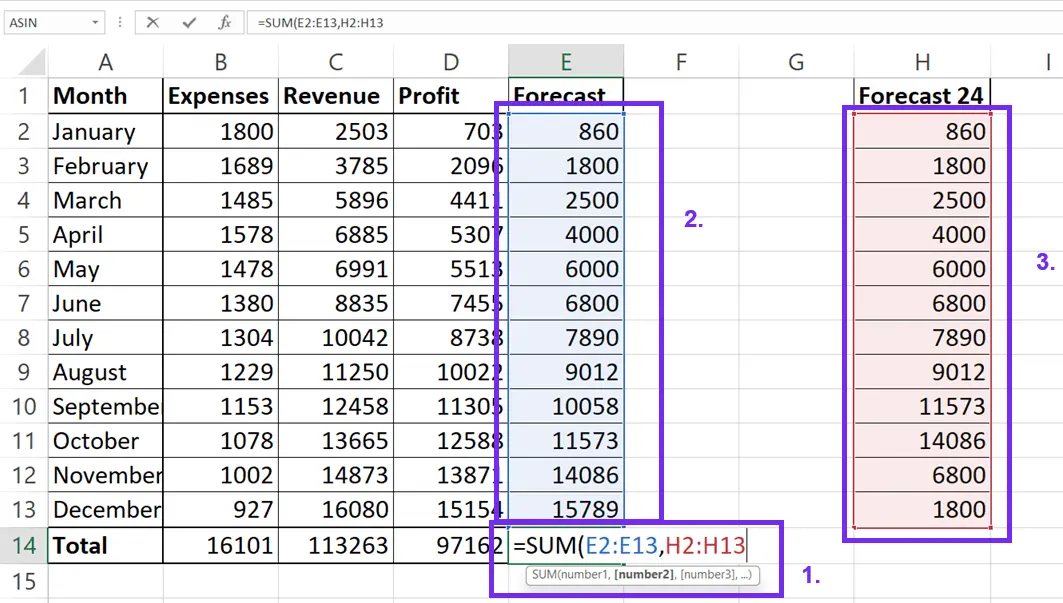
- The Comma (A1, A5, A10): This defines a union of non-contiguous cells. It tells Excel to sum only those specific points.
In software architecture, this distinction is similar to processing an entire array versus selecting specific elements from a list. Using ranges is generally preferred in “clean” data design because it allows the spreadsheet to scale more effectively as new rows of data are added.
Advanced Techniques for Efficient Data Calculation
Once the basic syntax is mastered, a tech professional must look toward efficiency and optimization. In a high-pressure environment, speed is a metric of success. Excel provides several “power user” methods to implement the SUM function without manually typing every character.
Leveraging AutoSum and Keyboard Shortcuts
For developers and IT professionals who prefer keyboard-centric workflows, the “Alt + =” shortcut is a game-changer. When you select a cell at the bottom of a column and press this combination, Excel’s built-in intelligence attempts to “guess” the range you want to sum based on surrounding data. This is an early iteration of the pattern recognition we now see in AI-assisted coding tools.
Furthermore, the AutoSum button on the Ribbon (Home or Formulas tab) provides a graphical interface for this same logic. While it might seem basic, the underlying logic is sophisticated—it looks for contiguous numerical data and stops at the first empty cell or text string, effectively acting as a simple data parser.
Summing Non-Contiguous Ranges and 3D References
In complex software project management, data is often fragmented across different areas or even different sheets. Summing non-contiguous ranges allows you to aggregate data from disparate sources into a single “Master” metric.
Even more powerful is the concept of a 3D Reference. If you have a workbook with twelve sheets (January through December) and you need a year-end total, you can use a formula like =SUM(January:December!B2). This tells Excel to “drill through” the stack of worksheets and sum the value of cell B2 on every single page. In technical terms, this is akin to querying multiple tables in a database simultaneously to produce a consolidated report.
Implementing Tables for Dynamic Ranges
One of the biggest risks in data management is adding new data that falls outside the original SUM range. To solve this, tech-savvy users convert their data ranges into “Excel Tables” (Ctrl + T). When a range is a Table, the SUM formula can use “Structured References” (e.g., =SUM(SalesData[Revenue])). As you add new rows to the “Revenue” column, the formula automatically expands. This mirrors the behavior of dynamic arrays in programming, ensuring that the software remains robust and low-maintenance.

Integrating SUM with Logical Operators and Conditional Functions
The true power of Excel is unlocked when we move beyond simple addition and into conditional logic. In software development, we often need to sum data only if it meets specific criteria—such as summing “Bugs” only if their status is “Open” or summing “Costs” only if they exceed a certain threshold.
The Power of SUMIF and SUMIFS
The SUMIF and SUMIFS functions represent the intersection of arithmetic and logic.
- SUMIF: Uses a single criterion. For example,
=SUMIF(CategoryRange, "Hardware", CostRange)would only add the costs associated with hardware. - SUMIFS: This is the “plural” version, allowing for multiple conditions. An IT manager might use this to sum the total cost of “Laptops” (Condition 1) purchased in “2023” (Condition 2) for the “Engineering Department” (Condition 3).
The syntax for SUMIFS is slightly different, requiring the “Sum_Range” to be the first argument. Mastering this function is essential for anyone working with “Big Data” on a smaller scale, as it allows for granular filtering without the need for complex SQL queries.
Nesting Functions for Dynamic Calculations
In technical environments, data is rarely clean. You might have a column of numbers that includes some errors or “N/A” strings. A standard SUM function would return an error if it encountered a #VALUE! or #N/A result. To build resilient spreadsheets, professionals use “nested” functions.
By using =AGGREGATE(9, 6, A1:A10), you are essentially telling Excel to perform a SUM (Function 9) while ignoring error values (Option 6). This is the spreadsheet equivalent of “Error Handling” in code. It ensures that the “application” (your spreadsheet) doesn’t crash or provide incorrect outputs just because one data point is missing or corrupted.
Troubleshooting and Best Practices in Spreadsheet Architecture
A critical aspect of technology management is debugging. When a SUM formula provides an unexpected result, or an error code, a systematic approach to troubleshooting is required to maintain data integrity.
Dealing with Common Error Values
The most frequent issue in Excel is the #VALUE! error. This usually occurs when the SUM formula is forced to interact with a cell that Excel perceives as text rather than a number. In a tech context, this often happens when data is exported from a database (like Jira or Salesforce) where numbers are formatted as strings.
To fix this, one can use the VALUE function or the “Text to Columns” tool to parse the data correctly. Understanding data types—knowing the difference between a String, an Integer, and a Float—is as important in Excel as it is in Python or Java.
Circular References and Data Integrity
A “Circular Reference” occurs when a formula refers to its own cell, either directly or indirectly. For example, putting =SUM(A1:A10) inside cell A10 creates an infinite loop. Excel will usually flag this with a warning. For a tech professional, a circular reference is a logic error that can lead to system instability or incorrect calculations.
To maintain high standards of digital security and accuracy, always audit your formulas using the “Trace Precedents” and “Trace Dependents” tools located in the Formulas tab. These tools provide a visual map of how data flows through your spreadsheet, making it easier to spot “spaghetti logic” and ensure that your calculations are transparent and auditable.
Performance Optimization for Large Datasets
When dealing with hundreds of thousands of rows, complex formulas can slow down Excel’s calculation engine. To optimize performance, tech-literate users avoid “volatile” functions where possible and prefer using the SUM function over manual addition (e.g., =A1+A2+A3...). The SUM function is highly optimized at the binary level within the software, making it significantly faster and less resource-intensive than long chains of manual operators.
Conclusion: The Role of Spreadsheet Literacy in the Modern Tech Landscape
While the world moves toward specialized AI tools and complex coding languages, the Excel SUM formula remains a fundamental building block of digital literacy. It introduces the user to the core concepts of software engineering: syntax, variables, logical conditions, and error handling.
By mastering the various ways to implement and optimize the SUM function—from basic ranges and AutoSum to 3D references and conditional SUMIFS—tech professionals can transform raw data into actionable insights. In an era where data-driven decision-making is paramount, the ability to build a robust, accurate, and scalable spreadsheet is more than just an office skill; it is a vital component of a modern technological toolkit. Whether you are managing a budget, a project timeline, or a system log, the SUM formula is the reliable engine that keeps your data moving forward.
aViewFromTheCave is a participant in the Amazon Services LLC Associates Program, an affiliate advertising program designed to provide a means for sites to earn advertising fees by advertising and linking to Amazon.com. Amazon, the Amazon logo, AmazonSupply, and the AmazonSupply logo are trademarks of Amazon.com, Inc. or its affiliates. As an Amazon Associate we earn affiliate commissions from qualifying purchases.