
In the rapidly evolving landscape of personal computing, the Chromebook has transitioned from a simple, web-centric device into a powerhouse for productivity, education, and professional development. At the heart of this evolution is the ChromeOS interface, which prioritizes speed, simplicity, and efficiency. One of the most critical, yet often misunderstood, components of this interface is the “Show Windows” button. Located on the top row of your Chromebook’s keyboard, this dedicated key is the gateway to advanced multitasking and workflow management. Understanding how to leverage this tool is essential for anyone looking to master the ChromeOS ecosystem and optimize their digital workspace.
Understanding the Hardware: Locating and Identifying the Show Windows Button
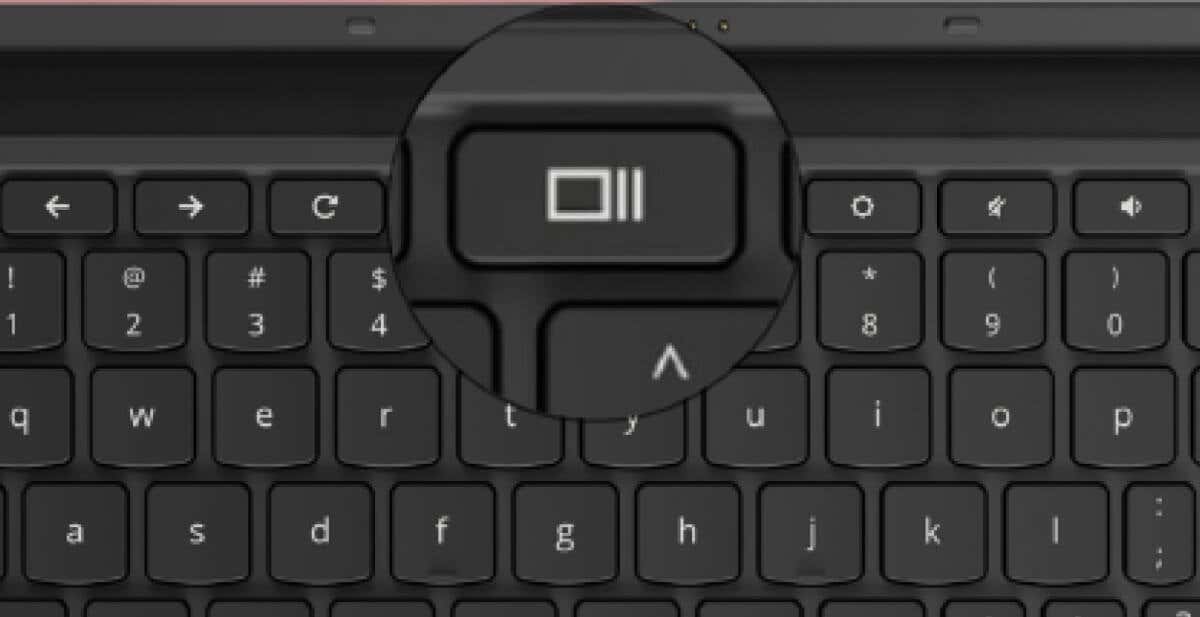
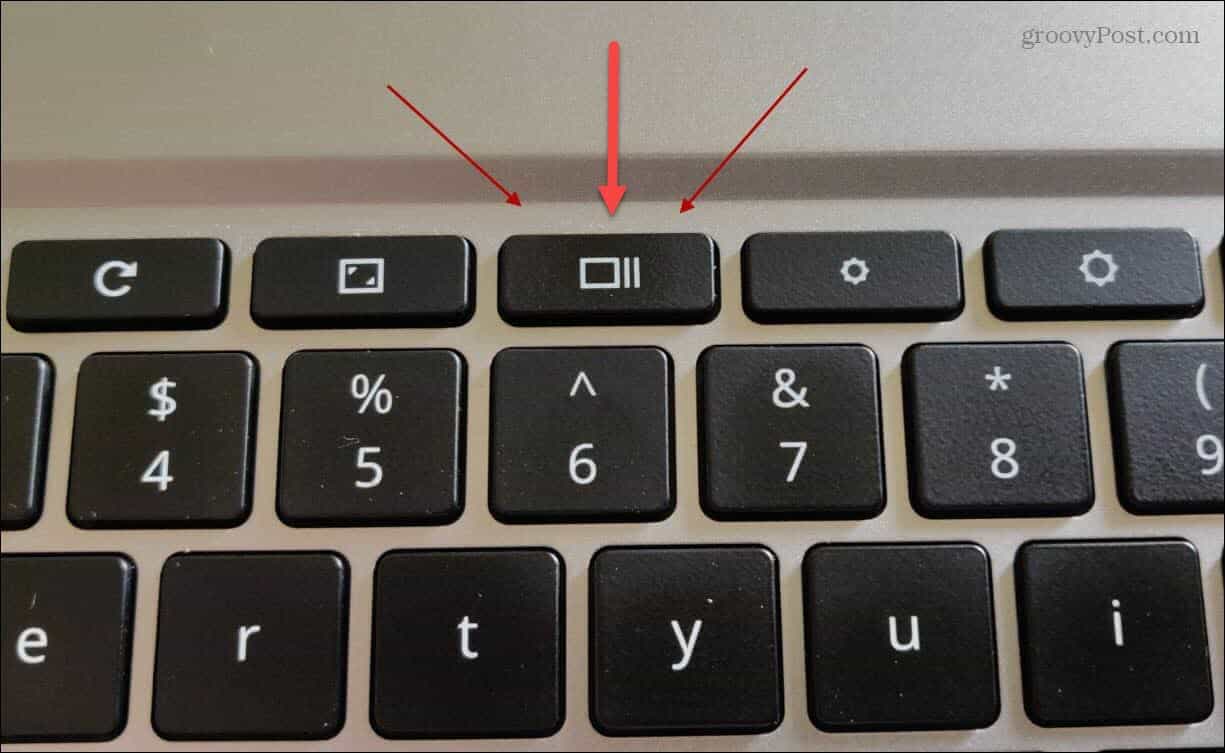
Unlike traditional Windows or macOS keyboards, the Chromebook keyboard is purpose-built for the operating system it supports. It replaces the classic “Function” keys (F1–F12) with action-oriented keys designed to streamline common tasks. The Show Windows button—often referred to by power users as the “Overview” key—is typically located in the fifth or sixth position from the left on the top row.
The Icon and Positioning
The icon for the Show Windows button is distinctive: it resembles a rectangle followed by two vertical lines to its right. This visual representation is meant to mimic the appearance of a primary window with several other windows stacked behind it. In modern keyboard design, this button serves as the physical manifestation of the system’s “Overview Mode.” On some newer high-end Chromebooks or external ChromeOS keyboards, the layout may vary slightly, but the icon remains the universal symbol for window management across the platform.
From “Overview” to “Show Windows”: A Naming Evolution
Historically, Google referred to this feature primarily as “Overview Mode.” However, as the operating system matured and began to integrate more complex windowing features—such as support for Android apps, Linux environments, and Parallels for Windows—the terminology shifted toward “Show Windows.” This change reflects a broader effort to make the OS more accessible to users migrating from other platforms. Whether you call it the Overview key or the Show Windows button, its primary function remains the same: to provide an instantaneous, bird’s-eye view of every active process running on your machine.
The Core Functionality: Navigation and Window Management
At its most basic level, pressing the Show Windows button triggers a system-wide UI change that shrinks all open applications and browser windows into a grid of thumbnails. This allows the user to see everything they are working on at a single glance, eliminating the need to click through the shelf (taskbar) or use “Alt+Tab” to find a specific document.
Entering Overview Mode
When you tap the button, the screen dims slightly, and your open windows are arranged intelligently to fill the available screen real estate. Unlike the “Alt+Tab” shortcut, which cycles through windows one by one, the Show Windows button provides a non-linear way to switch tasks. You can use your mouse, touchpad, or touchscreen to select the exact window you need. This is particularly useful for users who keep dozens of tabs and multiple applications open simultaneously, as it provides a visual map of the current state of the system.
Managing Multiple Applications
In today’s tech environment, “multitasking” often involves jumping between different types of software. On a Chromebook, you might have a Chrome browser window open for research, a Google Docs tab for writing, a Slack Android app for communication, and perhaps a VS Code instance via Linux for development. The Show Windows button treats all these diverse environments as equals. By pressing the key, you can see the live state of your Android apps alongside your web browser, making it easier to monitor progress across different platforms without losing your place.
The Drag-and-Drop Workflow
The Show Windows mode is not just a viewing gallery; it is an active workspace. While in this mode, you can click and drag window thumbnails to rearrange them. More importantly, this is where you can initiate split-screen viewing. By dragging a window to the far left or right of the screen while in the Overview state, ChromeOS will automatically snap that window to fill exactly half of the display. This “Split View” is a cornerstone of productivity, allowing users to reference data on one side of the screen while typing on the other.
Leveraging Virtual Desks for Maximum Productivity
Perhaps the most powerful feature unlocked by the Show Windows button is the “Virtual Desks” system. For professional users, screen real estate is the most valuable commodity. Virtual Desks allow you to expand your workspace beyond the physical limitations of your laptop screen by creating multiple digital desktops.

Creating and Organizing Desks via the Show Windows Key
When you press the Show Windows button, you will notice a bar at the top of the screen labeled “Desks.” From here, you can click the “+” icon to create a new virtual workspace. You might dedicate “Desk 1” to your daily communications (Email and Slack), “Desk 2” to a specific project (Sheets and Slides), and “Desk 3” to personal browsing or music. The Show Windows button is the primary toggle for navigating between these worlds. It provides the visual context needed to remember which applications are assigned to which desk.
Moving Windows Between Desks
Efficiency is about reducing the number of clicks required to complete a task. Within the Show Windows view, moving an application from one desk to another is a simple matter of dragging the window thumbnail into the desired desk icon at the top of the interface. This allows for dynamic reorganization throughout the day. If a project expands and requires more focus, you can quickly move all related tabs to a fresh desk to clear the clutter from your primary workspace.
Optimizing Focus and Workflow Segregation
The psychological benefit of the Show Windows button cannot be overstated. By using the button to manage Virtual Desks, users can practice “workflow segregation.” This technique involves hiding distracting applications (like social media or news feeds) on a separate desk, making them inaccessible during deep-work sessions unless the Show Windows button is intentionally pressed. This creates a friction-based barrier that helps maintain focus and boosts overall digital wellness.
Advanced Shortcuts and Alternative Navigation Methods
For power users, the physical Show Windows button is just the beginning. ChromeOS offers several complementary methods to access these features, ensuring that the user can maintain their flow regardless of their hardware setup.
Touchpad Gestures vs. Physical Buttons
On Chromebooks equipped with high-quality trackpads, you can trigger the Show Windows functionality without ever touching the keyboard. A three-finger swipe up or down on the touchpad will enter or exit the Overview mode. This gesture-based approach is often preferred by designers and developers who use the touchpad for precision work and want to switch contexts without repositioning their hands on the keyboard.
Tablet Mode Navigation
With the rise of 2-in-1 convertible Chromebooks and dedicated ChromeOS tablets, the Show Windows button has a digital counterpart. When a device is in tablet mode, the physical keyboard is often disabled or tucked away. In this scenario, a swipe up from the bottom of the screen and holding for a moment will bring up the same Show Windows interface. This ensures that the multitasking capabilities of the OS remain consistent across different form factors.
Keyboard Combinations for Power Users
While the dedicated button is the most direct route, there are other shortcuts that interact with the Show Windows logic. For example, pressing “Shift + [Show Windows Key]” will toggle the display of all windows across all connected monitors if you are using a multi-monitor setup. Additionally, “Ctrl + [Show Windows Key]” is the shortcut for taking a screenshot of the entire screen—a common confusion for new users. Understanding the difference between a single tap for Overview and a combination tap for system tools is vital for avoiding accidental interruptions.
Why the Show Windows Button is Essential for Modern Computing
As we look at the trajectory of operating system design, the move toward “Overview” styles of navigation is becoming a standard. However, Google’s implementation via a dedicated hardware button sets the Chromebook apart by making complex window management accessible to the average user.
ChromeOS vs. Windows and macOS: A Comparative Look
In the Windows environment, “Task View” (Win + Tab) provides a similar experience, while macOS uses “Mission Control” (F3 or Control + Up). However, neither of these platforms integrates the hardware and software as tightly as ChromeOS. Because the Show Windows button is a physical requirement for Chromebook manufacturers, users don’t have to “discover” the feature through hidden menus or complex key combos; it is presented front-and-center. This democratization of high-level multitasking is a key reason why Chromebooks have become so dominant in education and are making significant inroads into the corporate sector.
Future Trends in OS Navigation and Interface Design
The Show Windows button represents a shift toward “spatial” computing on traditional screens. As AI tools begin to integrate more deeply with ChromeOS, the Overview mode is likely to evolve. We may soon see AI-driven suggestions within the Show Windows view, where the OS predicts which windows you want to pair together or automatically organizes your Virtual Desks based on your current task.
Regardless of these future updates, the Show Windows button remains the anchor of the user experience. It transforms a single 13-inch screen into a sprawling, multi-layered command center. By mastering this one button, users move beyond simple web browsing and enter a realm of professional-grade productivity that rivals any other operating system on the market today. Whether you are a student managing sources for a thesis or a professional juggling client meetings and data analysis, the Show Windows button is your most effective tool for staying organized in an increasingly complex digital world.
aViewFromTheCave is a participant in the Amazon Services LLC Associates Program, an affiliate advertising program designed to provide a means for sites to earn advertising fees by advertising and linking to Amazon.com. Amazon, the Amazon logo, AmazonSupply, and the AmazonSupply logo are trademarks of Amazon.com, Inc. or its affiliates. As an Amazon Associate we earn affiliate commissions from qualifying purchases.