
In the modern era of computing, efficiency is the currency of the professional world. Whether you are a software developer writing thousands of lines of code, a graphic designer refining a complex layout, or an office administrator managing vast databases, the speed at which you manipulate data determines your overall productivity. At the heart of this digital manipulation lies the “Cut” command—a fundamental operation that, while seemingly simple, serves as the cornerstone of the modern user interface. Understanding the shortcut keys to cut, along with the technological infrastructure that supports this action, is essential for anyone looking to optimize their digital workflow.

Understanding the Fundamental Shortcut Keys for Cutting Content
The “Cut” command is distinct from “Copy” because it removes the selected data from its original location and places it into the system’s clipboard, ready to be “Pasted” elsewhere. This “move” operation is vital for reorganizing files, editing text, and restructuring data without creating unnecessary duplicates.
Windows and Linux: The Universal Ctrl + X
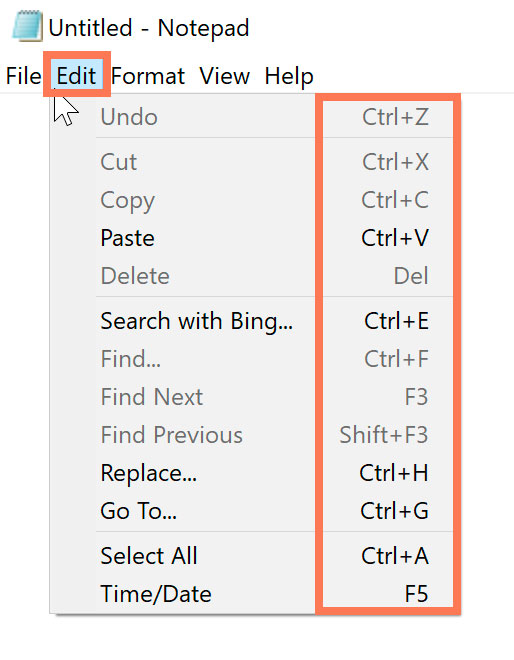
For the vast majority of computer users worldwide, the shortcut key to cut is Ctrl + X. This convention was popularized by early graphical user interfaces and has remained the industry standard for decades. The logic behind the “X” key is often attributed to its visual similarity to a pair of scissors, symbolizing the act of snipping the data away from its source.
On Windows 10 and 11, as well as most distributions of Linux (such as Ubuntu or Fedora), Ctrl + X works across almost every application imaginable. In a word processor like Microsoft Word or Google Docs, it removes text. In File Explorer, it marks a file for moving. The ubiquity of this shortcut makes it a “reflex” action for power users, allowing them to reorganize their digital workspace without ever touching a mouse.
macOS: The Command + X Paradigm
Apple’s macOS follows a similar logic but utilizes a different modifier key. On a Mac, the shortcut to cut is Command + X (⌘ + X). While the primary letter remains the same, the use of the Command key is a hallmark of Apple’s ergonomic design, intended to be pressed with the thumb while the index finger reaches for the X.
However, there is a notable technical nuance in macOS regarding files. Unlike Windows, you cannot “Cut” a file in the Finder using Command + X. Apple’s philosophy treats file management differently to prevent accidental data loss. To achieve a “cut and paste” effect for files on a Mac, users must first “Copy” the file (Command + C) and then press Option + Command + V to “Move” it to the new location. Understanding these platform-specific differences is crucial for tech professionals who frequently switch between operating systems.
Cutting Beyond the Standard Desktop Environment
As software becomes more specialized, the basic “Cut” command has evolved to meet the needs of specific technical niches. Professional software suites often implement their own variations of the cut command to handle complex data structures.
Cutting in Specialized Software: Adobe Creative Cloud and IDEs
In the world of creative software, such as Adobe Photoshop or Illustrator, the “Cut” command (Ctrl/Cmd + X) works on layers, paths, and selected pixels. However, developers and designers often use “Cut” in conjunction with other modifiers. For example, in many video editing suites like Premiere Pro, the “Razor Tool” (Shortcut: C) acts as a physical cut to a timeline, which is a different technical application of the concept.
For software engineers using Integrated Development Environments (IDEs) like Visual Studio Code or IntelliJ IDEA, the cut shortcut is often supercharged. Pressing Ctrl + X without any text selected will frequently cut the entire current line of code. This allows developers to rapidly rearrange logic blocks. Furthermore, these tools often support “Rectangular Selection,” where a vertical block of code can be cut, a feature essential for refactoring large-scale software projects.
Command Line and Terminal Shortcuts
In the realm of DevOps and system administration, the mouse is often non-existent. When working in a Linux Terminal or a macOS Zsh shell, the standard Ctrl + X doesn’t always perform a cut operation. Instead, users rely on Emacs-style or Vi-style shortcuts.
In many shells, Ctrl + K is used to “kill” (cut) text from the cursor position to the end of the line, while Ctrl + U cuts from the beginning of the line to the cursor. This data is stored in a “kill ring,” which functions similarly to a clipboard. Mastering these terminal-specific shortcuts is a rite of passage for IT professionals managing cloud infrastructure and servers.
The Technology Behind the Cut: Modern Clipboard Management
The “Cut” command is only as powerful as the clipboard that supports it. In the past, the clipboard was a volatile, single-item storage space. If you cut a new piece of text before pasting the previous one, the old data was lost forever. Modern technology has revolutionized this backend process.
Cloud Clipboards and Cross-Device Continuity
We are currently in the era of the “Universal Clipboard.” Both Microsoft and Apple have integrated cloud-based clipboard synchronization into their ecosystems. When you use the shortcut to cut a link on your iPhone (via a long-press gesture or an external keyboard’s Cmd + X), that data is instantly available to be pasted on your MacBook.
In Windows 11, the Windows Key + V shortcut opens the Clipboard History. This tool allows users to see a list of everything they have cut or copied recently. From a technical standpoint, this involves the OS maintaining a local database of clipboard entries, which can be synced across devices via a Microsoft account. This evolution has turned the “Cut” command from a simple “delete-and-store” action into a sophisticated data-transfer pipeline.
Security Implications of Clipboard Data
From a digital security perspective, the “Cut” command requires careful handling. When you cut sensitive information—such as a password, a private API key, or personal identification—that data resides in the system RAM (and potentially the cloud if syncing is enabled).
Malware known as “Clipboard Hijackers” can monitor the clipboard and replace cut/copied data. For example, some crypto-malware looks for Bitcoin wallet addresses in the clipboard and replaces them with the attacker’s address. Tech-savvy users should be aware that the shortcut key to cut is an entry point for data into the system’s memory, and using clipboard managers requires a high level of trust in the software provider’s security protocols.
The Psychology and Ergonomics of Keyboard Shortcuts
Why does the tech industry place such a heavy emphasis on learning shortcut keys like Ctrl + X? The answer lies in the intersection of cognitive psychology and physical ergonomics.
Reducing Cognitive Load through Muscle Memory
Every time a user moves their hand away from the keyboard to grab the mouse, navigate to an “Edit” menu, and click “Cut,” they experience a “context switch.” These micro-interruptions add up, increasing cognitive load and breaking the “flow state” essential for deep work.
By internalizing the shortcut keys, the action of cutting becomes handled by the cerebellum—the part of the brain responsible for muscle memory. This allows the conscious mind to remain focused on the creative or analytical task at hand. In professional coding or writing, this “frictionless” interaction with the machine is what separates experts from novices.
Ergonomic Benefits of Reducing Mouse Reliance
Repetitive Strain Injury (RSI) is a significant concern in the tech industry. Over-reliance on a mouse can lead to issues such as Carpal Tunnel Syndrome due to the repetitive clicking and dragging motions. Keyboard shortcuts distribute the physical workload across both hands and all fingers. Using the shortcut to cut is not just a speed hack; it is a health-conscious decision that promotes longevity in a tech-focused career.
Optimizing Your Digital Workspace for Maximum Speed
For those looking to go beyond the standard shortcuts, the modern tech landscape offers tools to customize and automate the “Cut” command further.
Resolving Shortcut Conflicts and Customizing Hotkeys
Sometimes, different applications compete for the same shortcut keys. A professional video editor might find that a global system shortcut interferes with their software’s internal commands. Tools like AutoHotkey (for Windows) or BetterTouchTool (for Mac) allow users to remap their keys.
For instance, a developer might remap a specific button on their programmable mouse to execute the “Cut” command, or create a macro that cuts a selection and automatically formats it before it even reaches the clipboard. This level of customization is a hallmark of a highly optimized technical workflow.
Conclusion: The Power of the Shortcut
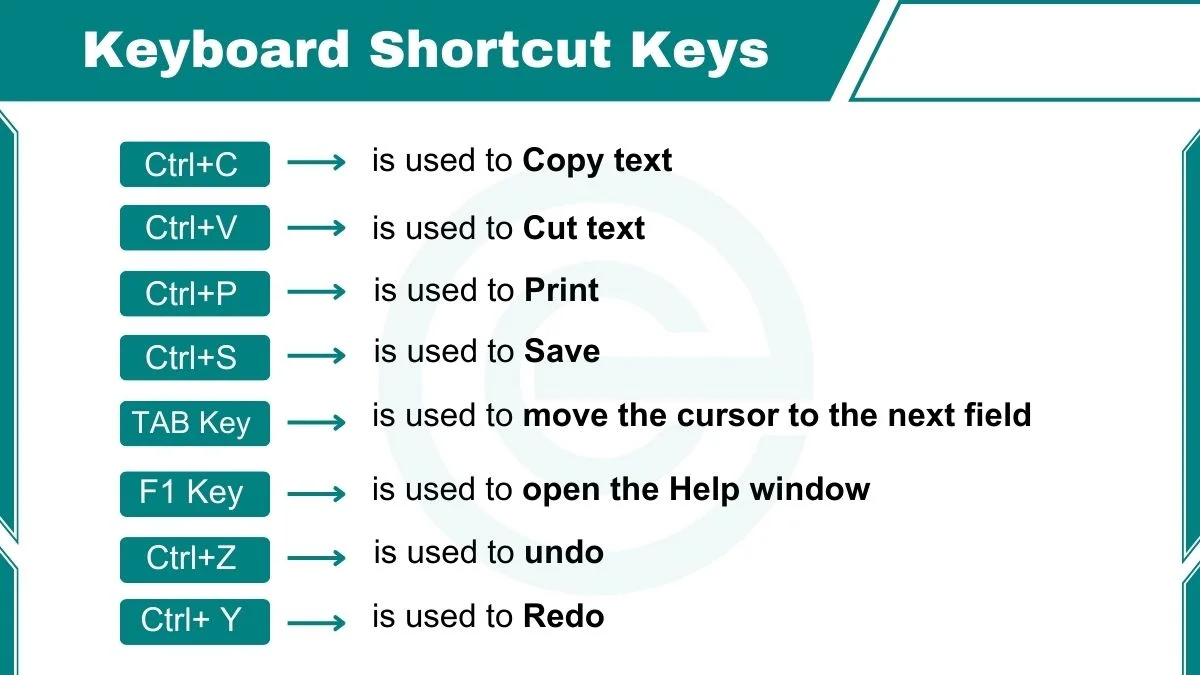
The question “what is the shortcut key to cut” may seem basic, but it serves as the gateway to a much deeper understanding of human-computer interaction. From the universal Ctrl + X and Cmd + X to the complexities of terminal commands and cloud-synced clipboards, the act of cutting data is central to how we navigate the digital world. By mastering these shortcuts and understanding the technology behind them, users can transform their computer from a mere tool into a seamless extension of their own creative and analytical thought processes. In the fast-paced world of technology, every millisecond saved by a shortcut is a millisecond earned for innovation.
aViewFromTheCave is a participant in the Amazon Services LLC Associates Program, an affiliate advertising program designed to provide a means for sites to earn advertising fees by advertising and linking to Amazon.com. Amazon, the Amazon logo, AmazonSupply, and the AmazonSupply logo are trademarks of Amazon.com, Inc. or its affiliates. As an Amazon Associate we earn affiliate commissions from qualifying purchases.