
Minecraft, the block-building phenomenon that has captivated millions across the globe, is a game constantly in flux. Far from being a static entity, its developers at Mojang Studios regularly release updates, bringing new content, features, bug fixes, and performance enhancements. This continuous evolution means that “the most current version” is a moving target, an ever-advancing point in its development timeline. For players, whether seasoned veterans or new explorers of its infinite worlds, understanding how to identify and keep up with the latest iteration is crucial for the best and most secure gaming experience.
The complexity in answering this seemingly simple question stems from several factors, primarily the existence of two main editions—Java and Bedrock—each with its own update cycle and version numbering system. Beyond these official releases, there are also experimental snapshots, beta versions, and pre-releases that offer a glimpse into future updates but aren’t considered the “current official release.” This article will dissect the intricate world of Minecraft versions, guide you through identifying the latest builds for each edition, explain why staying updated is paramount, and look at the future trajectory of this iconic software.
Navigating the Dynamic World of Minecraft Updates
Minecraft’s enduring appeal lies not just in its fundamental gameplay but also in Mojang’s commitment to iterative development. This philosophy ensures the game remains fresh, expands its creative possibilities, and addresses community feedback, keeping players engaged for over a decade.
The Core Philosophy of Minecraft’s Iterative Development
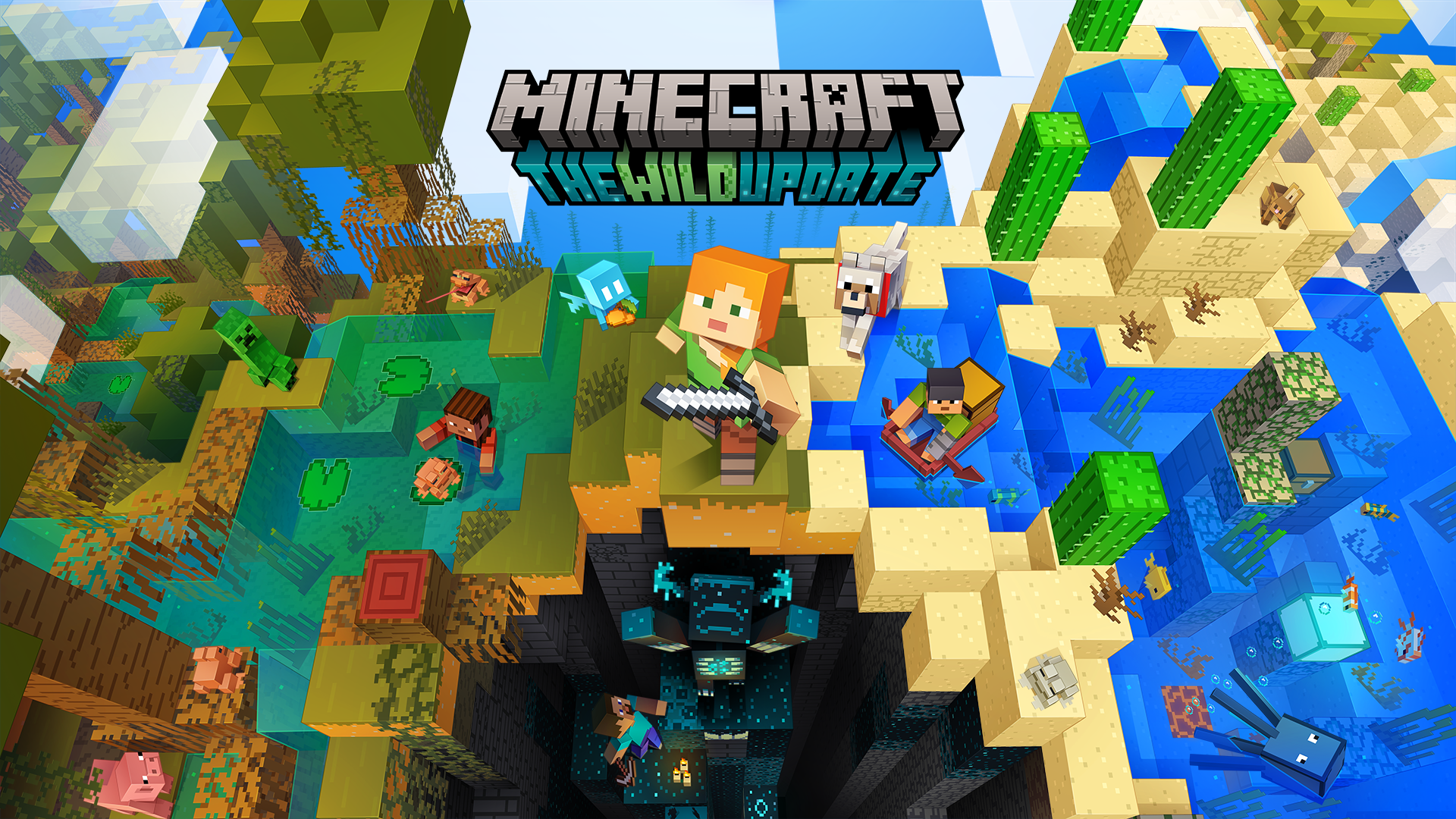
Since its initial release, Minecraft has been a testament to continuous improvement. Mojang Studios adopts an agile development methodology, frequently pushing out updates rather than waiting for massive, infrequent overhauls. This approach allows them to introduce new biomes, mobs, blocks, gameplay mechanics, and quality-of-life improvements in a steady stream. Each major update is typically themed, introducing a cohesive set of features that transform specific aspects of the game, such as the “Caves & Cliffs Update” or the “Nether Update.” This constant refreshment fuels player creativity and exploration, ensuring that even after hundreds or thousands of hours, there’s always something new to discover.
Java Edition vs. Bedrock Edition: A Tale of Two Versions
One of the primary sources of confusion regarding Minecraft versions is the existence of two distinct main editions:
-
Minecraft: Java Edition: This is the original version of the game, developed in Java, primarily for PC (Windows, macOS, Linux). It’s renowned for its robust modding community, vast custom content, and direct appeal to many long-time players. Its version numbers typically follow a pattern like
1.X.Y, whereXdenotes a major update andYdenotes a minor patch or bug fix. -
Minecraft: Bedrock Edition: This version was developed using the C++ programming language to allow for cross-platform play across Windows 10/11, Xbox, PlayStation, Nintendo Switch, mobile devices (Android, iOS), and VR platforms. While it offers a more unified experience across devices, its modding capabilities are different from Java Edition, relying more on official marketplace add-ons. Bedrock Edition version numbers often look like
1.X.Y.Z, withZindicating specific hotfixes or minor updates.
Understanding which edition you are playing is the first step to identifying its current version, as updates are rolled out independently for each. While Mojang strives for feature parity where possible, the underlying codebases mean that updates are not always simultaneous or identical in their implementation.
Understanding Release Cycles and Naming Conventions
Mojang follows a predictable, albeit flexible, release cycle. Major updates for both Java and Bedrock editions typically occur once or twice a year. Before a major update’s official release, Mojang often provides “snapshots” (for Java) or “betas” (for Bedrock). These are experimental builds designed for testing new features, identifying bugs, and gathering community feedback. They are not considered stable official releases and are often buggy or incomplete, meant for technical users or those eager to preview upcoming content.
Official release versions are stable, thoroughly tested (as much as possible), and are automatically pushed to players through their respective launchers or app stores. The naming conventions for these versions are consistent within their editions, making it easier to track progress from 1.18 to 1.19 and so on, with subsequent patch versions (1.18.1, 1.18.2) addressing stability and minor issues.
Identifying the Latest Official Releases
To truly answer “what is the most current version,” one must differentiate between the official, stable release and any experimental or preview builds. The official version is the one recommended for general play, especially on multiplayer servers.
How to Check Your Current Minecraft Version (Java Edition)
For Java Edition players, identifying your current version is straightforward:
-
Open the Minecraft Launcher: When you launch the game, the launcher window will appear.
-
Look at the Bottom Left: In the bottom-left corner of the launcher, directly below the “Play” button, you will see a version dropdown menu. This menu displays the version that is currently selected to launch.
-
In-Game: Once the game loads, the version number is prominently displayed in the bottom-left corner of the title screen. This is the most definitive way to confirm which version of the game client you are running.
To update to the latest version, ensure your launcher is up to date. The launcher usually automatically detects and offers the latest official release as the default option. If not, you can select it from the version dropdown menu.
How to Check Your Current Minecraft Version (Bedrock Edition)
Bedrock Edition players can check their version through their respective platform’s interface:
-
On PC (Windows 10/11):
-
Open the Xbox App or the Microsoft Store.
-
Search for Minecraft and check the game’s details page for the version number.
-
Alternatively, launch the game, and the version number will be visible in the bottom-right corner of the title screen.
-
-
On Consoles (Xbox, PlayStation, Switch):
-
Navigate to the game icon on your console’s dashboard.
-
Access the game’s information or details page (usually by pressing the “Options” or “Menu” button on the game icon). The version number will be listed there.
-
As with other platforms, the version is also visible on the title screen of the game.
-
-
On Mobile (Android, iOS):
-
Open the Minecraft app. The version number will be displayed in the bottom-right corner of the title screen.
-
You can also check your device’s app store (Google Play Store or Apple App Store) for the game’s page, which will list the current installed version and any available updates.
-
Bedrock Edition typically updates automatically via the platform’s app store settings. If auto-updates are off, you may need to manually check for and install updates through the respective store.
Staying Informed: Official Sources for Update Announcements
The most reliable way to stay informed about the absolute latest official versions and upcoming content is through Mojang’s official channels:
-
Minecraft.net: The official Minecraft website is the primary hub for all news, including update announcements, detailed patch notes, and future development plans.
-
Mojang Studios Blog: The blog section of Minecraft.net provides in-depth articles about new features, development insights, and release timelines.
-
Official Social Media Accounts: Follow @Minecraft and @MojangStudios on platforms like X (formerly Twitter) for real-time announcements and community engagement.
-
Minecraft Launcher News: The Java Edition launcher often displays news directly on its interface, including notifications about new releases.
By regularly checking these sources, players can ensure they are always aware of the most recent stable releases for both Java and Bedrock editions.
Why Keeping Minecraft Updated Matters

Beyond simply having the “newest” version, there are several compelling technical and experiential reasons why maintaining an updated Minecraft client is crucial for all players.
Accessing New Features and Content
The most obvious benefit of updating is gaining access to all the exciting new content Mojang has diligently crafted. Major updates often introduce entirely new biomes, unique mobs, fresh blocks and items, and novel gameplay mechanics that can fundamentally alter the way you play. From expanded underground caves to bustling villages, dangerous dimensions, or intricate crafting recipes, these additions ensure the game world remains vast, dynamic, and full of surprises. Playing on an outdated version means missing out on these significant enhancements, potentially leaving you in a static, less engaging world.
Enhanced Performance and Bug Fixes
Software development is an ongoing process of refinement. Every new update typically includes a host of performance optimizations that can lead to smoother gameplay, faster load times, and reduced lag, especially on less powerful hardware. Crucially, updates also contain bug fixes. Whether it’s a minor visual glitch, an annoying gameplay exploit, or a crash-inducing error, Mojang actively works to identify and patch these issues. Running an older version means you’re still susceptible to bugs that have long since been resolved in newer releases, which can significantly detract from the gaming experience.
Security Improvements and Vulnerability Patches
In the interconnected world of online gaming, security is paramount. Older software versions can harbor known vulnerabilities that malicious actors might exploit. Mojang, like any responsible software developer, regularly rolls out security patches to safeguard player accounts and game integrity. These patches address potential exploits, prevent unauthorized access, and protect against various forms of digital compromise. For example, a critical vulnerability in the Java logging library Log4j, known as “Log4Shell,” significantly impacted older versions of Minecraft Java Edition, highlighting the importance of timely security updates to protect players. Staying updated is a vital step in protecting your digital footprint and ensuring a safe online environment.
Multiplayer Compatibility and Community Engagement
Multiplayer is a cornerstone of the Minecraft experience. Most public servers and realms automatically update to the latest stable version to offer the newest content and maintain security. If your game client is not updated, you will likely be unable to join these servers. This can lead to frustration when trying to play with friends or participate in larger community events. Furthermore, modding communities, texture pack creators, and map builders often target the latest stable versions, meaning an outdated client might prevent you from enjoying the full breadth of community-created content available. Staying current ensures full compatibility and keeps you connected to the broader Minecraft ecosystem.
The Future of Minecraft Versions and Beyond
Minecraft’s journey is far from over. Mojang continues to innovate, drawing inspiration from both technological advancements and its passionate player base. Understanding these ongoing developments offers insight into where the “most current version” is headed.
Snapshot Builds and Beta Programs: Glimpses of What’s Next
As mentioned, Mojang frequently releases “snapshots” for Java Edition and “betas” for Bedrock Edition. These experimental builds are not the “current stable version” but are crucial indicators of future official releases. They allow players to test upcoming features, report bugs, and provide feedback directly to the developers. Engaging with these pre-release versions can be a thrilling way to get an early look at new content, albeit with the understanding that they are often unstable and incomplete. For the truly dedicated and curious, they represent the bleeding edge of Minecraft’s evolution.
The Impact of New Technologies on Minecraft’s Evolution
Technological advancements continuously influence Minecraft’s development. From ray tracing capabilities introduced in Bedrock Edition to ongoing performance optimizations leveraging modern hardware, Mojang consistently explores ways to enhance the game’s visual fidelity, performance, and overall technical foundation. We can expect future updates to continue pushing these boundaries, potentially integrating more sophisticated AI for mobs, more dynamic world generation algorithms, or even deeper cross-platform integration. These technological leaps will define what the “most current version” means in the years to come, offering experiences that were once unimaginable.
Community Contributions and Modding Ecosystem
While Mojang drives official updates, the Minecraft community’s role in the game’s perpetual freshness cannot be overstated. The vast modding ecosystem, particularly prevalent in Java Edition, adds an almost infinite array of content, mechanics, and visual enhancements. As Mojang updates the base game, mod developers often adapt their creations to the new versions, ensuring that the combined experience remains current and compelling. This symbiotic relationship between official development and community creativity ensures that even when the “official” current version is known, the full scope of the Minecraft experience is always expanding. The Bedrock Marketplace also allows creators to publish add-ons, skins, and worlds, constantly enriching that edition’s content.
Troubleshooting and Common Version-Related Issues
While staying updated is generally smooth, players might occasionally encounter issues. Knowing how to address these common problems is part of being a savvy Minecraft player.
Resolving Update Errors and Installation Problems
Sometimes, an update might fail to install, or the game might refuse to launch after an update. Common troubleshooting steps include:
-
Restarting the Launcher/Device: Often, a simple restart can resolve temporary glitches.
-
Checking Internet Connection: Ensure a stable connection for downloading update files.
-
Verifying Game Files: Most launchers (including the Minecraft Launcher for Java and platform stores for Bedrock) offer an option to verify or repair game files, which can fix corrupt installations.
-
Clearing Cache: For mobile or console versions, clearing the app cache can sometimes resolve update issues.
-
Reinstalling: As a last resort, a clean reinstallation of the game can often resolve persistent problems, though always back up your worlds first!
Compatibility Challenges with Mods, Plugins, and Servers
One of the most common issues arising from updates, especially in Java Edition, is compatibility with third-party content. Mods, plugins, and custom maps are often designed for specific Minecraft versions. When the game updates, these additions may break or become unstable.
-
Mod/Plugin Updates: Always check if your favorite mods or server plugins have been updated to support the new Minecraft version before updating your game client or server.
-
Server Compatibility: Most multiplayer servers will explicitly state which Minecraft version they support. Ensure your client matches the server’s version for seamless connection.
-
Fabric/Forge: For Java modding, ensure your mod loader (like Fabric or Forge) is also updated to support the new Minecraft version and that your mods are compatible with that specific mod loader version.
Reverting to Older Versions (When Necessary and How)
While generally recommended to stay current, there are legitimate reasons to play on an older version—for example, to join a specific server that hasn’t updated, or to play with certain mods that haven’t been ported yet.
-
Java Edition: The Minecraft Launcher for Java Edition makes this very easy. In the “Installations” tab, you can create new profiles that launch specific older versions of the game. This allows you to switch between different versions without affecting your main installation.
-
Bedrock Edition: Reverting Bedrock Edition to an older version is significantly more difficult and often not officially supported. It would typically involve uninstalling the current version and attempting to find and install an older APK (for Android) or IPA (for iOS), which carries security risks and is generally not recommended. On consoles, it’s virtually impossible.
In conclusion, “what is the most current version of Minecraft” is a dynamic question with a nuanced answer depending on the edition you play and whether you’re looking for stable releases or experimental previews. By understanding the development cycles, knowing how to check your version, and staying informed through official channels, players can ensure they always enjoy the richest, most secure, and most up-to-date Minecraft experience possible.
aViewFromTheCave is a participant in the Amazon Services LLC Associates Program, an affiliate advertising program designed to provide a means for sites to earn advertising fees by advertising and linking to Amazon.com. Amazon, the Amazon logo, AmazonSupply, and the AmazonSupply logo are trademarks of Amazon.com, Inc. or its affiliates. As an Amazon Associate we earn affiliate commissions from qualifying purchases.