
In the modern digital landscape, efficiency is the currency of productivity. While most users are well-versed in the high-profile shortcuts like Copy (Ctrl+C), Paste (Ctrl+V), and Undo (Ctrl+Z), there exists a suite of navigation keys that remain underutilized by the average computer user. Among these, the Home key stands out as a fundamental tool for rapid document and web navigation. Though it is a permanent fixture on nearly every standard keyboard layout, its specific functionality is frequently misunderstood or entirely ignored in favor of the mouse.
Understanding the Home key is not merely about identifying a button on your peripheral; it is about reclaiming time spent scrolling through long-form documents, spreadsheets, and complex web pages. By mastering this single key, you can shift your workflow from cumbersome manual navigation to precise, lightning-fast movement.
The Anatomy and Placement of the Home Key
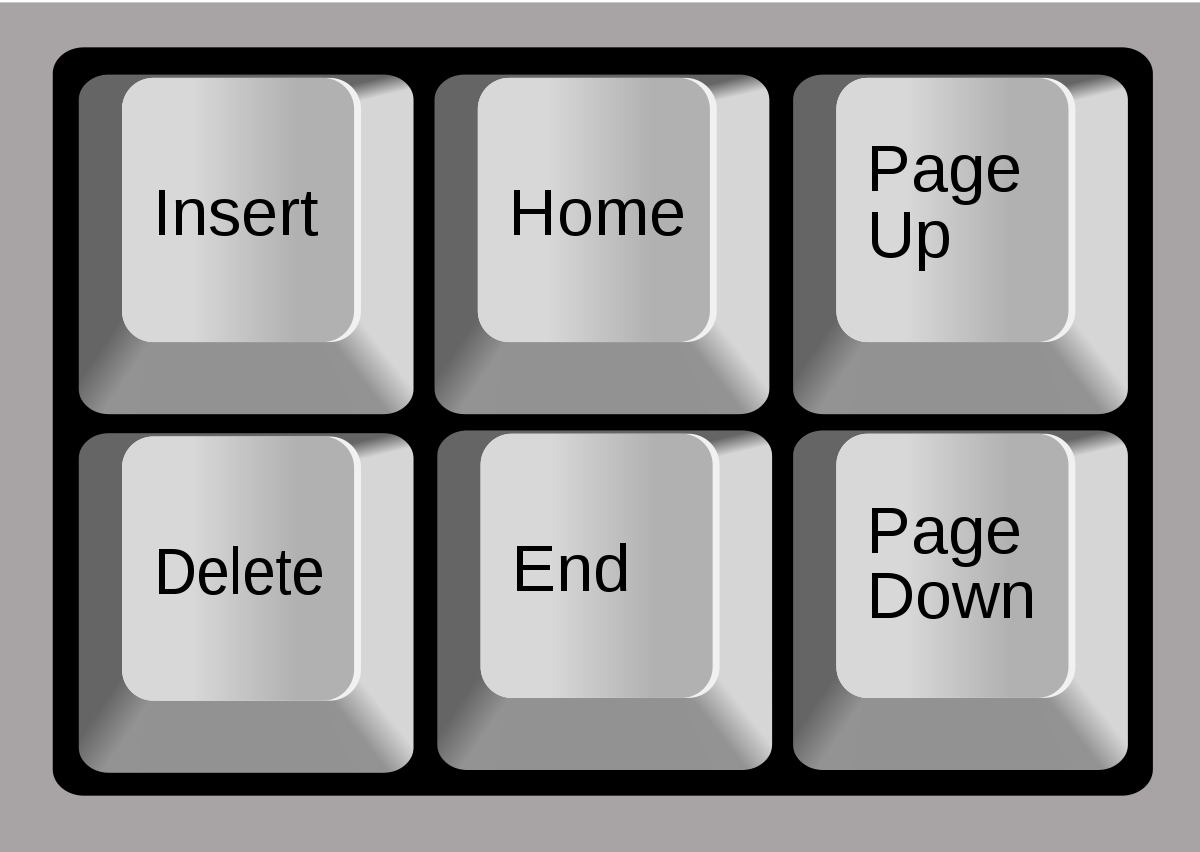
The Home key is classified as a navigation key. On a standard full-sized QWERTY keyboard, it is typically located within the block of keys between the main typing area and the numeric keypad, often sitting above the arrow keys alongside the End, Page Up, and Page Down keys.
Standard Keyboard Layouts
On traditional desktop keyboards, the Home key occupies a dedicated space. This spatial separation is designed to make it easily accessible to the right hand without requiring the user to move their fingers far from the mouse or the arrow keys. Its distinct physical position serves a dual purpose: it prevents accidental presses while ensuring that, when intentional, it is reachable within a fraction of a second.
The Laptop Compromise
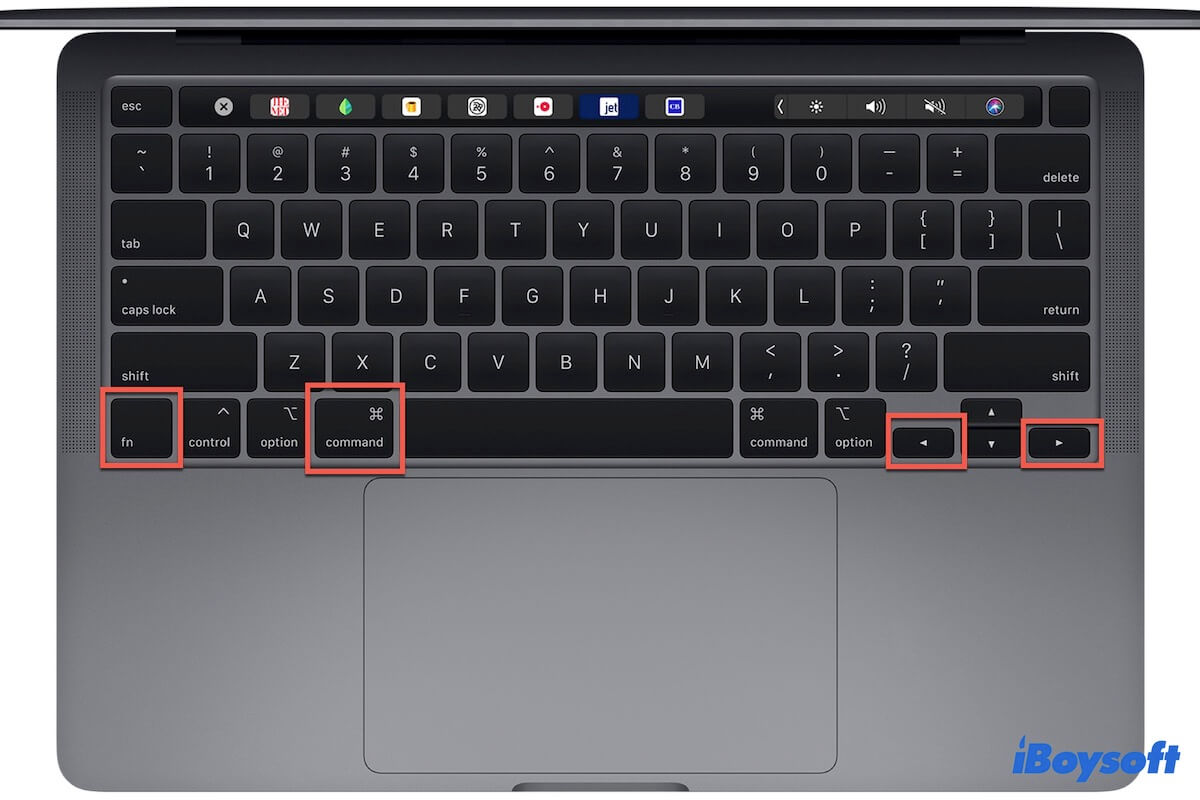
Laptops, constrained by limited physical real estate, often integrate the Home key into other buttons. In many compact designs, you may find the Home function shared with an arrow key or the top row of function keys. In these instances, the key is usually accessed by pressing a secondary modifier key, typically labeled “Fn” (Function). Understanding where this resides on your specific hardware is the first step toward integrating it into your daily digital routine.
Primary Functions in Productivity Software
The Home key is context-dependent, meaning its behavior changes slightly depending on the application you are currently using. However, its core philosophy remains the same: it is designed to move your focus to the “start” of a particular segment of data.
Navigating Text Documents
In word processors such as Microsoft Word, Google Docs, or text editors like Notepad, the Home key performs a singular, vital function: it jumps the insertion point (the blinking vertical line) to the very beginning of the line you are currently editing.
When you are deep in a paragraph and realize you need to make an adjustment to the first word of that sentence, most users instinctively reach for the mouse to click at the start of the line. The Home key eliminates the need for this mechanical transition. By simply pressing Home, you teleport your cursor to the beginning of the line, allowing you to edit or reformat instantly without ever taking your fingers off the home row.
Spreadsheet Management
In spreadsheet software like Microsoft Excel or Google Sheets, the Home key behaves in a more nuanced manner. Typically, pressing Home will return your active cell selection to the first column (Column A) of the current row. This is particularly useful when working with wide datasets that span dozens of columns. Instead of scrolling horizontally to view or edit the data at the start of the sheet, the Home key provides an immediate reset to the left-hand margin.
Web Browsers and Internet Navigation
On the web, the Home key functions as a vertical navigation tool. Pressing it will scroll the visible window to the very top of the page. This is invaluable when consuming long-form content or scrolling through infinite-scroll feeds. Rather than relying on the mouse wheel or the scroll bar, which can be imprecise, the Home key serves as a “jump-to-top” shortcut that instantly restores your view to the header of the page.
Mastering the Home Key: Advanced Combinations
The true power of the Home key is unlocked when it is paired with modifier keys. These combinations transform the key from a simple navigation tool into a surgical selection device.
Selection Shortcuts (Shift + Home)
The most common and useful combination is Shift + Home. When you hold the Shift key while pressing Home, you highlight all the text from the current position of your cursor back to the beginning of the line. This is the fastest way to select an entire line of text for deletion, formatting, or replacement. By mastering this combination, you can perform complex text manipulation significantly faster than with a mouse drag-select.
Document Navigation (Ctrl + Home)
If the standard Home key moves you to the beginning of a line, adding the Control (Ctrl) key elevates the function to the document level. Pressing Ctrl + Home will instantly move your cursor to the very beginning of the entire document or webpage.
This is especially helpful in long documents, academic papers, or coding scripts where the beginning of the file is hundreds or thousands of lines away. Combined with Ctrl + End, which takes you to the very bottom, you now have the ability to traverse vast digital spaces with two keystrokes.
Troubleshooting and Configuration
Occasionally, users may find that the Home key does not behave as expected. This is rarely a hardware failure and almost always a software or layout configuration issue.
Rebinding Keys
For users who rely heavily on specific workflows—such as programmers or creative professionals—the default behavior of the Home key might not always be optimal. Advanced software like AutoHotkey for Windows or Karabiner-Elements for macOS allows users to remap keyboard keys. If you find yourself wanting the Home key to trigger a specific script or macro, these tools can reassign its function entirely.
Laptop Functionality Issues
If you are using a laptop and find that pressing Home does nothing, it is likely that your system expects the Fn modifier. Ensure that the Fn lock on your keyboard is not engaged or disabled in a way that prevents secondary functions. Furthermore, some specialized keyboards, particularly mechanical gaming keyboards, include “Game Mode” switches that disable certain keys to prevent accidental presses during play. If your Home key is unresponsive, check your keyboard’s manual or software suite to ensure these locks have not been activated.
Cross-Platform Nuances
It is worth noting that macOS handles navigation keys slightly differently than Windows. While the Home key exists on Apple-compatible external keyboards, macOS applications often interpret the Home key as a jump to the top of the scrollable area rather than the start of a line. In many native Apple apps, the command to jump to the beginning of a line is actually Command + Left Arrow. Being aware of these minor discrepancies ensures that you remain productive regardless of the operating system you are working within.

Conclusion: Elevating Your Digital Workflow
The Home key is a testament to the importance of keyboard literacy. In an era where hardware innovation moves at a breakneck speed, the foundational mechanics of how we interact with text and data remain anchored in these simple, highly efficient navigation keys. By integrating the Home key—and its associated modifier combinations—into your daily routine, you move beyond the limitations of point-and-click navigation.
You begin to interact with your computer not just as a viewer, but as an architect of your digital workspace. The few milliseconds saved by avoiding the mouse may seem negligible in the moment, but when compounded over the course of a workday, they represent a significant reduction in friction and a noticeable increase in professional flow. Treat your keyboard as the primary instrument it is, and you will find that the path to increased productivity starts right at the Home key.
aViewFromTheCave is a participant in the Amazon Services LLC Associates Program, an affiliate advertising program designed to provide a means for sites to earn advertising fees by advertising and linking to Amazon.com. Amazon, the Amazon logo, AmazonSupply, and the AmazonSupply logo are trademarks of Amazon.com, Inc. or its affiliates. As an Amazon Associate we earn affiliate commissions from qualifying purchases.