
In the modern digital landscape, the smartphone has transitioned from a mere communication device to a central repository for our most personal information. From financial documents and private conversations to intimate photographs and sensitive work data, our iPhones carry a digital footprint that requires robust protection. One of the most frequently asked questions by users seeking to optimize their digital privacy is, “What is the hidden folder on iPhone?”
While the term might suggest a mysterious or clandestine part of the operating system, the “Hidden” folder is actually a sophisticated privacy feature built into the iOS Photos app. It is designed to give users control over their media visibility without permanently deleting content. As Apple continues to emphasize privacy as a fundamental human right, understanding how these hidden features work—and how they have evolved—is essential for any tech-savvy user.

Decoding the “Hidden” Album in the Photos App
The primary “hidden folder” most users encounter is technically known as the Hidden Album within the Photos app. For years, iPhone users struggled with the “all-or-nothing” nature of the photo library. If you wanted to show a friend a picture of your pet, you risked them accidentally swiping into a screenshot of a medical record or a private family moment. The Hidden Album was introduced to solve this specific UX friction point.
What Exactly is the Hidden Album?
The Hidden Album is a designated space within the iOS media ecosystem where photos and videos can be moved to prevent them from appearing in the main “All Photos” grid, the “Library” tab, or the automated “For You” memories and widgets. When you move a file to this folder, it essentially becomes “invisible” to the casual browser of your phone. However, it is important to note that until recent iOS updates, this folder was relatively easy to find, sitting at the bottom of the Albums tab for anyone to click.
Evolution from iOS 14 to iOS 18
Apple’s approach to this folder has changed significantly over the last several software iterations. In older versions of iOS, the Hidden Album was merely a way to declutter the main feed; it offered no actual security beyond “hiding in plain sight.” With the release of iOS 16 and subsequent versions, Apple introduced a critical security layer: Biometric Locking. Now, by default, the Hidden Album is locked behind Face ID, Touch ID, or the device passcode. This transition turned a simple organizational tool into a legitimate digital vault.
Why You Should Use It
The utility of the Hidden Album extends beyond hiding sensitive personal images. It is an excellent tool for professional organization. For instance, if you take photos of receipts for expense reports or screenshots of technical data that you need to reference later but don’t want cluttering your aesthetic vacation photos, the Hidden Album acts as an archive. It ensures that your main library remains a curated space for memories while the “logistical” or “private” media is tucked away securely.
How to Access and Manage Your Hidden Media
Understanding that the folder exists is the first step; knowing how to manipulate it efficiently is where the real technical utility lies. Apple has streamlined the process of moving media in and out of this folder, but the settings to make the folder itself disappear from view are often tucked away in the system settings.
Moving Photos and Videos to the Hidden Folder
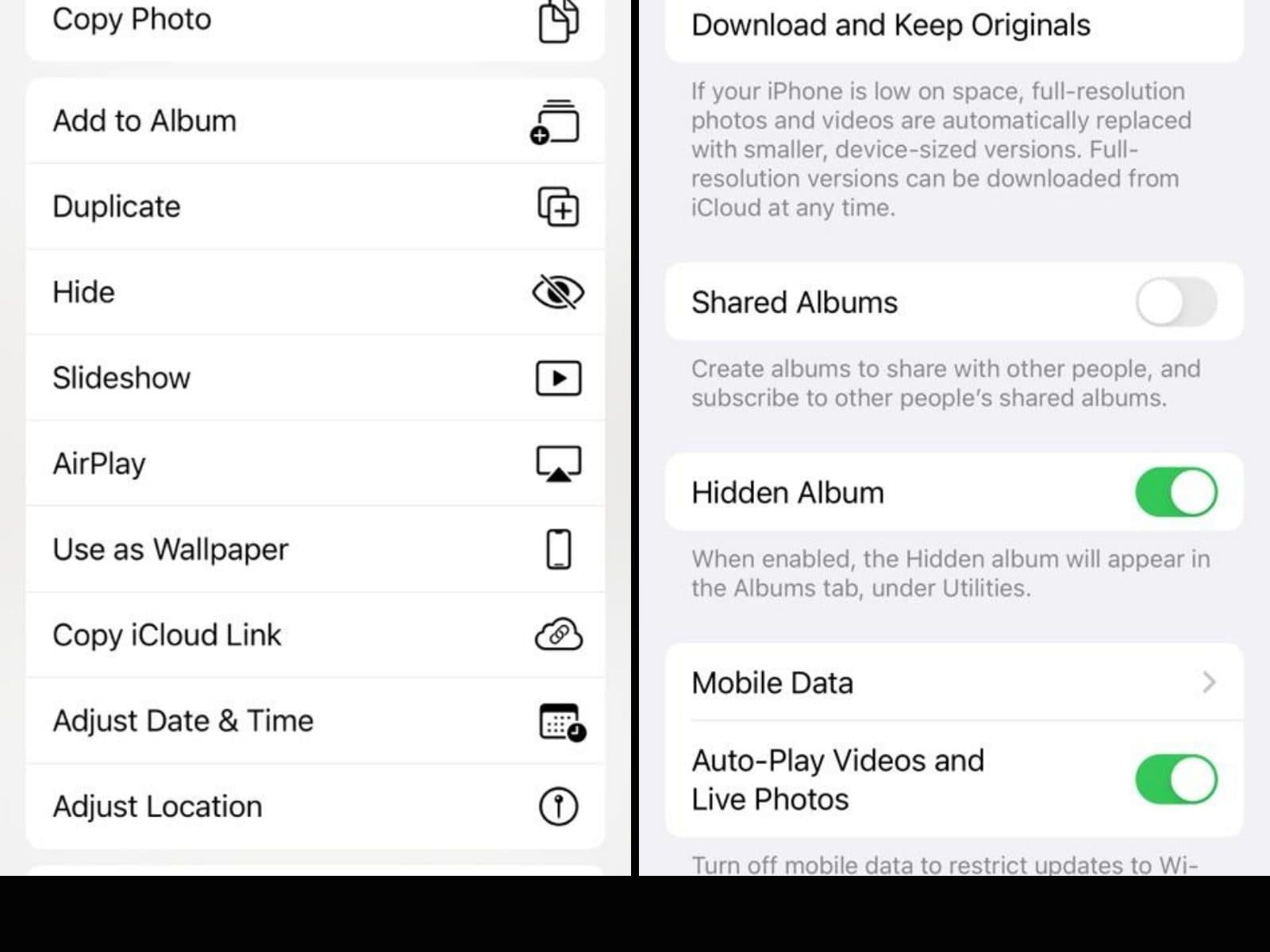
To hide an item, a user simply selects a photo or video (or multiple items), taps the “three dots” icon (or the share sheet in older versions), and selects “Hide.” The system then prompts a confirmation, informing the user that the media will be moved to the Hidden Album. Once confirmed, the item instantly vanishes from the main library. This process is seamless and integrated into the native iOS share and edit menus, making it accessible even for novice users.
How to Unhide the Folder from the Albums Tab
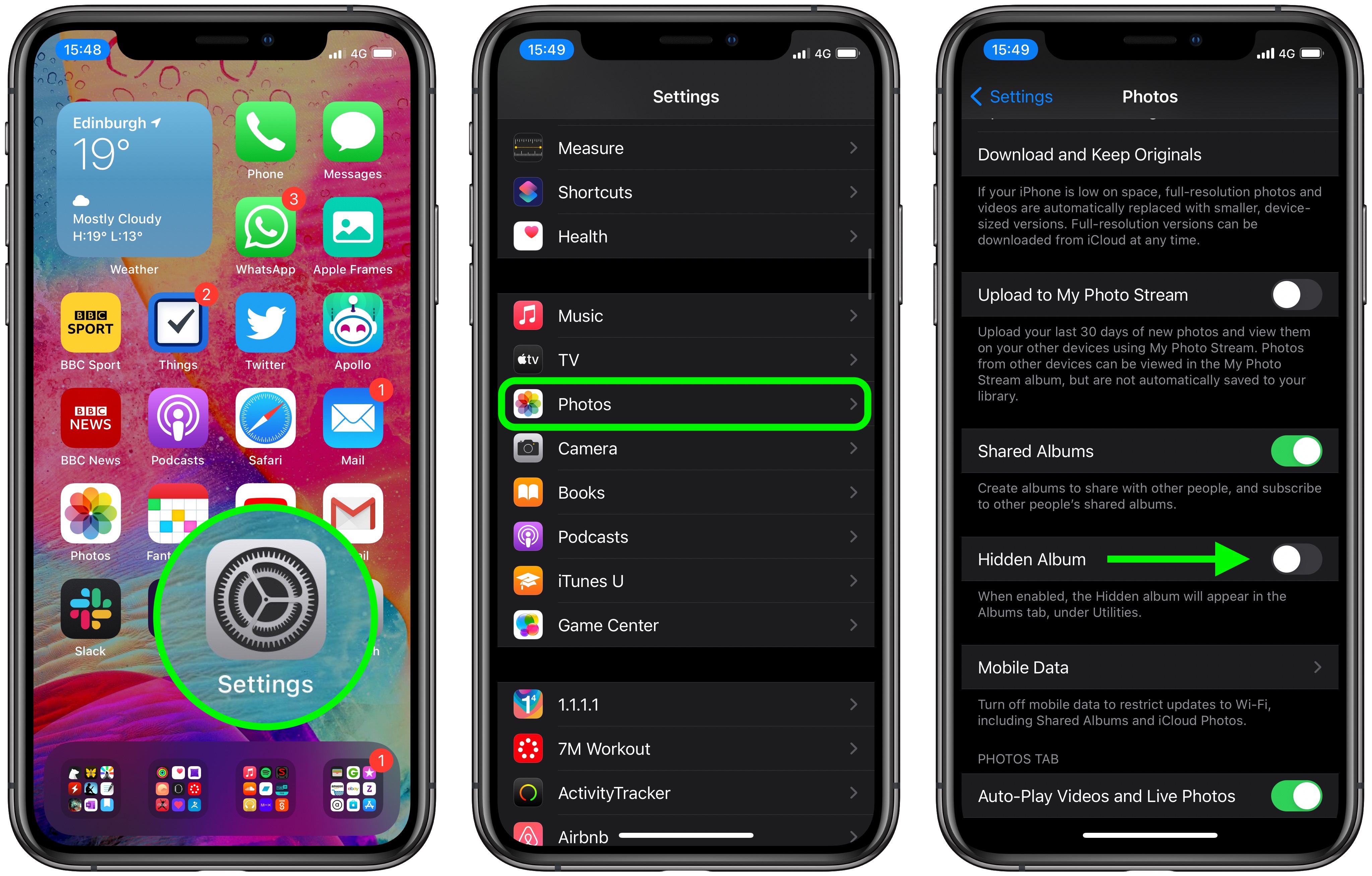
For those who want an extra layer of “stealth,” Apple allows you to hide the “Hidden” folder itself. This might sound redundant, but it is a powerful feature. By navigating to Settings > Photos, users can toggle off the “Show Hidden Album” switch. When this is disabled, the Hidden Album will not even appear in the “Utilities” section of the Photos app. To access your hidden content again, you must return to the settings and toggle it back on. This “double-blind” method is one of the most effective ways to ensure that even if someone has your unlocked phone, they cannot easily find your private media.
Retrieving Content from the Hidden Album
Managing a hidden library also requires knowing how to bring items back into the light. Within the Hidden Album, users can select items and choose “Unhide.” This returns the media to its original chronological position in the main library. It does not treat the photo as “newly saved,” but rather restores its metadata and placement based on the date it was originally captured. This logical handling of metadata is a hallmark of Apple’s file management system.
Advanced Security: Biometric Protection and Encryption
In the realm of digital security, “hiding” a file is rarely enough. True privacy requires encryption and authentication. The hidden folder on iPhone has become a microcosm of Apple’s broader security philosophy, integrating hardware-level protection with software-level privacy.
FaceID and TouchID Requirements
As mentioned previously, the modern Hidden Album requires biometric authentication. This is powered by the “Secure Enclave” in the iPhone’s processor—a dedicated hardware component that handles cryptographic keys. When you attempt to open the Hidden Album, the system initiates a Face ID check. Because this happens at the system level, third-party apps generally cannot bypass this check to scrape your hidden photos, providing a siloed environment for your most sensitive data.
The Role of iCloud End-to-End Encryption
A common concern is whether hidden photos remain hidden when synced to the cloud. If you have “Advanced Data Protection” enabled for iCloud, your Hidden Album (along with the rest of your library) is end-to-end encrypted. This means that even Apple cannot see the contents of your hidden folder. When the photos sync to your iPad or Mac, they remain in the Hidden Album on those devices as well, maintaining a consistent privacy posture across the entire Apple ecosystem.
“Recently Deleted” vs. “Hidden”: Understanding the Difference
It is crucial to distinguish the Hidden Album from the “Recently Deleted” folder. Both are found in the Utilities section, and both now require Face ID to access. However, “Recently Deleted” is a temporary holding pen; items are permanently purged after 30 days. The Hidden Album is a permanent storage solution. Users often mistake the two, accidentally deleting photos they intended to hide. A professional tip: always use the “Hide” function for long-term privacy, and reserve “Delete” only for content you truly wish to discard.
Beyond Photos: Other Hidden Folders and Data on iPhone
While the Photos app is the most common place users look for hidden folders, the iOS file system contains other “hidden” areas that are vital for managing digital clutter and maintaining privacy.
Hidden App Folders and the App Library
With the introduction of the App Library, users can now hide entire app icons from their Home Screen without deleting the apps. By long-pressing an app and selecting “Remove from Home Screen,” the app is moved to the App Library—a categorized, searchable repository at the end of your home screen pages. This allows for a “hidden” collection of apps that don’t distract or reveal your usage habits to onlookers.
Obscure System Folders in the Files App
For users who utilize the “Files” app, there is a whole world of “On My iPhone” storage. While not explicitly labeled as “hidden,” many folders created by third-party apps are buried deep within directory structures. Furthermore, by using the “Compress” feature in the Files app, users can create password-protected .zip folders. This is a “pro” way to hide documents, PDFs, and non-media files behind an extra layer of password security that is independent of the iPhone’s lock screen passcode.
Third-Party Apps and “Vaults”
Before Apple bolstered the security of the native Hidden Album, many users turned to third-party “Calculator Vaults” or “Photo Lockers.” While these still exist, they often pose a security risk, as they may not use the same level of encryption as Apple’s native features, and their data-sharing practices can be opaque. In the current iOS ecosystem, the native Hidden folder is generally considered the more secure and reliable option for the vast majority of tech users.
Best Practices for Digital Privacy on iOS
As we have explored, the hidden folder on iPhone is a robust tool, but like any technology, it is most effective when used correctly within a broader strategy of digital hygiene.
Balancing Convenience and Security
The primary trade-off in technology is always between ease of use and maximum security. While keeping the “Show Hidden Album” toggle “On” in Settings is convenient, turning it “Off” provides the highest level of privacy. For users handling extremely sensitive data, the habit of toggling this visibility only when needed is a best practice.
Regular Audits of Your Hidden Assets
Over time, the Hidden Album can become a “junk drawer” for digital files. It is wise to perform a quarterly audit of your hidden content. Determine if items still need to be hidden, if they should be moved to a more secure long-term storage (like a physical encrypted drive), or if they can be deleted. This reduces your “attack surface”—the amount of sensitive data that would be vulnerable if your device security were ever compromised.
The Future of iPhone Privacy Features
As AI and machine learning continue to integrate into iOS (through Apple Intelligence), the way the iPhone identifies and suggests photos to be hidden will likely become more sophisticated. We may see a future where the iPhone automatically suggests moving photos of ID cards, passwords, or sensitive documents to the Hidden Album. Staying informed about these updates is key to maintaining a secure digital life.
In conclusion, the “hidden folder” on iPhone is far more than just a place to put embarrassing photos. It is a sophisticated, biometrically protected partition of the iOS ecosystem that reflects the modern need for nuanced privacy. By mastering the settings, understanding the underlying security hardware, and following best practices for folder management, users can ensure their private data remains exactly that—private.
aViewFromTheCave is a participant in the Amazon Services LLC Associates Program, an affiliate advertising program designed to provide a means for sites to earn advertising fees by advertising and linking to Amazon.com. Amazon, the Amazon logo, AmazonSupply, and the AmazonSupply logo are trademarks of Amazon.com, Inc. or its affiliates. As an Amazon Associate we earn affiliate commissions from qualifying purchases.