
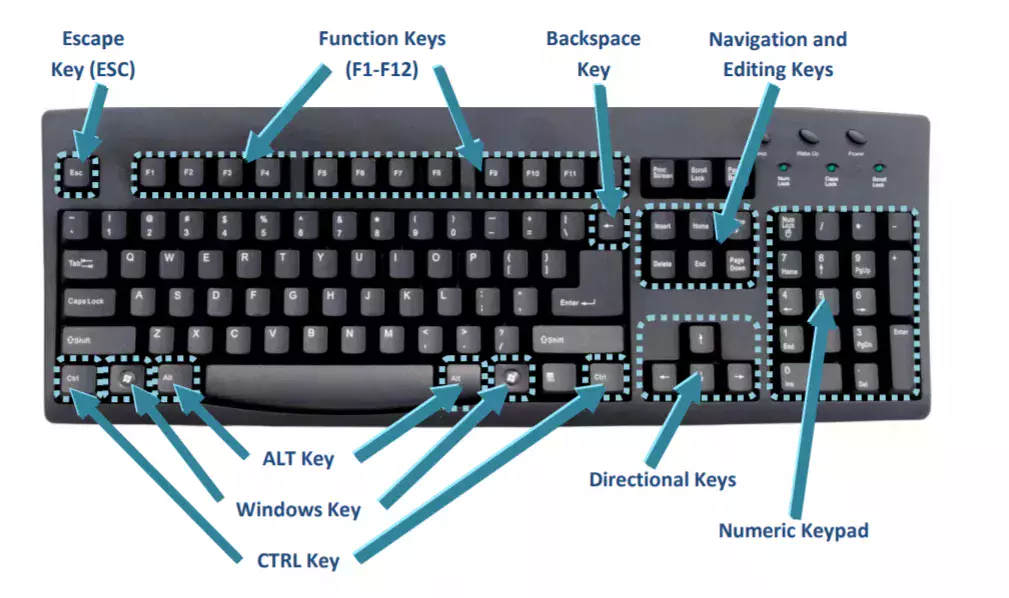
In the landscape of modern computing, the keyboard remains the primary interface between human intent and digital execution. While most users are intimately familiar with the alphanumeric cluster and the ubiquitous spacebar, the row of function keys—labeled F1 through F12—often remains a misunderstood or underutilized territory. Among these, the F4 key stands out as one of the most versatile and powerful tools for enhancing workflow efficiency.
To the uninitiated, the F4 key might seem like just another plastic square, but for power users, developers, and office professionals, it is a gateway to rapid system commands and software-specific shortcuts. Understanding the depth of the F4 key’s utility requires a dive into operating system behaviors, application-specific logic, and the nuances of hardware integration.
Understanding the Role of the F4 Key in Modern Computing
The F4 key belongs to the “Function” family, a legacy of early terminal computing that has evolved into a vital component of the modern graphical user interface (GUI). Its primary purpose is to provide a “shortcut” to commands that would otherwise require multiple mouse clicks or navigation through complex menus.
The Origin and Evolution of Function Keys
Function keys were originally designed to allow users to send specific commands to a computer’s operating system or active program without needing to type out full strings of text. In the early days of IBM-compatible PCs, these keys were often positioned on the left side of the keyboard in two columns. Today, they sit atop the keyboard, serving as a bridge between the hardware and the software layer. The F4 key, in particular, has been standardized across many platforms to handle “repeat” or “close” actions, though its behavior can change significantly depending on the environment in which it is used.
Hardware Variations: Laptops vs. Desktops
One of the most common points of confusion for modern tech users is why the F4 key doesn’t always “work” as expected. On most modern laptops (like those from Dell, HP, or Apple), the function row is dual-purpose. By default, the F4 key might be mapped to a hardware control, such as adjusting screen brightness, muting the microphone, or toggling a secondary display.
To access the “standard” F4 functionality in these cases, users must hold down the Fn (Function) modifier key. Tech enthusiasts often head into the BIOS or UEFI settings—or use a “Fn Lock” toggle—to reverse this behavior, ensuring that the F4 key prioritizes software commands over hardware adjustments.
Essential Windows and System-Level Shortcuts
At the operating system level, particularly within Microsoft Windows, the F4 key is most famous for its ability to manage windows and navigation. These shortcuts are hardcoded into the OS shell and are essential for anyone looking to reduce their reliance on the mouse.
Alt + F4: The Ultimate Closing Command
Perhaps the most iconic keyboard shortcut in the history of computing is Alt + F4. This command sends a “close” signal to the currently active window. Whether you are stuck in a frozen application or simply want to shut down your browser without hunting for the “X” in the corner, Alt + F4 is the definitive solution.
Beyond closing apps, using Alt + F4 while the desktop is focused (by clicking on the wallpaper first) brings up the Windows Shutdown dialog box. This allows for a quick restart, sleep, or power-down sequence, bypassing the Start menu entirely.
Ctrl + F4: Managing Tabs and Internal Documents
While Alt + F4 closes the entire application, Ctrl + F4 is a more surgical tool. It is designed to close the active document or tab within a program that supports multiple windows (MDI – Multiple Document Interface). For example, in an older version of Excel or a specialized PDF reader, Ctrl + F4 will close the specific file you are working on while keeping the main application open. In many modern web browsers, this shortcut also functions as a way to close the current tab, similar to Ctrl + W.
The Address Bar Shortcut in File Explorer
For those who navigate deep into folder structures within Windows File Explorer, the F4 key is a significant time-saver. Pressing F4 alone in File Explorer will automatically drop down the address bar list. This allows you to see the history of the folders you have recently visited or quickly type in a new file path without needing to click the top of the window.
Transforming Productivity in Microsoft Office

The F4 key truly shines within the Microsoft Office Suite. In programs like Excel, Word, and PowerPoint, it transitions from a “system closer” to a “productivity multiplier.”
Excel’s Secret Weapon: Absolute Cell References
For data analysts and financial professionals, the F4 key is synonymous with cell referencing. When writing a formula in Excel (e.g., =A1+B1), pressing F4 while the cursor is on a cell reference cycles through the different types of references:
- Absolute ($A$1): Fixes both the column and the row.
- Mixed (A$1): Fixes only the row.
- Mixed ($A1): Fixes only the column.
- Relative (A1): No fixes.
This single-key toggle saves thousands of manual keystrokes over the course of a project, preventing errors that occur when dragging formulas across large datasets.
Repeating Last Actions in Word and PowerPoint
In Microsoft Word and PowerPoint, the F4 key serves as a “Repeat” command. It remembers the very last action you performed—whether it was bolding a word, changing a font color, or inserting a table row—and replicates it instantly.
Imagine you have a 50-page document where you need to highlight specific sentences in yellow. Instead of selecting the text and clicking the highlight tool 50 times, you do it once manually, then simply select the next sentence and hit F4. This “Redo” functionality is more efficient than Ctrl + Y in many contexts because it focuses specifically on formatting and object manipulation.
Web Browser Efficiency and Multimedia Controls
As we spend more of our professional lives inside web browsers like Chrome, Edge, and Firefox, the role of the F4 key continues to adapt. While it doesn’t have as many “native” browser shortcuts as F5 (Refresh) or F11 (Fullscreen), it still plays a vital role in navigation and hardware control.
Web Browser Navigation
In many browsers, pressing F4 (or Alt + D, or F6) will highlight the URL in the address bar. This allows the user to immediately type a new search query or website address. While F6 is the more common standard across all browsers, F4 remains a legacy support key in several environments, particularly in enterprise-grade software that runs within a browser shell.
Multimedia and Secondary Functions
In the context of modern tech hardware, the “secondary” icons on the F4 key are often more used than the function itself. Many laptop manufacturers use the F4 key to:
- Mute the Microphone: A critical feature in the era of Zoom and Microsoft Teams calls.
- Toggle Search: Opening the Windows Search or Spotlight (on Mac-style keyboards).
- Display Settings: Quickly switching between “Mirror,” “Extend,” or “Second Screen Only” when connecting to a projector or external monitor.
Troubleshooting and Customizing Function Key Behavior
Despite its utility, the F4 key can sometimes be a source of frustration, particularly when it doesn’t behave as expected or when a user wants to repurpose it for specific technical tasks.
Dealing with the “Fn Lock” Dilemma
If you find that pressing Alt + F4 mutes your volume instead of closing a program, your keyboard is in “Media Mode.” To fix this, look for a key with a padlock icon labeled “Fn.” Pressing Fn + Esc (usually) will enable “Fn Lock,” restoring the F4 key to its traditional software-based role. Alternatively, this can be changed in the system’s BIOS/UEFI under “Action Keys Mode.”
Remapping the F4 Key for Advanced Users
For developers or digital artists who may not use the “Repeat Last Action” or “Absolute Reference” features, the F4 key can be remapped using third-party software. Tools like Microsoft PowerToys (Keyboard Manager) or AutoHotkey allow users to turn the F4 key into a macro trigger.
For instance, a programmer might remap F4 to launch a specific terminal window, or a video editor might map it to “Cut” or “Export.” This level of customization transforms a standard keyboard into a bespoke productivity tool tailored to specific technical workflows.

Conclusion
The F4 key is a testament to the efficiency hidden within the standard keyboard layout. From the “emergency exit” utility of Alt + F4 to the surgical precision of Excel cell anchoring, it remains one of the most impactful keys for anyone looking to optimize their digital life. By mastering the F4 key, users can move beyond the limitations of the mouse, executing complex commands with a single tap and reclaiming valuable time in their daily tech interactions.
aViewFromTheCave is a participant in the Amazon Services LLC Associates Program, an affiliate advertising program designed to provide a means for sites to earn advertising fees by advertising and linking to Amazon.com. Amazon, the Amazon logo, AmazonSupply, and the AmazonSupply logo are trademarks of Amazon.com, Inc. or its affiliates. As an Amazon Associate we earn affiliate commissions from qualifying purchases.