
Since its inception in the mid-1990s, the Universal Serial Bus (USB) has undergone a radical transformation, evolving from a simple interface for keyboards and mice into a high-speed powerhouse capable of driving 4K displays and powering laptops. For the modern consumer and tech professional, the most significant historical leap occurred between the introduction of USB 2.0 and USB 3.0. While they may look similar at a glance, the technical architecture and performance capabilities between these two standards are worlds apart.
Understanding the nuances of USB 2.0 versus USB 3.0 is essential for optimizing hardware setups, ensuring data integrity, and maximizing the efficiency of digital workflows. This guide explores the foundational differences that define these two eras of connectivity.

Speed and Performance: The Defining Gap
The most immediate and impactful difference between USB 2.0 and USB 3.0 is the transfer rate. In the tech world, bandwidth is the currency of productivity, and the jump from the 2.0 standard to 3.0 represented a ten-fold increase in theoretical performance.
Theoretical Throughput vs. Real-World Speeds
USB 2.0, released in 2000 and often referred to as “High Speed” USB, offers a theoretical maximum signaling rate of 480 Megabits per second (Mbps). While this was revolutionary compared to the original USB 1.1, it quickly became a bottleneck as file sizes for high-definition video and high-resolution photography ballooned.
In contrast, USB 3.0—marketed as “SuperSpeed”—launched in 2008 with a theoretical maximum of 5 Gigabits per second (Gbps). This 5,000 Mbps capacity allows for the transfer of large datasets in a fraction of the time. However, it is important to note that “theoretical” rarely matches “real-world.” Due to protocol overhead and bus management, USB 2.0 typically tops out at around 35–40 Megabytes per second (MB/s). USB 3.0, meanwhile, can sustain real-world speeds of 300–400 MB/s, provided the connected storage media (like an SSD) can keep up.
Half-Duplex vs. Full-Duplex Communication
Beyond raw speed, the way data moves through the cable changed significantly with USB 3.0. USB 2.0 utilizes a “half-duplex” architecture. In this setup, data can only travel in one direction at a time—either being sent or received. This is akin to a one-lane bridge where traffic must wait for the other side to clear.
USB 3.0 introduced “full-duplex” communication. By utilizing a dual-bus architecture, USB 3.0 can send and receive data simultaneously. This bidirectional data flow not only increases speed but also reduces the latency associated with waiting for acknowledgement packets, making it far superior for tasks that require constant two-way communication, such as external RAID arrays or high-performance network adapters.
Physical Architecture and Power Management
The performance gains of USB 3.0 were not achieved through software alone; they required a complete overhaul of the physical wiring and the way the bus handles electrical power.
Pin Configurations and Wiring
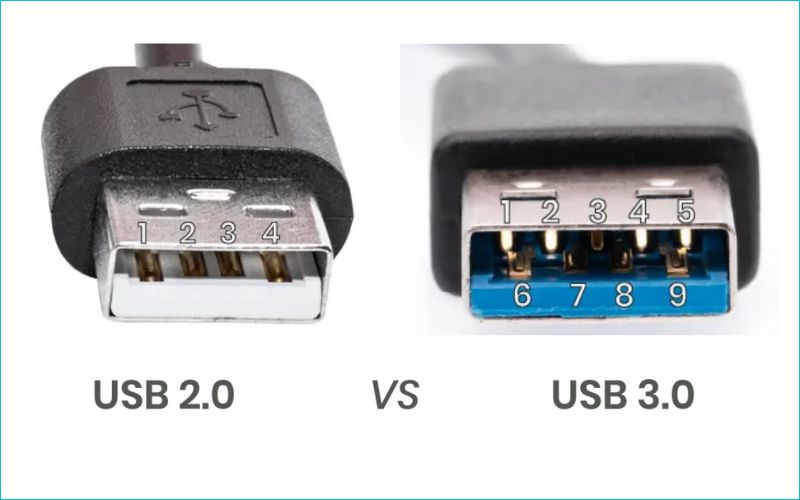
If you were to cut open a USB 2.0 cable, you would find four internal wires: one for power (VBUS), one for ground, and a twisted pair for data (D+ and D-). This lean configuration was designed for simplicity and low cost.
To achieve SuperSpeed performance, USB 3.0 added five additional pins, bringing the total to nine. These additional wires include two pairs for dedicated high-speed data transfer (one for transmitting and one for receiving) and an additional ground. Interestingly, USB 3.0 connectors retain the original four pins of the USB 2.0 standard to maintain backward compatibility. This “physical layer” upgrade is why USB 3.0 cables are typically thicker and less flexible than their 2.0 counterparts; they are literally carrying more hardware inside the shielding.
Power Delivery and Efficiency
The shift from USB 2.0 to 3.0 also brought a much-needed increase in power delivery. A standard USB 2.0 port is rated to provide up to 500 milliamps (mA) at 5 volts. This is sufficient for basic peripherals like a mouse or a low-power thumb drive, but it often struggles to power external mechanical hard drives without a “Y-cable” or an external power brick.
USB 3.0 increased the power ceiling to 900 mA. This 80% increase in current allows the port to power more demanding gadgets, such as bus-powered external SSDs and sophisticated USB hubs, while also charging smartphones more quickly. Furthermore, USB 3.0 is more “power-aware.” While USB 2.0 ports constantly poll connected devices to see if they need to transmit data (wasting energy), USB 3.0 uses an interrupt-driven protocol. Devices can enter low-power states when idle, only “waking up” the bus when data needs to be moved, which preserves battery life on laptops and mobile devices.
Practical Compatibility and Identification
In a tech environment where ports often look identical, being able to identify which standard a port or cable supports is vital for avoiding performance bottlenecks.
Backward Compatibility and Interoperability
One of the greatest strengths of the USB ecosystem is its commitment to backward compatibility. A USB 3.0 drive will work perfectly fine when plugged into a USB 2.0 port, though its speed will be throttled to the 2.0 limit. Conversely, a USB 2.0 device will work in a USB 3.0 port without issue.
However, there is a physical caveat regarding the “Type-B” and “Micro-B” connectors. While the standard Type-A connector (the rectangular one) remains physically the same size across both standards, the USB 3.0 Type-B (often used for printers and monitors) and Micro-B (used for older phone charging and external drives) have a different shape to accommodate the extra pins. A USB 2.0 Micro-B cable will fit into a USB 3.0 Micro-B port, but a USB 3.0 Micro-B cable will not fit into a USB 2.0 port.
Visual Cues: Color Coding and Logos
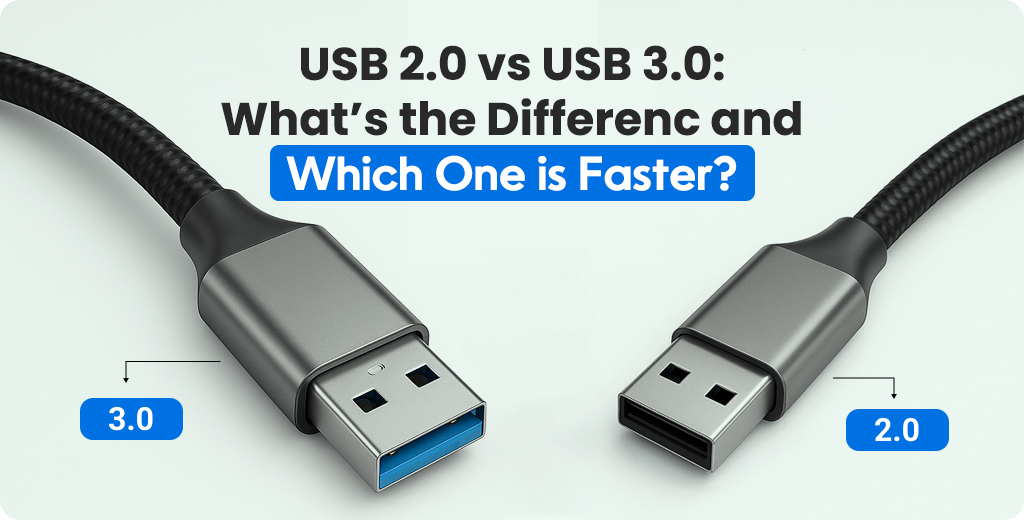
To help users distinguish between the two, the USB Implementers Forum (USB-IF) introduced standardized color coding. Most manufacturers use blue plastic inserts for USB 3.0 Type-A ports and connectors, while USB 2.0 ports are typically black or white.
Furthermore, the logos provide a clear hint. The USB 2.0 logo is the standard “trident” icon. The USB 3.0 logo adds the letters “SS” (for SuperSpeed) to the left of the trident. In recent years, with the advent of USB 3.1 and 3.2, some ports might also have a small “5” or “10” next to the logo, indicating the maximum speed in Gbps. Being able to spot these subtle differences prevents the frustration of plugging a high-speed NVMe enclosure into a legacy port and wondering why the transfer speeds are sluggish.
Use Cases: Choosing the Right Standard for Your Tech Stack
While USB 3.0 is objectively better in terms of technical specifications, USB 2.0 remains relevant in the tech industry due to cost-efficiency and the nature of certain peripherals.
When USB 2.0 is Sufficient
Not every device needs the firehose of bandwidth provided by USB 3.0. For human interface devices (HIDs) such as keyboards, mice, and game controllers, the amount of data being transmitted is negligible. Using a USB 3.0 port for a mouse is essentially a waste of a high-speed resource.
Additionally, many audio interfaces and MIDI controllers still utilize USB 2.0. Because these devices prioritize consistent, low-latency timing over massive bandwidth, the 2.0 standard is more than adequate. In fact, some older legacy audio equipment can occasionally experience “noise” or interference when connected to certain USB 3.0 controllers, making the older 2.0 ports a more stable choice for specialized studio work.
Why Modern Computing Demands USB 3.0 (and Beyond)
For almost everything else, USB 3.0 is the baseline. If you are backing up a 50GB photo library, USB 2.0 would take approximately 25 to 30 minutes. With USB 3.0, that same task can be completed in under 3 minutes. This efficiency is non-negotiable for video editors working with 4K footage or IT professionals deploying system images across a network.
Moreover, modern webcams that stream in 1080p at 60fps or 4K resolution require the higher bandwidth of USB 3.0 to maintain a compressed, high-quality signal without dropping frames. As we move further into an era of “USB-C everything,” it is important to remember that USB-C is merely a connector shape; the underlying data protocol can still be USB 2.0 or 3.0/3.1. Always check the technical specifications of your gadgets to ensure the protocol matches your performance expectations.
Conclusion
The evolution from USB 2.0 to USB 3.0 marked a turning point in digital connectivity, shifting the focus from simple peripheral support to high-speed data management and improved power efficiency. While USB 2.0 still holds a place for low-bandwidth accessories, USB 3.0 has become the standard for storage, imaging, and professional workstations.
By understanding the differences in pin architecture, duplex communication, and power delivery, tech users can make more informed decisions about their hardware. Whether you are building a custom PC or simply buying an external drive for your laptop, prioritizing USB 3.0 (or its successors) ensures that your tech stack remains fast, efficient, and ready for the data-heavy demands of the future.
aViewFromTheCave is a participant in the Amazon Services LLC Associates Program, an affiliate advertising program designed to provide a means for sites to earn advertising fees by advertising and linking to Amazon.com. Amazon, the Amazon logo, AmazonSupply, and the AmazonSupply logo are trademarks of Amazon.com, Inc. or its affiliates. As an Amazon Associate we earn affiliate commissions from qualifying purchases.