
In the world of personal computing, few things are as unnerving as the “Black Screen of Death” (BlSoD). Unlike its more famous cousin, the Blue Screen of Death (BSOD), which usually provides an error code and a sad face icon, the Black Screen of Death offers no such courtesy. It is a total system failure that leaves the user staring at a void—sometimes with a lone mouse cursor, and other times with nothing at all.
Whether you are a seasoned IT professional or a casual user, encountering this phenomenon can feel like hitting a digital brick wall. This article dives deep into the technical nature of the Black Screen of Death, exploring why it happens across various operating systems and providing a step-by-step roadmap for troubleshooting and prevention.
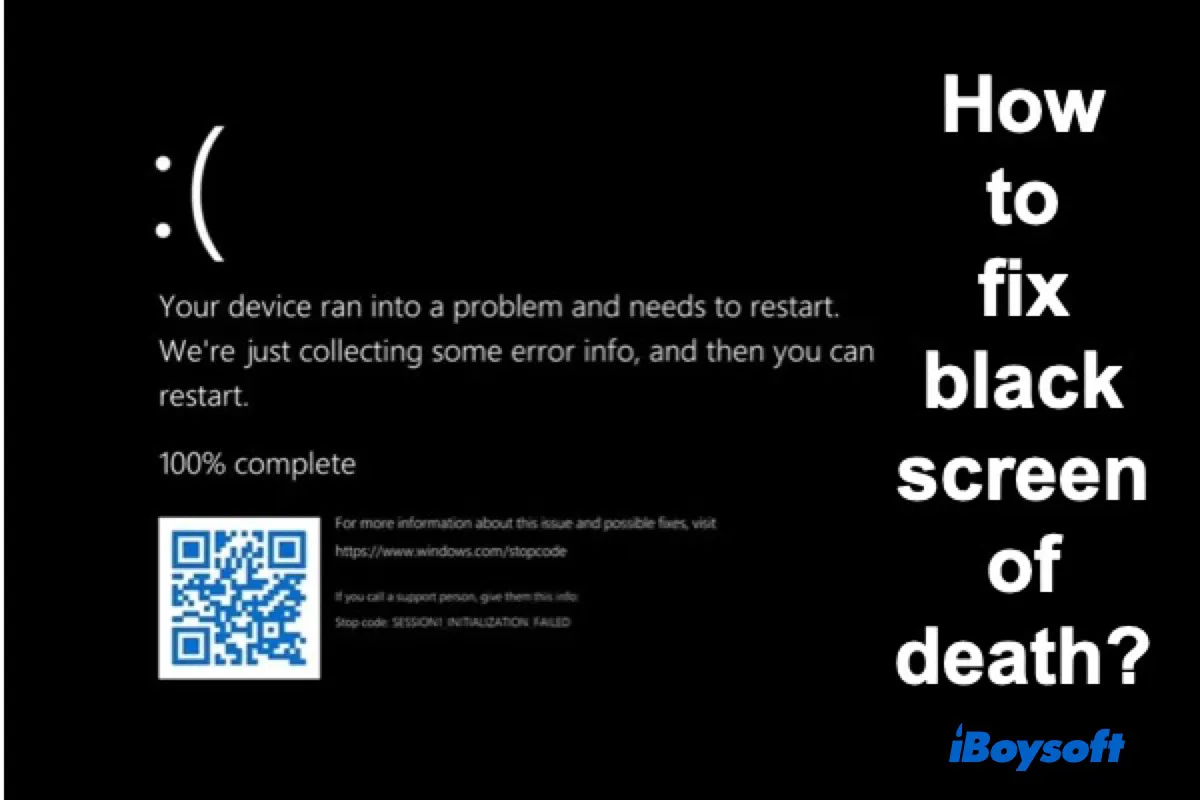
Understanding the Black Screen of Death (BlSoD)
The Black Screen of Death is not a singular error but rather a symptom of a critical system failure. It occurs when an operating system encounters an error so severe that it can no longer render the graphical user interface (GUI). Because the system cannot display the desktop or the start menu, the screen remains black.
Defining the Phenomenon
At its core, the BlSoD indicates that the operating system’s “shell”—the component responsible for the visual interface—has failed to load. In Windows environments, this is often linked to the explorer.exe process. When this process crashes or fails to initialize during boot-up, the user is left with a blank screen. While the computer may technically be “on” and hardware components may be spinning, the bridge between the software and the display has been severed.
The Difference Between Blue and Black Screens
The Blue Screen of Death (BSOD) is technically a “Stop Error.” It occurs when the Windows kernel encounters an error from which it cannot recover, forcing the system to shut down to prevent hardware damage. The Black Screen, however, is often more ambiguous. It might occur during a login sequence, after a software update, or during high-intensity tasks like gaming. While a Blue Screen tells you exactly what went wrong (via a stop code), a Black Screen forces you to play detective, making it one of the most frustrating tech hurdles to overcome.
Common Causes Behind the Black Screen
Identifying the root cause of a Black Screen is the first step toward a permanent fix. Because the symptom is so broad, the causes can range from minor software glitches to catastrophic hardware failures.
Software Conflicts and Corrupt Updates
One of the most frequent triggers for a BlSoD is a botched operating system update. When Windows or macOS attempts to update system files and the process is interrupted—by a power flicker or a forced shutdown—essential boot files can become corrupted. Additionally, third-party software that integrates deeply with the system, such as antivirus programs or virtual drive emulators, can conflict with the OS, preventing the GUI from loading properly.
Hardware Failures and Loose Connections
In many cases, the “Black Screen” isn’t an OS issue at all, but a hardware communication failure. A faulty Graphics Processing Unit (GPU) is a prime suspect. If the video card cannot send a signal to the monitor, the result is total darkness. Similarly, failing RAM (Random Access Memory) can cause the system to hang during the boot process. On desktop PCs, something as simple as a loose HDMI or DisplayPort cable, or a monitor set to the wrong input source, can mimic the symptoms of a fatal system error.
Malware and Security Vulnerabilities
Digital security plays a significant role in system stability. Certain types of malware are designed to hijack the user shell. By disabling explorer.exe and replacing it with a malicious process, hackers can effectively lock a user out of their own system. While this is less common today due to advanced Windows Defender protocols, “ransomware-lite” variants still exist that use the Black Screen as a way to simulate a system crash, hoping to trick the user into calling a fraudulent support number.
Troubleshooting and Fixing the Black Screen on Windows

If you find yourself staring at a black screen on a Windows machine, there is a sequence of technical “first aid” steps you can take to revive the system.
Using Keyboard Shortcuts (Win + Ctrl + Shift + B)
Before reaching for the power button, try the “secret” Windows reset command: Windows Key + Ctrl + Shift + B. This command forces Windows to restart the graphics driver subsystem. If your screen flickers and beeps, it means the OS is attempting to re-establish a connection with the GPU. This is often enough to fix issues caused by driver hangs or minor software glitches.
Booting into Safe Mode
If a shortcut doesn’t work, the next step is to isolate the problem using Safe Mode. Safe Mode loads the operating system with a minimal set of drivers and services. To access it during a Black Screen:
- Hold the power button for 10 seconds to turn off the device.
- Turn it back on, and as soon as you see the manufacturer logo, hold the power button again to turn it off.
- Repeat this three times to trigger the Windows Recovery Environment (WinRE).
- From there, navigate to Troubleshoot > Advanced options > Startup Settings > Restart.
- Select option 4 or 5 to enter Safe Mode. If the desktop appears in Safe Mode, you know the issue is likely a driver or a third-party application rather than a hardware failure.
Reinstalling Graphics Drivers
While in Safe Mode, the most effective fix is often addressing the Display Adapters. Right-click the Start button and select Device Manager. Expand the “Display adapters” section, right-click your graphics card, and select “Uninstall device.” Restart your computer, and Windows will attempt to install a clean, generic driver. This frequently resolves Black Screen issues that occur immediately after a major Windows update.
The Black Screen on Mobile Devices and macOS
Computers aren’t the only devices susceptible to this issue. Smartphones and Apple’s ecosystem have their own versions of the Black Screen of Death, often triggered by different technical stressors.
iPhone and Android Specific Issues
On mobile devices, a black screen is usually the result of a “kernel panic” or a battery calibration error. For iPhones, the “Black Screen of Death” often happens when the storage is 99% full, leaving no room for the OS to swap files during boot. The primary solution is a “Force Restart,” which varies by model (usually a quick press of Volume Up, Volume Down, then holding the Side Button). On Android, the issue is frequently linked to a corrupted app cache or a failing battery that cannot provide enough voltage to “kickstart” the screen.
Addressing macOS “Black Screen on Startup”
Mac users might encounter a black screen during the transition from the Apple logo to the login screen. This is often related to the NVRAM (Non-Volatile Random-Access Memory) or the SMC (System Management Controller). Resetting the NVRAM (Option + Command + P + R during boot) clears small bits of data related to screen resolution and startup disk selection, which can often bypass a black screen hang. On newer M1/M2/M3 Macs, these resets are handled automatically by the system during a standard restart.
Preventive Measures and Future-Proofing Your System
The best way to deal with a Black Screen of Death is to ensure it never happens in the first place. Proactive system maintenance is the hallmark of a healthy digital life.
Regular Maintenance and Updates
While updates can sometimes cause issues, staying on an ancient version of an OS is far riskier. Modern updates include patches for the very bugs that cause system hangs. The key is to manage updates intelligently. Avoid “Optional Quality Updates” unless you are experiencing a specific problem they claim to fix, and always ensure your system has at least 20% free disk space to allow for file swapping and temporary update storage.
Monitoring Hardware Health
Hardware doesn’t last forever. Using diagnostic tools like CrystalDiskInfo (to check SSD health) or HWMonitor (to check CPU/GPU temperatures) can give you early warnings. If your GPU is consistently running at 90°C, it is only a matter of time before it triggers a Black Screen as a safety shutdown mechanism. Keeping your PC or laptop free of dust and ensuring proper airflow are simple technical steps that prevent the thermal throttling that leads to system crashes.

Creating Restore Points and Backups
Finally, always maintain a “System Restore Point.” In Windows, this allows you to roll back your system files to a state where everything worked perfectly, without losing your personal documents. If a new driver installation triggers a Black Screen, having a restore point from two days ago can save hours of troubleshooting. Pair this with a cloud backup for your data, and the Black Screen of Death transforms from a catastrophic event into a minor, fixable inconvenience.
aViewFromTheCave is a participant in the Amazon Services LLC Associates Program, an affiliate advertising program designed to provide a means for sites to earn advertising fees by advertising and linking to Amazon.com. Amazon, the Amazon logo, AmazonSupply, and the AmazonSupply logo are trademarks of Amazon.com, Inc. or its affiliates. As an Amazon Associate we earn affiliate commissions from qualifying purchases.