
For many users, the Gmail inbox serves as a digital headquarters. It is where professional communication, personal correspondence, and automated alerts collide. Over time, this space can become cluttered, leading to the dreaded “Inbox Zero” anxiety or, conversely, the paralysis of an overflowing list of thousands of unread messages. Within the Gmail interface, the “Archive” button is one of the most frequently clicked, yet often misunderstood, features. Understanding how this function operates is the first step toward reclaiming your digital workspace and optimizing your email workflow.
Decoding the Functionality of the Archive
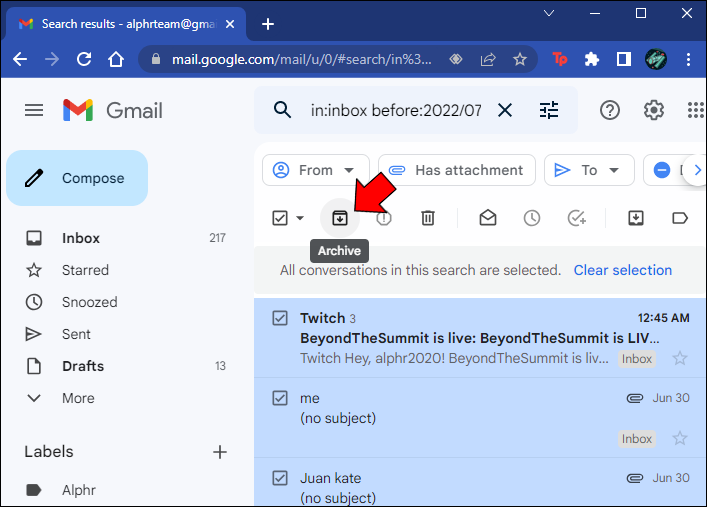
At its core, archiving an email is a way of filing a message away without deleting it. Unlike the “Trash” folder, which is a temporary holding zone destined for permanent removal, the “Archive” is effectively a permanent storage facility within the Gmail ecosystem.
Where Does Archived Mail Go?
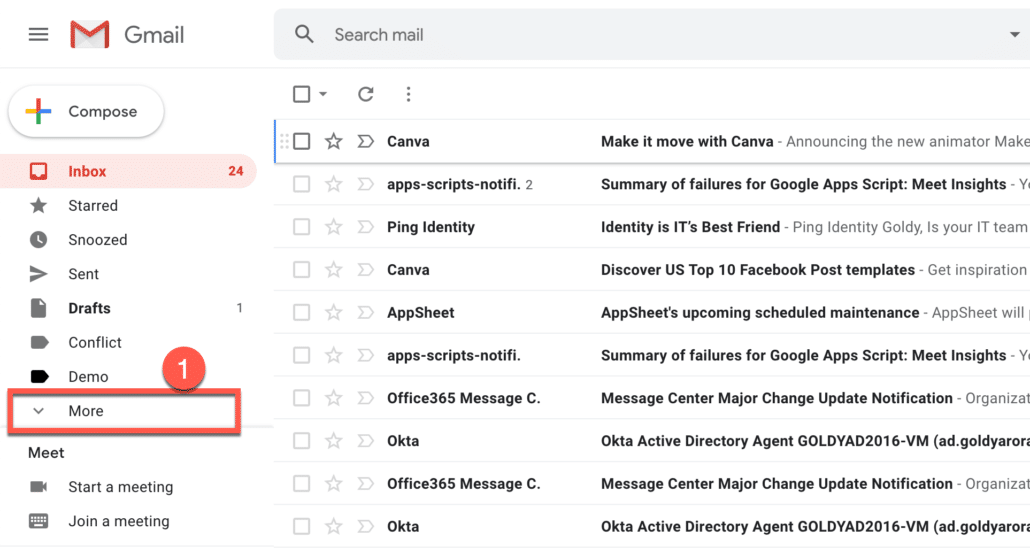
When you click the Archive button, the email is removed from your inbox view. However, it does not disappear into a void. Instead, it is moved to a label called “All Mail.” This label is the master repository for every message you have sent, received, or stored in your account, excluding those you have specifically sent to the Trash or Spam folders.
Archiving vs. Deleting: The Key Distinction
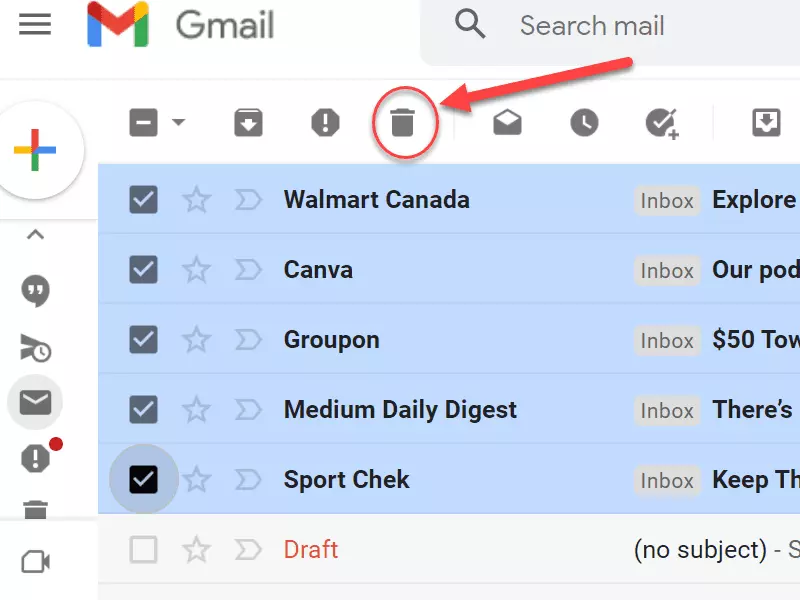
The primary confusion for new users lies in the difference between archiving and deleting. Deleting a message sends it to the Trash folder, where it will be permanently erased after 30 days. This action is irreversible once the Trash is emptied. In contrast, archiving is non-destructive. If you archive a message, it remains fully searchable and accessible at any time. It simply exits your immediate workspace, allowing you to focus on current priorities rather than historical data.
Why You Should Archive Instead of Deleting
In the modern digital landscape, data storage is abundant and often free. Gmail offers significant cloud storage, meaning there is rarely a technical necessity to delete old emails to save space. Embracing an “archive-first” mentality offers several strategic advantages for productivity and record-keeping.
Maintaining a Clean Inbox
The most immediate benefit of archiving is visual clarity. An inbox populated only by actionable items—emails that require a reply, a task, or a decision—reduces cognitive load. By moving completed conversations to the archive, you eliminate the noise that often distracts from high-priority work. When your inbox is empty or contains only pending items, your mental focus shifts toward execution rather than management.
The Power of Search
Google’s search architecture is perhaps the most robust in the industry. Because Gmail is built on this search-first philosophy, you do not need to manually file messages into complex folder hierarchies to find them later. When you archive a message, it remains indexed by Google’s algorithms. Years later, you can find a specific receipt, confirmation number, or project detail by using simple keywords. By relying on search rather than manual organization, you save hours of administrative time that would otherwise be spent filing messages into sub-folders.
The Safety Net Principle
Archiving acts as a safety net. If you delete a message, you lose it forever once the 30-day window closes. If you archive it, you possess a searchable digital history of your communication. In a professional or personal context, this can be invaluable. From legal documentation to tracking the history of a client relationship, having access to past correspondence allows you to reconstruct timelines and verify facts that you might otherwise have forgotten.
Integrating Archiving into Your Workflow
Archiving is not just a cleaning tool; it is a philosophy of email management. To maximize its effectiveness, you should integrate it into your daily routines.
The “One-Touch” Rule
The “One-Touch” rule is a productivity standard used by top performers. When you open an email, you should make a decision immediately:
- Act: Reply, forward, or complete the task if it takes less than two minutes.
- Delegate: Forward the email to the appropriate person.
- Defer: If it requires more time, move it to a specific “To-Do” folder.
- Archive: If the email is for informational purposes only or the task is finished, click Archive immediately.
By adopting this system, you ensure that no email occupies space in your inbox for longer than necessary.
Keyboard Shortcuts for Efficiency
Efficiency is the enemy of procrastination. Gmail offers powerful keyboard shortcuts that can accelerate your archiving process. By enabling keyboard shortcuts in your Gmail settings (Settings > See all settings > Keyboard shortcuts), you can archive any message simply by pressing the “e” key while viewing it. For power users managing hundreds of emails, this reduces the time spent clicking and dragging, turning email management into a rapid-fire, reflexive process.
Bulk Archiving
Often, an inbox becomes cluttered with newsletters, notifications, and automated updates that you no longer need to view. Gmail’s bulk action tools allow you to clear your inbox rapidly. You can select all messages from a specific sender and archive them in a single click. Combining this with Gmail’s “Filter” feature, you can create rules that automatically send certain types of emails directly to the Archive, bypassing your inbox entirely.
Managing the “All Mail” Repository
While the archive is a powerful tool, it can eventually become a vast, unorganized ocean of information. While search is your primary tool for retrieval, there are ways to keep your archive manageable.
Labels as a Complement to Archiving
Think of archiving as your “base,” and labels as your “filing system.” Archiving removes the clutter, but labels provide context. If you are working on a major project, applying a label to an email before archiving it keeps it linked to that project’s specific category. When you search for that label, you will retrieve every email associated with it, even if they have been archived for months. This hybrid approach—archiving for removal and labeling for organization—is the ultimate way to maintain a high-functioning Gmail account.
The Myth of Storage Anxiety
Some users fear that archiving will eventually reach their storage limits. While it is true that Gmail shares storage with Google Drive and Google Photos, text-based emails consume a negligible amount of space. Unless your archive is filled with massive attachments (high-resolution images, video files, or large PDFs), it will take an incredibly long time to reach your storage quota. If you are concerned about space, consider sorting your archive by size to identify and delete emails with massive attachments, rather than deleting your entire email history.
Conclusion: Mastering Your Inbox
The Archive button is the secret weapon of the digital minimalist. By shifting your perspective on what an inbox is—a workspace, not a storage locker—you can transform your relationship with digital communication. Archiving allows you to preserve your past without sacrificing your present focus.
In a world where information overload is a constant challenge, mastering the simple mechanics of Gmail archiving is an essential skill. It grants you the freedom to clear your screen, the confidence that your data is safe, and the efficiency to focus on what truly matters. Whether you are a student, an executive, or a freelancer, the archive is your partner in maintaining order in an increasingly noisy digital world. Start today by archiving the noise, keeping your inbox clean, and utilizing search to pull the past back into view whenever you need it.
aViewFromTheCave is a participant in the Amazon Services LLC Associates Program, an affiliate advertising program designed to provide a means for sites to earn advertising fees by advertising and linking to Amazon.com. Amazon, the Amazon logo, AmazonSupply, and the AmazonSupply logo are trademarks of Amazon.com, Inc. or its affiliates. As an Amazon Associate we earn affiliate commissions from qualifying purchases.